JSON Viewer Online: Explore Data as a Readable Tree
JSON is a text format for objects, arrays, strings, numbers, booleans, and null. A small object can be easy to scan, but nested API responses or configuration documents quickly become difficult to follow as a single block of text. A json viewer helps by presenting data in a structured way. Paste JSON into the editor above and choose View / Format to validate it, add two-space indentation, and build an interactive tree.
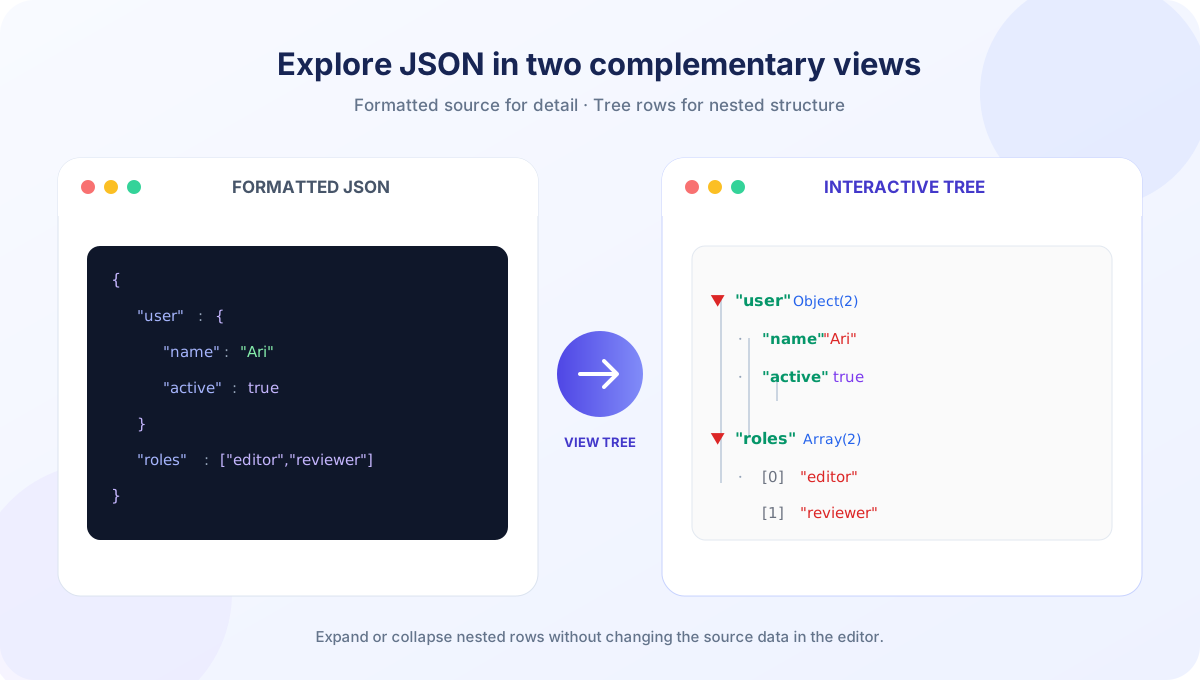
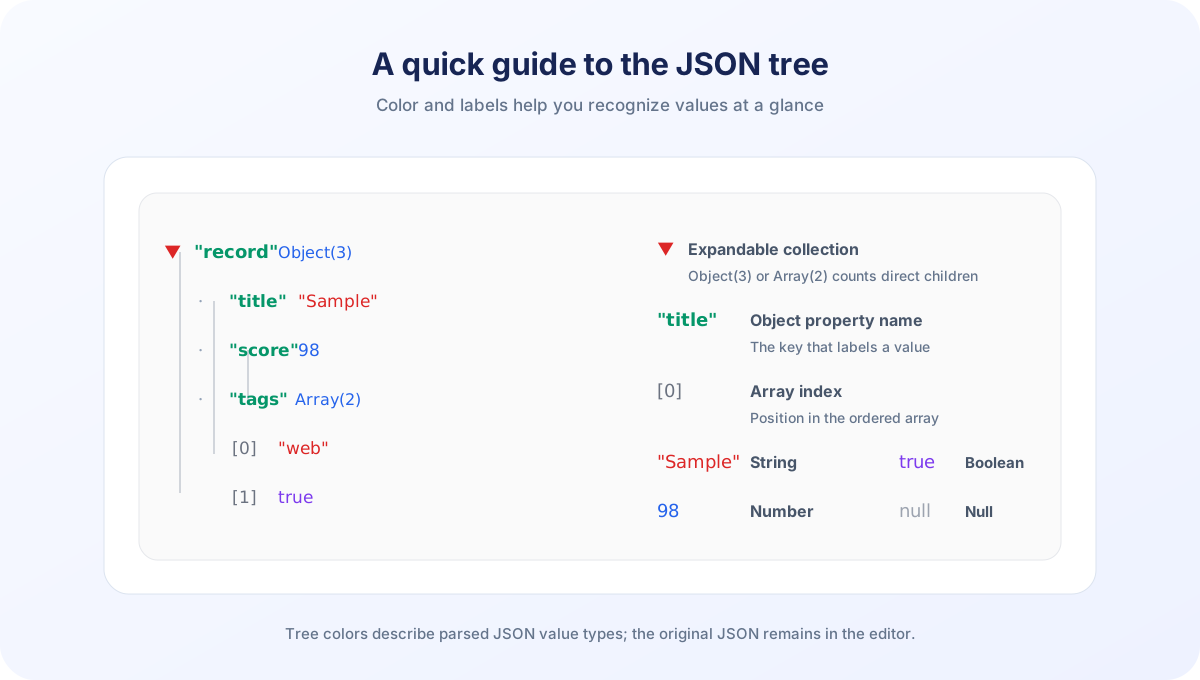
This online json viewer combines a source editor with a color-coded Tree View. Objects and arrays show a summary of their immediate members and can be expanded or collapsed by clicking the disclosure arrow. Strings, numbers, booleans, null values, and array indexes use distinct visual styles. You can also upload a .json file or load text from a URL when its server permits browser access. The viewer parses data in your browser; it is not a schema checker, database browser, or full application debugger.
How to View JSON with This Tool
The main View / Format action performs several steps together: it parses the editor text, writes a formatted version back into the editor, and constructs the tree from the parsed value. File and URL controls load source text first; they do not automatically build the tree.
- Enter or paste a JSON value. The editor accepts a JSON object, array, string, number, boolean, or null.
- Optionally load a source. Choose Upload File for a local .json file, or enter an HTTP/HTTPS address and choose Load URL if the remote server allows CORS.
- Choose View / Format. The browser parses the text. If it is valid JSON, the editor receives two-space indentation and the Tree View appears.
- Explore nested values. Click the arrow beside an object or array row to collapse or reopen its child rows. Primitive values appear as leaves.
- Use other actions when needed. Format, Sort, and Minify change the editor contents. Choose View / Format afterward to rebuild the tree from the current text.
You can also press Ctrl+Enter on Windows or Linux, or Command+Enter on macOS, while the editor is active. The shortcut runs the same View / Format action. The editor displays line numbers and the current cursor line and column, which can help orient you in a long source document, but it does not highlight syntax or pinpoint parser errors in a dedicated diagnostic panel.
If the input is invalid, the tool displays an “Invalid JSON” message and hides the previous tree. This prevents a stale tree from being mistaken for a visualization of the latest text. Correct the source and run View / Format again. The exact parser error message can vary by browser, and the viewer does not repair malformed input automatically.
Read the Tree: Objects, Arrays, and Values
An object is a collection of named properties surrounded by braces. In the tree, each property name is shown next to its value. An array is an ordered list surrounded by square brackets; the viewer labels array entries with their indexes, starting at zero. Nested objects and arrays appear as parent rows with an Object(N) or Array(N) summary and expandable child rows. The number in that summary counts direct properties or items, not every descendant.
| JSON value | Example | Tree representation |
|---|---|---|
| Object | {"user":{"name":"Ari"}} | Property row with Object(1), then nested key rows |
| Array | {"tags":["web","data"]} | Property row with Array(2), then [0] and [1] |
| String | {"city":"Lahore"} | Quoted string value |
| Number | {"count":12} | Numeric value |
| Boolean | {"active":true} | true or false value |
| Null | {"middleName":null} | null value, distinct from a string |
For example, consider a response object with a profile property, a list of roles, and a boolean active flag. The profile row can be expanded to inspect its fields; the roles row can be opened to inspect its indexed strings. The boolean appears as a leaf rather than an expandable node. This hierarchy makes the relationship between each key and value easier to follow than a dense one-line source.
Clicking a disclosure arrow hides only that node’s immediate displayed subtree; it does not remove any data or change the editor. Reopening the node restores its children in the tree. The tool does not provide a separate expand all, collapse all, search, filter, path-copy, or node-editing control. For very deep data, you can progressively collapse branches to focus on the section you need.
View JSON Files from Your Device
To view json file contents from your device, select Upload File and choose a .json file. The file input also accepts the application/json media type. Your browser reads the selected file as text and places it in the source editor. Then choose View / Format to parse the input and generate the tree. Uploading alone does not confirm that the document is valid and does not automatically produce a tree.
If you are wondering how to view json files without installing a desktop application, this browser page offers one option: open the viewer, upload the file, and inspect its formatted representation. If you ask “how do i view a json file” on Windows, the same browser steps apply; this is a web-based .json file viewer, not a native program or Windows file association. A file extension suggests the intended format, but the contents still need to be valid JSON.
When a file fails to parse, check that it contains one complete standard JSON value. Some configuration files use JSONC comments or trailing commas, while JSON Lines files contain a separate JSON value on each line. Those formats are not equivalent to a single standard JSON document, so use an appropriate parser or prepare the input according to the expected format. This viewer does not auto-detect or convert those variants.
The tool reads uploaded text in the browser and does not include a file-system browser, folder import, or batch-processing mode. If your document references external resources, the viewer does not import those resources because JSON is treated as data. The tree displays a string such as an image URL as a string value; it does not fetch or render that URL.
Very large files can consume browser memory because the complete text is parsed into a JavaScript value and then represented again as formatted text and tree nodes. The interface does not expose a maximum file-size setting. If a large export makes the page slow, consider inspecting a smaller subset, using a local editor, or processing the data with a streaming parser.
View JSON Online from a URL
You can enter an address in Load from URL and choose Load URL. If no HTTP or HTTPS scheme is present, the page adds HTTPS. The browser fetches the response as text and puts it in the editor, then displays a message that it loaded. To see the structured result, you still need to choose View / Format. This sequence separates retrieving a response from parsing it as JSON.
An online json viewer cannot bypass browser security rules. The target server must permit the cross-origin request through CORS. A page may be visible when opened directly in the browser but prevent a script on another site from reading its response. If loading fails, try pasting the JSON or uploading a local copy you are authorized to use.
A successful fetch only means that response text reached the editor. The response could be an HTML login page, an error message, or plain text rather than JSON. Run View / Format and inspect the parser result. This tool does not inspect API authentication, add custom headers, discover endpoints, crawl a website, or check an HTTP response against a schema.
URL loading makes a network request to the address you provide. Avoid entering sensitive credentials in a URL, and consider your browser and network environment when handling private data. Browser extensions, corporate proxies, and network policies can affect requests and content handling.
Formatting, Sorting, and Minifying While Viewing
The toolbar contains Format, Sort, Minify, Undo, Redo, and Clear. View / Format is the main action that parses JSON and builds the tree. Format, Sort, and Minify each update the editor, but the tool does not automatically recreate the tree after those toolbar actions. Run View / Format after changing the text if you want the tree to match the latest editor contents.
| Control | What it changes | Tree behavior |
|---|---|---|
| View / Format | Parses JSON and writes two-space formatted text to the editor. | Builds or refreshes the tree. |
| Format | Writes two-space indentation to the editor. | Does not rebuild the tree. |
| Sort | Recursively sorts object keys and formats the editor text. | Does not rebuild the tree; arrays retain their order. |
| Minify | Removes optional whitespace from the serialized editor text. | Does not rebuild the tree; meaningful string spaces remain. |
| Clear | Empties the editor and resets saved action history. | Hides and clears the tree. |
Formatting changes whitespace and indentation, not the intended structure in ordinary cases. Sorting changes object property order for readability or comparison; array order remains meaningful and is not sorted. Minifying removes whitespace outside strings and does not shorten keys or compress the JSON into an archive. Each operation parses and serializes the data, so exact source spelling is not guaranteed to survive unchanged.
Undo and Redo navigate recorded states from loading and toolbar operations. The history stores up to 50 states; normal keystrokes are not saved as their own state by this tool. Clear resets that saved history and hides the current tree. The viewer does not provide a dedicated Copy Tree, Export, or Download button; select text in the editor if you need to copy the source.
JSON Syntax and Parsing Limitations
The viewer relies on the browser’s JSON.parse function. Property names and strings require double quotes; comments, trailing commas, single quotes, and unquoted JavaScript identifiers are not standard JSON. A document must contain one parseable JSON value. If parsing fails, the error message comes from the current browser and can differ in wording and detail.
Parsing and serializing also normalize the representation. Duplicate object keys are not reported by JSON.parse; the later value replaces an earlier occurrence before the tree is created. If your source contains duplicate names, the tree cannot show both original entries. For data quality requirements that forbid duplicate keys, use a parser or linter that explicitly detects them before parsing into a regular JavaScript object.
JavaScript numbers use the Number type, which cannot exactly represent every integer above 9007199254740991. A very large unquoted integer can be rounded during parsing, then shown or formatted with a changed value. If a number is an identifier or exact amount, store it as a quoted string when the data contract permits, or use a lossless JSON parser. This viewer does not warn about numeric precision loss.
Object key order is not a reliable data contract, and sorting is not a canonicalization algorithm for signatures or hashes. Arrays, on the other hand, preserve their item order in the data. Use a canonical JSON standard when a precise byte representation is required, and keep an original copy before formatting, sorting, or minifying files whose exact textual form matters.
Valid JSON does not necessarily mean useful or acceptable data. The viewer does not check required fields, types expected by an API, value ranges, database constraints, permissions, or a JSON Schema. A tree is a visual exploration aid, not a full data quality report or security analysis.
The tree shows the value the browser parsed. For exact source preservation or schema rules, use a workflow designed for that requirement.
JSON Viewer, Formatter, and Validator: Choose the Right Tool
Searches for view json, json view, or json view online often describe different tasks. This viewer is for exploring nested data in a tree. JSON Formatter is useful when your main goal is consistent indentation, key sorting, or compact output. JSON Validator focuses on whether a text value parses as JSON. These tools can share some parsing actions, but their primary purpose and displayed result are different.
As a json viewer tool, this page focuses on browsing parsed values rather than generating a report. A json online viewer can be handy when you need to open a sample in a browser, while a local application may be more appropriate for repeated work, offline access, or very large documents.
If a JSON string contains HTML, the tree still treats it as a string; it does not render the markup. Use HTML Viewer for a trusted HTML snippet you want to preview. To transform XML before exploring it, use XML to JSON, then inspect the produced JSON here. If you need to compress JavaScript source rather than JSON data, JavaScript Minifier is the relevant tool. JavaScript and JSON may look similar, but they have different syntax and purposes.
An online json viewer can be convenient for short and medium-sized responses, sample data, and local JSON documents. A best json viewer depends on whether you need a collapsible tree, search, schema checks, large-file streaming, editing, export, or integration into a development environment. This page provides a browser tree and basic editor actions; it does not include every advanced feature found in desktop IDEs or specialized JSON tools.
For the same reason, a json document viewer or json file viewer should be chosen based on how it handles file size, precision, and privacy. The phrase .json viewer may mean an app associated with a file extension, while an online .json viewer means opening a web service in a browser. This tool is the latter: a browser page that reads a selected file and renders its parsed data, not a native Windows file association.
A query such as json viewer windows may refer to a Windows desktop utility. You can instead open this json viewer online from file in a Windows browser and upload a document. Searches like json viewer file or json viewer' may simply be shorthand or punctuation variants for the same task. Whatever the phrase, check that the viewer is suitable for your file and does not promise schema validation or exact-number preservation unless those capabilities are present.
From XML and JavaScript to JSON Data
JSON commonly appears as an API response, an application setting, an export, or a data fixture. XML can represent similar information but uses elements and attributes rather than JSON objects and arrays. Converting XML to JSON requires mapping choices for repeated elements, attributes, namespaces, and mixed text; the resulting structure may not preserve every XML detail. After conversion, inspect the output tree and compare it with the original meaning before using it in another application.
JavaScript is a programming language that can create and manipulate objects, while JSON is a text data format. A JavaScript object literal may use unquoted keys, comments, functions, or undefined values that are not valid JSON. The viewer accepts JSON text, not arbitrary JavaScript source. If a string value contains JavaScript code, it remains data in the tree; the viewer does not evaluate that code.
Very large API responses can be difficult to explore even with a tree. Collapse unrelated branches and work with a smaller response when possible. For an automated pipeline, validate and filter data with code or a purpose-built command-line tool rather than manually navigating a large browser tree. A rendered tree is most useful for understanding structure and spot-checking values.
Using the JSON Viewer on Windows and Mobile
This json viewer windows workflow runs in a modern desktop browser on Windows: open the tool page, select Upload File, choose your .json document, then run View / Format. The page is not a separate Windows program, does not register itself as the default application for JSON, and does not edit the file on disk. Save any changes through a separate editor or application.
The responsive web interface can also be opened on a mobile browser, but long source documents are harder to edit on a small screen. The text editor, toolbar, and tree may require scrolling, and the page does not emulate a desktop development environment. For detailed work, use a larger screen; for quick inspection, upload or paste the relevant data and expand only the branch you need.
File access is mediated by the browser’s own file picker. The viewer reads the selected document as text and keeps its working representation in the page. It does not scan folders or automatically associate related files. If a file is sensitive, follow your organization’s data-handling rules and consider your browser profile, extensions, and network environment.
Troubleshooting a JSON Tree
The file loaded but there is no tree
Upload File and Load URL place text in the editor but do not build the tree. Choose View / Format after loading. If the result is an error, inspect the returned content and confirm that it is one standard JSON document.
The tree shows an error for a configuration file
The file may use JSONC comments, trailing commas, YAML, JavaScript syntax, or JSON Lines rather than standard JSON. This viewer uses the native JSON parser and does not convert those variants automatically.
I changed the editor but the tree did not change
The tree is not live-updated for every keystroke. Select View / Format to parse the current editor contents and rebuild the tree. Format, Sort, and Minify update text without refreshing the tree.
A large number looks different
JavaScript may round integers beyond its exact safe range when parsing JSON. Use quoted strings for precision-critical values when allowed by your data contract, or use a lossless parser and compare with the original file.
The URL loaded an unexpected response
Check the editor contents. A URL may return an HTML error page, authentication screen, or other text. CORS controls whether the browser can read the response, and the viewer does not verify that a loaded response is JSON until you choose View / Format.
Conclusion: Explore Structure, Preserve the Source
This json viewer online tool turns pasted, uploaded, or CORS-accessible JSON text into a formatted editor view and an interactive tree. Expand nested objects and arrays to inspect their values, and use Format, Sort, or Minify for text changes. Run View / Format after loading or editing to refresh the tree. Remember that parsing can normalize duplicate keys and large numbers; schema validation and exact source preservation require separate tools and workflows.


