Word Changer: Find And Replace Text With Control
The SnapZain word changer is a focused find-and-replace tool for text you paste into the page. Enter a source passage, choose a word or phrase to find, provide the wording that should replace it, select matching options, and run Replace all. The result appears separately so you can review it before copying. This makes the tool useful for repeated edits such as changing a product name, updating a term across a draft, or replacing a placeholder.
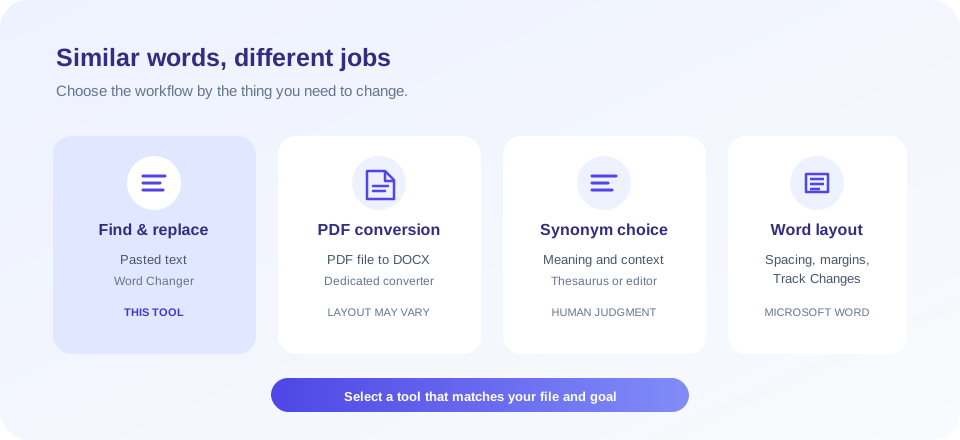
It does not decide what a sentence means. It is not an AI paraphraser, synonym engine, grammar checker, document editor, PDF converter, or Microsoft Word control panel. You choose the replacement yourself, and the tool applies that same replacement to each match according to the settings. A mechanical text replacement can be fast, but it cannot judge tone, grammar, names, or whether a phrase should stay unchanged in a particular context.
Searches for terms like change words or change different words can mean many things: a global substitution, an alternative phrase, rewriting for style, changing a document format, or editing a Word file. This guide explains the exact behavior of this tool, how to use it carefully, and when another kind of editor is the right choice.
How To Change Words In A Text
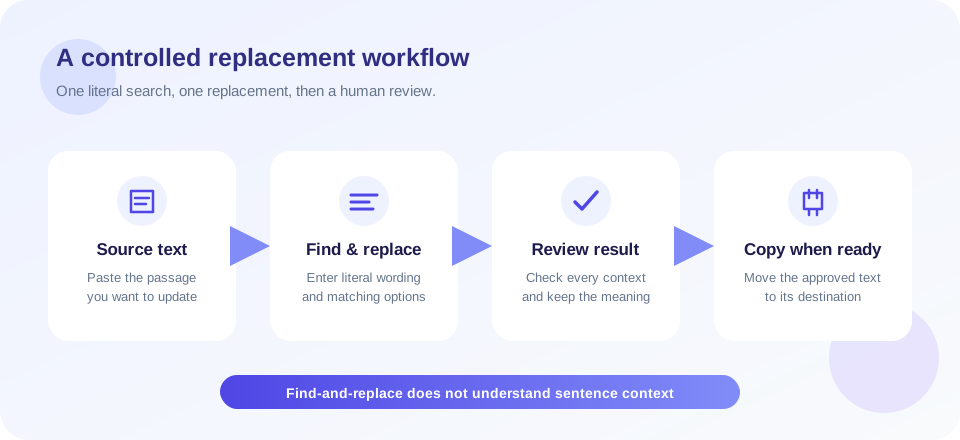
Follow a short, deliberate workflow. It helps prevent a small edit from changing a title, address, or technical identifier that only happens to contain the same letters.
- Paste your source text. Use the Source text box and check that the passage is complete. The result is based on this input, not on an uploaded file.
- Enter the exact search phrase. The Find field accepts literal text. Characters such as brackets, periods, or asterisks are treated as ordinary characters rather than regular-expression instructions.
- Enter the replacement. Put the new word or phrase in Replace with. Consider whether grammar, capitalization, singular/plural agreement, and nearby punctuation still make sense.
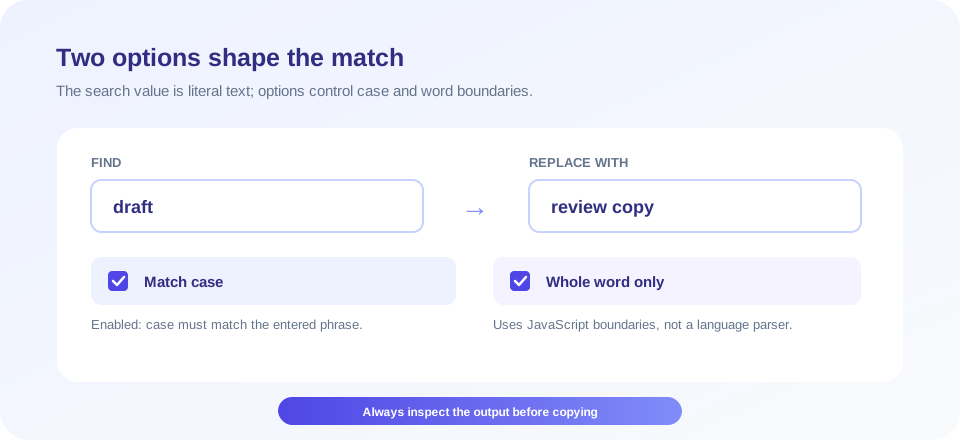
- Choose matching behavior. Match case controls uppercase and lowercase differences. Whole word only adds JavaScript word boundaries around the search phrase.
- Select Replace all. The tool searches globally and creates a separate result. If Find is empty, the current implementation displays the source text in the result instead.
- Proofread the whole result. Look for unintended matches and awkward sentences. Then use Copy if the output is correct.
For example, replacing “old plan” with “updated plan” can make a repeated naming change. With case-insensitive matching, “Old Plan” may also be replaced while preserving the exact capitalization of the replacement you entered is not guaranteed; the tool inserts the same replacement string each time. If capitalization must vary by context, perform separate targeted passes or edit those occurrences manually.
Keep an unchanged copy when the text is important. The tool does not show a revision history, an undo timeline, or a side-by-side difference view. You can keep the original in a local document, then compare the result before using it in a published page or official communication.
Understand The Find And Replace Options
| Control | Behavior | What to review |
|---|---|---|
| Find | Searches for the literal text you enter. | Check spaces, punctuation, and whether you need a full phrase. |
| Replace with | Uses your supplied replacement for each match. | Confirm grammar and capitalization in every context. |
| Whole word only | Adds JavaScript word-boundary markers around the search. | Boundaries are not a complete language-aware tokenizer, especially for Unicode text. |
| Match case | Requires case to match when enabled; ignores case differences when disabled. | Case-insensitive matches still use one replacement string. |
| Replace all | Replaces all matching occurrences in the source text at once. | Review names, URLs, identifiers, and negative or quoted contexts. |
| Copy | Copies the result text to the clipboard when supported by the browser. | Clipboard permissions and secure-context requirements can vary. |
The tool escapes regular-expression punctuation in the Find value before creating its search pattern, so the search is intended as literal text rather than a regex. The replacement value is used by JavaScript’s string replacement operation, where certain dollar-prefixed sequences have special meaning. If your replacement includes sequences such as $& or $$, inspect the result carefully; they may not be inserted as plain characters in the way you expect.
Whole word behavior also deserves care. JavaScript’s \b boundary is based on a limited definition of word characters, and it is not a dictionary, grammar parser, or language-aware segmentation algorithm. For words containing accented letters or scripts outside common Latin letters, try a small test passage first and review what was matched. When exact linguistic boundaries matter, use a dedicated tool built for that language or perform a manual review.
Another Word Of Changing: Find A Better Fit By Meaning
Sometimes someone searching for another word of changing is not trying to replace every occurrence. They may be looking for a more precise verb, a synonym, or a clearer expression. This tool does not generate alternatives. You need to select the new word based on the sentence’s meaning and audience.
As a vocabulary question, another word for change might be “adjust,” “revise,” “modify,” “replace,” “transform,” “update,” or “shift.” The best option depends on what is changing. “Revise a draft” means edit it; “replace a component” means use a different one; “transform a process” suggests a broader change. These words are related but not interchangeable in every sentence.
If you are asking for another word for changes, consider the sentence first: “updates” may describe new information or versions, “revisions” may describe edits, “adjustments” may describe small corrections, and “transitions” may describe movement from one state to another. The noun “changes” does not have one perfect substitute in every context. A replacement tool can swap the same text everywhere, but it cannot determine which sense is intended.
Likewise, other words for change can include nouns such as “revision,” “update,” “adjustment,” “shift,” “alteration,” or “transition.” Choose a term that preserves the degree and type of change rather than selecting a synonym only because it looks different. A thesaurus can suggest candidates, but the final sentence should be read in context.
If you need another word for changing, possibilities include “modifying,” “adjusting,” “revising,” or “altering.” If you need another word for changed, consider “revised,” “updated,” “modified,” or “adjusted.” The right choice depends on tense, subject, and meaning. This Word Changer can apply the phrase once you decide what to use, but it will not make that editorial decision for you.
Different Words For Change, Changed, And Changing
Some phrases that sound similar describe different grammatical forms. A person asking for different words for change may want a noun or a verb; a request for different word for changing usually needs an -ing form; and different words for changed calls for a past-tense or participle alternative. Think about how the candidate fits the full sentence.
| Expression | Possible alternative | Example context |
|---|---|---|
| change (verb) | revise, adjust, alter, update, replace | Change the schedule → revise the schedule. |
| change (noun) | revision, adjustment, update, shift, transition | A change in policy → a policy revision. |
| changing | adjusting, revising, modifying, shifting | Changing the layout → adjusting the layout. |
| changed | revised, updated, modified, altered | The changed version → the revised version. |
| changed other words | replaced other terms, revised additional wording | Describe the specific edit instead of using a vague phrase. |
The phrase changed other words is not a fixed synonym by itself. In a sentence, it may mean that additional words were replaced or that other wording was revised. Prefer a concrete description that tells the reader what was changed and why. After choosing a replacement, use the tool only when all matches should receive the same new wording.
A global replacement is best for a consistent label or a known typo. It is less appropriate when a term has multiple meanings, when the same phrase appears in quotations, or when a noun and a verb require different alternatives. In those cases, review occurrences one by one instead of relying on Replace all.
What This Word Changer Does Not Do
This page works with text in the source box. It does not locate words on a website, edit a downloaded file, preserve formatting from a document, or automatically save your output. It also does not select synonyms, rewrite for tone, check facts, correct grammar, or detect plagiarism. A find-and-replace tool follows the rule you give it, even when the sentence becomes incorrect.
It is not an online Microsoft Word interface. The word “Word” in Word Changer describes changing words in text; it does not mean that this tool can open a .docx document or modify Microsoft Word’s layout settings. It does not include track changes, comments, page margins, fonts, or line spacing controls.
Use it for repeatable text substitutions, not as a substitute for an editor that understands document structure. If you need to edit a file, convert a PDF, or compare document versions, select a workflow that explicitly supports those formats and review its output before sharing it.
PDF Conversion Is A Separate File Task
Converting a PDF into an editable document is different from replacing wording in pasted text. A dedicated converter extracts text and reconstructs a document, but the result depends on the source file. Text-based PDFs may convert differently from scanned images; complex tables, columns, footnotes, fonts, page breaks, and headers can shift. Review the converted document page by page and keep the original PDF for comparison.
Conversion services may have file-size, feature, usage, or privacy limits. Read the file-handling information before uploading confidential documents, and avoid sending sensitive files to a service that is not approved for your data. Conversion maps page layout into another document format; it is not the same operation as a find-and-replace edit.
Scanned pages often require optical character recognition before their words can be edited, and recognition quality depends on image clarity, language, contrast, and page alignment. Inspect names, numbers, punctuation, and tables especially closely; a document can appear visually similar while containing extraction mistakes. If the result will be signed, filed, or used as an official record, compare it against the source and retain both versions. Avoid converting password-protected or restricted documents unless you have permission and an approved workflow.
Microsoft Word Layout And Review Questions
Queries such as how to change line spacing in Word and how to change spacing in Word refer to paragraph formatting in Microsoft Word. A general approach is to select the relevant paragraphs and use the Line and Paragraph Spacing controls on the Home tab, or open paragraph settings for more precise values. Menu names and locations can vary by Word version and platform. The Word Changer on this page cannot adjust line spacing because it does not edit a Word document.
To learn how to change margins in Word, use the document’s Layout or Page Layout controls and choose a margin preset or set custom values. Confirm whether you intend to apply the change to the whole document or a section. Margins affect page layout and printing; they are unrelated to replacing a word in a pasted text box.
For how to change default font in Word, use Word’s font settings or modify the default style/template according to the version you use. A document can also have local formatting that overrides a default. This tool does not change any font preference or style setting.
Word Track Changes is a review feature used to mark edits so collaborators can accept or reject them. Searching for how to turn on track changes in Word or how to turn off track changes in Word means changing that review mode within Word, not running an online find-and-replace operation. This page has no access to Word’s controls and does not generate a tracked revision or comments.
Keep these tasks distinct: a word replacement edits text content; line spacing, margins, and fonts change presentation; Track Changes records revisions; and PDF-to-Word conversion changes a file format. Choosing the correct operation protects the original document and avoids expecting one browser tool to perform unrelated tasks.
Safe And Accurate Bulk Replacements
Replacing all matches can save time, but first ask whether every occurrence should change. A term may appear in a URL, email address, code identifier, product model, proper name, or quoted statement. A replacement that makes sense in a paragraph can break an address or alter the meaning of a quotation.
- Test a distinctive phrase. Choose enough context to avoid matching unintended substrings.
- Consider case. Turn Match case on if capitalization matters; remember that one replacement value is used for each match.
- Use whole-word matching cautiously. It can help with ordinary words but is not fully language-aware for all scripts or accented text.
- Review every output region. Search the result for the new term and inspect surrounding sentences, not just the first example.
- Preserve the original. Keep a separate copy before applying a broad substitution, especially for policy, legal, or published material.
- Do not paste secrets casually. Use only content you are permitted to process in a browser tool and check applicable privacy rules.
The tool shows a result in a separate panel, which gives you an opportunity to check the modified text. It does not report a change count, highlight individual differences, or guarantee that every grammar case remains correct. For a critical document, compare the original and result with a dedicated diff or review feature.
Choosing A Related Writing Tool
Use a find-and-replace tool when the same known phrase needs a consistent mechanical substitution. If you need to write or revise ideas, different tools may be more appropriate. Online Notepad is for drafting or keeping notes in its own editor workflow. The Rewording Tool and Sentence Rewriter can help explore alternative phrasing, but review every suggested sentence for meaning and accuracy. The Paragraph Rewriter is aimed at paragraph-level wording rather than a literal replacement pass.
Automated rewriting should be treated as a draft aid. Preserve facts, sources, terminology, and your intended voice. Do not submit generated wording without checking it, and do not use a tool to disguise copied work. When you simply need every occurrence of a known label changed to another known label, this Word Changer’s literal replacement behavior is more predictable than asking a writing assistant to rewrite the entire passage.
Word Changer Summary
SnapZain’s word changer makes a specific text edit: it finds a literal word or phrase in text you provide and replaces matches with your chosen wording. Case matching and a whole-word option help control the search, and a separate result lets you inspect the change before copying. The tool does not understand context, recommend synonyms, change a PDF into Word, or modify Microsoft Word formatting.
Before using Replace all, decide whether every occurrence should change. Then review the complete output, keep an original copy when it matters, and choose a specialized application for files, document layout, or language-aware rewriting. A careful review is part of the replacement process—not an optional final step.
Conclusion
Fast replacement is useful when the rule is clear; careful reading is what makes the result right.


