CMS Checker: Check the CMS of a Website Online
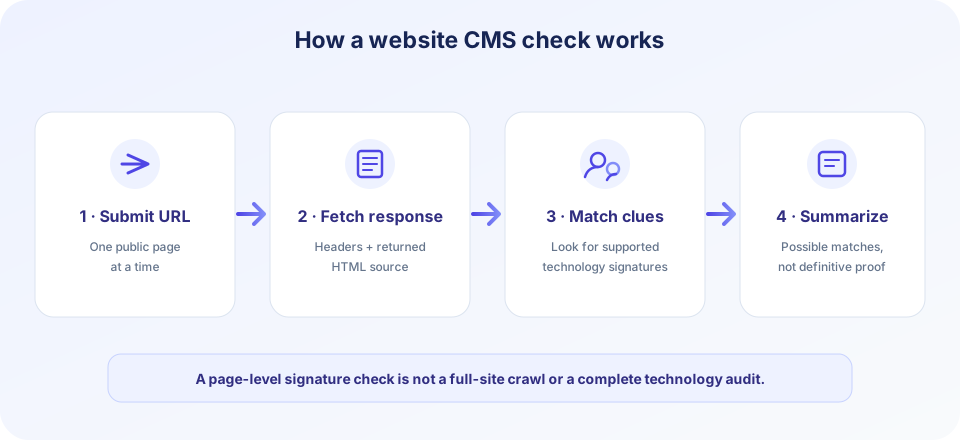
A CMS checker looks for public clues that can help identify the content management system or other technologies behind a website. Enter a website address in the checker above and select Check Website. The tool requests that page and examines response headers and a portion of its HTML for recognizable indicators such as generator metadata, platform-specific paths, and framework patterns.
Use the result as a starting point, not a definitive audit. A site can hide platform signatures, use custom code, or include libraries that are shared by many systems. A result such as “Not detected” means the checker did not find a supported clue in the response it examined; it does not prove that the website has no CMS.
This guide explains how to check CMS details with the current Website Checker, what it looks for, why CMS checks can be incomplete, and how to interpret the results responsibly. It is a single-page inspection tool—not a crawler, vulnerability scanner, uptime monitor, or complete technology inventory.
How To Check The CMS Of A Website
To check a website CMS with this online tool:
- Enter a website URL. Include the hostname, such as
https://example.com. If you omit the protocol, the checker adds HTTPS. - Select Check Website. The page sends the address to its website-checking endpoint, which attempts to request the page.
- Review the summary cards. If public signals are found, the result can include CMS or platform, server, framework, page builder, or JavaScript framework clues.
- Inspect additional technologies. Other recognizable patterns may appear in the detected technology list.
- Check iframe information. If iframe tags are found in the scanned HTML portion, the result can show their count and a limited list of source values.
- Verify important findings. Treat results as clues and confirm them through authorized documentation or the site owner if accuracy matters.
The checker requests only the URL you enter. It does not follow internal links to inventory the rest of the website, log into an account, or inspect private administrative dashboards. A different page on the same site may expose different technology clues.
If you want to check the CMS of a website quickly, choose a representative public page and compare the checker’s possible matches with information you can verify independently. This website CMS check can be useful when researching a platform before choosing compatible tools or discussing a redesign, but it cannot tell you which theme, plugins, hosting plan, or private server configuration a site uses unless those details are visibly exposed in the response.
What This Website CMS Checker Examines
The backend makes an HTTP request and, when it receives a successful response, examines response headers and HTML patterns. The visible output may include a server header, generator header or meta tag, and signatures associated with selected platforms and libraries. Examples include WordPress, Drupal, Joomla, Laravel, Shopify, Elementor, React or Next.js, Vue, Angular, Bootstrap, Tailwind CSS, and jQuery.
These are signature-based checks, not an exhaustive analysis. Some clues are explicit, such as a generator meta tag. Others are indirect, such as a familiar asset path or framework marker in the HTML. A clue can be removed, copied, cached, or produced by a different configuration. A technology may also be present only in resources that were not included in the returned page source.
| Result category | Possible clue source | Interpretation |
|---|---|---|
| CMS / Platform | Generator metadata, platform-specific paths, or markup | A likely platform match from recognized response signatures. |
| Server | HTTP response headers | Only shown when a server header is exposed; headers may be suppressed or customized. |
| Framework | Cookies, markup, build paths, or framework patterns | An indication based on detectable clues, not a verified server configuration. |
| JavaScript / CSS tools | Recognizable names or class patterns in HTML | May detect common libraries but can have false positives or omissions. |
| Iframes | Iframe tags in a portion of the returned HTML | A count and limited sources; embedded destinations are not audited. |
How To Check CMS System Results
When you check a CMS system, focus on the evidence behind the result rather than treating a label as a guarantee. Websites often use multiple layers: a CMS may manage content while a separate frontend framework renders the pages, a page builder controls layouts, and a CDN or reverse proxy serves the response. One site can therefore use several technologies at once.
The checker groups some common detections in summary cards and lists other clues separately. It may show a CMS and a framework for the same page, or multiple framework-like names if different signatures appear in the markup. That does not always mean every detected library is actively driving the page; code can be bundled, unused, or left over from an earlier deployment.
If a result says “Not detected,” the check CMS system process did not find a recognized CMS clue in the examined response. The website may be custom-built, may conceal identifying paths, or may rely on technology outside the checker’s current signature set. A neutral result is not evidence of a problem with the website.
People use several phrasings for the same task, including “check CMS of website,” “check website CMS,” “check CMS online,” “check CMS website,” and “check site CMS.” Whatever wording you use, the result describes clues found on the requested page, not a verified statement about every part of a site. Repeating the same CMS check on several public pages can reveal different signatures, but each result is still based on the returned source and should be interpreted cautiously.
What A CMS Result Can And Cannot Tell You
A positive match can help answer questions such as whether a site appears to use a familiar CMS or whether a page includes a recognizable JavaScript library. It does not necessarily reveal the exact software version, whether the technology is currently active, or how the site is configured. Public pages are designed to expose content, not to publish a complete technology bill of materials.
Similarly, the absence of a match is not a negative audit result. A business may intentionally remove platform names from source code, use a headless CMS whose frontend does not expose the CMS, or serve a static export generated from a separate system. A website may also contain only minified or bundled assets with few readable signatures. In those cases, a website CMS checker may return limited information even when the owner knows exactly which CMS runs the publishing workflow.
Use this tool to formulate a follow-up question, not to make a high-impact decision on its own. For procurement, migration planning, compliance, or security work, confirm the platform with the owner or with authorized source, hosting, and deployment records. Do not infer weaknesses or target a system based solely on a detection label.
Why CMS Checks Are Estimates
Technology detection from a public page is inherently incomplete. A website owner can remove generator tags, rewrite asset paths, bundle scripts, serve cached HTML, or place the site behind a CDN. A site may also display different markup to different user agents or geographic regions. The checker analyzes the response it receives, which may not match what every visitor sees.
Some signatures are not unique. A string such as a library name may occur in documentation, comments, or unrelated content. A framework marker can be emitted by a plugin or another build tool. Conversely, a platform can be installed without exposing any of the clues this checker recognizes. These limitations mean detections are best used for a quick overview, not as sole evidence in procurement, compliance, security, or competitor research.
For a reliable inventory of a site you own, consult your deployment records, package manifests, hosting configuration, CMS administration, and source repository. For a third-party site, ask the owner or rely on information they have chosen to publish.
CMS Checker Versus A Full Website Audit
A CMS check answers a narrow question: what platform or technologies might be inferred from a page’s public response? A full website audit may include content, accessibility, performance, search visibility, security configuration, source dependencies, and multiple routes. The Website Checker does not perform those broader tests.
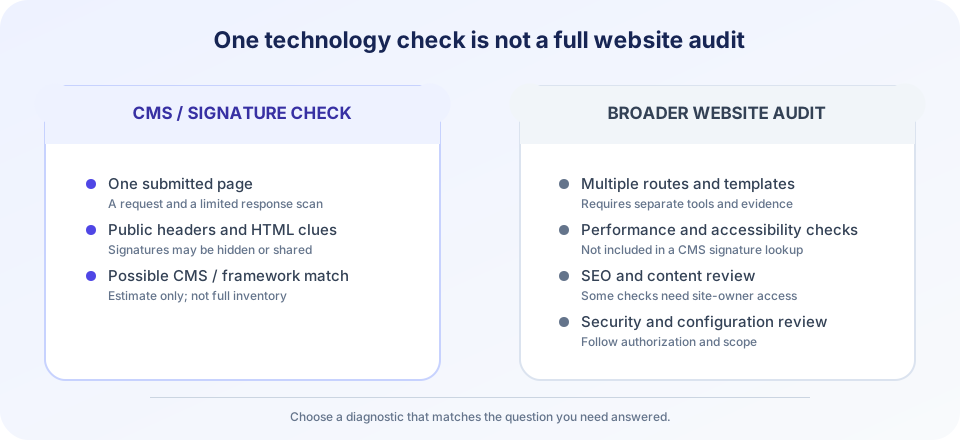
The distinction helps prevent overinterpreting a result. Detecting a framework does not tell you whether the site is fast, accessible, secure, or search-friendly. Finding an iframe does not determine whether its content is safe or correctly configured. Each question requires a test designed for that purpose.
Website Availability And Request Errors
The checker attempts to fetch the supplied page, and it can report an error when a request fails, takes too long, or returns an unsuccessful HTTP status. This is a one-time request from the checker’s server. It is not continuous uptime monitoring, and it does not guarantee that the website is reachable from every visitor’s network or region.
A site may block automated requests, require a browser challenge or authentication, rate-limit traffic, or return different content to server-side requests. DNS, TLS, redirects, and network availability can also affect the result. If the check fails, try the site’s canonical HTTPS address and confirm it loads in an ordinary browser; do not infer that the site is universally down based on one failed check.
The response must be successful for the tool to proceed with its technology analysis. A server can return an error page that itself contains platform clues, but this tool reports unsuccessful HTTP responses as a failed website check rather than a technology report.
Iframe Results And Their Limits
An iframe embeds another browsing context inside a page. The checker looks for iframe opening tags in a limited portion of the returned HTML and may show the number found and up to ten source values. This is a quick structural clue—not a complete inspection of embedded content.
It does not load or audit each iframe, inspect dynamically created frames that are absent from the fetched HTML, or determine whether an embed is safe, accessible, or working. A page can create iframes with JavaScript after initial HTML, and a static source scan may not see those additions. A listed source may also be relative or blank rather than a fully qualified address.
Do not treat iframe presence as a vulnerability by itself. Review the context, origin, permissions, sandbox settings, and content policy using an authorized assessment if you own or manage the website.
Check My CMS Or Check A Public Website
If you want to check your CMS, use a public page that is intended to be accessible and compare the result with your own platform settings. The tool does not sign in, read an administrator account, or reveal hidden server configuration. If the website is private or staging-only, use internal documentation and approved diagnostic tools.
For third-party websites, use this checker only for legitimate, non-invasive inspection of public pages and follow the website’s terms and your organization’s policies. The checker makes a request to the address you submit. Do not use it to probe private networks, internal services, or systems you are not authorized to assess.
Because technology signatures are visible clues, they can help a site owner understand what public metadata a page exposes. They should not be used to assume a site’s security posture or identify exploitable weaknesses. Keep software versions and internal details protected through proper configuration and security processes.
Privacy And Submitted URLs
When you submit a URL, the browser sends it to the Website Checker endpoint, and the server attempts to request that site. The destination receives a request from the checker’s infrastructure, not a browser-based scan of your own session. Review SnapZain’s current privacy policy for details about logging and retention of submitted requests.
Only submit URLs that you are comfortable asking the tool to fetch. Do not include private query tokens, session identifiers, or credentials in a URL. The checker is intended for publicly accessible website pages, not authenticated private resources.
Related SnapZain Tools
For complementary website tasks, use URL Encode to encode a URL component, URL Opener to open a reviewed list of links in tabs, Robots.txt Generator to draft crawler directives, or XML to JSON to convert XML structures into JSON. The What Is My Browser page currently displays public IP and approximate network information, not browser identification.
Website CMS Check Checklist
- Enter a public page URL you are authorized to check.
- Use the detected CMS and technologies as clues, not guaranteed facts.
- Remember that the tool checks one response rather than crawling every site page.
- Treat “Not detected” as an unsupported or hidden signal, not proof there is no CMS.
- Understand that iframe counts and technology signatures are limited to the HTML examined.
- Use separate tools for uptime monitoring, SEO, performance, accessibility, and security.
- Confirm important platform details through authorized records or the site owner.
Conclusion
This website CMS checker offers a quick way to check CMS clues online from a public page. It requests the address you provide, looks for a defined set of headers and HTML signatures, and presents possible technologies and iframe details. Since websites can hide, change, or share those signals, interpret the result as an informed estimate rather than a complete or definitive report.


