JSON Formatter Online: Make JSON Easier to Read
JSON is a text format for representing data with objects, arrays, strings, numbers, booleans, and null. Compact JSON is useful for transmission, but a long line is difficult to inspect or edit. A json formatter adds consistent indentation and line breaks so the structure is easier to follow. Use the formatter above to paste JSON, upload a file, or try loading text from a URL, then format, sort, or minify the contents in the editor.
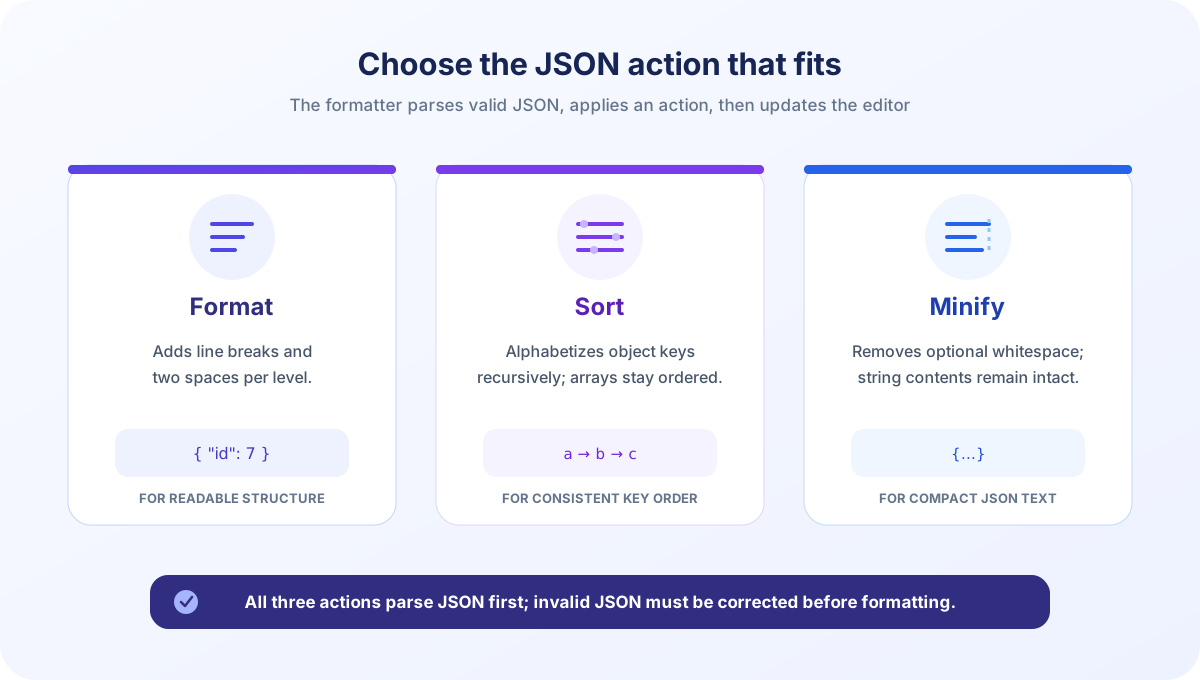
This json formatter online runs its formatting actions in your browser with the built-in JSON parser and serializer. The Format action prints two spaces per nesting level. Sort alphabetizes object keys recursively without changing array order, and Minify removes optional whitespace. These actions change the text in the same editor rather than opening a separate result pane. The examples below describe the controls and the important limits of parsing and re-serializing JSON.
How to Use This Online JSON Formatter
The page combines a text editor with file and URL loading controls and a small set of transformations. You can start with pasted text or bring a document into the editor. Formatting is an explicit action, so loading a file does not automatically validate or beautify its contents.
- Enter JSON. Paste the JSON text into the editor. You can also select Upload File and choose a JSON or text file; the browser reads its text into the editor.
- Optionally load a URL. Enter a web address in Load from URL and select Load URL. The browser must be able to access that address under its cross-origin resource sharing (CORS) rules.
- Choose what to do. Select Format JSON or the Format toolbar action for readable indentation. Select Sort to alphabetize object keys, or Minify to remove optional formatting whitespace.
- Review the editor. The selected operation replaces the editor contents. Read any success or parse-error message and inspect the transformed text before using it elsewhere.
- Copy what you need. Select the text in the editor and copy it with the browser or keyboard. The current tool does not show a dedicated copy, download, or save button.
For keyboard use, Ctrl+Enter on Windows and Linux or Command+Enter on macOS runs the main format action. The editor also displays line numbers and the current caret line and column. Clear empties the editor and its saved action history. Undo and Redo are available for the states the tool records, with a history cap of 50 saved states; ordinary keystrokes are not individually stored as history entries by this implementation.
The tool accepts JSON itself, not JavaScript object-literal syntax. Use double quotes around strings and object property names, include commas only between items, and use true, false, or null as lowercase JSON literals. Comments, trailing commas, and single-quoted strings are not valid input for the browser parser used here.
What Format, Sort, and Minify Actually Do
A formatter is more than a whitespace replacer: this page parses the text as JSON and serializes the resulting JavaScript value. Knowing which action to select helps avoid unintended changes. Formatting and minifying preserve the parsed values in ordinary cases, while sorting deliberately changes the order in which object properties are written.
| Action | Output behavior | What it does not do |
|---|---|---|
| Format JSON | Rewrites valid JSON with two-space indentation and line breaks. | Does not alphabetize keys or check an application schema. |
| Sort | Recursively sorts object property names, then prints with two-space indentation. | Does not reorder array entries or decide which key order an API requires. |
| Minify | Serializes the parsed value without optional indentation or spacing. | Does not shorten key names, remove meaningful spaces inside strings, or compress the data model. |
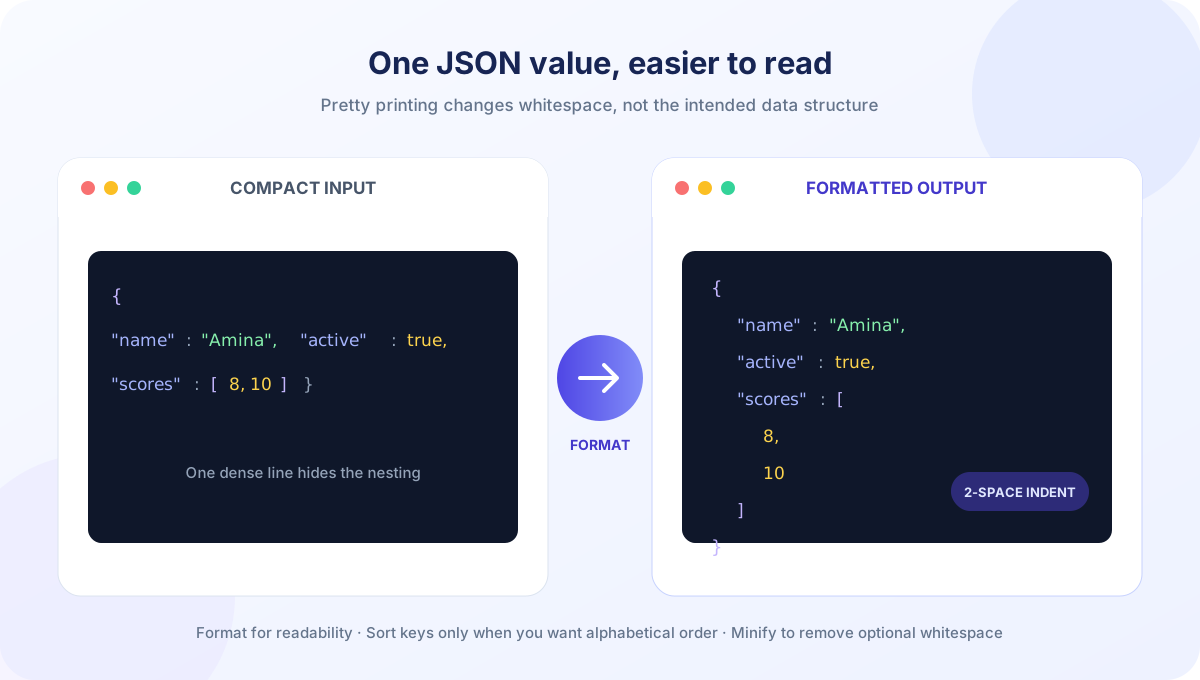
Consider this compact input:
{"name":"Amina","active":true,"scores":[8,10]}Format produces readable whitespace:
{
  "name": "Amina",
  "active": true,
  "scores": [
    8,
    10
  ]
}
Minify returns compact JSON again. Sort would write object keys in sorted order, including objects inside arrays, but the array values remain in their original positions. Pick Format when readability is the goal; use Sort only when stable alphabetical property order is useful for comparison or review.
Pretty printing changes presentation. Sorting changes object-key order. Minifying removes only optional whitespace.
JSON Syntax: The Rules the Formatter Checks
JSON has a small grammar, but a missing quote or bracket makes the entire document invalid. The formatter relies on the native JSON parser, so the error message comes from the current browser and may vary in wording. This tool does not repair malformed input automatically. Check the characters around the reported position, fix the syntax, and try the action again.
| Common mistake | Invalid example | Valid JSON form |
|---|---|---|
| Unquoted property name | {name: "Amina"} | {"name": "Amina"} |
| Single-quoted string | {'name': 'Amina'} | {"name": "Amina"} |
| Trailing comma | {"ready": true,} | {"ready": true} |
| Missing comma | {"a": 1 "b": 2} | {"a": 1, "b": 2} |
| Comment in data | {"id": 7 /* item */} | {"id": 7} |
JSON strings must escape quotation marks, backslashes, and control characters according to JSON rules. For example, a quote inside a string is written as \" in JSON text, and a line break inside a string is represented with an escape sequence such as \n, not an actual unescaped line break. Braces and brackets must be balanced and properly nested. The formatter can tell you when parsing fails, but the editor is not a schema-aware repair tool.
Valid JSON may be an object, an array, a string, a number, a boolean, or null. A successful parse therefore means the text is syntactically valid JSON, not that it has the properties expected by a particular API. If an endpoint requires an integer field called userId and a date string in a particular format, those application rules need separate validation.
Format JSON Online Free: Practical Ways to Work
A free json formatter can be useful when inspecting an API response, comparing configuration files, preparing a readable example for documentation, or reviewing a nested object before pasting it into a code editor. This page is an online json formatter free of charge and does not require installing an editor extension for a quick conversion. Treat “best” as dependent on the job: an online json formatter is convenient for short, occasional tasks, while a local development tool may be preferable for large files, repeated operations, automated checks, or data that must stay within a controlled environment.
A search for “json formatter online free” describes this kind of browser workflow: paste data, format it, and inspect the result without installing an editor add-on. Search fragments such as “json formatter online fr” may be an incomplete query for a free tool, while “json formatter'” can simply contain stray punctuation; neither phrase refers to a different JSON format.
To compare two JSON versions, format both consistently first. Consistent indentation makes structural differences easier to spot, but this page does not compare files or highlight diffs. The Sort command can create a stable object-key order for comparison, though it may alter presentation order that a human or downstream system intentionally uses. Arrays are not sorted because their order is often meaningful.
For compact storage or transmission, Minify can remove formatting whitespace. The output remains ordinary JSON, not a compressed archive. String contents remain intact: "first name" still contains a space because that space is part of the value. Similarly, minifying cannot reduce the cost of long property names or repeated data; it only removes whitespace outside strings.
Developers searching for a .json formatter may mean a tool for a file with the .json extension. Upload File accepts JSON and text files, but the extension alone does not guarantee valid JSON. The content is still parsed when you choose Format, Sort, or Minify. If the file contains comments, configuration-specific syntax, or multiple JSON documents concatenated together, it may need to be converted to standard JSON first.
The phrase json formatter converter is sometimes used for a tool that reformats JSON. This formatter does not convert JSON to another data format; it reads and writes JSON. To inspect document structure in a more visual way, try JSON Viewer. To check JSON syntax or validation behavior, visit JSON Validator. If you want to render HTML rather than inspect JSON, use HTML Viewer.
Using the Load from URL and Upload File Controls
Upload File uses the browser’s FileReader to read the selected file as text and place it in the editor. The upload action itself does not format the data; choose a toolbar action afterward to parse and rewrite it. If reading fails, the page displays an error. Because there is no dedicated download or save control in the current interface, copy any finished result to a destination where you can retain it.
Load URL makes a browser fetch request to the address you provide. If you omit the scheme, the interface adds HTTPS. Whether a page can read a response from another domain depends on the remote server’s CORS policy, the network, and browser behavior; a URL being publicly viewable in a tab does not guarantee that this cross-origin request is allowed. A URL may also return HTML, an error page, or other text rather than JSON. Loading text and formatting valid JSON are separate steps.
The page does not display a separate preview panel. Loading a file or URL replaces the editor contents, and formatting actions replace them again with the serialized result. Keep an original copy before applying actions if you need to preserve the exact source formatting, duplicate keys, or numeric spelling. Undo and Redo can be useful for recorded tool states, but this version does not capture every typed edit as an independent history step.
For confidential data, follow the rules of your organization and the privacy expectations of the environment where you are working. Formatting pasted content happens in the browser, while Load URL necessarily makes a network request to the address you enter. Uploaded files are read by the browser. Extensions, browser configuration, network monitoring, and shared devices can also affect the handling of information, so avoid using sensitive data in an environment you do not trust.
Important JavaScript Parsing Limits
The browser APIs make this tool convenient, but JSON.parse and JSON.stringify have specific behavior. Parsing and re-serializing is not a byte-for-byte preservation method. Whitespace is normalized, some textual distinctions disappear, and values are represented using JavaScript data types. For routine JSON objects this is expected, but precision-sensitive datasets deserve extra care.
- Large integers: JavaScript Number cannot exactly represent every integer beyond 9007199254740991. A large unquoted identifier or amount may be rounded when parsed, then written with a different value. Store precision-critical values as strings or use a lossless-number workflow.
- Duplicate keys: If an object repeats the same property name, JSON.parse keeps the later value. A formatter cannot restore the earlier occurrence after parsing.
- Number spelling: Equivalent numeric text may be serialized in a normalized form. Exponents, trailing decimal zeroes, and negative zero may not retain their original spelling.
- Object order: Format preserves the ordinary property order produced by parsing; Sort alphabetizes ordinary keys. JavaScript serialization may emit integer-like property names in numeric order, so Sort is not a general-purpose canonical JSON implementation.
- Unicode and escapes: JSON.stringify may emit characters using a different but equivalent representation than the input. The decoded string value is what matters, not the exact escape spelling.
- Special property names: The current key-sorting routine builds ordinary JavaScript objects. A property named
__proto__may not be retained as an ordinary key by that step, so inspect such data carefully before relying on sorted output.
Before formatting data used for financial calculations, cryptographic signatures, identifiers, or a strict byte-level comparison, verify that parsing and re-serialization is suitable. A signature may cover the exact original bytes, including whitespace and key order, so even semantically equivalent JSON could produce a different signature. A lossless parser or canonicalization scheme may be necessary for those workflows.
Objects, Arrays, and Nested JSON
An object groups values under property names, while an array stores an ordered sequence. These two shapes can be nested to represent records, lists, and combinations of both. Formatting exposes that hierarchy through indentation: each opening brace or bracket introduces a level, and the matching closing character lines up with its opener. When a document contains many levels, collapse neither arrays nor objects mentally into a flat list; use the indentation to see which values belong together.
For example, an array of records may contain an object for each person. Formatting makes each record’s fields visible, while the array position communicates sequence:
[
  {"name":"Mira","role":"editor"},
  {"name":"Sam","role":"reviewer"}
]
After formatting, the two array elements remain in their original order. Sorting keys inside each record can make property names more consistent, but it does not sort people, dates, or other array values. If an array represents ranked results, steps in a process, or chronological events, preserving its order is essential. The formatter does not infer a field by which the array should be sorted.
Objects can also contain arrays that contain more objects. The Sort command walks these nested structures and applies its key-sorting routine to the object values it reaches. Primitive values such as strings and booleans remain values rather than being turned into objects. For unusual property names, including __proto__, review the caveat above before treating sorted output as a faithful copy.
JSON property names are strings, even when they look numeric. JavaScript treats some integer-like property names specially when enumerating and serializing objects, so the final text order for keys such as "2" and "10" may not follow ordinary alphabetical order. If exact canonical ordering is required for signatures, hashing, or reproducible artifacts, choose a canonicalization tool designed for that standard rather than assuming this simple Sort action is canonical.
Formatting Versus Validation and Application Rules
Formatting and validation overlap only at the syntax step. To pretty-print, the browser first needs to parse a complete JSON value. A successful parse confirms the grammar, such as correctly quoted strings and balanced arrays. It does not tell you whether the data answers a business question, fits a database column, or matches an API contract.
For example, both {"count":"5"} and {"count":5} are syntactically valid JSON, but an application expecting a number may accept only the second form. Likewise, an empty object is valid JSON even if a particular endpoint requires a name, timestamp, and identifier. A JSON Schema can describe many structural requirements, but a formatter does not load or evaluate a schema for you.
Use a validator when you need an explicit syntax or schema check, then use a formatter to make valid input easier to inspect. For a tree-style overview of nested properties, the JSON Viewer can be a better fit. For previewing markup, use the HTML Viewer instead; HTML is not JSON, and formatting this page’s input will not render HTML as a web page. The three related tools serve different stages of inspecting data rather than duplicating the same operation.
When debugging an API response, first confirm that the response body is actually JSON. A server may return an HTML login page, an error document, or a plain-text message. The Load URL control inserts response text into the editor; running Format then tells you whether that text parses as JSON. If the server requires authentication, a browser request may not include the credentials you expect, and CORS policy can block access before the formatter sees a response.
JSON Formatter for Sublime Text and Other Editors
Some users search for a json formatter for sublime text when they need to clean up a file while coding. This web page is not a Sublime Text package, extension, or native editor integration. You can paste a snippet into the browser formatter, use Format or Sort, then copy the result back into Sublime Text. For frequent work, a local editor command or project formatter may be faster and can be integrated with a save action or build process.
When choosing between an online tool and an editor plugin, consider file size, repeatability, privacy requirements, team conventions, and whether formatting should run automatically. A project may specify indentation, line endings, key-order rules, or a particular JSONC dialect. This tool uses two spaces for pretty output and strict JSON parsing; it does not read a project configuration file or preserve comments from JSON-with-comments formats.
A best json formatter is one that fits the required workflow without silently changing important information. For a small, standard JSON snippet, a browser formatter can be an easy way to make nesting readable. For a large dataset or a codebase with automated style rules, use a workflow that can enforce those rules consistently and report changes in version control.
Before handing off formatted content, compare its meaning with the source and verify any strict requirements: numeric precision, object-key order, array sequence, and expected field types. A clean visual layout is helpful for humans, but it is not evidence that two documents are byte-identical or that an application will accept them. When reproducibility matters, document the formatter and exact settings used so that teammates can repeat the transformation.
Troubleshooting Common Formatting Problems
Nothing happens when I choose Format
Make sure the editor contains text and select the main Format JSON button or the Format toolbar button. The toolbar actions may return silently for an empty editor. If there is text but no formatted output, inspect the result message for a JSON parse error and check quotes, commas, and matching brackets.
The loaded file is not valid JSON
Uploading only reads the file into the editor. It does not remove comments, repair commas, or validate the syntax until you run a formatting action. Confirm that the file contains one standard JSON value and that it is not JSONC, JavaScript, or a different configuration format.
Load URL reports a CORS problem
The target server controls whether browser scripts on another site may read its response. If it does not allow this request, try uploading a local copy or pasting the JSON text. Do not treat a failed cross-origin request as a JSON syntax issue; the formatter may never receive the response body.
The result differs from the original text
Formatting intentionally changes whitespace. Sorting changes object-key order, and minifying removes optional whitespace. In addition, duplicate keys and numbers outside JavaScript’s exact integer range can change during parsing. Keep a source copy and choose the least transformative action that meets your need.
The page looks like it accepts JSON but my API rejects it
A successful format only establishes that the input can be parsed as JSON. It does not verify required fields, permitted values, authorization, endpoint paths, or schema versions. Compare your object with the API documentation and run the appropriate schema or application validation separately.
Conclusion: Format JSON with the Right Action
This free online JSON formatter makes nested data easier to read with two-space indentation and can also alphabetize object keys or remove optional whitespace. Paste data, upload a file, or load a CORS-enabled URL, then use the action that matches your goal. Remember that parsing and serializing may normalize the text, duplicate keys, and large numbers; the tool checks JSON syntax, not a schema. For visual exploration, validation, or HTML rendering, continue with the linked JSON Viewer, JSON Validator, or HTML Viewer.


