HTML Viewer Online: Preview Your Markup in a Browser
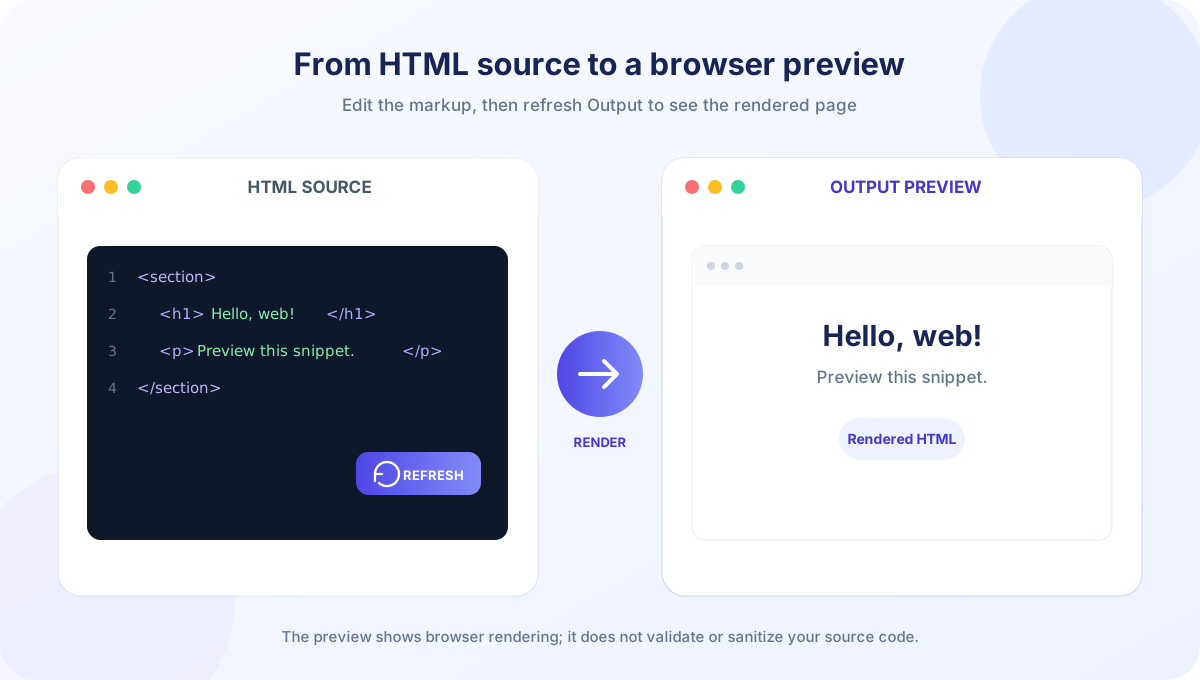
HTML describes the structure and content of a web page. A heading, paragraph, image, navigation menu, form, and link are all represented with markup that a browser interprets. When you need to see what a snippet looks like without opening a full project, an html viewer can provide a quick visual preview. Paste your code into the editor above and select View / Refresh to render it in the preview frame.
This html viewer online tool accepts pasted markup, an uploaded .html or .htm file, or text fetched from a URL when the remote server allows cross-origin access. It shows a source editor, line numbers, the current caret line and column, and an Output preview. You can refresh after edits with the button or Ctrl+Enter (Command+Enter on macOS), and Clear empties the editor and preview. It is a previewer, not an HTML formatter, validator, website crawler, or full copy of a production site.
How to Use This Online HTML Viewer
Choose the input method that matches your starting point. The viewer treats loading and previewing as separate operations for pasted code; file and URL imports refresh the preview after the text is loaded.
- Paste or type HTML. Enter a fragment such as a heading and paragraph, or provide a complete HTML document in the editor.
- Or upload a file. Select Upload File and choose a .html or .htm file. Your browser reads its text into the editor and updates the Output preview.
- Or load a URL. Enter an HTTP or HTTPS address and select Load URL. If you omit the scheme, the page adds HTTPS. The source server must allow the browser request through CORS.
- Review the preview. After editing pasted markup, choose View / Refresh. The preview does not update on every keystroke. Ctrl+Enter or Command+Enter in the editor also refreshes it.
- Continue editing or clear. Change the source and refresh again, or choose Clear to empty the editor and reset the preview.
The page uses a text area as the source editor rather than a full code IDE. It displays line numbers and a cursor position, but it does not highlight syntax, format indentation, validate HTML conformance, or report accessibility issues. If the preview is blank, check that the source contains visible body content and refresh it. Some markup may require CSS, JavaScript, images, fonts, or server responses that are not available in a standalone preview.
Loading a local file reads its text in the browser; it does not upload the file to a conversion endpoint. Loading a URL makes a browser network request to that address. The result message confirms that the preview was refreshed, not that every image loaded or that the page is equivalent to its original website.
HTML Fragments and Full Documents
You can paste either a document fragment or a complete page. If the trimmed input does not begin with a doctype or an html element, this viewer places the snippet inside a generated HTML document and body, adds a character encoding declaration, and applies simple spacing and box-sizing styles. This makes a standalone paragraph, heading, or button easier to see without requiring you to type the outer page structure first.
If the source begins with <!DOCTYPE or <html>, it is treated as a full document and written into the frame as supplied. A full document gives you more control over its own head, styles, metadata, scripts, and layout. The recognition is based on the opening text; malformed or partial document markup may still be rendered by the browser’s forgiving HTML parser, but the viewer does not repair it or certify that it is conforming HTML.
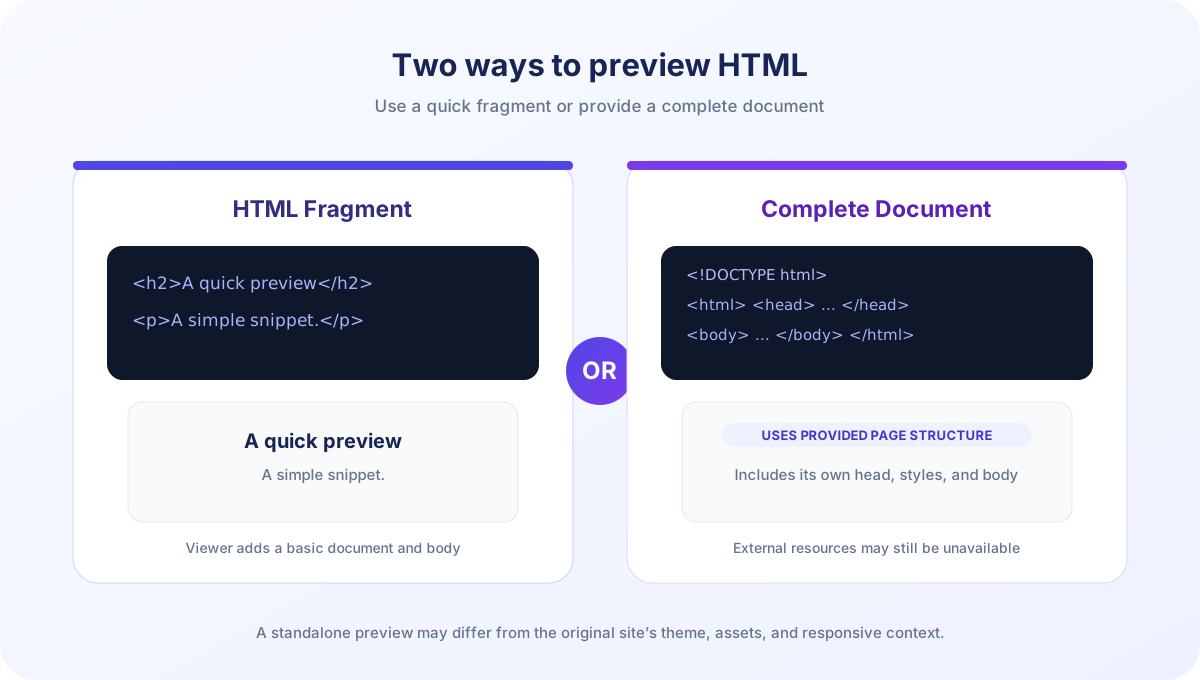
A fragment is useful for checking the appearance of a component in isolation. It is not necessarily a faithful rendering of that component in the real site. The original theme may supply fonts, CSS variables, reset styles, JavaScript libraries, and layout containers that are absent from this generated document. To reproduce a production appearance more closely, include the required styles or use the real site’s authorized development environment.
For a complete page imported from a URL, the viewer inserts a base address using the URL’s origin root so that some relative resources can resolve. A resource referenced as /assets/site.css can point to the site root, but a page that expected ../assets/site.css relative to a nested directory may behave differently. A local upload has no copy of the original site’s directory tree or server, so relative files beside that HTML document may not be available in the preview.
Responsive behavior also depends on the document and available frame width. If a full document omits the viewport meta tag, mobile layout may not match the page when opened on a phone. The preview area has a fixed desktop-oriented height and width follows the surrounding page; there are no device presets, zoom controls, or separate mobile viewport emulation controls in this tool.
What You Can and Cannot Preview
An online html viewer is a convenient way to inspect basic visual output: text, headings, lists, links, tables, inline styles, and layouts supported by the browser. It can help you catch a missing closing tag, an unexpectedly large image, or a color that does not contrast as intended. But browser rendering alone is not a complete quality check. HTML parsers are forgiving, so an element appearing on screen does not prove that the markup is valid, accessible, responsive, or ready for production.
| Content in the source | What the preview can show | What may still differ |
|---|---|---|
| HTML elements and inline CSS | Browser-rendered structure and styles | Site theme CSS, resets, or layout context |
| External images, fonts, and stylesheets | Resources that the browser can request | Authentication, CORS, URL paths, network rules |
| JavaScript in the markup | Script behavior may run in the preview frame | Production APIs, cookies, host-page integrations |
| Forms and navigation | Visible controls and links | Backend submission, routing, authentication |
The preview is not a complete website runtime. A form may display but have no server endpoint to process a submission. A link may navigate somewhere different from the original site. A script that expects a specific global variable, application framework, or parent page may fail because the viewer does not recreate that environment. External resources may load, fail, or be blocked depending on their addresses and browser policies.
The viewer does not provide an HTML source formatter or a standards validator. It writes the input into an iframe document and lets the browser render it. For syntax and conformance checks, use an HTML validator; for layout debugging, use browser developer tools in the site environment. A rendered result is a visual aid, not proof of semantic correctness, accessibility, performance, or security.
Important Safety Notes for HTML Preview
HTML is active content, not merely a picture of a page. A preview may include scripts, event handlers, forms, embeds, remote images, stylesheets, and other resources. The current preview frame permits scripts and same-origin behavior; it does not sanitize pasted markup or turn untrusted code into harmless text. Only preview code you trust, and do not use this tool as a security boundary for opening unknown HTML.
When inspecting a file from someone else, prefer reading the source as text in a trusted editor rather than rendering it. Avoid using unknown markup while signed in to sensitive services or in a browser profile containing private sessions. A preview can make network requests for referenced resources, and scripts can run in the frame. The right safety assumption is to treat the HTML like code you are choosing to execute, not like a static screenshot.
If the purpose is to show markup without running it, escape the angle brackets and display it as code in a documentation page, or use a tool that explicitly sanitizes and renders in a restrictive isolated context. This HTML Viewer is intended for visual preview and does not claim to sanitize, audit, or safely isolate arbitrary untrusted content.
Preview trusted HTML only. Rendering and sanitization are different jobs, and this viewer performs rendering.
Loading a Website with the HTML Viewer
A website html viewer can mean a source viewer, a browser preview, or a service that fetches and inspects a live page. This tool fetches the response text for the URL you enter, places that text in its editor, and updates the frame. It is not a crawler: it does not follow a site map, enumerate pages, extract all linked assets, or bypass a sign-in screen. The content available depends on what the target server returns to a browser fetch request.
Cross-origin resource sharing (CORS) is an important limitation. Browsers restrict scripts from reading responses from other origins unless the remote server sends permission headers. A website may open when typed directly in the address bar yet reject this tool’s cross-origin request. If Load URL reports a failure, try saving a page you are authorized to inspect and using Upload File, or paste the relevant markup directly.
Even when the text loads, its content can be an error page, consent screen, or server-generated HTML that differs from the intended site. The tool does not check the HTTP status before reading the response body. Review the editor contents after loading. The remote page may also require cookies, authorization headers, or client-side requests that the viewer does not reproduce.
Relative assets are a frequent reason a fetched page looks different. The viewer sets a base URL to the origin root for a complete document loaded from a URL, rather than recreating the exact original path and session context. Root-relative resources may work while directory-relative links can point somewhere else. For local files, related images or CSS files are not automatically imported alongside the chosen HTML file.
The preview can use external resources referenced by the document. Their availability and behavior are controlled by the resource host, browser policies, network access, and the HTML itself. If you are reviewing a page for privacy or security, do not assume that loading it is passive; use a suitable isolated environment and inspect network behavior with tools designed for that purpose.
HTML Viewer Online Free for Everyday Work
This free html viewer is useful for checking a short snippet, prototyping a simple component, or seeing how an uploaded HTML file is rendered without opening a local editor. It is an html viewer online free of charge in the browser, and the free html viewer online workflow does not require installing a native application. For an isolated, quick check, paste markup and refresh the Output panel.
When someone searches for an html viewer code tool, they may want to inspect source, see rendered output, or both. This page offers a source textarea and a rendered view, but not syntax highlighting, automatic code cleanup, or element-by-element inspection. Use a developer inspector when you need to examine the live document tree or computed CSS.
The phrase web html viewer may also refer to viewing HTML source in a browser, inspecting a page’s DOM, or rendering a file. Those tasks are related but distinct. This tool gives you an editable source textarea and a rendered preview. It does not expose a developer console, inspect the live DOM tree, show computed styles, or let you browse a site’s source directory.
For reusable snippets, keep the markup and CSS minimal while testing. Add one component at a time, refresh, and compare the output. If a stylesheet comes from a framework CDN, the preview requires network access to that resource. If the framework was loaded by the production theme rather than the snippet itself, the standalone frame will not automatically include it. Include a permitted stylesheet reference or test within the real project when visual fidelity matters.
The viewer can also help explain a small HTML example to a teammate: paste the source, render it, and discuss how structure maps to what appears. It does not save a shareable project or generate a permanent preview link, so use your team’s version control or documentation workflow for work that needs to be retained. Do not paste credentials, private tokens, or unrelated sensitive content into markup you plan to share.
Elementor HTML Viewer: Testing a Widget Snippet
Users searching for an elementor html viewer may want to preview code intended for an Elementor HTML widget. You can paste a self-contained HTML snippet here to inspect its basic browser rendering, including text, inline styles, and simple layouts. This tool does not launch WordPress or Elementor, load your theme, reproduce plugin styles, or connect to a widget’s page context.
Elementor output may depend on theme CSS, WordPress plugins, site-wide settings, JavaScript libraries, or assets hosted in the site’s media directory. A standalone preview will not automatically inherit those dependencies. A snippet that looks correct here may still need adjustments in the actual page, and code that runs here may behave differently when inserted into WordPress. Test only code you trust and follow your site’s content and security policies.
Use the viewer for a first look at a small component, then verify the final result in an authorized staging page at desktop and mobile widths. Check keyboard behavior, color contrast, responsive layout, and any external resource dependency. For CSS selectors, make sure your widget styles are scoped so they do not unexpectedly affect other parts of the site.
Android HTML Viewer and Mobile Browser Use
The HTML Viewer is a web page, not an android html viewer app installed from an app store. You may open the html viewer online free in a modern Android browser with JavaScript enabled, but the editing and preview experience depends on that browser, screen size, keyboard, and file picker. There is no separate Android package, offline app mode, native project manager, or device-specific preview emulator provided by this page.
On Android, pasting a longer document can be more cumbersome than on a computer, and the on-screen keyboard takes up part of the display. The source editor and preview are stacked within a responsive page, but the output frame itself has a substantial minimum height. Rotate the device or use a larger display if you need to compare a wider layout. For careful responsive testing, use browser developer tools or test on the target device rather than relying on one frame width.
File selection and access are controlled by the mobile browser and operating system. Upload File reads the chosen HTML document into the editor; it does not bundle adjacent CSS, image, or script files automatically. A file that references local folders may therefore render incompletely. If those resources matter, host them in an authorized environment and use paths that the preview can request, or test the page in its original project.
Searching for an android html viewer can also mean a native app for opening HTML documents stored on a phone. This browser utility is intended for interactive source-and-preview work online, not as a general file browser or replacement for a native viewer. Select the workflow based on whether you need a quick web preview or offline document management.
HTML Viewer, JSON Formatter, and JSON Validator
An json formatter html viewer search may come from someone working with both API data and page markup, but the formats need different tools. HTML Viewer renders HTML as a page. JSON Formatter changes JSON indentation, key ordering, or whitespace, while JSON Validator checks whether text parses as JSON. JSON can contain a string that holds HTML, but formatting that JSON does not render the string as a page; copy the intended markup into an HTML preview only when it is safe to do so.
Choose an HTML viewer when you need to inspect markup visually. Choose a JSON formatter when the task is readability or compact JSON output. Choose a JSON validator when you need a syntax check. For broader quality assurance, use a standards validator, accessibility checks, security review, and the application’s own tests as appropriate. One browser preview cannot replace all of those separate checks.
In short, this tool is strongest when the question is “What does this HTML snippet look like in a browser?” It is not the right answer to “Is this markup conforming?”, “Will this code be safe?”, “Does this page work with my backend?”, or “Does this JSON match a schema?” Matching the tool to the question keeps a quick preview from being mistaken for a full website test.
Troubleshooting a Blank or Unexpected Preview
My edits do not appear in Output
Editing the textarea does not refresh the preview automatically. Select View / Refresh or press Ctrl+Enter / Command+Enter while the editor is focused. Check the result message and confirm that the source text changed in the editor.
The layout has no styling
The preview does not automatically load the original website’s theme or assets. Add the CSS required by the snippet or test it in the project where those styles are available. Remote stylesheet requests may also be blocked or unavailable.
Images or fonts are missing
Confirm that the resource URL is reachable and that its path makes sense in the preview. Uploaded files do not automatically include sibling assets. A remotely loaded complete page uses a base URL at the origin root, so directory-relative paths may resolve differently from the original site.
Load URL reports a failure
Check that the address is reachable and the server permits cross-origin browser access. If the website disallows CORS, the browser prevents this tool from reading its response. Use a local file or paste markup you are authorized to use instead.
A script or widget behaves differently
The preview does not reproduce production cookies, page globals, CMS integrations, server APIs, or all device conditions. Scripts are allowed to execute in the preview frame, so only use trusted code. Re-test the component in the authorized target environment before relying on its behavior.
Conclusion: Preview HTML, Then Test in Context
This online html viewer free tool lets you paste HTML, upload a file, or load a CORS-accessible URL and inspect a rendered preview. Fragments receive a basic wrapper, complete documents use their own structure, and manual edits require View / Refresh or Ctrl+Enter. The preview does not format or validate HTML, recreate a full website, or sanitize untrusted code. Treat rendered markup as active content, and test final work in its intended browser and project environment.


