Online Text Editor: Write, Format, And Copy Text In Your Browser
The SnapZain online text editor is a browser-based space for drafting or adjusting text with a small set of rich-text controls. You can type or paste content, apply bold, italic, or underline formatting, make bulleted or numbered lists, add a hyperlink, clear formatting, see an approximate word count, and copy the result as HTML or plain text. It is designed for quick writing tasks when you want a simple editor without opening a desktop word processor.
This page is intentionally focused. It is not a cloud document manager, PDF editor, image retouching tool, full HTML development environment, or code IDE. The current editor does not provide an account, automatic saving, file uploads, document downloads, collaboration, or version history. Copy important work to a file or another trusted destination before leaving the page.
People use the phrase text editor online for many different products: a plain note field, a rich text editor, an HTML code workspace, a PDF editor, or a photo annotation tool. Knowing which type you need will save time. This article explains what this free browser editor can do, how its controls behave, what its copy buttons produce, and when another SnapZain tool or a dedicated app is a better fit.
What This Free Online Text Editor Does
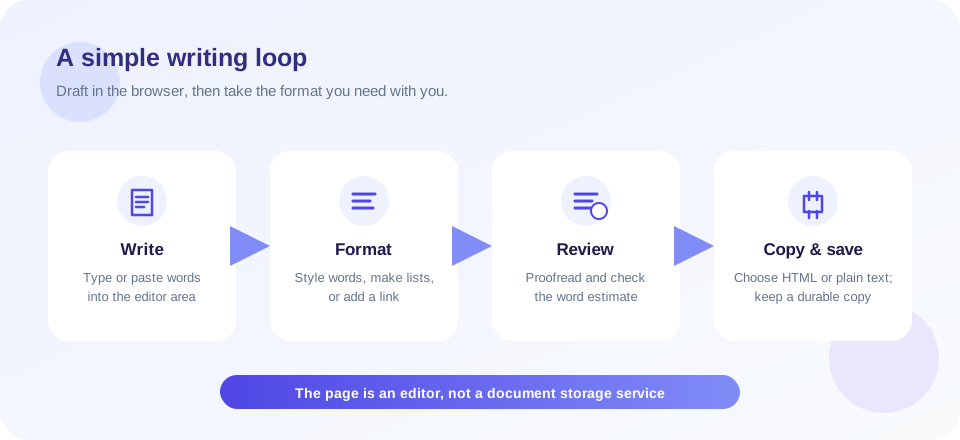
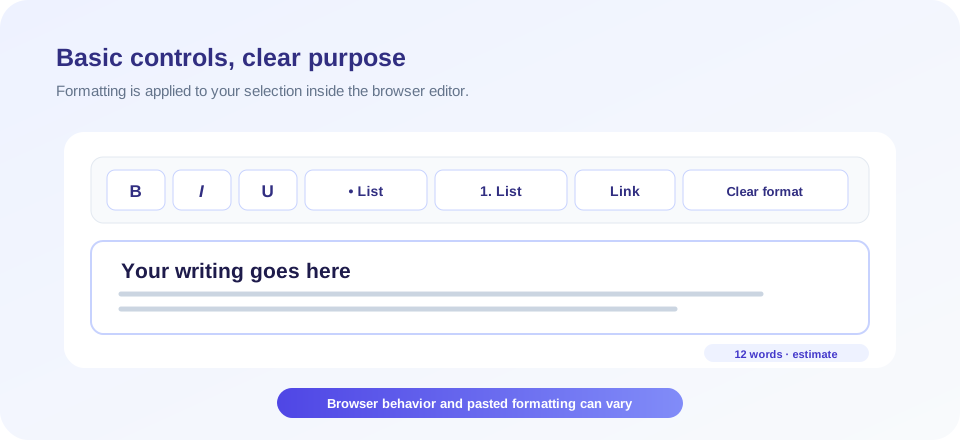
The editor uses a content-editable area in your browser. Its toolbar provides common formatting commands and the text updates on the page as you work. There is no separate submit button: most editing is immediate. The word counter reads the visible text and updates when you type or make edits. At the end, you can copy the editor’s HTML fragment or copy the visible text without markup.
| Feature | What it is for | What to keep in mind |
|---|---|---|
| Bold, italic, underline | Emphasize selected text or distinguish a short phrase. | These are browser formatting commands; check the result after pasting elsewhere. |
| Bulleted and numbered lists | Organize points or sequential steps. | Use the right list type and verify indentation in the destination app. |
| Insert link | Attach a URL to selected text. | Review the destination and visible anchor text before sharing. |
| Clear format | Remove some inherited formatting from selected content. | It may not normalize all pasted styles exactly the same in every browser. |
| Word count | Give a quick estimate of the current text length. | Counts whitespace-separated tokens; other editors may count punctuation or hyphenated words differently. |
| Copy HTML / plain text | Copy a rich-text fragment or a text-only version. | The HTML option is not a complete web page; clipboard access depends on browser permissions. |
Because it is a lightweight tool, it avoids a complex ribbon of features. That simplicity suits short drafts, snippets, formatted notes, and text that you plan to move into another application. It is not meant to replace a full word processor when you need page layout, comments, citations, tables, tracked changes, or a dependable saved document.
How To Use The Online Editor Text Controls
- Start with a clean draft. Click in the editing area and type, or paste text you are allowed to use. For sensitive writing, check your organization’s privacy requirements before using any online service.
- Select the exact words to format. Highlight a phrase, then choose bold, italic, or underline. Some browsers preserve the selection differently, so confirm the change visually.
- Build lists with the toolbar. Use a bulleted list for related points and a numbered list when sequence matters. Keep each item concise and make the hierarchy clear.
- Add a link deliberately. Select the words that should become clickable, choose Link, and enter the destination URL in the browser prompt. Check that the link is relevant and correctly spelled.
- Review your text and word estimate. Read the content, confirm punctuation and spacing, and use the word count as a rough guide rather than a submission guarantee.
- Choose a copy format. Copy plain text for email or a basic text field. Copy HTML when the destination accepts formatted markup, then inspect it before publishing.
- Store the result somewhere durable. Paste it into a local document or trusted service. This page does not autosave your work or retain a recoverable document.
That is the core workflow for an online editor text task: edit in place, review, and move the result to its final home. Formatting commands may behave slightly differently across browsers, operating systems, and keyboard layouts. If a control does not apply as expected, try selecting the text again or use the destination application’s own formatting tools.
Plain Text, Rich Text, And HTML: Choose The Right Output
Plain text contains the words without presentation markup. It is useful for notes, search fields, plain email, and systems that reject HTML. Rich text can include styling such as emphasis, lists, and links. HTML represents structure and presentation with markup that a website or compatible editor may interpret. The tool’s Copy HTML action copies the current editor area as a fragment; it does not create a full document with a doctype, page head, style sheet, or script.
| Output | Best destination | Before you paste |
|---|---|---|
| Plain text | Text-only forms, lightweight notes, basic messages. | Check whether the destination preserves line breaks. |
| HTML fragment | A CMS or editor that accepts HTML markup. | Review tags, links, allowed elements, and any styles the platform removes. |
| Formatted clipboard content | Rich-text destinations that accept browser clipboard formatting. | Paste a sample and inspect the final rendering; clipboard behavior varies. |
Copying markup is not the same as validating it. A website may sanitize tags for security, remove unsupported attributes, or apply its own CSS. If the pasted content will be public, review headings, links, lists, and text contrast in the actual destination. Do not paste untrusted code into a website template just because it came from a text editor.
Is This An Online HTML Text Editor?
The phrase online HTML text editor can describe either a rich text surface that produces markup or a source editor where a developer writes tags directly. SnapZain belongs to the first, limited category: formatting in the browser can be copied as an HTML fragment. There is no raw-code pane, syntax highlighting, tag autocomplete, live preview, file management, or HTML validation.
If you searched for an html text editor free online to author simple formatted copy, the editor may be useful as a starting point. For coding a website, choose a code editor that can validate syntax, preview changes, manage files, and help you test responsive behavior. The editor here should not be treated as a safe place to execute scripts or build a complete webpage.
An online HTML text editor free can also refer to a free source-code playground. That is a separate product class. This page copies a fragment generated from browser formatting; make sure the destination expects that kind of output before selecting Copy HTML.
When comparing a free online html text editor with a source editor, check whether the tool exposes the raw markup, validates it, and previews the rendered result. Those capabilities are not part of this page. Here, the HTML option is simply a way to take the formatted text structure out of the editor and paste it into a compatible destination.
This Is Not An Online PDF Text Editor
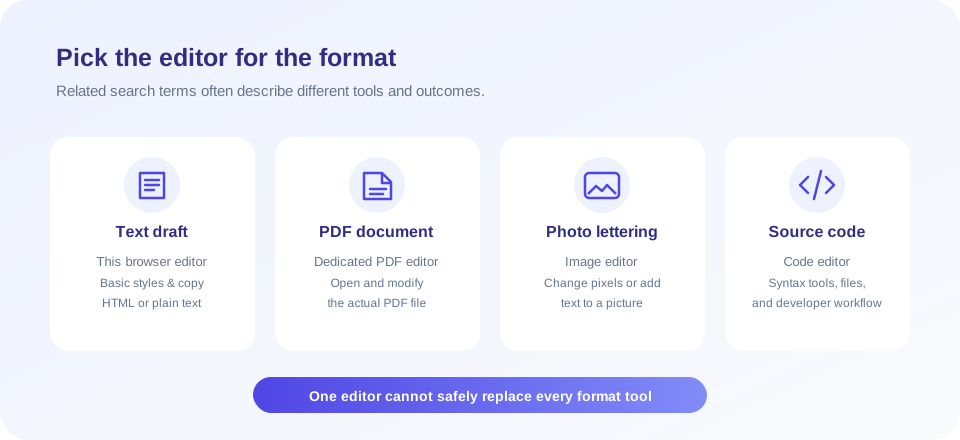
Queries such as online pdf editor change text, online pdf text editor, or free online pdf text editor describe work on an existing PDF document. This text editor does not accept PDF uploads, inspect pages, edit a PDF’s text layer, preserve document layout, or export a modified PDF. The exact phrase online pdf text editor online may appear in searches, but it still means a PDF-specific workflow—not the editable text box on this page.
Likewise, a free pdf text editor online is expected to open or change PDF content. Pick a dedicated PDF application for changing text inside a document, adding annotations, or rearranging pages. Keep a backup before modifying important files, and verify the final PDF’s layout and accessibility. Do not paste sensitive or confidential material into services unless you have reviewed their policies and your organization permits it.
If your actual task is to convert an office file or create a new PDF from text, use the corresponding conversion tool and inspect the output. Conversion can change fonts, line breaks, or page breaks. This editor itself does not turn a text draft into a PDF.
Photo And Image Text Editing Are Different Tasks
A photo text editor online or online image text editor usually means placing, removing, or changing words on a picture. This page cannot open an image, edit pixels, add captions over a photo, or use optical character recognition to extract lettering from a picture. It only edits text in its browser text area.
Some people search for an image text editor online free when they want to create a graphic quote or annotate a screenshot. Use an image editor for that job, and save an original copy of the image before making changes. For accessible publishing, keep important information as real text near the image rather than embedding every word only in pixels.
If you simply need to write a caption or alt-text draft for an image, the browser editor can help compose the wording. It does not apply that caption to the image file or update the media library in your website.
Code Text Editor Online Or Everyday Writing Tool?
A code text editor online is built for programming workflows: it may include syntax highlighting, indentation, diagnostics, project files, version control, and perhaps a safe execution environment. Those features are not present here. This editor is for general text and basic presentation, not for authoring or running code.
Do not use this rich text area to test scripts, store credentials, or manage source files. Formatting commands may insert markup that is inappropriate in code. If you need to paste code into a support message, select plain text and review whether line breaks and spacing were preserved.
Word Count: A Helpful Estimate, Not A Formal Validator
The visible counter estimates words by splitting the editor’s text at whitespace. This is easy to understand and updates while you work, but counting conventions vary. A hyphenated expression might count as one token here and differently in another platform. Numbers, emoji, non-Latin writing systems, punctuation, and copied content can also be treated in different ways.
Use the count for a quick sense of length, not as proof that an assignment, application, or publishing requirement has been met. For a formal submission, follow the instructions from the receiving platform and check the final pasted text there. A count cannot judge quality, originality, readability, accuracy, or whether a draft answers its prompt.
Editing Tips For Clear, Readable Text
- Structure before styling. Put related ideas together and use lists only when they make the information easier to scan.
- Use emphasis sparingly. Bold and underline can help readers find key details, but applying them to every line reduces their usefulness.
- Make links descriptive. Anchor text should tell a reader what to expect; avoid vague labels when a more informative phrase fits.
- Proofread after pasting. The receiving application may alter spacing, lists, or link appearance.
- Remove accidental formatting. When pasted text looks inconsistent, select the affected portion and try Clear format, then confirm the outcome.
- Keep a separate copy. Since there is no save or undo history promise, copy important work before trying large changes.
For polishing prose rather than applying formatting, a rewriting or proofreading tool may be more appropriate. For example, Paragraph Rewriter can help explore alternate phrasing, Small Text Generator changes how characters appear for decorative use, and Sentence Checker can be used for sentence-level review. Use any automated suggestions thoughtfully: check meaning, tone, factual accuracy, and whether the resulting text still sounds like you. For changing letter case, try Uppercase To Lowercase.
Privacy, Clipboard Access, And Safe Use
The editor’s visible client-side behavior works in the browser and its script does not submit the editor content to a generation endpoint. However, online use still involves a website request, and browser clipboard access is subject to permissions and security requirements. Clipboard copy may require a secure connection or a user action, and can fail if the browser blocks access.
For sensitive, regulated, or confidential documents, use software approved for that information rather than assuming a browser editor is an appropriate storage location. This tool has no login, save state, encryption settings, or recovery control exposed in the editor. Close the page only after copying work you need to keep.
Before using copied HTML in a public site, inspect the markup and destination. Avoid pasting unknown scripts or attributes into a content management system. A text fragment should not contain executable code, but the receiving platform’s rules and sanitization behavior determine what is accepted.
Consider the full lifecycle of your writing: where it came from, whether you have permission to reuse it, who can see the final destination, and how you will preserve a copy. The browser editor makes the editing step convenient; it does not replace review, consent, backups, or your organization’s privacy procedures.
Choosing The Right Tool For The Job
| Your task | Use this editor? | Why |
|---|---|---|
| Draft a note and apply simple emphasis | Yes | Basic rich text and copy controls are available. |
| Copy formatted text as an HTML fragment | For simple cases | Review markup and test it in the destination. |
| Change text inside an existing PDF | No | Use a dedicated PDF editor that can open and export PDF files. |
| Put lettering onto a photo | No | Use an image editor designed to modify graphics. |
| Write or run program code | No | Use a code editor with syntax-aware development features. |
| Save and collaborate on documents | No | Use a document service with accounts, autosave, sharing, and history. |
Online Text Editor Summary
Use this free online text editor when you want to compose or adjust words in a browser, apply a few familiar styles, make a list or link, check an approximate word count, and copy text or an HTML fragment. It can be a convenient lightweight writing surface, but there is no document storage, autosave, file export, or collaboration feature.
Search phrases such as editor de texto online, free text editor online, and online text editor free can describe many products, so verify that the available features fit your task. This page is for basic rich text. It is not a PDF, photo, image, or source-code editor, and it cannot guarantee that copied formatting will look identical in every destination.
Write, review, copy, and then confirm the result where you plan to use it. For important work, maintain a separate saved copy. A clear workflow and the right specialized tool are more valuable than assuming one editor can handle every document and media format.
Before you finish, check that your copied version includes the links and list structure you intended, and confirm the destination accepted the formatting. Keep a plain-text backup if preserving the exact appearance is not essential.
Conclusion
Good editing is not just changing how text looks—it is choosing the right format, checking the result, and keeping a reliable copy.


