Make a Shareable PDF While Keeping Your Word File Editable
Word documents are designed for drafting and revision. PDF files are designed to preserve a page-based version that is easier to share across different devices and applications. This Word to PDF tool converts a supported document into a separate PDF download, so you can distribute a stable copy and keep editing the original in your word processor.
The upload form accepts one .doc, .docx, or .odt document up to 10 MB. It does not accept every possible word-processing format, and a successful result depends on the file being readable and compatible with the server’s conversion software. When the conversion completes, download the PDF and inspect it before sending it to a client, colleague, school, or service portal.
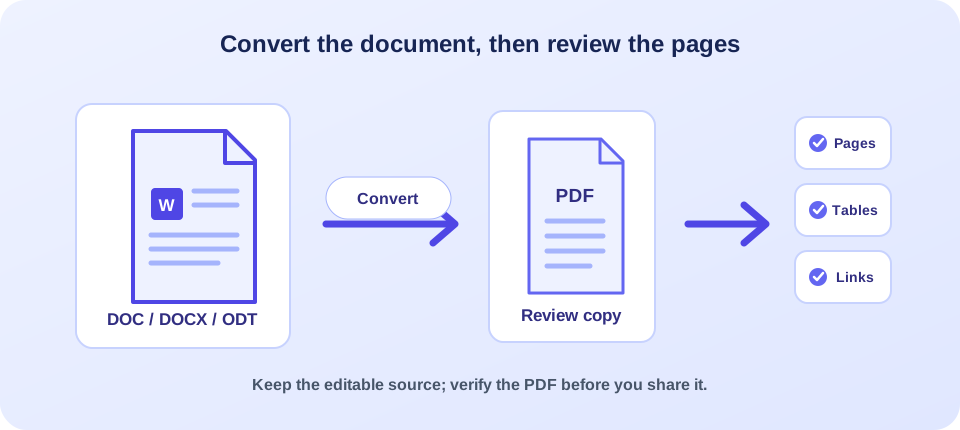
How to Convert a Word Document to PDF Online
The process is short, but reviewing the source and the finished file makes the result more dependable:
- Prepare the document. Save your latest edits and confirm you are using the intended DOC, DOCX, or ODT version.
- Check file size and access. The file must be under 10 MB and should open normally in a compatible office application.
- Select one file. Use the file picker or drag the document into the upload area. The visible form processes one document per run.
- Start the conversion. The page uploads the file and asks the server to convert it. Keep the browser tab open until the response arrives.
- Download and inspect. Open the new PDF and compare the pages, headings, tables, and other important elements with the Word source.
People asking how to convert Word to PDF often want to preserve the look of a finished document, not simply change its extension. Conversion actually creates a new file using software on the server; it is not a rename operation. Keep the source document safe because that is usually the easiest version to edit later.
Before you share the PDF, check the pages someone else will see—not only the source document you edited.
Supported Documents, Limits, and Conversion Requirements
The form accepts legacy Word DOC files, modern DOCX files, and OpenDocument Text ODT files. Although users often search for a “Microsoft Word to PDF converter” or “MS Word to PDF converter,” this page is not limited to documents saved from Microsoft Word: it also lists ODT. Conversely, a file with a different extension should not be assumed to work just because it contains text.
The visible maximum is 10 MB and the input selector accepts one file. Before uploading, make sure the file extension matches the actual document format and that it opens without repair prompts. If it is password-protected or damaged, the server may not be able to read it. Do not remove protection unless you own the document or have permission.
Server-side conversion uses LibreOffice or a configured compatible executable. That means processing can fail if the required software is unavailable, if the file contains unsupported features, or if a resource limit is reached. The form cannot guarantee a successful conversion for every document, and the existence of a download control does not make an unverified result accurate.
| Source type | Accepted by this form | Useful check before upload |
|---|---|---|
| DOC | Yes | Open it once and confirm it is not damaged or password-locked. |
| DOCX | Yes | Check recent edits, embedded fonts, and linked or embedded objects. |
| ODT | Yes | Confirm the document uses supported formatting and opens in an office suite. |
| Other extensions | Not listed on the upload form | Save or export a supported copy using a trusted application first. |
A document that exceeds the upload limit may need a smaller, authorized copy. Removing content simply to reduce size can change the meaning of a report or agreement, so make changes only when appropriate. If a file contains many large images, optimizing those images in the source document can sometimes reduce its size; verify that the visuals remain clear afterward.
What Can Change When a Word Document Becomes a PDF
Word and PDF describe documents differently. Word stores editable content and layout instructions; PDF stores pages intended to look consistent in a viewer. A converter interprets fonts, spacing, tables, headers, footers, page breaks, and embedded content to create those pages. Different software versions or missing fonts can affect the final arrangement.
Simple text documents often convert predictably, but complex files deserve a closer check. A table may wrap differently, a heading may move to the next page, an image may shift, or a page number may be placed differently. Hyperlinks and bookmarks can depend on the source and converter. The PDF should be treated as a new output that needs review, especially if layout precision is important.
| Document element | Possible difference after conversion | Review step |
|---|---|---|
| Fonts and spacing | A substitute font or line-height change can alter wrapping. | Compare headings, paragraph lengths, and page breaks. |
| Tables and columns | Cell widths or text wrapping may shift. | Check that labels and values remain aligned and readable. |
| Images and shapes | Anchoring, size, or placement can vary. | Inspect every page with important visuals. |
| Links and page elements | Interactive behavior can vary by source and converter. | Test important links, page numbers, headers, and footers. |
For a contract, application, invoice, or publication, compare the PDF from beginning to end. Pay attention to footnotes and signature areas as well as the first page. If the exported file will be printed, use print preview and check paper size and margins before producing many copies.
Check Page Breaks, Fonts, and Accessibility Before You Publish
Page breaks are among the most visible differences after conversion. A heading can become stranded at the bottom of a page, a final table row may move to the next page, or an extra blank page may appear because of a section break. Inspect the complete document, not only the opening page. For long reports, check the table of contents and any page references against the final page order.
Fonts can also affect pagination. If the server does not have a font used in the source, compatible software may substitute another typeface. A small change in character width can reflow a paragraph, move a chart, or increase the number of pages. For a document with strict branding, use fonts that can be legally embedded or are available in the conversion environment, then compare the exported pages with the intended design.
Accessibility deserves a separate check. A PDF may look correct while still being difficult to navigate with assistive technology. Use heading styles and descriptive link text in the source instead of relying only on visual formatting. If the PDF is for public distribution, a separate accessibility inspection may be needed to verify reading order, document language, tags, text alternatives, and form behavior. This converter does not advertise an accessibility remediation feature, so do not assume conversion alone makes a document accessible.
Likewise, conversion is not a substitute for document review. Spell-check important names and figures, ensure images have appropriate descriptions where necessary, and confirm that footnotes and references remain attached to the right material. A carefully prepared source and a final PDF review work together: one addresses the content, while the other confirms its rendered pages.
A clean export starts in the source file, but confidence comes from opening and checking the PDF that will actually be shared.
Prepare the Source for a Cleaner and More Reliable Export
A careful source document makes conversion easier to review. Save your final edits, remove accidental blank paragraphs, and check that page orientation and margins are intentional. Where possible, use standard fonts and built-in heading and table features instead of manually positioning every element. Consistent structure makes a document easier to read and reduces surprises across office applications.
- Use clear headings and a consistent paragraph style.
- Check spelling, dates, names, figures, and page numbering before export.
- Review wide tables and images that may approach the page margins.
- Confirm that comments or tracked changes should not appear in the shared version.
- Save an editable source copy before creating the PDF.
Think about the recipient’s needs, too. If they need to fill in a form or revise the text, a PDF may not be the right only copy. If they need to view a fixed layout, PDF is often convenient, but it does not guarantee that every reader can access the document equally. Use semantic headings, meaningful link text, sufficient contrast, and accessible source features when possible, then check the exported PDF with an appropriate accessibility review for important public documents.
Do not use conversion as a substitute for proofing. A PDF can preserve a typo as faithfully as it preserves a correct sentence. Confirm the substantive content in the Word file first, then inspect the generated pages to catch layout problems introduced during export.
Decide Whether a Fixed PDF Is Right for Your Recipient
A PDF is often a convenient delivery format when the recipient mainly needs to read or print the document. It may be less suitable as the only copy when the recipient must edit paragraphs, collaborate on revisions, or complete interactive fields. Ask what the next person needs to do with the file before converting, and provide an editable source copy when appropriate and permitted.
Do not assume that a visually complete PDF contains every feature of the original office document. This tool is for document conversion; it does not advertise tools for adding a password, applying a digital signature, redacting sensitive information, or verifying accessibility. Those tasks require separate features and should be handled with software intended for them. If a PDF will be used for an official submission, confirm the receiving organization’s requirements and test the actual file before the deadline.
For content that must be accessible, the quality of the source matters. Use logical headings, readable contrast, descriptive links, and text alternatives for meaningful images. After conversion, review the PDF with an accessibility checker or assistive technology appropriate to the document’s purpose. A clean visual layout is helpful, but it is not the same as a complete accessibility evaluation.
Download the PDF and Verify the Details Before Sending
When the server reports success, the page starts a download and displays a backup link. Save the file somewhere you can find it, then open it in a PDF viewer. Check that it contains all expected pages and that none are blank, cut off, or unexpectedly reordered. Make sure text remains legible at normal zoom and images have not become detached from their captions.
Test links that matter, and confirm page numbers and headers if the document uses them. If the file is going to a portal, compare it with the portal’s requirements for file type and size. A generated PDF may be valid but still fail an external system’s specific rules. If the PDF does not match the source, adjust the original document and try again, or use a trusted desktop office suite to export it.
Keep a clear relationship between the two files. Use meaningful names so a reviewer can tell which PDF corresponds to which editable document. Avoid repeatedly replacing the only source copy with a PDF; preserving the Word version gives you a practical path for revisions and future exports.
If the automatic download does not begin, check the browser’s download indicator and its permission settings. The result may still be available through the backup link shown by the page. If neither route provides a file, do not treat the conversion as complete; try again with a readable source document, or use an approved alternative and check its output. Repeatedly uploading the same failing file is unlikely to help if the server’s conversion software is unavailable.
When the PDF differs from the original, identify the specific issue before trying again. A font or spacing mismatch may be addressed by using a supported font, while a table that runs off the page may need narrower columns or a landscape section in the Word source. For a document with a strict design, export a sample and compare it before converting the final large file. This makes it easier to catch layout changes early and avoid sending a version that has not been reviewed.
Word to PDF and PDF to Word Are Different Directions
Converting Word to PDF packages an editable document into a page-based format. The reverse process—PDF to Word—tries to reconstruct editable paragraphs and layout from a PDF. Those tasks are not interchangeable, and round-tripping can introduce changes. A PDF may not contain the same structure that existed in the original Word file, especially if it was scanned or created from images.
If you need to send several already-created PDFs together, Merge PDFs can help join documents into one file. If you need to separate pages from a PDF, use Split PDF. For source images that need to become a document, Image to PDF is a more suitable starting point; if you need page images from an existing document, see PDF to Image.
Choose based on what you have and what you need next. A Word document is a good source for editable text and formatting. A PDF is a useful distribution copy. An image is a visual source. Starting from the correct source avoids trying to recover structure after it has already been flattened.
Privacy, Permissions, and Responsible Document Sharing
This online Word to PDF converter uploads the selected file to the website for server-side processing. Before submitting personal, financial, medical, legal, or confidential business material, review the website’s current privacy information and follow your organization’s data-handling requirements. If online processing is not approved for a document, use an authorized local office application or managed service instead.
Only convert documents you are allowed to process and share. A change of file format does not change copyright, ownership, confidentiality, or consent requirements. Before sending a PDF publicly, inspect it for comments, tracked changes, personal details, or information in headers and footers that should not be disclosed. Use a verified redaction process when data must be removed; visually covering content may not remove its underlying information from a source file.
For sensitive or high-stakes documents, retain the original and review the generated PDF with a trusted recipient or application before distribution. Conversion is a file-format operation, not a legal, financial, or editorial approval of the document’s contents.
Conclusion: Treat the PDF as a Reviewed Copy, Not the Editable Master
A Word-to-PDF conversion can make a DOC, DOCX, or ODT document easier to share while preserving a page-based view. This tool accepts one supported file up to 10 MB and relies on server-side office conversion software, so success and exact layout depend on the file and available dependencies. Download the result, check its pages and important details, and keep your editable source for future changes. A careful review is the final step that makes the PDF useful to the person receiving it.


