Image To PDF: Create A Document From Your Pictures
SnapZain’s image to pdf tool combines one or more supported image files into a downloadable PDF. Select images in the upload panel, then choose Convert to PDF. The converter creates one page for each readable image and places them in a single document. The visible form accepts JPG, JPEG, PNG, BMP, GIF, and WebP files, with a limit of 10 MB per image.
Searches phrased as “conversion image to PDF” usually mean changing image files into PDF pages; this page handles that direction. If you want pictures from an existing PDF instead, use a PDF-to-image converter.
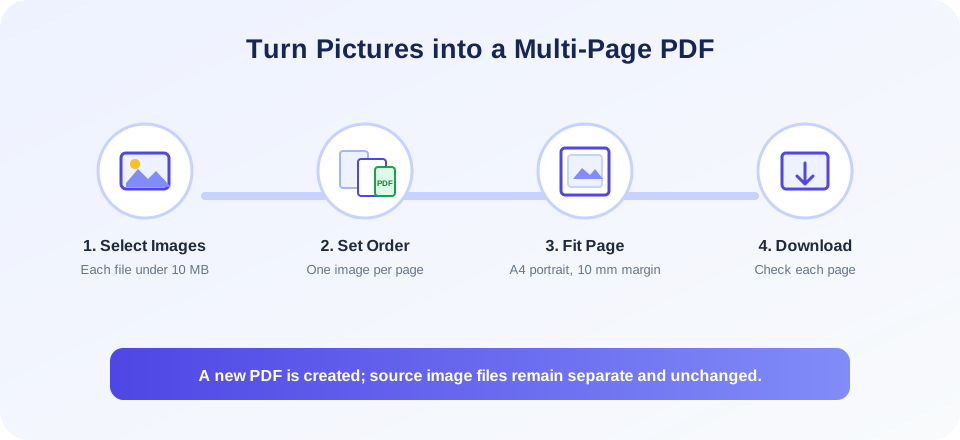
For a multiple-image document, the selected image sequence becomes the page sequence. The current form does not show a preview list or a drag-to-reorder control, so plan the order before selecting your files and inspect the PDF after it is generated. The converter uses A4 portrait pages with a default 10 mm margin, then scales each image to fit inside the available area while keeping its proportions.
This is a format conversion, not optical character recognition or image editing. The output PDF contains the visual images on pages; words visible inside a photo or scan do not automatically become selectable text. If you need to search or copy the text, use an OCR workflow separately. Keep the original picture files, especially when image quality or later editing matters.
How To Convert Image To PDF
To convert image to pdf with the online form, follow these steps:
- Choose your source images. Confirm you have permission to use and upload the pictures. Use clear files in a supported format.
- Plan the page sequence. Decide which image should appear first, second, and so on. The form does not provide a rearrangeable preview list.
- Select one or more files. Use the file picker or drag images into the upload area. Each image must be under 10 MB.
- Start conversion. Press Convert to PDF. The browser sends the selected files to the conversion endpoint and waits for the generated document.
- Download the result. When conversion succeeds, use the provided link or browser download to save the new PDF.
- Check every page. Verify that images are present in the intended order, look clear, and fit the page without unexpected cropping.
The upload panel is designed for multiple images, and the server-side converter processes a list of image paths into one PDF. The tool does not show controls for changing page size, orientation, or margins. If a document has a required page setup, use a PDF authoring application that offers those controls and inspect the exported result.
How The Image To PDF Converter Fits Pictures On A Page
An image to pdf converter embeds image content into a document page. SnapZain’s converter reads each image’s pixel dimensions, creates an A4 portrait page, and scales the picture to fit within the printable area. It preserves the image’s proportions rather than stretching it to fill the entire sheet. With the default margin, some blank page area may remain, particularly for panoramic or unusually shaped images.
Scaling is important because pixels and physical page dimensions are different units. A high-resolution photo may be reduced to fit on paper; a small image may appear modest in size. The converter’s aim is to place the picture on the page, not to upscale it with new visual detail or correct blur. Use a sharp, well-lit source when readability matters.
Each supported, readable file is added as a page in the output. The resulting PDF can be useful for collecting receipts, scanned forms, photographed notes, artwork, or reference images in one file. It does not automatically crop photographs, straighten a tilted scan, remove backgrounds, or detect page edges. Edit the pictures before conversion if those changes are needed.
| Image characteristic | How it may appear in the PDF | What to review |
|---|---|---|
| Portrait photo | Scaled to fit on a portrait A4 page with its aspect ratio retained. | White margins, orientation, and whether details remain readable. |
| Wide landscape image | Reduced to fit within the page width and margins. | Small text and the image’s relative size on the page. |
| Small or low-resolution picture | Placed on the page but may look soft or small when enlarged. | Readability at screen size and at the intended print size. |
| Scanned document image | Embedded as a picture; visible characters remain part of the image. | Scan legibility, skew, contrast, and page orientation. |
| Unsupported or unreadable file | May be skipped or cause conversion to fail, depending on the file. | Use a valid JPG or PNG and confirm every expected page is present. |
Convert Photos, Scans, And Multiple Images
For a photo image to pdf workflow, select the original image file rather than a screenshot of a thumbnail or preview. A clean, high-resolution source helps preserve fine details when fitted to a page. If the picture contains text, check that it is upright and in focus before converting. The conversion step places the picture into the PDF; it does not improve the captured text.
For document scans, capture every page with consistent orientation and keep a clear sequence. If you are combining a multi-page form or a set of receipts, sort the images first so the generated PDF reads naturally. The browser sends the selected files as an ordered list, but selection order can vary by operating system and file picker. Always open the finished PDF to confirm sequence and completeness.
The tool can be used as an images to pdf workflow for combining several pictures into one file. This can be convenient for sharing a group of related images as a single attachment. Keep the image originals as well: PDFs are suited to page-based viewing, while original files may be easier to crop, retouch, or reuse in other formats.
File size deserves attention. The visible limit applies to each image, not necessarily to the combined PDF. Many high-resolution photos can produce a large document, and processing time depends on server resources. If upload or processing fails, consider preparing smaller copies with an image editor while keeping the originals untouched. Avoid lowering resolution so far that important labels or small print become unreadable.
Image To PDF Versus PDF To Image
Image to PDF and PDF to image are opposite directions. This page starts with pictures and creates a PDF. A PDF-to-image converter starts with a PDF and renders its pages as image files. Search phrases such as pdf to pdf image can be unclear: if your source is a PDF and your goal is a page picture, choose PDF to Image; if your source is one or more pictures and you want a document, choose this tool.
The word “conversion” can also hide important differences. In an image file convert to pdf task, the image is placed on a document page. In the conversion of pdf to image or conversion pdf to image direction, the PDF page is rasterized. Neither direction automatically extracts text, and converting between formats may change what can be searched, selected, or edited.
| Starting file | Desired result | Choose |
|---|---|---|
| JPG, PNG, or another supported picture | A PDF with each picture on a page | Image to PDF |
| Existing PDF document | PNG or other page image files | PDF to Image |
| Image containing printed words | Selectable or searchable text | OCR or image-to-text, not ordinary PDF creation |
| Existing PDF needing added pictures | An edited PDF containing new images | A PDF editor with image insertion, not this new-document converter |
If you searched for convert pdf to image or convert pdf to images, use the reverse-direction tool. Image to PDF does not export pages from a PDF, even though both workflows work with pictures and PDF documents.
“Choose the direction from your starting file: pictures become PDF pages; PDF pages become pictures.”
Layout, Quality, And Accessibility Checks
After you change image to pdf, inspect the output at ordinary viewing size and at the size where it will be used. Make sure that page orientation is sensible, the image is not clipped, and important text is legible. A picture scaled down to fit A4 can make small handwriting or printed text difficult to read. If users will print the PDF, check a printed test page when practical.
Image-only PDFs may be difficult for screen readers and are not as searchable as PDFs with a text layer. If accessibility is important, provide descriptive text or an OCR-enabled accessible document where appropriate. The converter does not add tags, alternative text, or recognized text to the picture. Do not assume that because a PDF opens, its contents are accessible to everyone.
Some image formats can contain multiple frames or animation, such as GIF. A PDF is page-based and does not reproduce animation as an interactive sequence. Confirm which frame or appearance is embedded in the result. For critical documents, prefer a static, well-tested image format and review the finished page.
Check privacy before uploading. Images may contain faces, addresses, account details, medical information, location clues, or other personal data. The files are sent to the website’s server for processing. Only use the service if your privacy rules and agreements allow it; for restricted material, choose an approved local application.
Common Questions About Adding Or Changing Images
People searching for add image to pdf or how to add image to pdf may mean two different tasks. If they want a new PDF made from pictures, this converter is appropriate. If they need to insert a picture into a particular page of an existing PDF, they need an editor that opens and changes that document. This tool does not append images to a PDF you already have.
Likewise, change image to pdf online and image convert to pdf can describe making a new PDF copy from an image. The source picture remains separate and is not altered. If you need to make visual changes such as cropping, rotating, or annotating a photo, edit the image first or use an application designed for those operations.
A phrase such as how to make image into pdf can refer to a single picture or a collection. Select one image for a one-page document, or select several to create a multi-page PDF. The tool returns one document for the selected files, not separate PDFs for each picture.
“A well-ordered source set makes a more useful PDF. Check the page sequence before you share the final file.”
Related Document Conversion Tools
For other image and document tasks, see PDF to Image to render PDF pages as pictures, TXT to PDF to make a document from plain text, PDF to JSON to extract supported PDF information into structured data, PDF to Markdown for a text-oriented conversion, or PDF to XML for an XML output workflow.
Each tool has a different input and output. Image-to-PDF conversion gives you page-based visual content; text and structured-data conversions are more suitable when you need words or data for editing. Choose the workflow that matches the work you intend to do, and inspect the result before relying on it.
Image To PDF Summary
SnapZain’s online image to pdf converter combines supported JPG, JPEG, PNG, BMP, GIF, or WebP files into one PDF. The visible form accepts multiple images, each under 10 MB. The converter creates A4 portrait pages with a default 10 mm margin and scales each readable image to fit while retaining its proportions.
Conclusion
Use this tool when you want a new PDF made from pictures, not when you want to edit an existing PDF or turn PDF pages into images. Plan page order before upload, keep the originals, and review the generated PDF for missing pages, image quality, orientation, and privacy suitability. The result is a visual document; it does not automatically create searchable text or guarantee that every file-specific feature is preserved.


