TXT to PDF Converter: Turn Plain Text into a Formatted PDF
Plain-text files are convenient for drafting, notes, and simple content because they keep words easy to edit. When you need a page-based document to share or print, you can convert TXT to PDF using SnapZain's editor. Type or paste text, open a text file, apply rich-text formatting, set a file name, choose a paper size and margin, and download a PDF.
This is a presentation conversion, not a proofreading or fact-checking service. Your text remains your responsibility; review spelling, links, headings, page breaks, and any sensitive details before sharing the result.
How to convert a TXT file to PDF with SnapZain
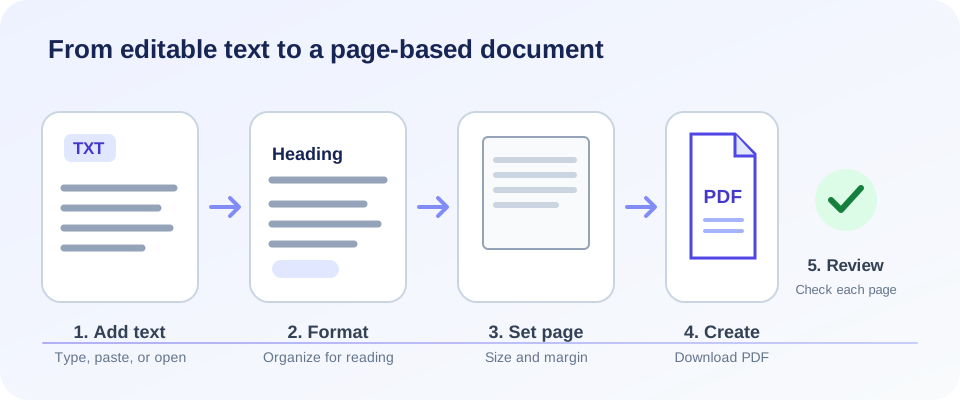
If you're wondering how to convert TXT to PDF, follow these steps:
- Add your text. Type or paste content into the rich-text editor, or select Open File to load a plain-text file.
- Organize the content. Use the available editor toolbar to apply headings, emphasis, lists, alignment, links, and other supported styles.
- Name the document. Enter a recognizable file name in the File Name field.
- Choose PDF settings. Select A4, A3, A5, Letter, Legal, or Tabloid, then set a margin in millimeters.
- Generate and check. Select Download PDF, open the downloaded file, and confirm that its text and page layout look right.
What the TXT-to-PDF tool does
A TXT to PDF converter takes text-editor content and creates a page-based PDF using the selected settings. The SnapZain page combines a rich-text editor with PDF options. You can work with plain text, adjust formatting, select the available page size and margin, and choose a file name.
The converter does not improve or proofread the source text. Review spelling, wording, and important details before converting, then check the final PDF after download.
A PDF is not simply a TXT file with a different extension. The PDF has pages, margins, and rendered text; the content may wrap differently according to formatting and paper size. Keep the editable text if you expect to revise the document later.
Format text before you create the PDF
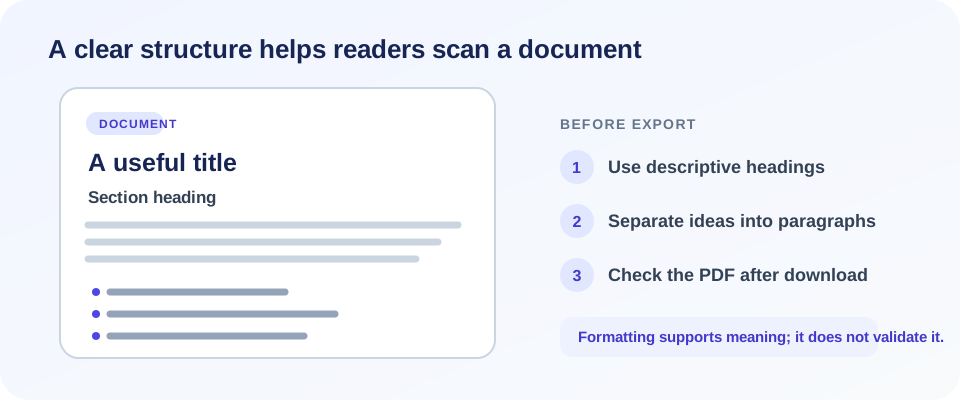
The editor lets you prepare text rather than exporting an unformatted block. Use headings to show topic changes, paragraphs to separate ideas, and lists when they make instructions or details easier to scan. Emphasis and links can add context, but use them where they help readers rather than decorating every line.
For a long document, a useful structure is a descriptive title, a short introduction, clear section headings, and concise paragraphs. Review pasted content for unexpected line breaks or formatting, especially if it came from a website or another word processor.
Choose a page size and margin
The page-size menu includes A4, A3, A5, Letter, Legal, and Tabloid; A4 is selected by default. Choose the size that fits the reader's screen, printing needs, or document requirements. A larger sheet is not automatically better—short notes may be easier to read on a common page size, while a wide or large-format document may need a different option.
The Margin field is measured in millimeters and starts at 20 mm. The server accepts integer values from 5 to 100 mm. Margins define the space between content and the page edges: smaller values provide more room for text, while larger values leave more whitespace. Check the rendered PDF to ensure text is not cramped or too close to the edge.
The current interface does not expose a separate page-orientation setting on this page. Do not assume the output can be switched between portrait and landscape from the visible controls.
When converting a .txt file is useful
A .txt to PDF workflow can help when text is ready to share as a document rather than as a draft. Common examples include meeting notes, study guides, instructions, checklists, reference notes, or simple reports. After opening a text file, you can format the content in the editor and choose page settings before exporting.
For ongoing revisions, keep your original .txt file and treat the PDF as a distribution copy. That way you can update the source and generate a new PDF when the information changes. A generated PDF does not replace the editable source.
TXT and PDF have different jobs
TXT is lightweight and convenient for editing simple text. PDF is designed to present content on pages and is commonly used for sharing or printing. One is not always better: choose based on whether you need an editable source or a finished document.
If your source is a web page rather than plain text, the separate HTML to PDF workflow may fit better. For rows and columns in a spreadsheet-style file, CSV to PDF is designed for that input. These links are alternatives for different source formats, not extra steps required by this TXT converter.
If you already have a PDF and need to extract structured data, the reverse-direction task is different; PDF to JSON may be relevant. To add a signature to a finished document, use the separate Sign PDF tool.
Review the PDF before sharing
After downloading, open the PDF and check the document as a reader would see it. Confirm that the title and paragraphs are present, the page size is appropriate, and the margins leave enough whitespace. Look for awkward page breaks, missing characters, unintended blank lines, and links or formatting that need correction.
Conversion creates the document file; it does not certify that its content is correct or suitable for its intended audience. A final human review is especially useful before you print, publish, or send the PDF to someone else.
Text layout checks before creating a PDF
Plain text has no fixed page boundaries, so a long paragraph can wrap differently after it enters a page-based document. Break up dense passages, use headings to mark topic changes, and keep related list items together. A short preview conversion can help you judge whether the font size and margins make the content comfortable to read.
| Text structure | Before conversion | Check in the PDF |
|---|---|---|
| Title and headings | Separate the title and use consistent heading styles. | Check hierarchy, spacing, and whether headings are separated from following text. |
| Long paragraphs | Break dense text into meaningful, readable sections. | Look for awkward page breaks and orphaned lines. |
| Lists | Use the editor’s list controls rather than typing uneven spacing. | Confirm markers, indentation, and item order are consistent. |
| Special characters | Keep the intended spelling, symbols, and punctuation in the source. | Check that characters display correctly in the saved file. |
Use a consistent style for titles and section headings so readers can scan the finished document. If the source contains a numbered procedure, keep each step on its own line and check that numbering stays in sequence after conversion. For a page intended to be printed, verify that important text is not too close to the edge and that paragraphs are not split in confusing places.
Large changes to font styling or alignment can affect the space available on each page. If the document grows or shrinks after formatting, review the page count and any blank pages before distributing the PDF. A final pass through the full file is more reliable than checking only the first page.
Conclusion: convert text to PDF and check the result
SnapZain lets you convert a .txt file to PDF by loading or entering text in its editor, formatting the content, choosing a file name, selecting a supported page size and margin, and downloading the PDF. The tool changes how your text is presented; it does not proofread, fact-check, or guarantee the final document's suitability.
If you want to convert TXT to PDF online, prepare the content, use the page options that fit your task, and review the downloaded document. Keep the editable source so you can make corrections or create an updated PDF later.


