PDF to XML Converter: Convert PDF Files to Layout-Oriented XML Online
PDF and XML are designed for different jobs. A PDF keeps a document's pages ready to view and share; XML represents information with tags and a hierarchy that software can inspect. SnapZain's PDF to XML converter processes an uploaded PDF and returns layout-oriented XML containing the text and page-position information that can be extracted from that document.
Use the converter when you want to inspect or reuse extractable PDF content in a structured format. The output is not a semantic data export: it does not automatically recognize an invoice total, customer name, table column, or other business field and assign it to your own schema. The original PDF is still the reference for visual appearance and verification.
How to convert a PDF to XML with SnapZain
If you are looking for how to convert PDF to XML, the steps are simple:
- Select a source file. Choose a PDF from your device or drag it into the upload area.
- Check the file and size. The tool accepts PDF files up to 10 MB. Confirm that you selected the intended document.
- Start conversion. Wait while the PDF is converted into XML.
- Download the result. Save the generated XML file, then open it in a text editor or XML-aware application.
- Review before reuse. Compare important text and page order with the original PDF. Validate the output before importing it into another system.
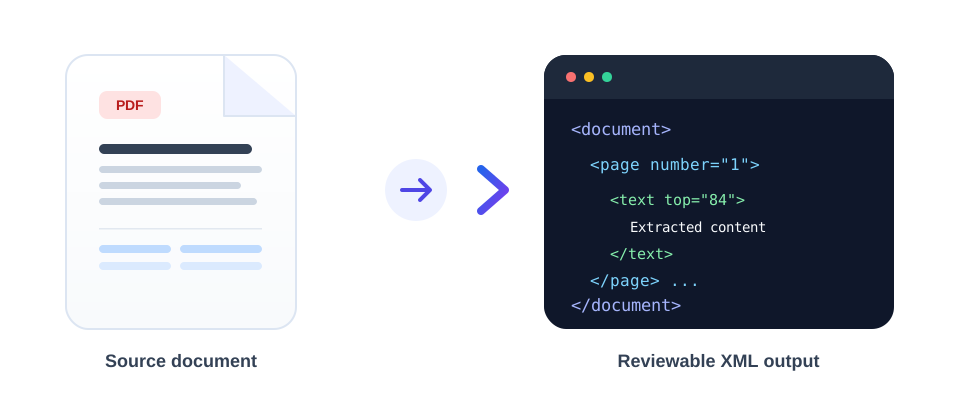
In short, how to convert a PDF to XML format depends on choosing a PDF with extractable content, processing it, and checking the resulting XML. This tool keeps that conversion workflow straightforward, while the review step helps you catch source-document or extraction issues.
What a PDF to XML conversion produces
When you convert PDF to XML with this page, the converter uses Poppler's pdftohtml XML output. The result is oriented around the PDF's page layout. Depending on what is present and extractable in the source, the XML may represent page boundaries, text, and positioning information.
A PDF to XML format converter changes the representation of available document content; it does not simply rename the file extension. The XML contains tagged elements that software can inspect, but its exact structure is determined by the conversion process and the source PDF. If you need a specific vocabulary or schema, you will need a compatible converter or a separate transformation step.
This is different from converting a PDF into a clean database record. A PDF often stores text at positions on a page instead of recording the author's meaning—for example, a visually aligned table may not be stored as rows and columns. The tool does not infer business meaning or construct a custom XML schema for a specific product, organization, or database.
That distinction matters when you convert PDF file to XML for a downstream workflow: the output may provide useful source material, but you might still need to parse, clean, map, and validate it. A syntactically valid XML file does not by itself guarantee that it matches the data model expected by another application.
Whether you want to convert PDF to XML format for archival, data exchange, or software processing, decide what the receiving system expects before importing the result. A layout-oriented XML export and a domain-specific XML document are not interchangeable.
Elements you may encounter in the XML
The generated structure follows the converter’s representation of PDF pages and positioned text. It is useful to know what those elements describe before writing an import routine:
| XML information | What it describes | Review before processing |
|---|---|---|
| Page | A page boundary and its dimensions in the source document. | Confirm page count, order, and page size are consistent with the PDF. |
| Text | Extracted characters or strings associated with a page position. | Check reading order, punctuation, accented characters, and line breaks. |
| Position and size | Coordinates and dimensions that help describe where content appears. | Do not assume these coordinates identify a heading, table cell, or business field. |
| Font reference | Information about the font used by extracted text. | Confirm the receiving parser can handle the element and its attributes. |
Use these details to build a parser around the structure you actually receive. If another system expects a specific XML vocabulary, add a transformation step that maps the extracted content into that schema and validates the result.
Digital PDFs, scanned PDFs, and OCR
A digitally generated PDF commonly contains selectable text. A scanned PDF may instead contain page images with no text layer. SnapZain's converter does not perform optical character recognition (OCR), so it cannot recognize words that exist only as pixels in a scan. An image-only PDF may therefore produce little or no useful extracted text.
To prepare a scanned document, use an OCR process first to create a searchable text layer, then review the recognized text for errors before converting it. Recognition accuracy depends on scan quality, handwriting, page orientation, contrast, and language. OCR output should not be treated as verified data without checking it against the scan.
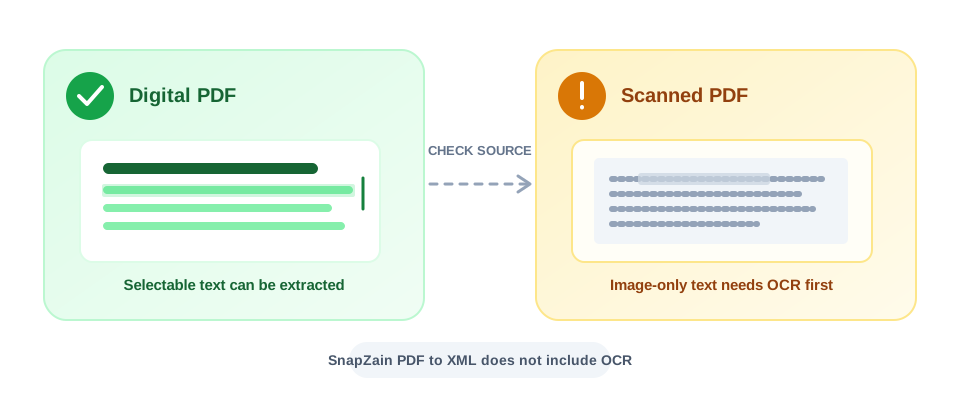
If a PDF's text is selectable but the XML result is still incomplete, inspect the source for unusual fonts, embedded text, multi-column reading order, or content represented as images. The source's internal construction influences what any extractor can recover.
How to check and validate the XML
Before you use the output, open it with a text editor or XML-aware application and check both its syntax and its meaning. The XML may open successfully while still containing text in an unexpected order or a structure that your target system cannot use.
- Compare names, dates, totals, and other important values with the source PDF.
- Check page order, multi-column reading order, punctuation, and special characters.
- Review tables carefully; visual alignment in a PDF may not translate into dependable XML fields.
- Validate the file against the receiving application's schema or import requirements, if it has one.
- Keep the original PDF until the converted information has been checked and accepted.
For one-off documents, a careful visual comparison may be sufficient. For repeated or business-critical processing, define validation rules and test a representative range of source PDFs before relying on an automated workflow.
Choose XML for data workflows, PDF for page presentation
XML can be useful when software needs to inspect, transform, or exchange structured markup. PDF is usually a better fit when the priority is a document that looks consistent on screen or in print. Neither format is universally better; choose based on what the next person or system needs to do.
If your goal is to change PDF to XML, this tool handles the PDF-to-XML direction only. It does not recreate a page design from XML or decide how extracted information should be presented.
People sometimes search for convert PDF XML to PDF when they mean the reverse direction. This SnapZain page converts PDF to XML, not XML back to PDF. Creating a PDF from XML is a separate publishing task: software must understand the XML structure and apply a page design. If you have written text that needs to become a PDF, the Text to PDF tool is a suitable starting point, but it does not import XML data or recreate an existing PDF layout.
Likewise, generic layout XML is not the same as MusicXML. A search for MuseScore PDF to XML usually points to music-notation recognition. This converter does not identify notes, staves, or musical symbols and cannot produce editable MusicXML from a score image.
Other PDF tasks you can do on SnapZain
Conversion is only one part of a document workflow. If you need to prepare or reorganize a PDF, use the tool designed for that task:
- Add a visible mark before sharing with Watermark PDF.
- Remove unwanted pages with Delete PDF Pages.
- Save selected pages as a separate document with Extract PDF Pages.
- Create a PDF from written content with Text to PDF.
For a different machine-readable output, you can also use PDF to JSON. To produce web-page markup from a PDF, see PDF to HTML. Each format serves a different purpose, so check that the result fits the software or workflow you plan to use.
Is SnapZain's PDF to XML converter free?
If you are comparing a PDF to XML converter free of a paid subscription, SnapZain currently offers this tool without a paid plan, with a 10 MB upload limit. Choose a representative, non-sensitive PDF first, review the output, and confirm that layout-oriented XML is the format you actually need. Availability and limits can change, so the live tool page is the best place to check current access.
Common PDF-to-XML use cases
A converted XML file can be a useful intermediate when a team needs to inspect document text, build a custom parser, or move extractable content into another processing step. For example, a developer might process XML with application code, apply rules for a known document type, and then map verified values into a separate system. The conversion provides a representation to work with; the application-specific interpretation still needs to be designed and tested.
XML may also be useful for structured archiving or exchange when the receiving workflow accepts the generated structure. Keep the original PDF alongside it when visual evidence, page layout, or later comparison matters. XML is a companion representation that makes extracted content easier to inspect, while the PDF retains the original page appearance.
For repeated conversions, test documents with different page layouts before designing a parser. Include examples with single and multiple columns, a table, special characters, and a page with little text. This helps reveal which parts of the source are represented consistently and which require document-specific rules.
This tool is less suitable when you need an editable replica of the original PDF, OCR for image-only pages, exact table reconstruction, or a guaranteed export to a specific industry's schema. In those cases, select a workflow built for that output and verify its requirements before processing a batch.
Practical troubleshooting
If the upload is rejected, first confirm that the selected file is a PDF and is within the 10 MB limit. A file with a PDF extension may still be damaged or unreadable; try opening it locally. If it opens, exporting or saving a fresh copy from a trusted PDF application may resolve a file-structure issue.
If conversion completes but the XML is sparse, check whether the PDF has selectable text. A scan may need OCR before this converter can extract words. If the text exists but appears in an unexpected order, compare the page layout—especially columns, sidebars, and tables—and decide whether a custom parsing or cleanup stage is needed. Do not assume a successful download means every field was captured correctly.
Conclusion
A PDF to XML file converter can help move extractable page content into a machine-readable representation, but it does not automatically understand the document's business meaning. SnapZain creates layout-oriented XML from a PDF upload up to 10 MB; it does not include OCR, create application-specific schemas, or convert XML back into a visually identical PDF.
If you are asking how do I convert PDF to XML format or researching how to convert PDF to XML format, upload a supported PDF, run the conversion, download the XML, and inspect it against your source. To answer how to save PDF as XML, keep the downloaded file with its .xml extension and validate it before importing. Use the result as a starting point, not as verified data: compare important information with the source and retain the original until you have confirmed the conversion meets your needs.


