From Fixed Page to Flexible Picture
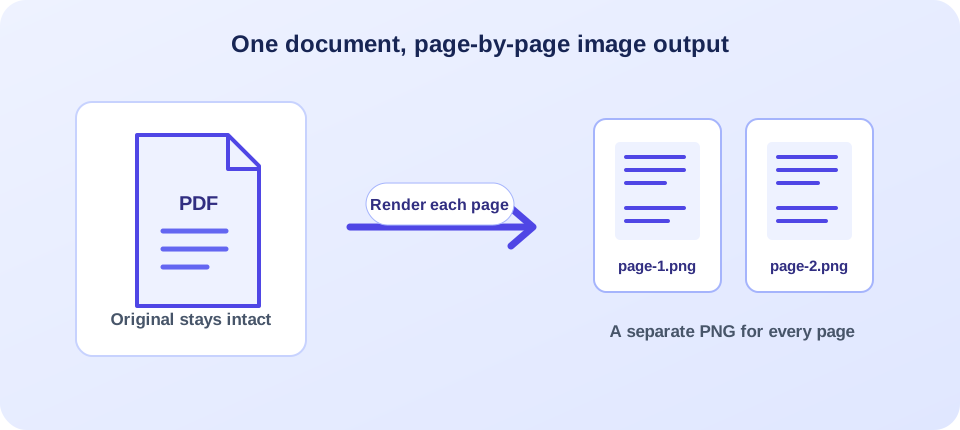
A PDF is made to hold a document together. A PNG is made to show a picture. This tool bridges those formats by rendering each page of an uploaded PDF as its own PNG image. Choose a PDF no larger than 10 MB, start the conversion, and let the browser download the resulting page images one after another.
That change is useful when you need a page preview for a slide, a visual sample for a report, or an image that can be opened in a graphics program. It is not a way to edit the PDF text: once rendered, letters and vector artwork become pixels. The source document stays unchanged, so keep it if you need its searchable text, links, or original layout.
A Short Walk Through the Tool
The page is deliberately simple. It accepts one PDF, sends it to the conversion endpoint, and returns image files for every page. There is no format menu, page-range box, DPI control, or image editor on this form. The server currently renders at 150 DPI, and the browser triggers downloads individually with a brief pause between them.
- Choose the right PDF. Check that it opens properly and is below the displayed 10 MB limit.
- Select or drop the file. The uploader expects a PDF, not an image or office document.
- Start conversion. Wait while the page is uploaded and rendered. Keep the browser tab open.
- Allow downloads if prompted. A multi-page PDF creates multiple PNG downloads. Your browser may ask permission for several files.
- Review your images. Open a few pages, including one with small print, and confirm the sequence and clarity.
In everyday terms, convert PDF to PNG means turning the appearance of each page into a bitmap picture. The output is page-based: a five-page PDF normally produces five PNG files, not one tall image. The tool does not combine all pages into a collage, and it does not remove pages from the original.
Choose PNG when the page needs to be seen as an image; keep the PDF when its text and document features need to stay usable.
What 150 DPI Means in Practice
DPI describes how many image dots represent an inch when a page is rendered. At 150 DPI, a standard letter-size page becomes roughly 1,275 by 1,650 pixels; an A4 page is approximately 1,240 by 1,754 pixels. These are estimates: exact dimensions depend on the PDF’s page size and the renderer’s output.
That resolution can be adequate for screen viewing, quick previews, and many everyday document images. It is not a promise that every detail will be sharp at every zoom level. Fine text, thin lines, small footnotes, or a large-format print may need more pixels than this workflow creates. If print fidelity is important, test a representative page first and consider a converter that exposes a higher resolution.
Image dimensions also affect file size. A page with photographs, shading, or detailed diagrams may produce a larger PNG than a sparse text page. PNG uses lossless compression, which preserves pixel values rather than deliberately discarding image detail, but it does not make a large page image small automatically. Check storage and sharing requirements before converting a long document.
| Use case | What 150 DPI may suit | What to inspect |
|---|---|---|
| Screen preview | Sharing a page image or adding a readable visual to a slide. | Text at normal screen size and page edges. |
| Small-print detail | May be less suitable when tiny labels must remain crisp. | Footnotes, thin rules, symbols, and small numerals. |
| Print output | May work for routine prints depending on size and viewing distance. | Print a test page before producing a large batch. |
| Large-format display | May appear soft when enlarged substantially. | Pixel dimensions and the final physical display size. |
PNG Is a Picture, Not a Smaller PDF
A page image records colors at pixel positions. That makes it easy to place into many visual workflows, but it changes what the information can do. Text in the source PDF is no longer selectable text in a PNG. Links, bookmarks, form fields, annotations, document structure, and vector paths are not preserved as interactive PDF elements in the page image.
If a reader needs to search for a word, copy a paragraph, use a screen reader, or follow a link, provide the original PDF or another accessible document format. A PNG can be useful alongside that source as a preview, but it is not an equivalent replacement for every purpose. For scanned pages, the rendered PNG will show the scan as it exists; it will not clean up the scan or recognize its words.
Color can also matter. PNG is well suited to crisp diagrams, text, interface captures, and illustrations. Some colors may look slightly different across displays or applications because of color profiles and rendering choices. Transparencies, page backgrounds, and subtle gradients should be checked in the target application if exact visual appearance matters.
Pick the Format That Matches the Job
PNG is one of several ways to represent a PDF page as an image. Choosing a format depends on what is on the page and how you plan to use it. The current tool outputs PNG only; it does not offer a JPG selector or settings for compression. If you specifically need another format, choose a tool designed for it rather than renaming a PNG file.
When comparing an online PDF to PNG converter, consider its upload limit, privacy terms, render resolution, and how it handles multi-page downloads. Here, every page is returned as an individual PNG at 150 DPI. A “free online PDF to PNG converter” label alone does not tell you whether the output meets your needs, so check the tool’s current terms and test a representative page.
Some people search using the phrase “converter PDF to PNG”; whatever wording they use, the useful comparison is whether the service outputs the page images, at what resolution, and with what privacy and download limits.
| Format or source | Typical strength | Keep in mind |
|---|---|---|
| PNG page image | Lossless pixels for text, diagrams, and sharp edges. | Each page is a separate image; text is not selectable. |
| JPG page image | Often smaller for photographs and continuous-tone images. | Lossy compression can introduce artifacts around text and lines. |
| Original PDF | Can preserve multiple pages, text, links, and document features. | Not every application handles its content the same way. |
| Spreadsheet or document export | Editable structured data or paragraphs when available. | Use a format conversion, not a page-image render. |
For example, a page of fine text or a chart with sharp labels may benefit from PNG’s lossless rendering. A photo-heavy page may be more compact as JPG, depending on its quality settings. This site has a separate PDF-to-JPG workflow for that requirement. Do not claim “high quality” based on an extension alone: the source PDF, page size, render resolution, and later resizing all affect what the eye sees.
If you searched for “PDF to PNG converter free” or “PDF to PNG convert,” focus on those practical details rather than the wording: check whether all pages are included, whether downloads open, and whether the 150 DPI output is clear enough for your use. To convert PDF to PNG free may be convenient for a preview, but suitability depends on the file and the work that follows.
When Conversion Helps—and When It Does Not
Page images are handy for inserting a visual into a presentation, sending a quick page preview, adding a diagram to a design canvas, or viewing one page in an image viewer. They can also help when the receiving system accepts image uploads but not PDFs. In those situations, use the PNG as a visual copy and keep the document as the authoritative source.
Conversion is less helpful when someone needs to work with the document itself. If the goal is to edit paragraphs, recover a table, preserve hyperlinks, or archive a searchable record, a rendered image is the wrong endpoint. A PNG cannot restore structure that is no longer in the file. Consider a text- or document-oriented tool instead, then verify that the chosen format suits the recipient.
Ask a practical question before converting: “What will the next person need to do with this page?” If they only need to look at it, an image may be enough. If they need to search it, edit it, quote it, or inspect its accessibility structure, send the source document or a more suitable export. This simple check prevents format changes from making a workflow harder.
Quality Checks Before You Share
Do not judge every page from the first image. A document can have pages with very different content: a cover, a dense table, a full-page diagram, and a mostly blank separator. Review a representative page of each kind. Zoom to the expected viewing size, inspect small labels and symbols, and compare the page boundaries with the PDF.
- Confirm the number of downloaded images matches the PDF’s page count.
- Check that the page sequence is correct, especially when downloads finish rapidly.
- Inspect small text, thin lines, symbols, and colored content at normal viewing size.
- Check whether the receiving application or website supports PNG and the image dimensions.
- Keep the original PDF if search, links, accessibility, or later editing may be needed.
When you receive the files, open them in the application where they will actually be used. A thumbnail can hide softness that becomes obvious on a presentation screen, while a zoomed-in preview can make a perfectly readable page look worse than it will at normal size. If an image will be placed inside another document, check whether that application rescales it and whether the page remains legible after placement. For a group of pages, use a consistent naming pattern and keep the page order clear. These small checks help you catch a missing download or an unsuitable image before the PNGs are sent onward.
Browsers can handle multiple downloads differently. If only some images appear, look at the browser’s download indicator or downloads folder and check whether it blocked later files. The conversion response contains separate image URLs, and the page starts them one at a time; it does not combine them into a ZIP in this flow. Avoid refreshing the page before the download requests have had time to start.
File names usually identify a generated page image, but use your own descriptive names when organizing files for a project. Keep files together and avoid replacing the source PDF. If the images will be shared, check that the page does not contain private information that was not intended for the recipient.
Limits, Errors, and Sensible Troubleshooting
The visible form accepts one PDF up to 10 MB. The server uses a PDF rendering utility to produce PNGs at a fixed 150 DPI. A damaged, encrypted, or unusual PDF may fail to render; the upload form has no password field or page-selection option. If the file cannot be processed, confirm it opens in a trusted reader and that it is within the size limit. For a protected file, use only an authorized route to provide access.
When output appears incomplete, compare the image count with the PDF page count and open the missing page directly in the source. The browser may have blocked multiple downloads, or processing may have stopped before all files were returned. If image dimensions look unexpected, check the page size and inspect the PNG’s actual pixel dimensions rather than relying on a preview thumbnail.
The tool depends on server-side rendering software. If the same valid file repeatedly fails, the issue may be on the service side rather than in your browser. Read any error message and try again later, or use an approved alternative. A failure should not be treated as a successful conversion; verify that the expected images exist and open correctly.
A quick preview is useful, but a careful check of page count, order, and fine detail is what makes the output dependable.
A Responsible File Workflow
Uploading sends the selected PDF to the website’s conversion endpoint for server-side rendering. Before submitting a file, consider what it contains and whether your privacy obligations permit using an online service. Personal, financial, legal, health, or confidential business records may require an approved local tool or a managed service. Review the site’s current terms and policies; do not assume a browser interface means processing stays on your device.
Use only documents you have permission to process and share. A rendered page can make copying or reposting visual content easy, but conversion does not change ownership or grant reuse rights. If you distribute the image, retain needed attribution and context, and avoid presenting an excerpt in a way that alters the meaning of the full document.
If the output is intended for public use, inspect it for private data, internal notes, or page elements outside the main content. An image may expose all visible page details, including annotations or signatures that should not be shared. Consider redaction with a suitable, verified redaction tool before rendering; placing a visual box over text is not always the same as permanently removing the underlying information from a PDF.
Prepare the PDF for a Cleaner Result
A straight, clearly rendered source generally gives a more useful PNG than a skewed or poorly scanned page. If the page includes unnecessary margins or orientation problems, prepare a copy first and check that no required content is lost. The Crop PDF tool can adjust page boundaries, while Add PDF Page can help insert a page into a document before rendering. Keep an untouched original for comparison.
For large files, Compress PDF may reduce the source size, though compression can affect embedded image clarity. Compare a compressed copy with the original before rendering it. If a mark or label is necessary for the document, do not remove it simply to make the image look cleaner; use only changes you are authorized to make.
After conversion, you can place PNG images into a slide or a new document. If you need the reverse direction, use Excel to PDF for spreadsheet pages or another appropriate image-to-PDF workflow. If you need editable text from the original, PDF to Word is designed for a different task and should be checked for layout changes.
Conclusion: Keep the Image and the Source in Their Roles
A PDF-to-PNG conversion gives you a separate image for each page, rendered at the current 150 DPI setting. It is convenient for visual reuse and quick previews, but it does not preserve selectable text or every document feature. Upload a readable file under the stated limit, allow the page downloads, and review the images for order and clarity. Keep the PDF as the source whenever accessibility, search, links, or faithful document structure still matters.


