Convert PDF Tables into an Excel Workbook
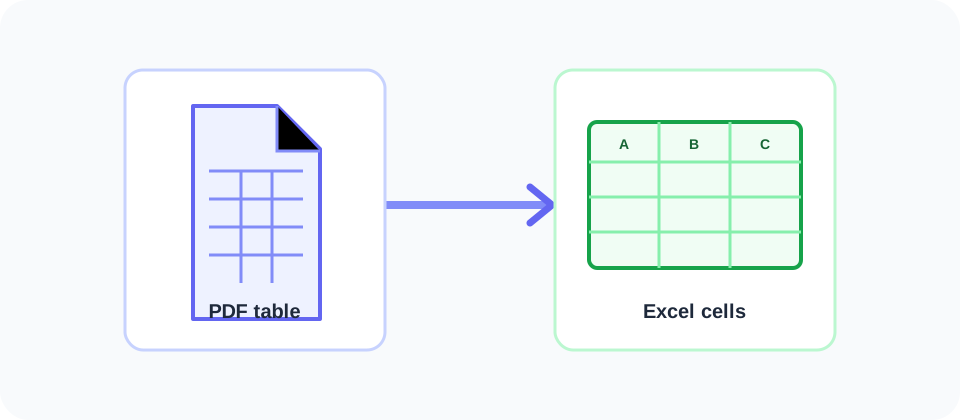
SnapZain’s PDF to Excel tool is designed to extract table-like information from a PDF and provide an XLSX workbook for review in Excel or another compatible spreadsheet application. Upload one PDF file, start conversion, and download the result if processing succeeds. The current form accepts PDF files up to 10 MB and does not provide a page-range selector, so it submits the complete document.
A PDF and a spreadsheet organize information in different ways. A PDF preserves a fixed page layout, while Excel arranges values into rows and columns that can be sorted, filtered, and calculated. Converting between them can save retyping, but it is not a guarantee that every cell, label, or formula will land exactly where expected. Think of the workbook as an editable starting point and validate important data against the PDF.
How to Convert PDF to Excel Online
Use the tool with a readable PDF and allow time for the server to process it. These steps describe the current upload form:
- Prepare the source. Open the PDF and confirm it is the correct version, readable, and no larger than the stated 10 MB limit.
- Select the document. Use the upload area or file picker to choose one PDF. The form does not accept an Excel file as the source.
- Start conversion. Press the conversion button. The page uploads the PDF to the server and waits for the conversion result.
- Download the workbook. If processing completes successfully, the page starts an XLSX download and presents a backup download link.
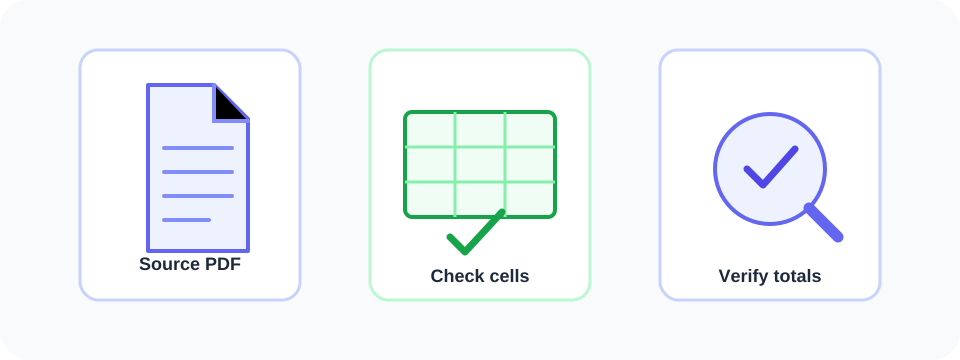
- Review before use. Open the workbook and compare values, row order, headings, and totals with the original PDF before editing, sharing, or making decisions.
When people say convert PDF to Excel, they usually mean moving table-like data into spreadsheet cells. The converter attempts this automatically; it does not let you select a table area in the preview or define custom column boundaries. If the output is not clean, the spreadsheet may need manual correction, or you may need a source file that was designed for data export.
What the Converter Can and Cannot Preserve
Extraction tends to be more useful when a PDF contains selectable text and clearly aligned tables. Repeated row spacing, consistent columns, visible headings, and clean page breaks can help software infer a grid. A document containing several distinct tables may produce separate sections or sheets depending on the conversion engine. The current interface does not expose controls for choosing a worksheet structure or naming output tabs, so inspect the workbook rather than assuming a particular arrangement.
A spreadsheet is not a page-faithful copy. Decorative elements, logos, footers, signatures, charts, multi-column reading order, merged cells, and notes may be repositioned, omitted, or extracted as unexpected values. A visual row that looks like one record in the PDF can become multiple rows or columns in Excel. Conversely, spacing used for appearance may be interpreted as table structure even when it is not data.
PDFs generated from a scanner or camera often contain page images rather than embedded, selectable text. This tool does not advertise optical character recognition, so an image-only source may yield little usable spreadsheet content. OCR is a separate step that attempts to recognize characters; even after OCR, numbers and symbols such as 0/O, 1/I, minus signs, decimal separators, and dates need careful proofreading.
Use conversion to reduce retyping, not to skip verification. A single misplaced digit can change the meaning of an entire row.
Check the Excel Output Carefully
Before using the workbook, compare representative sections from the beginning, middle, and end of the source. Look at the column headings and verify that each value is under the correct heading. Check totals independently, especially if the PDF contains financial, inventory, scientific, or operational information. A conversion process extracts content; it does not certify that the extracted data is accurate.
| PDF source characteristic | Possible spreadsheet result | Review step |
|---|---|---|
| Clear, selectable text in a regular table | Rows and columns may be recognized more consistently. | Compare column headings and several complete rows. |
| Scanned page or photograph | May produce empty, incomplete, or misread cells without OCR. | Run a suitable OCR step first, then proofread recognized values. |
| Multiple tables or side-by-side columns | Content may be grouped or ordered unexpectedly. | Check each table boundary and row sequence. |
| Wrapped text, footnotes, or merged cells | Text may split across rows or combine into one cell. | Inspect long descriptions and cells near line breaks. |
| Numbers, dates, or currency symbols | Formatting or separators may change during extraction. | Check decimals, negative values, dates, and totals. |
Also confirm how the spreadsheet application interprets values. A sequence that looks like an account number may be converted to scientific notation; a leading zero can disappear; a date can be read in a different regional format; and a percentage may be treated as a whole number. If the source contains identifiers, preserve them as text where appropriate. Do not rely on automatic cell formatting for critical records.
Why PDF Tables Need Cleanup
PDF pages are positioned for display and printing, not necessarily stored as a structured table. Some files contain actual text objects in reading order; others place individual words at coordinates. A table extractor estimates which words belong together by analyzing alignment, whitespace, borders, and page geometry. When a document uses irregular spacing or a complex layout, those clues can be ambiguous.
For example, a multi-line product description might be divided between rows, while a wrapped heading might be mistaken for two columns. A page number in the footer can be included as a table value. A printed negative number may lose its minus sign, or a decimal marker can be overlooked. These are known categories to review, not a claim that every conversion will contain them. Check the particular output you receive.
If your document has several tables, compare each extracted section separately. Confirm that repeated headers have not become data rows and that page breaks did not interrupt a record. If a table continues across pages, verify that its last row on one page connects correctly to the first row on the next. If the file has charts or visual summaries rather than tables, they may not become useful worksheet data at all.
When conversion quality is poor, do not force the workbook into use. If available, obtain the original spreadsheet or CSV from the document owner; a source with structured data is generally preferable to extracting a visual representation. Alternatively, re-create a small table manually and double-check it against the PDF. For a large dataset, request a machine-readable export instead of relying on uncertain OCR or layout guessing.
Look for consistent clues as you review: do values align beneath the expected headings, does each record occupy the expected number of cells, and do subtotals reconcile with the source? Check one ordinary row and at least one row with longer text, unusual symbols, or a blank value. These sample checks can reveal a shifted column or a broken line wrap before it affects an entire sheet.
Be cautious when the PDF uses regional conventions. A value such as 1.234,56 may represent a decimal amount in one locale, while 1,234.56 is common in another. Dates such as 03/04/2025 can also be ambiguous. Keep the source format in view while checking the workbook, and do not convert regional values automatically until the intended convention is clear.
Choose the Best Source for Spreadsheet Data
If the document owner can provide a CSV or XLSX, prefer that structured data over extracting a visual PDF. Direct spreadsheet exports are generally easier to validate; PDF conversion has to infer rows and columns from page layout.
When the PDF is your only source, ensure tables are legible and fully visible. A low-resolution scan, rotated page, or cropped column may limit extraction. Scans may need OCR first, followed by proofreading for similar characters.
For a short table, manual entry may be quicker than repairing a complex conversion. For larger datasets, use the workbook as a draft and record verified corrections. A printed total does not reveal whether the original used a formula; add calculations deliberately and compare them with the PDF.
Page Selection and Workbook Organization
The upload form processes one complete PDF and has no controls for selecting pages, table areas, or individual columns. If you only want certain pages, first create a separate PDF containing those pages, then use the converter on that smaller document. You can use Delete PDF Pages if you need to remove unwanted pages, or use a page extraction workflow to keep only the pages you intend to analyze.
The converter returns an XLSX file when successful. The page does not promise a specific number of worksheets, column names, formulas, or formatting style. Open the workbook in a compatible application and check the sheet tabs, used range, filters, cell types, and visible rows. If the workbook contains multiple tabs, identify which one holds the extracted values before you make edits.
Save a working copy before adjusting columns or cleaning data. Preserve a copy of the unedited conversion so you can compare it with the original. If the spreadsheet will be shared, remove test columns and personal data that are not needed, use an informative file name, and confirm the recipient is authorized to receive it.
| Before editing the workbook | Why it matters |
|---|---|
| Keep the original PDF and an untouched copy of the XLSX. | They provide a reference if cleanup introduces an error. |
| Check numbers, dates, units, and currency values against the source. | Automatic parsing can change cell types or separators. |
| Review table headings, merged cells, wrapped lines, and page transitions. | Layout inference can split or combine table content. |
| Confirm the workbook’s intended audience and sharing permissions. | PDFs may contain information that should not be redistributed. |
PDF to Excel Format Converter: Helpful Preparation
A few source checks can make a conversion easier to inspect. Use a complete, upright PDF rather than a cropped screenshot. If pages are tilted or cut off, fix the source first; Crop PDF can help adjust page boundaries, but cropping may remove data near an edge, so retain an untouched original. If a background mark obscures text, consider whether a clean source is available rather than assuming conversion will remove it.
A watermark can overlap table values and affect extraction. The Watermark PDF tool adds a mark; it is not a tool for removing watermarks from source files. Do not remove or alter ownership marks unless you have authority. For unrelated pages, Delete PDF Pages can create a new PDF with selected pages removed, but confirm the remaining context is still complete.
For a page with clear text but no table structure, converting it to Excel may not be the right goal. A spreadsheet is best suited to values that can be organized into rows and columns. If you need to preserve paragraphs, headings, or links, consider a document-oriented conversion instead. If the PDF is simply too large to upload, Compress PDF may reduce file size, but compression settings can affect image clarity; verify table text remains readable afterward.
A spreadsheet is useful when the information belongs in cells. When preserving page layout matters more, keep the PDF as the reference.
Privacy, Accuracy, and Responsible Use
Only upload documents you are permitted to process. PDFs may include names, account details, signatures, business records, or confidential information. Review the site’s current privacy terms and any workplace or client requirements before submitting sensitive files. For highly confidential data, use an approved local workflow or a service authorized by your organization.
Use extracted data responsibly. A workbook can make it easier to sort, filter, or calculate values, but it can also make errors less visible if someone assumes the conversion was exact. Keep a traceable source reference, preserve original context, and disclose when data has been extracted and reviewed if that matters to the people using it. Do not present uncertain or incomplete extraction as verified data.
Free availability should not be confused with unlimited processing, professional data validation, or guaranteed output quality. The interface has a visible 10 MB upload limit, while processing availability can also depend on server-side converter software and the nature of the file. If a conversion request fails, try a valid, readable, permitted PDF and consult the site’s error message rather than treating failure as successful output.
Common Questions About Converting PDF to Excel
People search for different ways to describe the same task: PDF to Excel convert, convert from PDF to Excel, changing PDF to Excel format, or a PDF to Excel format converter. The key questions are whether the source contains extractable tables, how the values are represented in the workbook, and whether you have checked the result.
A free PDF to Excel converter may save manual entry when source tables are clear. A PDF convert to Excel free software search may instead lead to desktop apps with their own license terms and offline processing. Compare the source requirements, privacy approach, output type, and validation tools before choosing. Do not assume one converter will work equally well on every PDF.
Search wording varies: people may look for a PDF to Excel converter free, ask how to convert PDF to Excel free, compare a PDF to Excel free tool, or search for an online PDF to Excel converter. “PDF to excell,” “change from PDF to Excel free,” “convert PDF to Excel converter,” and even “to PDF to Excel” are other query forms for the same goal. The steps remain: upload a readable source, retrieve the workbook, and verify the data.
If you need to insert a PDF into Excel as a reference attachment, use Excel’s insert-object function; that embeds or links the document rather than converting the PDF’s tables into cells. If you want a spreadsheet, use an extraction workflow and check the data. If you only want to export a selected page or remove distracting pages, prepare a separate PDF first and then convert that copy.
An online export PDF to Excel workflow sends the document to a web service for processing, while desktop PDF-to-Excel software may run locally or rely on a vendor account. Consider where the file is processed, what data it contains, how large it is, and whether your organization approves the service. The phrase convert PDF to Excel online free does not tell you how the provider handles a document or whether advanced features cost extra, so read the current terms.
For a careful workflow, keep the source, compare the resulting table, correct only what you can verify, and save a separate edited version. That approach helps make a PDF-to-Excel conversion more useful without implying that an automatic tool can interpret every layout or validate every number for you.
Conclusion
PDF to Excel can turn table-like PDF content into an XLSX workbook that is easier to edit, sort, or analyze. Upload a readable PDF under the stated limit, download the result when processing succeeds, and check the workbook against its source. Scans may need OCR, complex layouts often need cleanup, and important values should always be verified. Keep the original PDF and use the extracted spreadsheet as a working copy, not as proof that every value was converted perfectly.


