Turn PDF Pages into JPG Images for Everyday Sharing
A PDF is convenient when a document needs to keep its pages together. A JPG is useful when you need a page as an image for a slide, a message, a visual preview, or an application that accepts picture files. This PDF to JPG tool renders each page of an uploaded PDF as a separate JPG image and starts downloading the results one by one.
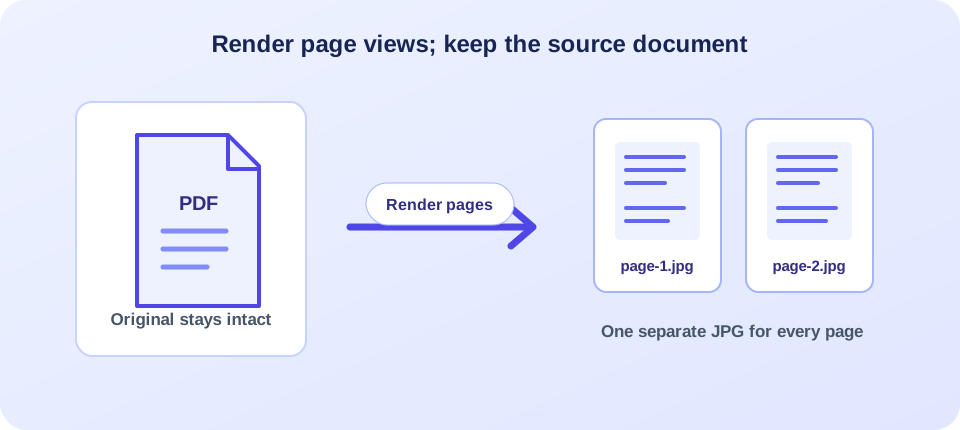
The form accepts one PDF up to 10 MB. The server renders at 150 DPI; the page does not offer controls for resolution, page range, or image quality. If a PDF has several pages, expect several JPG files rather than a single image of the entire document. Keep the PDF if you need selectable text, links, document structure, or a searchable source.
How the Online PDF-to-JPG Conversion Works
The workflow is designed around a single upload. Before you begin, confirm that the PDF opens correctly and that you have permission to process it. Then follow these steps:
- Select the PDF. Choose one readable document no larger than 10 MB.
- Start conversion. The browser sends the file to the site’s conversion endpoint for server-side rendering.
- Wait for the result. The tool processes every page and returns an image file for each one.
- Allow multiple downloads. Your browser may ask permission because it receives several JPG files.
- Review the images. Check page count, order, readability, and image dimensions before sharing or using them elsewhere.
When people ask how to convert PDF to JPG, they usually mean “how can I get a picture of each page?” The tool makes that kind of visual copy, not an editable text document. The process does not change the PDF stored on your device, and it does not combine all the page images into one long graphic.
Processing occurs on the server rather than entirely inside the browser. That helps the page use available PDF rendering software, but it also means the selected file is uploaded. Consider privacy requirements before submitting a document, especially if it contains personal, financial, medical, legal, or confidential business information.
Use JPG when the page needs to be seen as a picture; keep the PDF when readers need to search, select, or work with its content.
What 150 DPI Means for Page Detail and Image Size
DPI describes how many image dots represent an inch during rendering. At 150 DPI, a typical letter-size page becomes approximately 1,275 by 1,650 pixels, while an A4 page is roughly 1,240 by 1,754 pixels. These figures are estimates; the PDF’s actual page dimensions and rendering details determine the final output.
This level of detail may be sufficient for screen previews, routine sharing, and many presentations. It may not be ideal for enlarging tiny print or producing large-format prints. The form does not expose a higher-resolution setting, so inspect a representative page before deciding whether the output works for your purpose. If small footnotes or fine chart labels matter, zoom in and test them at the size the recipient will use.
JPG is a compressed image format. It can reduce file size, especially for photographic content, but compression may soften edges or create artifacts around fine lines and text. The source PDF, page dimensions, image content, render settings, and later resizing all affect the final appearance. An extension alone cannot guarantee a crisp result.
When comparing a PDF to JPG converter, look at more than the word “free.” Consider the file-size limit, whether every page is rendered, the output resolution, how downloads are delivered, and how uploads are handled. This service uses a 150 DPI setting and downloads page images separately. A free PDF to JPG converter may have different limits or settings, so confirm that its workflow is suitable before sending an important file. Likewise, if you search for a “PDF to JPG creator,” check whether it creates individual page images or a combined graphic.
| Intended use | What 150 DPI may provide | What to inspect |
|---|---|---|
| Screen preview | Often adequate for viewing a page at ordinary screen size. | Text readability and page boundaries at normal zoom. |
| Slides or visual notes | Useful for placing page snapshots in presentations. | Labels, chart legends, and image scaling in the slide. |
| Small-print content | May not retain every tiny character clearly. | Footnotes, thin rules, symbols, and dense tables. |
| Large-format print | May look soft when enlarged significantly. | Actual pixel dimensions and a test print at final size. |
If the output is not detailed enough, do not sharpen it repeatedly and assume missing information has returned. Start from the original PDF and use a rendering method with suitable output settings if the task requires more pixels. Retain the original because a JPG is a derivative view of a page, not a replacement for the document’s full structure.
Why a Multi-Page PDF Produces Multiple JPG Files
PDF is a paged document format, while JPG is normally a single image. The converter handles that difference by rendering each page independently. A three-page PDF should produce three JPG files; a lengthy document can produce many downloads. This workflow does not make a single tall image, create a contact sheet, or bundle the outputs into a ZIP in the current browser flow.
Page files are returned as a list, and the browser starts each download in sequence with a short delay. Some browsers block multiple automatic downloads until you approve them. If only part of the set appears, check the browser download panel and your downloads folder before repeating the conversion. Keep the tab open while the downloads begin, and compare the final file count with the PDF’s page count.
| Source document | Expected output | Practical check |
|---|---|---|
| One-page PDF | One JPG image. | Open the image and verify its orientation and edges. |
| Several-page PDF | One separate JPG per rendered page. | Compare image count and order with the original document. |
| Scanned PDF | Images of the scanned pages. | Check the existing scan quality; rendering does not improve it. |
| PDF with mixed page sizes | Images with dimensions that can vary by page. | Review each page rather than assuming identical image sizes. |
Filenames commonly identify generated page images, but a large group can still be difficult to organize. Place the files in one folder and preserve their sequence when renaming them. If the images will be shared with someone who needs the original page order, make that order clear in the filenames or surrounding instructions.
JPG Versus the Original PDF: Choose the Useful Format
A JPG page image can be easy to embed in a presentation or upload to a visual platform. It may also be useful for a quick preview where the recipient only needs to see a page. However, it does not preserve selectable text, bookmarks, interactive fields, links as working PDF elements, or the document’s accessible structure. Text becomes pixels, so copying a paragraph from the image is not the same as copying it from the PDF.
JPG is often a reasonable choice for photographic pages and compact visual sharing. PNG may be preferable for crisp diagrams or graphics with sharp text edges, depending on the source and workflow. The current PDF-to-JPG tool outputs JPG only; it does not provide a PNG switch, compression slider, or page selector. Choose an alternative format tool if those controls are essential.
Some search queries use “convert of PDF to JPG” or “convert from PDF to JPG” to describe this same change in format. Whatever phrase is used, the important point is that a rendered JPG is a flat visual copy of the page. It is not a smaller PDF, and it is not a direct way to make the page text editable. If you need an image-only preview, JPG can be convenient; if you need reusable text, use an extraction workflow instead.
If your aim is to extract words rather than capture the page appearance, a text conversion is a better match. For a scanned document, OCR may be needed to recognize text, and the recognized content should be verified because recognition can make mistakes. Keep the PDF when people need to search, cite, or access the original document features.
Review Image Clarity, Order, and Completeness
Do not judge a multi-page conversion by the first image alone. Documents can mix cover pages, detailed tables, photographs, diagrams, and blank separators. Open pages with different layouts and check the details at normal viewing size. Compare the image dimensions and orientation with the page you expect to see.
- Count the output JPGs and compare them with the PDF page count.
- Check that file order matches the document sequence.
- Inspect small text, thin lines, symbols, tables, and page edges.
- Open the images in the destination application before sending or publishing them.
- Keep the source PDF if text, links, accessibility, or future editing still matters.
JPG compression can affect small letters and straight lines more visibly than a photo. If the image is later scaled down in a slide or web page, review it after resizing, because a second scaling step may reduce legibility. Avoid enlarging a small JPG and treating it as a higher-resolution original; increasing pixel dimensions does not restore the details that were not rendered.
Use the output in context. For a presentation, insert a page image and check it in slideshow mode, where text may appear smaller than it did in the editing canvas. For a web preview, confirm that the file size is reasonable and that the page remains readable on a phone. For records, keep the original PDF alongside the images so people can access the searchable document when needed. These checks apply whether the task is called “change PDF to JPG,” “export PDF to JPG online,” or simply saving a page as a picture.
JPG is a lossy format, which means each saved image may simplify some visual information to reduce file size. On a photograph, that change may be difficult to notice at ordinary size; around small letters, line art, or sharp boundaries, it can be more apparent. Avoid repeatedly opening and resaving the same JPG in other applications if the original conversion output is important. Keep a clean copy of the first render and make edits from that copy. If a recipient needs to zoom into fine detail, a PDF or a higher-resolution image output may be more useful than a compressed JPG.
Different applications also handle color profiles and page backgrounds in different ways. A page that looks slightly warmer or cooler on one screen may display differently elsewhere. For important branded or color-critical material, compare the rendered image with the PDF in the same viewing environment and test it in the destination application. A conversion can preserve the visible content as an image without guaranteeing identical color across displays, printers, or software.
For print, make a test copy when possible. The screen preview may scale to your monitor, which can make the page look sharper or larger than it will on paper. Check the target page size and expected viewing distance, and consider an alternate high-resolution workflow when fine detail is critical.
Prepare the PDF and Troubleshoot Common Problems
The upload form accepts PDF files up to 10 MB and processes the complete document. Confirm that the file opens in a trusted reader and is not damaged. The form does not offer a password box or a page-range selector, so a protected document or an unusually large file may need an authorized preparation step before it can be processed.
If conversion fails, check the file extension, size, and readability first. A damaged PDF, encryption, an upload interruption, or unavailable server-side rendering software can also cause an error. If a valid file repeatedly fails, the problem may not be on your device. Read any displayed error and try again later or use an approved alternative instead of assuming conversion succeeded.
If images are missing, first look for browser download restrictions. Some browsers require permission before allowing several files from one page. If images open but look unexpectedly soft, check whether the source page itself is low quality and remember the current 150 DPI render setting. If the output count is short, compare it with the PDF page count and retry only after confirming whether downloads were blocked.
Reliable output is more than a successful button click: confirm every page arrived and looks right at its intended size.
Prepare Sensitive Documents with Care Before Uploading
The PDF is sent to the website for server-side conversion. Before using an online PDF to JPG converter, consider whether your organization permits uploading the document and whether it contains personal or confidential information. Review the current privacy policy and service terms. For records that must stay within a controlled environment, use an approved local application or managed service instead.
Only process documents you are authorized to use and share. Changing the format does not transfer ownership or grant permission to redistribute the contents. JPG images can make it easy to repost page details, so preserve attribution and context. Before sharing, inspect the page for personal information, comments, signatures, or other details that were not intended for the recipient.
If you need to remove confidential content, use a verified redaction workflow before rendering. Drawing a dark rectangle over text may only hide it visually and may not remove the underlying information from the source document. Check the redacted PDF with an appropriate method before creating image copies.
Choose the Next Tool Based on What You Need to Do
Use JPG output when a page needs to function as an image. If you want to work with text, PDF to Text is designed for extracting text instead of rendering pictures. If a protected PDF cannot be processed, Unlock PDF is a separate workflow, but only use it for documents you are authorized to access. If you need to turn page content into a presentation, PDF to PowerPoint addresses that different output. To make a presentation into a PDF, use PowerPoint to PDF.
These formats are not interchangeable. A PDF-to-JPG conversion captures page appearance, while text extraction aims to recover words, and presentation conversion aims to create slides. Start from the source and choose the output that supports the recipient’s next step. Keep a copy of the original PDF so you can return to its text and structure.
Conclusion: Keep the PDF as the Source and JPGs as Page Images
A PDF-to-JPG conversion creates one image per page at the current 150 DPI setting. It can be useful for previews and visual reuse, but it does not preserve selectable text or every PDF feature. Upload a readable file under the 10 MB limit, allow the browser downloads, then check image count, order, and clarity. Keep the original PDF whenever search, accessibility, links, or document structure matters.


