PDF to JSON Converter: Extract PDF Text and Metadata as JSON
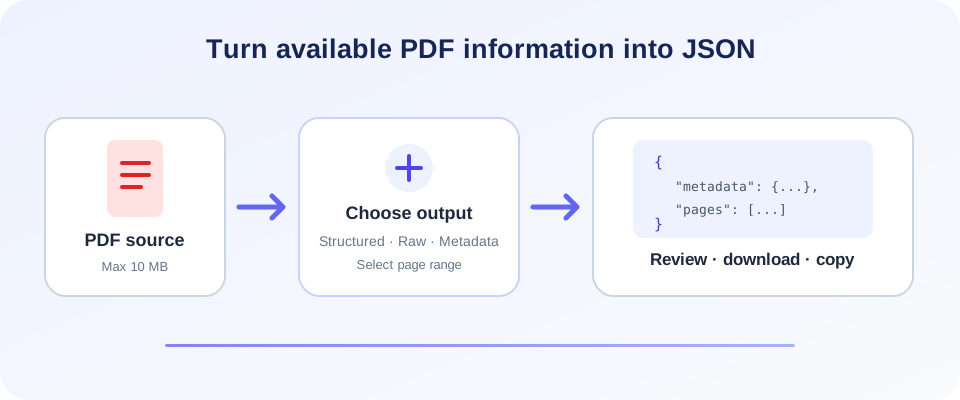
PDF files are built to present pages consistently, while JSON is a text-based format used to represent values and objects for software. SnapZain's PDF to JSON converter extracts available PDF text and document metadata into one of three outputs: Structured JSON, Raw Text, or Metadata Only. You can choose which pages to process and review or download the resulting JSON.
The conversion gives you extracted material to work with; it does not understand a document's business meaning. For example, it does not identify an invoice total, map form fields, or produce a custom schema for a specific database. Check extracted values against the original PDF before using them in another system.
How to convert a PDF to JSON online
To convert PDF to JSON with SnapZain:
- Upload a PDF. Select a readable PDF from your device or drag it into the upload area. Files must be no larger than 10 MB.
- Choose an output format. Select Structured JSON, Raw Text, or Metadata Only, depending on the information you need.
- Select pages. Process all pages, the first page, or a custom range such as
2-5. - Set extraction options. Choose whether to include text and available metadata. The coordinates checkbox is present in the interface, but currently does not produce coordinate values.
- Convert and review. Start processing, inspect the JSON in the output box, then download the
.jsonfile or copy the result.
Structured JSON, Raw Text, and Metadata Only
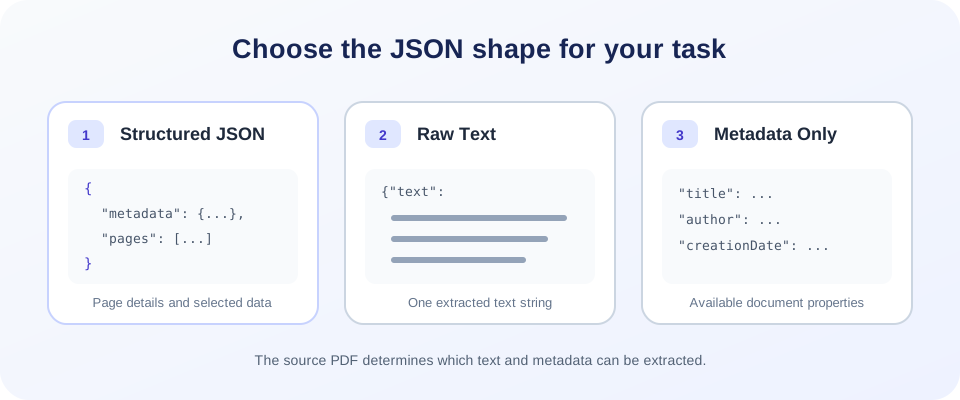
These modes return different shapes of JSON, so check the output format before you send it to another application. The table summarizes which mode fits common next steps.
- Structured JSON returns a metadata object and a pages array. Page entries include the page number, width, height, and a rotation field that currently defaults to 0. When text extraction is enabled, the extracted page text is also included.
- Raw Text returns the extracted text joined into one string under a
textproperty. It is useful when you need readable text rather than page-by-page fields. - Metadata Only returns document metadata without page text. Available fields can include title, author, subject, keywords, creator, producer, creation date, and modification date. A source PDF may not contain every field.
| Mode | Returned structure | Useful for |
|---|---|---|
| Structured JSON | Metadata object and a pages array with page dimensions and optional text. | Keeping extracted content grouped by source page. |
| Raw Text | Extracted page text joined into one string value. | Reading or searching text without page-level fields. |
| Metadata Only | Available document properties without page text. | Inspecting title, author, dates, and other available properties. |
Structured JSON is a general-purpose extraction result, not an invoice, contract, or industry-specific data model. Depending on the selected options and source file, some fields can be empty or null. Treat the result as input for review and mapping, not automatically verified data.
What information can the converter extract?
The converter reads a PDF's page count and dimensions, then uses available text extraction to populate page text. When metadata inclusion is enabled, it also attempts to read standard document properties. Depending on the source, those properties may be absent, incomplete, or different from what a person sees printed on the page.
Text extraction is not the same as understanding a document. The converter does not reliably identify table columns, key-value pairs, checkboxes, invoice fields, or relationships between pieces of text. If your use case requires specific fields, you will need a separate parsing and validation step designed for that document type.
The interface currently offers an “Include text coordinates” checkbox. In the present implementation, selecting it adds an empty textItems array in Structured JSON; it does not contain coordinate data. Do not use this option when your workflow depends on actual text positions.
Scanned PDFs, OCR, and extraction limits
A digitally generated PDF often contains selectable text. A scanned document may contain only page images. This converter does not include OCR, so it cannot recognize words that exist only as pixels. An image-only scan may therefore produce empty or incomplete text. Use OCR first to create a searchable text layer, then compare recognized text with the page image.
Even a text-based file can be difficult to extract perfectly. Multi-column pages, tables, unusual fonts, reading order, and text positioned for visual design may affect the result. Always review names, dates, amounts, and other important values before reusing the output.
Choose page range and extraction settings carefully
Page selection lets you process all pages, only the first page, or a custom page range. This can help focus a conversion on relevant pages, but it does not change the underlying accuracy of extraction. Confirm that the selected range covers the information you need.
In Structured JSON, the Include text option controls whether page text is returned; Include metadata controls whether document properties are read. Metadata Only is specifically intended for document properties and does not include the page text. If you turn off text in a text-focused mode, the returned text can be empty.
The converter returns data, not a guarantee of correctness. A useful workflow is to convert a representative document, inspect the JSON shape, and validate the values before processing a larger set or automating the result.
Use PDF data in an application or API
If you plan to send extracted values to an API, database, or application, first compare the generated JSON with the receiving system's expected schema. You may need to rename fields, normalize dates, validate numbers, handle null values, or transform page text. Do not feed unverified extraction directly into high-impact decisions.
A practical integration starts by converting one representative PDF and examining the actual JSON object. Confirm which keys appear, whether the page array has the expected number of entries, and how empty properties are represented. Then write mapping rules for the destination fields and test them against documents with different page counts and layouts.
For example, if a downstream workflow expects a single text field, it may need to combine the page text values in order. If it expects document properties, it should handle missing title or date values explicitly rather than assuming every PDF contains them. These transformations belong to the receiving workflow; the converter provides a general extraction result.
For software development, the right approach depends on your programming language, document types, required output fields, and whether OCR or semantic field recognition is needed. Searches such as convert PDF to JSON C# or Docling PDF to JSON refer to developer implementation choices; this SnapZain page is a web interface and is not a C# library or Docling integration.
There is no single best PDF to JSON converter for every source and use case. Compare tools using representative documents and check whether they produce the fields, extraction quality, and output structure your workflow requires.
Related PDF tasks
Different document workflows may call for different tools. If you need a text-focused result, PDF to Text extracts readable text. For a visual output, PDF to Image converts pages to images. If you need to sign a document, use Sign PDF.
Checklist before using converted JSON
- Confirm the output mode and selected page range.
- Check that the expected metadata and page text are present.
- Compare key values with the original PDF, especially dates, totals, and identifiers.
- Check null or empty fields and do not assume they mean zero or “not applicable.”
- Validate and map the data to the destination application's schema before import.
- Keep the source PDF available until the extracted result has been reviewed.
Using a PDF to JSON tool can reduce manual copying, but review remains important when the output affects business records, research, or automated processing.
Conclusion: convert PDF to JSON and validate the output
SnapZain lets you convert PDF to JSON online by choosing Structured JSON, Raw Text, or Metadata Only, selecting pages, and setting available text and metadata options. The service accepts PDFs up to 10 MB, extracts text and available document properties, and returns the result for review, download, or copying. It does not perform OCR, recognize business-specific fields, or currently return populated text coordinates.
If you need to convert PDF to JSON file for another application, validate the structure and important values against the source before importing. For scanned, complex, or business-critical documents, plan for additional OCR, parsing, or human review as needed.


