PDF To Image: Turn Each Page Into A PNG
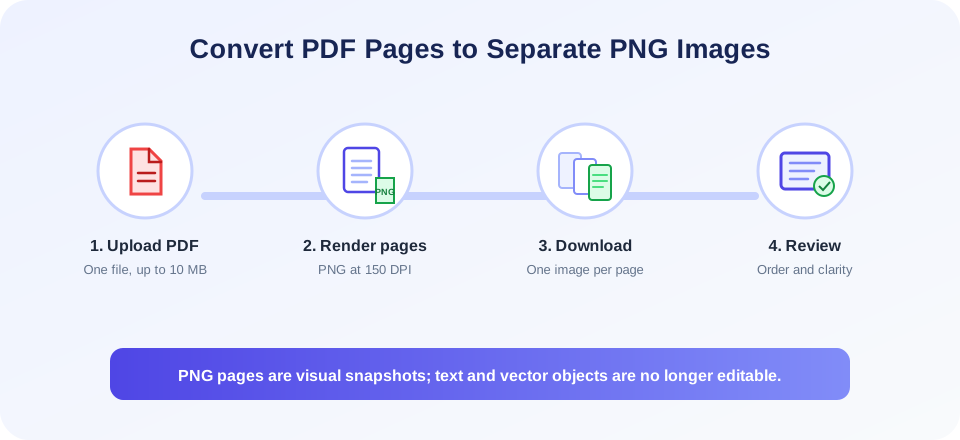
SnapZain’s pdf to image tool renders the pages of a PDF as separate PNG files. Upload one PDF up to 10 MB and select Convert to Images. The current form requests PNG output, and the server renders at 150 DPI. A multi-page document produces a sequence of page images, which the browser attempts to download individually.
This process is called rasterization: the text, vector shapes, and images displayed on a PDF page are rendered into pixels. The PNG gives you a convenient visual snapshot, but it does not retain the PDF’s searchable text or editable objects. Keep the original file if you need to search, copy, annotate, or edit the document later.
Before sharing the output, consider the page size, image clarity, and intended destination. PNG is a lossless image format that works well for clear text and diagrams, but the 150 DPI output may not suit every print requirement. Check small text and fine lines at the actual viewing size. If you need different formats or resolution, use a conversion workflow that explicitly offers those settings.
How To Convert PDF To Image With SnapZain
To convert pdf to image with the online form, follow these steps:
- Choose the right source. Confirm that the PDF opens correctly and contains the pages you want to render.
- Upload one file. Select or drag a PDF into the upload area. The visible limit is 10 MB per file.
- Start conversion. Select Convert to Images. The form sends the document to the server with PNG as the requested output format.
- Allow multiple downloads if asked. The endpoint returns one image file per page, and the browser triggers individual downloads in sequence.
- Check the files. Open the downloaded PNGs and verify page order, readability, and that no expected page is missing.
The tool processes all pages in the uploaded PDF. Its form does not show controls for selecting a page range, changing the output type, or choosing a rendering resolution. The current server-side route uses a 150 DPI render. If the PDF has many pages, your browser may prompt you to allow multiple downloads, and the number and size of the output images can exceed the size of the original PDF.
How The PDF To Image Converter Works
A pdf to image converter takes the visual content of each PDF page and renders it into a bitmap. This can make a page easier to embed in a slide, design, document, or image-sharing workflow. SnapZain’s current implementation uses a PDF rendering utility to create a PNG image for each page, with an ImageMagick-based fallback where configured.
Page dimensions determine image dimensions at a given resolution. Larger pages or higher rendering resolution create larger images, while small text can become difficult to read if the image is displayed or printed too small. At 150 DPI, the converter aims to produce practical page images for common uses, but a high-quality print or archival workflow may require other settings.
When the PDF has several pages, the result is not one combined image or a new PDF containing pictures. It is a set of separate page image files. The browser starts a download for every returned file; browser download settings may block or pause these downloads until you permit them. Use a dedicated archive or image management tool if you want to organize many outputs into a single package.
| Source page content | What happens in PNG | What to check |
|---|---|---|
| Selectable text | Characters become pixels in the rendered image. | Small text clarity and legibility when zoomed or printed. |
| Vector graphics | Lines and shapes are rasterized at the render resolution. | Fine lines, diagram labels, and edge sharpness. |
| Photographs or embedded images | Images are rendered as part of the page snapshot. | Color, cropping, and image detail. |
| Multi-column pages | Page appearance is preserved visually, not as separate text columns. | Correct page order and whether all content is visible. |
| Interactive PDF fields | Visible field appearance may render, but controls are not interactive in PNG. | Whether form values are displayed before rendering. |
PDF To Images: Page Output And File Management
For pdf to images, the converter creates a separate image file for each page. A three-page PDF typically results in three PNGs, not a single long image. Files are named by the server, and the browser download starts for each one returned by the endpoint. Keep an eye on the downloads area of your browser to confirm that all expected pages arrived.
If you convert a large document, expect multiple separate files and plan how you will store them. Use a clear folder or rename the images after download to preserve the page sequence. This is especially helpful when sharing pages separately, assembling a presentation, or importing them into another application. Make sure the filenames remain associated with the correct source document.
PNG is usually a sensible choice for documents containing text, diagrams, or transparent areas because it uses lossless compression. The current form does not offer a JPG selection, even though the underlying converter supports image formats in other workflows. If you need JPG specifically, choose a dedicated PDF-to-JPG tool rather than assuming this form will change formats.
“A page image preserves how a page looks; it does not preserve how the PDF page is built or edited.”
Quality, Resolution, And Accessibility
Resolution affects how much detail is present in a rendered image. At the current 150 DPI setting, ordinary text and graphics are generally rendered as an image suited to common display and sharing tasks, but exact readability depends on the source page size and font size. Very small print, dense tables, engineering drawings, and fine line art should be checked at the intended zoom or print size.
If text looks soft, do not assume the source PDF is damaged. The raster image may simply be shown at a scale that does not map cleanly to screen pixels. Open it at a suitable zoom, compare with the original PDF, and use an authorized higher-resolution workflow if the destination requires additional detail. Higher-resolution images also consume more storage and bandwidth.
Images are not a substitute for accessible documents. A PNG does not expose its words to screen readers as selectable text and does not carry the PDF’s tagging or reading structure. Keep the PDF available alongside page images when accessibility, search, copying, or assistive technology matters. If you share an image-only version, provide an accessible text or document alternative as appropriate.
Review every output page. Check that rotated pages appear as expected, no content is clipped, and the final page count matches the source. The PNG conversion reflects the PDF renderer’s interpretation; it does not correct typos, restore missing content, or improve the quality of an existing low-resolution scan.
PDF To Image Versus Other Conversion Directions
Searches such as pdf file to image converter, convert pdf to images, conversion of pdf to image, and conversion pdf to image describe turning PDF pages into raster graphics. In this tool, the PDF is the source and PNG images are the result. A phrase such as pdf to image pdf can be ambiguous: this page creates images, not another PDF. If the goal is one PDF assembled from image files, use an image-to-PDF tool instead.
People may also search for a pdf to images converter when they want each page as a separate picture. The key output here is PNG; choose another converter if your workflow specifically needs a different image format.
PDF to image is also different from extracting text or editing a document. The image records the page’s visible appearance, while a text extractor produces words and a PDF editor changes content. Decide whether you need a visual snapshot, machine-readable text, or a modified document before choosing a workflow.
| Your goal | Useful workflow | Important distinction |
|---|---|---|
| Save each page as a picture | PDF to Image | Creates separate PNGs; text is no longer selectable. |
| Make a PDF from pictures | Image to PDF | Places image files into a new PDF; it does not restore text automatically. |
| Copy words from a PDF | PDF to Text | Extracts text, but does not preserve the page’s exact visual layout. |
| Change PDF content | PDF editor | Edits document content; image export does not edit the source. |
If your goal is simply to change pdf to image online, the image output is a copy, and the original PDF remains the better reference for selectable text and precise document details. Store both formats when you may need to reuse or verify the content later.
Privacy And Responsible Use
The selected PDF is uploaded to the website’s server for page rendering. Do not upload financial, health, legal, personal, client, or business-confidential documents unless your organization’s rules allow that processing. If the PDF contains private information, consider whether you need every page converted and whether a locally installed application is more appropriate.
Only convert and share documents you are allowed to use. Turning a page into an image does not remove copyright, confidentiality, licensing, or access restrictions. Images can also make it harder for recipients to search, select, or access content, so consider whether a PDF or accessible text copy is more useful for the audience.
Retain the original PDF if you need a source of truth. Compare the PNGs with the source before distributing them, particularly when the document is used for official communication, customer support, education, or business records.
Troubleshooting PDF To Image Conversion
If upload fails, check that the filename ends in .pdf, the document is readable, and its size is below the 10 MB limit. A file extension alone does not guarantee that a file contains a valid PDF. Open it in a trusted PDF viewer before trying again.
If conversion fails after upload, the server may not have access to its PDF rendering utility, or the document may be damaged, encrypted, or unsupported. The converter’s error message may identify whether a tool is unavailable. If you have a sensitive document, avoid repeatedly uploading it and use an approved local alternative or ask the site administrator for help.
If only some images appear, check the browser’s downloads panel and whether it blocked multiple files. Confirm that the source PDF has the expected number of pages. If images are too large or too small for the destination, resize copies in an image editor or use a workflow with explicit resolution controls.
Related PDF Tools
For other document tasks, try Watermark PDF to add a visible mark to a PDF, Delete PDF Pages to remove selected pages from an authorized document, Extract PDF Pages to save chosen pages separately, or Text to PDF to create a PDF from text.
These tools perform different operations: they do not change the PNG output from this page or make rasterized text editable. When managing official or sensitive documents, keep the original and verify each generated file before sharing it.
“Choose the output for the job: image for visual placement, PDF for document structure, and text when you need editable words.”
PDF To Image Summary
SnapZain’s pdf to image converter accepts one PDF up to 10 MB and renders each page into a separate PNG at 150 DPI. The browser attempts to download each page image individually. Check the downloads panel if your browser asks to allow multiple files.
Conclusion
Use PNGs when you need a visual page snapshot, and keep the original PDF when selectable text, accessibility, or document features matter. Review page order, legibility, and completeness. This tool does not create one combined image, output JPG, change the PDF, or guarantee that image files preserve interactive or editable content.


