Split PDF Pages into the Files You Need
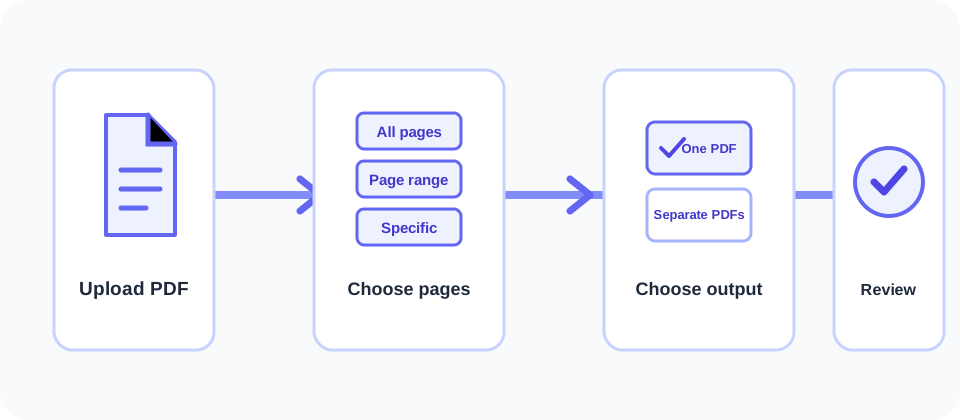
SnapZain’s Split PDF tool helps you extract pages from a PDF without changing the source document. Upload one PDF, review the page previews, and choose whether to process every page, a continuous page range, or specific page numbers. You can save the selected pages together in one new PDF or create a separate single-page PDF for each selected page.
This is useful when you need to share only a chapter, separate handouts from a packet, or keep a few pages from a longer document. The page works in your browser, accepts PDF files up to 10 MB, and provides a ZIP download when multiple separate output files are generated. Always open the output and confirm it contains the intended pages before sharing or printing.
How to Split a PDF Online
Follow these steps to split a PDF online using the available controls:
- Choose a readable PDF. The upload form accepts PDF files up to 10 MB. Keep a copy of the original in case you need to return to the complete document.
- Wait for the preview. The browser reads the PDF to show its page count and render page thumbnails. A large or complex file may take longer to display.
- Select the pages. Choose all pages, enter a start and end page for a range, or type specific pages such as
1,3,5-7. - Choose how to save them. Keep “Merge selected pages into one PDF” checked for a single file containing the chosen pages. Turn it off to create separate page PDFs.
- Choose ZIP when needed. The ZIP option is enabled by default and packages multiple generated PDFs together when the server returns more than one file.
- Process and review. Select Process PDF, wait for the download, then check the file names, page count, page order, and legibility.
In general, PDF split means creating one or more new PDF files from pages in an existing document. The source is not edited in place. The selected pages are imported into output files, so retain your source and check the new copies before relying on them.
Choose the Right Page and Output Options
The split workflow offers two separate decisions: which pages to include and whether those pages should stay together. Choosing a page range or specific page numbers does not automatically make separate files; the merge checkbox controls that output. Understanding the two controls helps avoid downloading a single combined file when you expected individual pages, or many small files when you wanted one selection.
| Selection | What it includes | Typical use |
|---|---|---|
| All pages | Every page in the uploaded PDF. | Make page-by-page copies or test the output options. |
| Page range | A continuous section from the start page through the end page, inclusive. | Save a chapter, section, or group of consecutive pages. |
| Specific pages | Page numbers and ranges entered as comma-separated values. | Select non-consecutive pages, such as 1,3,5-7. |
Page selection defines what you extract; output settings define how the extracted pages are saved.
| Output control | Result | Download behavior |
|---|---|---|
| Merge selected pages checked | One PDF containing the selected pages. | A single PDF download is triggered. |
| Merge selected pages unchecked | One separate, single-page PDF per selected page. | Multiple results can be packaged into one ZIP file. |
| Download as ZIP | Packages multiple generated PDF files. | Useful when the split produces more than one output document. |
Page numbers start at 1. Check the displayed page count and enter values within that range. For selected-page notation, commas separate individual pages or ranges, and a hyphen indicates an inclusive range. For example, 2,4-6 means pages 2, 4, 5, and 6. The server sorts selected pages into ascending order and ignores duplicates, so the output follows the source page order rather than a custom reordered sequence.
Page selection decides what stays; the merge option decides whether those pages become one PDF or several.
Split a PDF into Individual Pages
To split a PDF file into pages, choose the “Extract all pages (individual files)” mode and turn off “Merge selected pages into one PDF.” Processing creates one new PDF for each source page. If the source has many pages, the results can be numerous, so ensure you have enough space for the downloaded ZIP and extracted files.
If you only need selected pages as individual documents, choose “Select specific pages” or enter a continuous range, then leave the merge option off. The page produces a single-page PDF for each selected page and, when multiple outputs are returned, provides a ZIP archive. A single selected page is downloaded as a PDF directly.
When the checkbox remains selected, the same selection becomes one combined PDF. This means you can split off a section while keeping its pages together, or extract a few non-consecutive pages into one document. If your goal is to separate a long report into multiple custom multi-page sections, this interface does not offer a separate set of named output ranges; process each desired selection in a separate run.
A helpful way to think about split PDF to PDF is that the input and output remain PDFs while the page grouping changes. A PDF to PDF split is not a conversion to Word, HTML, or image format. For example, selecting pages 3-8 with the merge box checked produces one six-page PDF; selecting the same range with the box cleared produces six separate one-page PDF files. The phrase splitting of PDF describes this same extraction process.
Practical Examples for Page Selection
Imagine a 12-page guide with an introduction on pages 1-2, instructions on pages 3-9, and an appendix on pages 10-12. If you need only the instructions as one document, choose a continuous range from 3 to 9 and keep the merge option selected. If you want each instruction page as a separate handout, use the same range but turn merging off. The source file remains available for your other needs.
For scattered pages, enter a list such as 1,4,8-10. The selection represents pages 1, 4, 8, 9, and 10. The server sorts valid selected pages in ascending order and removes duplicates, so it does not preserve a custom sequence like 10,1,4. If you need a different order, process individual outputs separately and arrange them later with a suitable PDF page tool.
If you are preparing a packet for a colleague, first decide whether one combined excerpt or separate pages will be easier for them to use. A combined file keeps related pages together; separate files may be more convenient when pages have distinct purposes. Avoid splitting out a page without its surrounding context if doing so could change how its information is understood.
The tool is designed to extract pages, not to divide a document automatically at every chapter, bookmark, or page count. It also does not let you name separate groups of pages in one run. To create several multi-page sections, run the selection for each section individually, choose a combined PDF for each selection, and give the downloaded files clear names so they are easy to distinguish.
What to Check Before You Process
Use the preview to orient yourself, but do not rely on a thumbnail alone for small text or fine detail. Check the source PDF at readable zoom and note which page numbers contain the material you need. PDF page numbers are based on the file’s physical page sequence; printed numbers inside a document may differ, especially when it contains a cover or unnumbered pages.
- Confirm whether you mean the PDF page position or the number printed on the page.
- For a continuous section, enter the first and last pages and make sure the range is inclusive.
- For non-consecutive pages, use commas and hyphens carefully, then review the selected page count.
- Decide whether to keep all selected pages together or create individual page files.
- Review confidential or personal information before creating files intended for someone else.
The browser renders thumbnails with PDF.js to help you inspect the uploaded file. Rendering quality in a small preview is not the same as a detailed review of the final PDF. After processing, open the downloaded output in a PDF reader and verify the first and last pages, any important middle pages, page orientation, and readability.
One detail that can prevent an incorrect extraction is the difference between a printed page label and the file’s page position. A report might display “page 1” on its fifth PDF page because the first pages are a cover and contents. The tool uses the physical PDF positions shown by its page count and thumbnails, not the number printed in the footer. Use the preview to map the content to the correct file positions before you submit your selection.
Compatibility, Limits, and Expected Results
The form accepts one PDF at a time and indicates a maximum file size of 10 MB. The server also validates the PDF upload against that limit. There is no promise of a fixed maximum page count; processing speed and success can depend on file complexity, browser memory, server resources, and the PDF’s structure. If a large file does not load or process, try a smaller copy or divide the work into separate selections.
Each output page is imported from the original PDF into a new document, with page dimensions and orientation matched where the PDF library supports it. Splitting is not the same as converting a page to an image or rewriting its text. However, some interactive PDF features—such as bookmarks, forms, annotations, links, embedded files, accessibility structure, or digital-signature validation—may not carry over exactly. Keep the original whenever those features or an audit trail matter.
Password-protected or damaged documents may not be readable by the processor. Only remove protection when you own the PDF or have explicit permission. If processing fails, confirm the PDF opens in a trusted reader, check the file size and page values, and retry with a permitted, readable copy. Avoid repeated uploads of sensitive files to troubleshoot a problem unless the service is approved for that information.
Specific-page entries should use numbers and ranges in the displayed format, for example 1,3,5-7. Confirm each number exists in the uploaded document. If the list includes mistakes, the server may ignore invalid values while processing valid ones, so inspect the result rather than assuming every typed page was included. For a continuous range, the form checks that the start comes before the end and that both values fit within the PDF’s page count.
Use page positions from the PDF preview, not just printed page labels, and verify every output before sharing it.
Split PDF Online Free: Privacy and Responsible Use
The online interface presents the splitting feature without a paid plan shown, but terms, availability, and usage limits can change. “Split PDF online free” describes a search intent, not a guarantee that every document size or batch will be accepted. Before uploading personal, financial, legal, medical, or business records, review the site’s privacy information and any rules that apply to your organization. If a document is highly confidential, use an approved local application instead.
Only process documents you have the right to use. Extracting a page does not grant permission to republish or redistribute its contents. Keep context with pages that depend on surrounding material, and avoid presenting a selected excerpt in a way that changes the meaning of the original. When you share a partial document, identify it as an excerpt if that would help the recipient understand what is included.
For related workflows, use Extract PDF Pages when you want to create a PDF from chosen pages, Text to PDF to make a PDF from text, PDF to HTML to convert document content to a web format, or HTML to PDF to save a web page or HTML document as a PDF.
Splitting a PDF in Desktop Software
Some people search for “split a PDF in Adobe Reader” because they already have an Adobe application. Available page-organizing features differ between Reader, Acrobat, operating systems, and subscription plans. In a desktop PDF application, look for page extraction or document organization, choose the desired pages, and save a separate copy. Always check the product’s current menus and license details; do not assume a particular feature is available in every version.
Other PDF split software online may offer different controls, such as separating a document by page count, bookmarks, or custom ranges. Compare the provider, size limits, privacy terms, output behavior, and whether the tool changes the original. A browser workflow is convenient for a quick extraction, while offline software can be more appropriate when files must stay on a managed device. A search for “split PDF doc online” or “PDF split online” may lead to services with different capabilities, so confirm the chosen tool’s actual inputs and outputs.
Whether you use an online service or an installed application, the core process is the same: identify the correct page numbers, choose how selected pages should be grouped, save a new copy, and verify it. A good PDF split online workflow should make those choices clear and leave you with files you can inspect before sharing.
People also use the expression split of PDF when they mean separating a document into page-based files. Some search for “split PDF free” or “PDF split free” to compare costs, but price is only one consideration. Check privacy and usage policies, file limits, and whether you can confirm the output before relying on a service. A page-splitting tool should not claim that an excerpt has been reviewed for accuracy or that it meets legal, accessibility, or records-management requirements.
Conclusion
Split PDF provides a focused way to extract every page, a continuous range, or specific pages from one PDF. Choose whether the selected pages should remain together in one output or become separate single-page PDFs, and use the ZIP option for multiple results. The original remains separate from the generated copies. To avoid mistakes, confirm page numbering, check the output mode, preserve your source file, and review the downloaded documents before using or sharing them.


