Merge PDF Files into One Organized Document
SnapZain’s merge PDF tool combines two or more PDF documents into one downloadable file. Choose the source files, check their order in the selected-file preview, and select Merge PDF. The merger adds the pages of each selected document to the output in sequence, so the first file’s pages come first, followed by the next file’s pages.
This online PDF merge workflow is intended for people who need one convenient copy for review, sharing, printing, or archiving. You can merge PDF online without installing a desktop application. It does not edit the text on a page or rewrite the content. Keep the originals if you may need to change individual documents later, and open the merged result before sending it to anyone.
How the Online PDF Merger Works
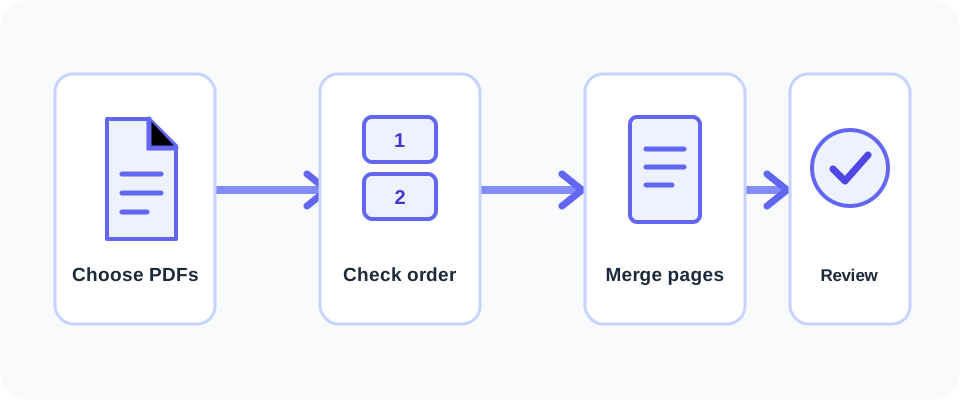
The visible upload form accepts PDF files. It requires at least two files and shows a card for each selected document; you can add another PDF or remove a card before starting. The cards appear in selection order, and the interface does not currently provide drag-and-drop reordering. If sequence matters, select files in the desired order and verify the output.
- Prepare your documents. Confirm the files open correctly and that you have permission to combine and share their contents.
- Select at least two PDFs. Use the file picker or drag files into the upload area. The form states a 10 MB maximum for each file.
- Review the list. Check the file names and their order. Use the Add PDF card for additional documents, or remove an unintended selection.
- Start the merge. Click Merge PDF. The selected files are sent to the server for processing; keep the page open until the request completes.
- Download and inspect. When processing succeeds, the browser downloads the combined PDF. Open it and check the first, middle, and final pages, as well as page count and orientation.
In straightforward terms, PDF merge means appending the pages of multiple source documents to a single PDF. It is different from editing, compressing, or converting the contents of those pages. A file merger can simplify delivery, but the resulting document should still be checked for completeness and sensitive information.
Limits and File Compatibility
The current interface is configured for PDF uploads and displays a 10 MB per-file limit. Server validation requires at least two uploaded files and also caps each file at 10 MB. There is no stated maximum number of files in the form, but browser, server, and processing resources can limit a very large batch. If a request fails, try a smaller group and confirm that each source is a valid, readable PDF.
| Question | Current behavior | What to check |
|---|---|---|
| Minimum selection | At least two files are required. | Add another PDF if only one is selected. |
| Per-file size | The form and server validation specify up to 10 MB per file. | Check each file separately; a combined upload can still be large. |
| File types in the page | The visible picker accepts PDF files. | Convert images first if they need to become PDF pages. |
| Page order | Pages follow the selected-file order. | Select files in the intended sequence; reordering controls are not shown. |
| Page dimensions | Imported PDF pages are placed at their source dimensions where supported. | Review portrait, landscape, and mixed-size pages in the result. |
The backend also contains handling for JPG, JPEG, and PNG uploads, but the current page’s picker and client-side checks only allow PDFs. If your goal is to merge images into PDF, convert pictures to PDF first with Image to PDF, then add the resulting PDF to your selection. That is more predictable than assuming image files are accepted through this interface.
Before sending a combined file, check that it contains every intended page, in the right order, and nothing you meant to keep private.
When Combining Documents Is Useful
Combining PDFs can make a packet easier to handle when several related parts need to travel together. Common examples include joining a cover sheet with a report, grouping appendices with a proposal, collecting project handouts, or creating one reference copy from several permitted source files. A single file can also reduce the chance that a recipient overlooks an attachment, although it does not replace a clear file name or a brief explanation of what the document contains.
Consider whether the documents belong together and whether the recipient expects one file. Separate documents can be better when different people need different sections, when files have different confidentiality levels, or when some pages are intended for a distinct workflow. A PDF document merge free option may be convenient, but the decision to combine should be based on how the file will be used, not only on convenience.
This tool combines documents; it does not guarantee that forms, bookmarks, links, accessibility tags, or other interactive features from every source will work identically in the output. If the PDF includes fillable fields, signatures, annotations, or navigation, inspect those elements after merging. For legal, financial, or regulated records, follow the procedures required by your organization and preserve the original files.
Page Order, Sizes, and the Final Check
Order is one of the most important parts of merging. The output places files in the sequence shown in the selected-file preview, and each source contributes its pages in their existing order. Since the current tool does not show a reorder handle, plan the sequence in your file picker. If your operating system sorts selected files alphabetically, renaming copies with prefixes such as “01”, “02”, and “03” can help you select the intended order.
PDFs can contain portrait pages, landscape pages, or different paper sizes. The merger imports each page and creates a corresponding output page where supported, rather than forcing every source page onto one uniform sheet. This can preserve the page’s proportions, but a mixed-size result may look less consistent when printed. Review the document in a PDF reader and use print preview before printing a large batch.
| Before merging | After merging |
|---|---|
| Remove duplicate, blank, or unrelated files from your selection. | Confirm the combined page count matches the expected total. |
| Decide whether the source sequence should be chronological, section-based, or another order. | Check the first page of each source section to confirm sequence. |
| Check that files are readable and not damaged or password-restricted. | Open pages from different source files and look for errors or missing content. |
| Consider sensitive details and whether every included page should be shared. | Review the final file name, access location, and recipient before sending. |
A merged PDF is a new combined copy, not a substitute for keeping the source documents when you need an editable or auditable record.
Privacy and Responsible Use
Only upload documents you are authorized to process. PDF pages may contain names, contact details, account information, signatures, or confidential business material. Review the site’s privacy terms and your organization’s rules before uploading sensitive files. When a document is especially confidential, an approved local or organization-managed application may be a better fit.
Use the output for lawful, authorized purposes. Do not combine or redistribute documents in a way that misrepresents their source, removes context, or violates someone else’s rights. A merger changes the packaging of pages, not the accuracy or authority of the content. Check that each source is current and that the final sequence does not create a misleading impression.
For a simple conversion step, SnapZain also offers CSV to PDF, PDF Metadata, RTF to PDF, and SVG to PDF. Convert files to PDF first when you want to include them in a merge and the current uploader does not accept their original format.
Free PDF Merger: What to Consider
The page provides a PDF merging interface without a paid plan shown in the upload flow. If you need to merge PDF for free, check the current site information and limits rather than assuming unlimited use. People searching for “merge PDF free,” “merge PDF files free,” “PDF merge free,” or a “free PDF page merge” may still encounter file-size, usage, or privacy limits. A free PDF merger can be useful for routine documents, but reliability and privacy matter whichever tool you use.
When comparing a free PDF merger online or a free online PDF merger with desktop software, consider whether you need offline processing, batch features, encryption controls, accessibility support, or advanced page reordering. A provider might describe its offer as merge PDF online free, PDF merge online free, a PDF merger for free, or a PDF merger free option; check the actual terms and limits before uploading. Some people search for “merge PDF Adobe” because they already use Adobe Acrobat; its steps and available features depend on the version and subscription. “Free PDF merge software” describes a broad category, not one product, so verify its provider and license before installing it.
Searches for pdf doc merge, pdf pdf merge, merger pdf, and merge to pdf documents express the same general goal: combine existing documents. People may also call this a PDF merge online workflow, ask how to merge PDF docs online, or look for a way to merge files into one PDF. If you need to merge all PDF into one, select each intended document, check the order, and review the output. The process is also known as merging PDF files, a PDF page merge, or using an online PDF merger.
Alternatives for Other File Types
The visible Merge PDFs uploader is designed for PDFs. If your source is an image, use an image-to-PDF tool to make a document first, then add that PDF to the merge. For editable text files, spreadsheets, or vector graphics, convert the source to PDF using an appropriate converter and check the converted pages before combining them. This avoids implying that the merge page can convert every file type directly.
If you need to combine only specific pages rather than entire documents, use a page extraction workflow to create the required source PDFs first. If your goal is to reduce a file’s size after combining, a compression tool is a separate step and can affect image quality. Merging does not itself promise smaller output, remove passwords, add signatures, or redact information.
A careful file naming habit helps too. Save or rename the downloaded copy so that its contents and date are clear, then store it in an appropriate location. Avoid overwriting the only original copy. These simple checks make the result easier to identify later and reduce the chance of sharing the wrong version.
Troubleshooting a PDF Merge
If the upload does not start, check that you selected at least two files, that they are PDFs, and that each one is within the displayed 10 MB limit. A file extension alone does not prove that a document is a valid PDF. Open it in a trusted reader first; if it fails there too, obtain a readable copy from its source rather than repeatedly retrying the same damaged file.
A merge can also fail when a document uses encryption, unusual PDF features, or internal structures the processor cannot import. Only remove protection when you own the document or have permission, and use the appropriate authorized method. If a batch fails, try a small pair of source documents to identify whether one file is causing the problem. Do not upload confidential files to troubleshoot unless the service is approved for that data.
If the downloaded file appears incomplete, compare its page count with the sum of the source page counts and review the transition between each document. Verify that you selected all intended files and in the right order. If the output does not download, check the browser’s download permissions, pop-up or download settings, and available device storage, then try again without closing the page during processing.
Do not assume that every feature embedded in a source document will behave the same way after pages are imported into another PDF. Interactive forms, bookmarks, comments, embedded attachments, links, accessibility structure, and digital-signature validation can depend on how the original was created and the software used to process it. If those features are essential, test a copy first and validate the final file using a suitable PDF application. Keep signed originals where signature verification matters; merging pages is not a way to preserve or create a cryptographic signature.
For print use, open print preview and check mixed page sizes, page orientation, clipping, and color. For screen sharing, confirm that the text remains legible at normal zoom and that the file is not unexpectedly large. The merger combines pages, but it does not review the meaning, accuracy, or suitability of the source documents for you.
Conclusion
SnapZain’s online PDF merger provides a straightforward way to join two or more PDF files into one document. Select at least two files under the displayed size limit, ensure they are in the right order, start the process, and review the downloaded PDF. Its purpose is to combine pages—not to edit or verify their contents. For a dependable result, retain your source copies, confirm the output is complete, and follow appropriate privacy and sharing practices.


