SVG to PDF Converter: Convert SVG Graphics into PDF Pages
SVG is useful for scalable graphics such as logos, icons, diagrams, and illustrations. When you need to send artwork as a document, SnapZain lets you convert SVG to PDF in a browser workflow. Select one or more .svg files, choose a page size, and create either one combined PDF or separate PDF files packaged in a ZIP.
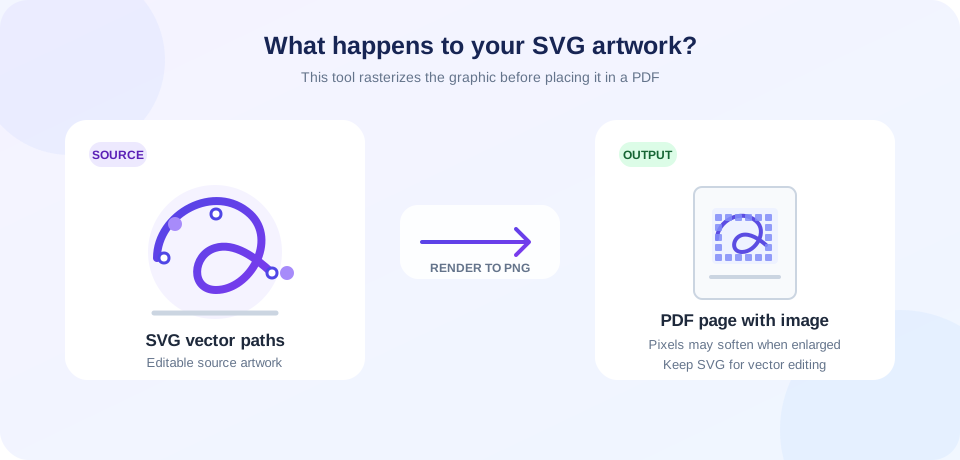
There is an important format detail: this converter renders SVG artwork to PNG before placing it in the PDF. The result is a raster image on a PDF page, not a vector-preserving export. Keep the original SVG for editing, and inspect the PDF at its intended viewing or print size before sharing.
How to convert SVG to PDF online
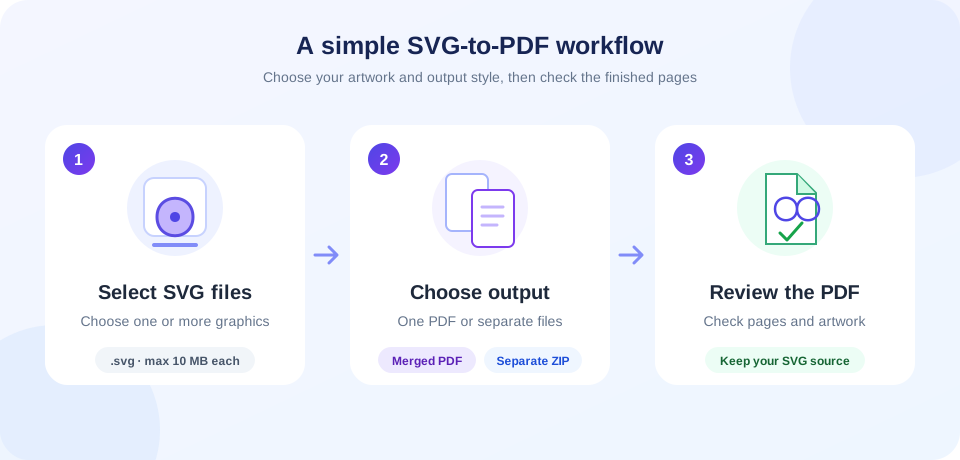
To convert an SVG file to PDF with SnapZain:
- Select the artwork. Choose one or more SVG files in the upload area. Each file must be no larger than 10 MB.
- Choose a PDF page format. Select A4, A3, A5, Letter, or Legal.
- Review per-file settings. The interface shows orientation and scaling controls for each SVG. Note that current server behavior does not apply the scaling choice; merged output is portrait, while separate output uses each file's selected orientation.
- Choose output arrangement. Select Merge to Single PDF for one document, or Download Separate PDFs for a ZIP archive of individual PDFs.
- Check the downloaded result. Review the artwork, page boundaries, colors, text, and fine details before using or distributing the PDF.
What happens during SVG conversion?
SVG files describe graphics with vector-based markup. In this tool, a supported server-side renderer first turns each uploaded SVG into a PNG image. The image is then placed on a PDF page. The PDF is a convenient document container, but the graphic inside it is raster-based.
This distinction matters if you plan to zoom in, print at a very large size, or reuse individual shapes. Raster images are made of pixels, so fine edges can appear softer when enlarged. For work that depends on editable paths or resolution-independent printing, use a workflow that preserves vector content and verify the exported file in an appropriate graphics application.
Convert one SVG or multiple files
You can select several SVGs in one session. Choose Merge to Single PDF when the graphics belong together and you want one PDF with a page for each processed image. Choose Download Separate PDFs when you want an individual PDF per source file; the site packages these files in a ZIP download.
File ordering follows the selection list shown in the tool. After conversion, open the output and make sure every expected graphic appears in the right order. A file that cannot be read or rendered may be skipped or cause conversion to fail, so check the result instead of assuming every source was included.
Page size, scaling, and orientation settings
The page-format menu offers A4, A3, A5, Letter, and Legal. The tool also displays scaling choices such as Fit to Page, Fill Page, and Original Size, along with orientation choices on individual file cards. However, the current server converter does not apply the submitted scaling value: it uses its existing fit-within-margins placement. Merged files are rendered in portrait orientation; separate files use the chosen orientation.
Because those interface settings are not all honored by the current conversion path, treat the selected scaling label as informational rather than a guarantee. Review the downloaded PDF for page orientation and placement. If exact page layout or scaling is essential, use a conversion workflow that exposes and applies those settings end to end.
| Option | Choices | Current behavior |
|---|---|---|
| PDF page size | A4, A3, A5, Letter, Legal | The selected page format is passed to PDF creation. |
| Scaling | Fit to Page, Fill Page, Original Size | The interface sends a choice, but the server currently uses its existing fit-within-margins placement. |
| Orientation | Portrait or Landscape per file | Merged output is portrait. Separate PDF output uses the selected orientation. |
| Output arrangement | Merge or download separately | Merge creates one PDF. Separate output is delivered as a ZIP containing individual PDFs. |
| SVG file size | Up to 10 MB per file | Files over the server limit are rejected. |
The output details above describe the current server-side conversion path; inspect the generated PDF before relying on its layout.
What the Optimize SVGs option changes
The Optimize SVGs action performs a small browser-side cleanup before upload: it removes XML comments and some whitespace. It is not a full graphics optimizer, does not simplify paths or remove unused artwork, and does not promise a smaller file. If the original contains important whitespace-sensitive text or unusual markup, keep a source copy and check the converted output.
When should you use PDF instead of SVG?
Use PDF when a graphic needs to travel as part of a document workflow, such as sharing a preview, grouping related graphics into one file, or sending a page-based copy for review. Keep SVG when you expect to edit vector shapes, change colors or paths, or reuse the artwork at different sizes.
Conversion does not automatically add artwork to an existing PDF; it creates PDF output from the selected SVG files. To move a PDF into a slide workflow, see PDF to PowerPoint. If your source is a presentation, PowerPoint to PDF is the reverse-direction conversion. For a PDF with pages that need reorientation, use Rotate PDF.
Tips for a more reliable result
- Open the SVG first and confirm that its artwork appears as expected.
- Keep a copy of the original SVG, particularly for artwork you may need to edit later.
- Check fonts, text, gradients, transparency, and small details in the PDF because renderer behavior can vary.
- Use the page format that matches the intended document, and check the page boundaries after conversion.
- For several files, confirm that the merged pages or ZIP entries include every expected graphic.
- Do not rely on the displayed scaling choices until the output has been checked; the current server path uses its existing fit behavior.
Choosing between a merged PDF and separate files
A merged PDF is convenient when the graphics belong in one document or need to be reviewed together. Separate PDFs keep each graphic in its own file and are downloaded as a ZIP archive. Select the output mode based on how the recipient will use the artwork, then check the number and order of pages in the result.
The merge and separate workflows do not preserve the original SVG editing structure because the current converter rasterizes each graphic. If you expect to revise shapes, text, or colors later, continue to keep and edit the SVG source rather than treating the PDF as a design file.
Rasterization also means that very fine lines, small labels, and subtle gradients deserve a close look at the size they will be viewed or printed. Open the result at its intended display size and check that thin strokes remain visible, colors have not shifted, and transparent areas look as expected against the PDF page.
If artwork looks too small or is positioned unexpectedly, check the source SVG dimensions and viewBox as well as the selected PDF page size. The converter’s scaling labels do not currently control the server-side result, so changing that selector is not a reliable way to correct artwork placement.
Conclusion: convert SVG artwork and review the PDF
SnapZain's SVG to PDF converter accepts one or more SVG files up to 10 MB each, offers common PDF page sizes, and can produce one merged PDF or separate PDFs in a ZIP. The current conversion renders the artwork to PNG before placing it in the PDF, so it does not preserve vector editing or unlimited scaling. Keep the SVG source and review the PDF before printing or sharing.


