Rotate PDF Pages Online: Fix Orientation And Download A New Copy
A sideways scan, a page saved upside down, or a landscape sheet inside a portrait report can make a document awkward to read. SnapZain’s rotate PDF tool lets you upload a PDF, view page previews, turn individual pages or selected pages left or right, remove pages, extract selected pages, and download a resulting PDF. The page interface accepts PDF files up to 10 MB each.
The page preview gives you a visual way to check orientation before downloading. Rotations are applied in 90-degree steps; clicking the same direction repeatedly cycles through quarter-turns. The original file on your device is not overwritten. When you choose Download PDF after changing pages, the service creates a separate output file. Always open that downloaded copy and confirm the result before sharing it or replacing another document.
People searching pdf rotate, pdf rotate online, rotate a PDF, or rotate PDF document online may need different things. Some want to turn one page; others need to rotate an entire file, remove unwanted pages, or extract a selected section. This guide covers the current controls, how to check that changes were saved, and where the tool’s limitations matter.
How To Rotate A PDF With The Page Controls
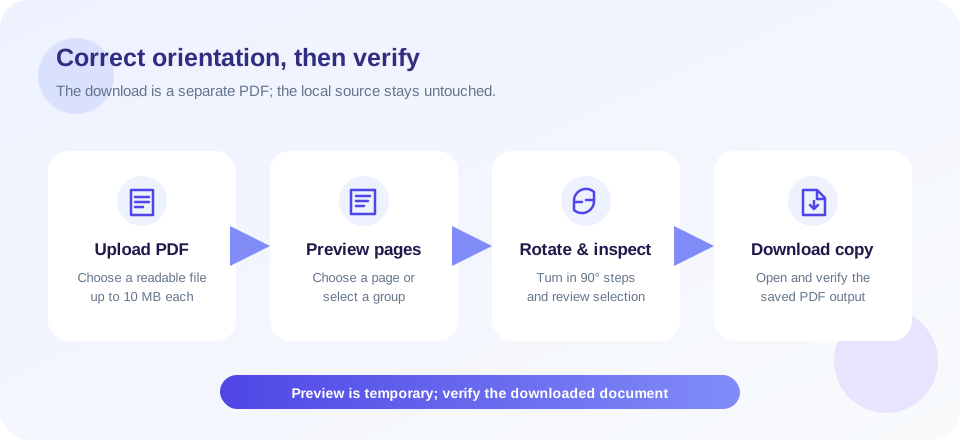
Use this sequence to rotate PDF online and keep track of exactly which pages you changed:
- Select a PDF. Choose a local PDF file or drag it into the upload area. The current form accepts files up to 10 MB each.
- Wait for page previews. The interface reads the PDF page count and renders previews in the browser. A very large or complex document may take longer to display.
- Rotate a single page. Use the rotate-left or rotate-right icon beneath that page’s preview. Each action changes the working angle by 90 degrees.
- Rotate several pages together. Select the relevant page checkboxes, then use the top toolbar’s left or right rotation action. Check the selected count before applying it.
- Remove or extract pages if needed. The same page screen includes Delete for marked pages and Extract to create an output from selected pages.
- Inspect the preview. Check the orientation, make sure the desired pages remain, and confirm no page was selected accidentally.
- Choose Download PDF. This creates and downloads the processed file when there are changes. Open it in a PDF reader to verify the saved output.
That is the practical answer to how to rotate a PDF, how to rotate PDF, how to rotate the PDF, and how do I rotate a PDF with this tool. You control the page selection; the tool applies those page operations to create a new PDF. If no rotation, removal, or other included-page change was made, the page can simply download the original upload instead of needlessly rebuilding it.
The controls are designed for page-level actions, not editing text or artwork within a page. They also do not permanently alter your local source file. Preserve an untouched copy before you work, especially when the document is a signed record, a contract, a form, or an archival file.
Instructions may use phrases such as how to rotate a PDF file, how to rotate PDF file, or how to rotate a PDF document; they all describe choosing a file, checking its pages, applying the turn, and downloading the processed copy. To rotate a page in a PDF, use that page’s own control. To rotate pages in PDF as a group, select the pages first and then use the toolbar. If you are asking how can I rotate a PDF file or how do you rotate a PDF, follow the same steps and verify the saved output. The phrase how do you rotate PDF also refers to this page-level process; no separate document conversion is involved.
These wording differences do not change the operation. A PDF file, PDF document, and PDF pages are different levels of the same job: select the file, set the orientation of one or more pages, and export a copy. Make sure you are not looking for a PDF-to-Word converter or a tool that changes content inside the page.
Rotate A PDF Page Or The Whole Document?
You do not always need to rotate every page. A report may have one landscape chart in the middle, while a scanned packet might have several pages oriented incorrectly. Use the individual controls for isolated pages, or select a group when the same correction applies to all of them. The preview is a useful check, but the downloaded file remains the final verification point.
| Goal | Control to use | What to verify |
|---|---|---|
| Turn one sideways page | Rotate button under that page preview. | Only the intended page changed orientation. |
| Turn a set of pages | Select the pages, then use the top rotation controls. | The selected count and all selected previews are correct. |
| Rotate a full document | Select all pages and apply the direction as needed. | Portrait and landscape pages may need different treatment; inspect each result. |
| Remove an unwanted page | Select the page and choose Delete. | The expected page count remains and the deleted page is absent. |
| Save only chosen pages | Select pages and choose Extract. | The output contains the pages you intended in the expected order. |
For rotate PDF pages in a mixed document, selection is important. A blanket rotation can make pages that were already correct harder to read. It is often faster to rotate the single wrong page than to rotate all pages and then correct them individually. If an entire batch came from the same scanner orientation, selecting the group can be efficient.
Page orientation is not the same as page order. Rotating turns a page on its axis; it does not move it earlier or later in the document. The current processing service assembles included pages in their original numerical order, so use a separate reordering workflow if sequence changes are essential.
Understand Rotation Angles And Page Orientation
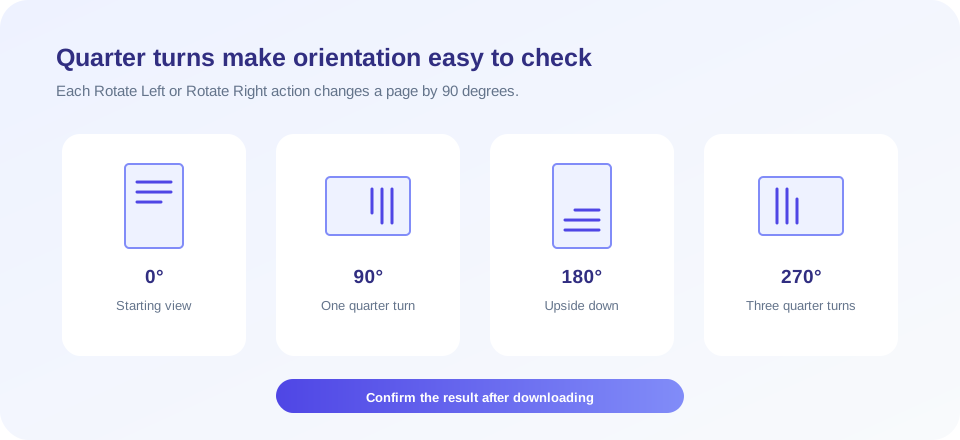
The rotate controls make quarter-turn steps. A right turn changes the page by 90 degrees clockwise; another right turn produces 180 degrees, and a third produces 270 degrees. Turning left moves in the opposite direction. Returning a page to its initial orientation takes four quarter-turns in the same direction, or an equivalent combination left and right.
The displayed page preview rotates as a visual confirmation. When you download a processed PDF, the server imports the selected pages into a new document and applies the requested orientation while producing the output. Use a separate PDF reader to confirm the saved page appears the way you expect. Different viewers may display page rotation metadata or imported page contents slightly differently.
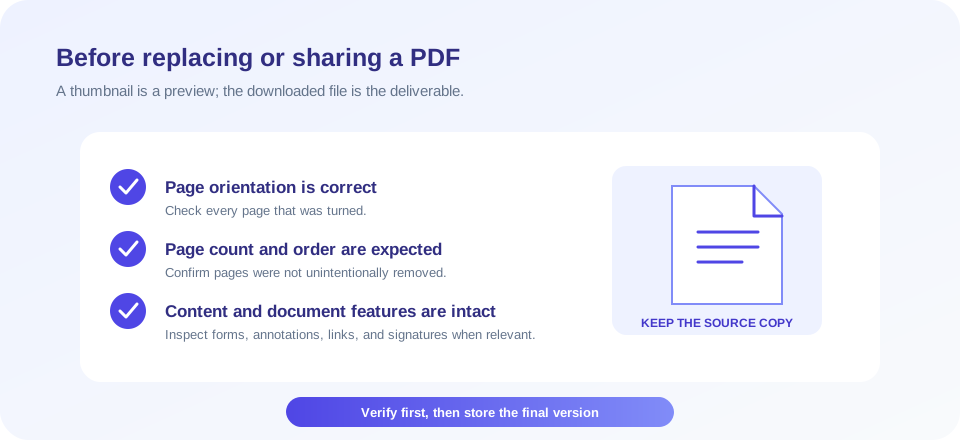
Some PDFs contain unusual page sizes, embedded forms, annotations, layers, signatures, or advanced compression. A rotation operation can rebuild page content, and not every advanced feature is guaranteed to survive exactly as it appeared in the source. If the file is important, check form fields, links, signatures, annotations, and visual content in the final document, not only the thumbnail preview.
How To Rotate PDF And Save The Changes
After making a change, select Download PDF. The page sends the original uploaded PDF and page-level settings to the processing endpoint. The endpoint returns a new downloadable file when processing succeeds. The source file remains separate on your device, so the downloaded output is the one to inspect and store.
This answers common questions such as how to rotate PDF and save, rotate PDF and save, how to rotate and save PDF, and how to rotate a PDF and save it: make the turns, download the result, and verify it. A preview change alone is not a saved file. Save or move the downloaded document to a location where you can identify it later, and avoid replacing the original until you have confirmed the output.
The processed output receives a generated rotated-PDF filename. Its name may not match the uploaded file’s original name, so rename it after download if your workflow calls for a clear label. Keep track of which version is the source and which one contains corrected orientation.
| Stage | What happens | Good practice |
|---|---|---|
| Preview editing | Selected page previews reflect the rotation angle in the current session. | Check each affected page and the selected count. |
| Processing | The uploaded file and page settings are used to create output. | Keep the page open until processing and download complete. |
| Downloaded file | A new PDF is provided when changes are processed. | Open it in a PDF reader and confirm orientation and page count. |
| Original copy | Your local source document is not overwritten by this tool. | Retain it until the new copy is reviewed and safely stored. |
Can I Permanently Rotate A PDF?
People asking how to permanently rotate PDF often want the page to remain upright when they reopen it. Downloading the processed file is the way to keep the chosen orientation in a new copy. The browser preview by itself is temporary; the output PDF is what you should open and verify.
There are different ways PDF viewers may represent rotation, such as a page-level orientation setting or rebuilt page content. This service creates an output PDF from imported pages. The visible result should be checked in another viewer if the document is important or will be used in a workflow that depends on page geometry, forms, signatures, or print settings.
No rotation tool can promise that every complex PDF retains every feature unchanged after processing. Save the output under a new name, compare it with the source, and keep the original as a fallback. If a digital signature or certification matters, consult the document owner or signing workflow before modifying pages; changes may invalidate a signature or alter verification status.
PDF Rotator, PDF Rotater, Or PDF Rotate Online?
Searchers use both PDF rotator and the misspelling PDF rotater for a tool that turns pages. Other common searches include rotate PDF free, rotate a PDF, and rotate PDF document. The relevant question is whether the tool supports your file and the page-specific controls you need.
SnapZain accepts PDF uploads and offers previews, per-page rotation, selection, deletion, extraction, and a download action. The current upload interface displays a 10 MB limit per file. For several selected PDFs, the file workflow merges them before page editing; inspect the combined page previews before making changes. If a file is larger than the stated limit or uses unsupported encryption or compression, a local desktop application may be a better option.
A rotate PDF document online workflow is convenient for ordinary public or non-sensitive files, but convenience should not override privacy. Check your organization’s data rules before uploading confidential records. For highly sensitive files, consider an approved offline PDF application that processes the file locally.
What Happens When You Upload Multiple PDFs?
The upload control supports multiple PDF selections. In that case, the page sends the files to a merge step first and then loads the merged PDF into the page editor. Each selected file is checked against the interface’s 10 MB per-file limit. This means the page operation applies to the resulting combined document, not to separately downloaded versions of each input.
When combining files before rotation, verify the order and page count in the preview before applying turns. The rotation converter assembles included pages in original numerical order; although the interface also shows Move Left and Move Right controls, the current conversion service sorts the pages by their original numbers. Do not depend on those controls to reorder the final downloaded file.
If your goal is to rearrange pages, use a dedicated page-reordering workflow and verify that the exported output reflects the desired sequence. Similarly, use a dedicated merge tool if you want to combine files without editing orientation. Each tool should be evaluated by its actual output, not just the preview interface.
Troubleshooting A PDF That Will Not Rotate
- Check the file type. The upload expects a PDF, not a photo, Word document, or image with a PDF-like filename.
- Check file size. The interface limits each selected PDF to 10 MB.
- Confirm the file is readable. Damaged, encrypted, or unusually compressed PDFs may not load in the preview or processing library.
- Wait for previews. A multi-page file needs time to load and render; avoid clicking download before the pages appear.
- Check that a page is selected when using group controls. The toolbar acts on selected pages, while page-level rotate buttons affect their individual page.
- Try another PDF reader for the result. This helps distinguish a saved rotation problem from a viewer-specific display behavior.
- Keep the source file. If the output is incomplete or visually incorrect, return to the original and try a compatible application.
If an upload is protected or restricted, do not attempt to bypass protections without authorization. Use an unlocked copy only when you are allowed to modify it. If the document contains a digital signature, check whether editing would invalidate its integrity or legal status before rotating.
Privacy And Safe PDF Handling
A PDF can contain personal details, financial records, medical information, confidential business content, hidden annotations, or metadata. Only upload a file when you have permission and the service is appropriate for the information. For private records, follow your organization’s approved handling rules and use an offline tool if required.
Before sharing a processed PDF, inspect all pages, not just the ones you rotated. Page previews and orientation changes do not remove confidential text, redact content, or erase document metadata. Rotation is not a privacy-redaction feature. If you need to conceal information, use a dedicated redaction method and verify that the content is actually removed rather than merely covered visually.
Keep separate copies of source and output until you have confirmed the new file. Give the final document a clear name and store it in an appropriate location. Do not upload documents you do not own or have authorization to process.
Related PDF Page Tools
If the problem is not page orientation, use a tool that matches the needed edit. The Delete PDF Pages tool removes unwanted pages from a copy. The Extract PDF Pages tool creates an output containing selected pages. To create a new document from text, see Text to PDF. If you need web markup from a document, the PDF to HTML converter is a separate format-conversion workflow; review its output because page layout may not transfer exactly.
Use deletion or extraction only when you intend to change which pages appear in the resulting file. Use rotation when the page itself is correct but its orientation needs adjustment. Keep a source copy in either case and verify the downloaded document before distributing it.
Rotate PDF Summary
SnapZain’s PDF rotater is designed to correct orientation using per-page or selected-page rotation in 90-degree steps. It also offers page deletion and extraction controls, and the finished output is downloaded as a separate PDF. The interface accepts files up to 10 MB each, with multiple selections merged before page editing.
For reliable results, preview the affected pages, choose the appropriate direction, download the output, and open it in a PDF reader. The tool does not overwrite your local original, edit page text, guarantee preservation of every advanced PDF feature, or provide a dependable way to reorder pages. Keep the original until the final copy has been checked.
Conclusion
Rotate the pages that need it, keep the original safe, and verify the downloaded PDF before you share it.


