PowerPoint To PDF: Convert A Presentation For Sharing
The SnapZain powerpoint to pdf tool converts an existing Microsoft PowerPoint presentation into a PDF document. Upload a .ppt or .pptx file, select Convert to PDF, then use the download link after processing. The visible uploader accepts one presentation at a time and sets a maximum size of 10 MB.
A PDF is useful when you want to share a presentation as pages that recipients can open without editing the original deck. It can be convenient for review, printing, archiving, or distributing a read-only copy. A PDF does not behave like a slide show: animations, transitions, embedded media, and some interactive features are not preserved as working presentation controls.
Conversion can also affect fonts, line wrapping, charts, transparency, and slide dimensions depending on the source and conversion environment. Treat the PDF as a new output to review, not as a guaranteed pixel-perfect duplicate. Keep the PPT/PPTX source so you can make presentation edits later.
How To Convert PowerPoint To PDF With SnapZain
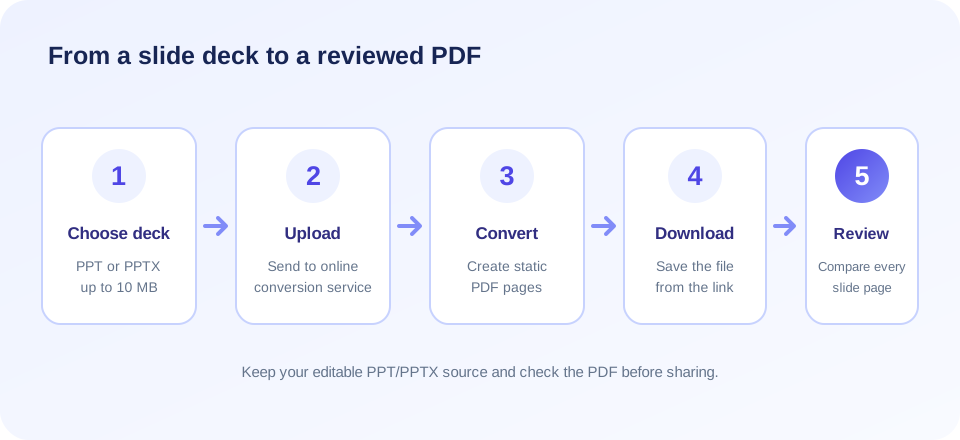
To convert powerpoint to pdf using the online form, follow these steps:
- Prepare your deck. Save the presentation as a supported PPT or PPTX file and keep a separate original copy.
- Open the PowerPoint-to-PDF tool. Select the upload area or drag one presentation into it.
- Check the file requirements. The form accepts .ppt and .pptx extensions and limits the file to 10 MB.
- Select Convert to PDF. The file is sent to the site’s conversion endpoint for processing. Wait for the result rather than closing the page mid-conversion.
- Download the generated PDF. Use the download link shown after successful processing. The browser may also begin downloading automatically.
- Inspect the pages. Check slide order, text, images, charts, margins, and page size before sharing or printing.
If the process fails, check that the extension is valid, the file opens correctly in a presentation application, and it is below the size limit. Try a fresh saved copy. If the online conversion still does not work, use PowerPoint’s own PDF export or another trusted office application available to you.
What A PowerPoint To PDF Converter Produces
A powerpoint to pdf converter creates a PDF representation of the presentation’s slide pages. It does not create a new editable slide deck or reproduce all the behavior of presentation software. Depending on the conversion engine, the result may preserve visible slide content while flattening some objects or adjusting how fonts and graphics are rendered.
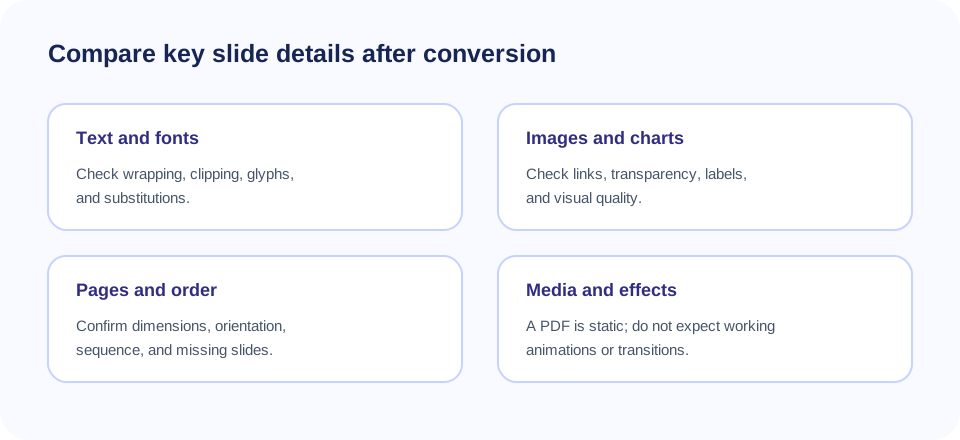
The outcome depends on more than the filename extension. A deck may use embedded fonts, external linked images, uncommon chart formats, custom page sizes, or media that the converter handles differently. If a font is unavailable, text can wrap or shift. If an image is linked rather than embedded, it may not appear as expected. A dense slide may still be difficult to read on a printed page even when conversion succeeds.
Before converting a presentation that contains linked files, verify that all assets are embedded or otherwise available to the conversion process. If your deck relies on custom fonts or effects, export a sample first and compare it visually. Use the output that meets your presentation and accessibility requirements; do not assume that a successful download means every detail is correct.
| Presentation element | What to expect in a PDF | What to review |
|---|---|---|
| Slide text | Usually represented as page content, but wrapping may differ. | Text clipping, font substitution, and line breaks. |
| Images and diagrams | May appear as static visual content. | Missing linked assets, scaling, transparency, and image quality. |
| Animations and transitions | Not preserved as interactive slide-show behavior. | Whether the intended static view of each slide is present. |
| Audio and video | Not equivalent to playable media in the original deck. | Provide the original presentation or media separately if needed. |
| Notes and comments | May not appear in the PDF’s visible slide pages. | Whether notes or comments need a separate export or document. |
| Page dimensions | Usually follow a slide-oriented page layout. | Page size, orientation, margins, and print scaling. |
How To Convert A PowerPoint To PDF: Online Or In PowerPoint
There are two common ways to convert a deck. An online converter is convenient when you have an eligible file and want to process it in a browser. The presentation application’s own export function can be preferable when you need its layout controls, speaker notes, handout options, or a workflow that keeps the file on your device. Feature names and menus vary by software version.
Use the online route when the presentation is under 10 MB, your data policy permits uploading it, and the result passes visual inspection. Use a local export when the material is confidential, the online file size limit is exceeded, or you need more control over output settings. Whichever route you choose, retain the original deck and inspect the PDF before distribution.
For a powerpoint presentation to pdf workflow, think about the intended reader. A slide deck may use large text and wide layouts, while a printed PDF may need handouts or several slides per page. Decide whether the PDF is for screen viewing, printing, approval, or record keeping before finalizing export settings.
PowerPoint To PDF Free: Check Limits And Privacy
The page presents powerpoint to pdf free conversion without a paid plan displayed in the interface. The current uploader accepts one PPT/PPTX file at a time and limits it to 10 MB. A phrase such as converter powerpoint to pdf free may describe different products, so compare each tool’s actual file limits, supported formats, privacy terms, and output process.
When comparing a powerpoint to pdf converter free option, check whether it accepts your presentation type and how it handles uploads. You can convert powerpoint to pdf online free with this form when the file meets its stated requirements and you are permitted to upload it.
Unlike a local text-only tool, this converter uploads the selected presentation to a server endpoint so it can be processed. Do not upload confidential, personal, client, financial, legal, or otherwise restricted slides unless your organization’s rules permit using the service. Check the site’s privacy information and any applicable retention terms before sending documents.
If your presentation is over the limit, try saving a smaller copy by optimizing large images or removing unused media, if appropriate. Do not remove information that the audience needs simply to meet a size limit. For sensitive or large files, use an approved local presentation application and its PDF export instead.
Save PowerPoint To PDF And Review The Result
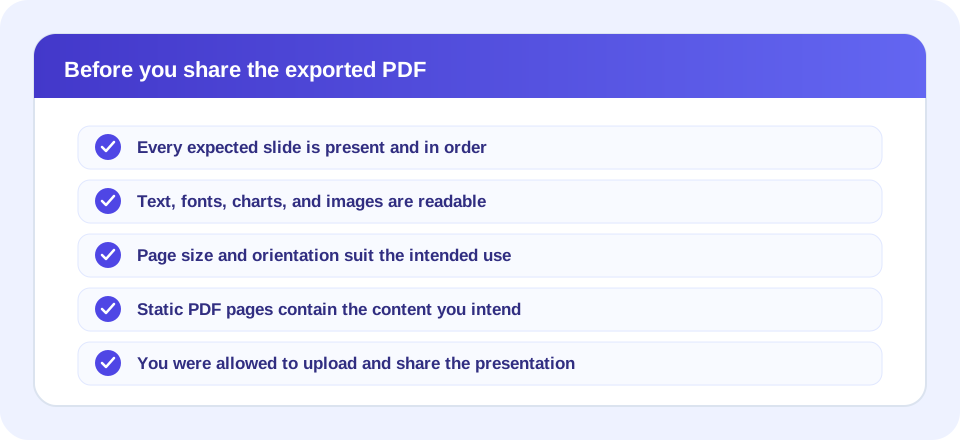
To save powerpoint to pdf successfully, plan a short quality check after conversion. Open the output and compare it slide by slide with the source. Look for characters that moved, charts that were cut off, inconsistent backgrounds, low-resolution images, and objects that extend beyond the page. Check the first and last pages and any slide with a complex layout. In short, the path from powerpoint to pdf is complete only when you have confirmed that the document is ready for its audience.
Also decide whether the PDF should include every slide. Hidden slides, speaker notes, comments, or handout layouts may not be handled the way you expect. The visible online form does not expose settings for selecting slide ranges, printing notes, or arranging multiple slides on a page; it uploads the selected presentation and requests conversion. Use PowerPoint’s export controls if you need a particular presentation range or print layout.
For accessibility, consider reading order, text contrast, meaningful link text, and whether images need descriptions. A conversion does not automatically improve the accessibility of a slide deck. If the document must meet a formal accessibility standard, validate it with appropriate tools and expert review rather than relying on the PDF extension alone.
Choose The Right PDF Workflow
PowerPoint conversion is one step in document sharing. If you need to combine the generated presentation PDF with other documents, use Merge PDFs. To create a PDF from pictures instead of slides, visit Image to PDF. To render existing PDF pages as image files, see PDF to Image. If a signature is required, use Sign PDF.
These tools address different tasks. Merge PDFs combines files, Image to PDF builds a document from images, PDF to Image renders pages into images, and Sign PDF adds a signature workflow. They do not replace the original PowerPoint file or preserve its animations. Choose the tool based on the next step after conversion and check the resulting file carefully.
| Your goal | Relevant workflow | Check the output |
|---|---|---|
| Share slides as a fixed-page document | Convert PowerPoint to PDF. | Slide content, page size, and visual fidelity. |
| Combine the deck PDF with other files | Use Merge PDFs after conversion. | Page order, total pages, and orientation. |
| Create a PDF from pictures | Use Image to PDF. | Image order, scaling, and page layout. |
| Turn PDF pages into images | Use PDF to Image. | Resolution, page count, and image format. |
| Add a signature to a PDF | Use Sign PDF. | Placement, signer requirements, and final document. |
Common Conversion Problems And Practical Fixes
If a presentation does not upload, first confirm that it is a PPT or PPTX file, not a renamed file of another type. Check that the file is under 10 MB and try selecting it again. A file can have a supported extension but still be damaged or contain unsupported content, so open it in a presentation program and save a fresh copy if possible.
If the conversion completes but the PDF looks different, check fonts, linked media, slide size, and complex visual effects in the source. Embed fonts where licensing and software allow, and ensure images are part of the deck rather than external paths. If a single slide is problematic, test that slide separately in a copy to narrow down the issue.
If the download does not start, use the link displayed after success or check the browser’s download controls. A browser may block automatic downloads or require user interaction. Do not repeatedly upload sensitive documents to troubleshoot; try a local export or an approved alternative if the file’s privacy matters.
“A conversion is complete only after the exported pages have been checked.”
Preparing Slides For A Reliable PDF
Before you change powerpoint to pdf, make the source deck as predictable as possible. Save a separate copy, remove accidental off-slide objects, and confirm that images and fonts are available. Check the slide dimensions and ensure that content is not placed too close to the edges. If the deck includes linked charts or media, refresh and verify those items before exporting.
Use consistent typography and avoid relying only on color to convey meaning. Charts should have readable labels and legends, and images should remain sharp at the intended page size. If the PDF will be printed, test a page at the expected paper size. If recipients will view it on phones, verify that the slide text remains legible at a smaller scale.
Keep a source presentation with editable objects and a separate PDF for distribution. Use clear filenames that distinguish revisions and avoid overwriting the original. This makes it easier to correct a slide later and regenerate the PDF without reconstructing the deck from a flattened document.
PowerPoint To PDF Summary
The SnapZain converter accepts one PPT or PPTX presentation up to 10 MB and processes it through an online upload endpoint. It provides a PDF download after conversion. The PDF is a static representation and may not preserve animation, media behavior, notes, or exact rendering of every font and graphic.
Conclusion
Keep your original deck, upload only files your policies permit, and review each output page for layout and completeness. Use a local PowerPoint export when you need slide-range or print-layout controls, need to work offline, or should not upload the presentation. The FAQs below cover common conversion questions and presentation workflow details.


