PDF To Text: Extract Words From A PDF Document
SnapZain’s pdf to text tool extracts text from an uploaded PDF and presents the result in a text box. You can copy the extracted content or download it as a plain-text file. This pdf file convert to text workflow accepts one PDF at a time, with a maximum file size of 10 MB. After extraction, the output can also be saved as a text file using the download control.
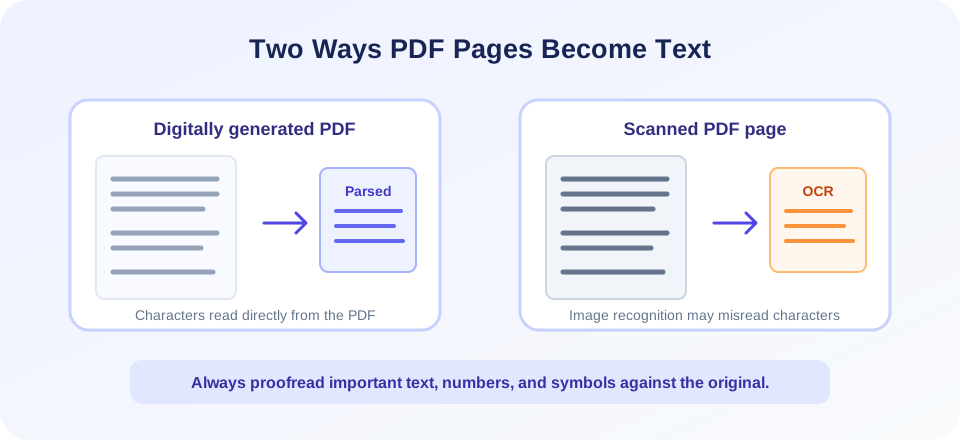
The converter first attempts to read each page with pdftotext, using a layout-aware mode. If that step does not return text, it attempts OCR by rendering the page to an image and sending the image through Tesseract. This provides a path for some scanned PDFs, but it does not guarantee perfect recognition. Always proofread extracted names, numbers, punctuation, symbols, columns, and other important information against the original document.
Text extraction is different from PDF editing. This page does not modify the original PDF, place new text on its pages, or create a PDF from a text file. It returns plain text for reuse in a separate document or workflow. The process also does not guarantee that the original page layout, formatting, images, or tables can be reconstructed as editable text.
How To Convert PDF To Text With SnapZain
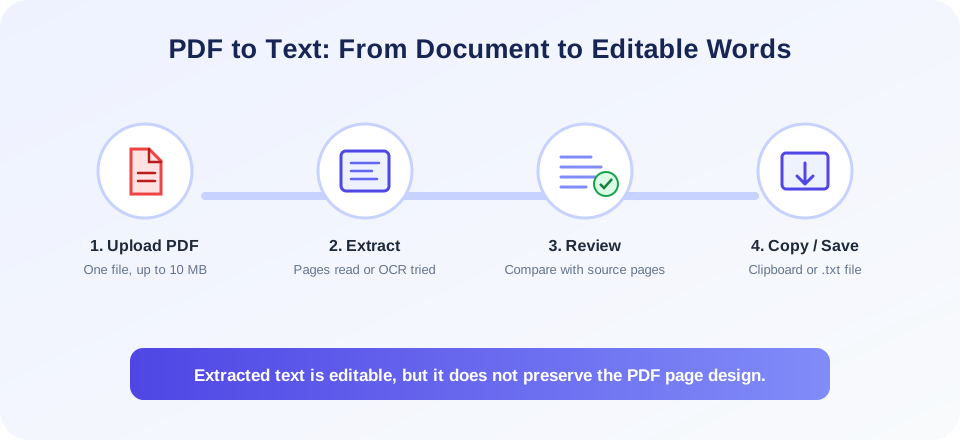
To convert pdf to text with this page, use the following steps:
- Prepare the source. Confirm that your PDF opens and that you are allowed to upload and process its contents.
- Select a file. Drag the PDF into the upload area or use the file picker. The form accepts PDFs only and limits files to 10 MB.
- Wait for extraction. The browser sends the PDF to the extraction endpoint. The server processes the document page by page and returns text when successful.
- Inspect the result. Read the text in the result box and compare key sections with the PDF. The extraction output may contain line breaks or OCR errors.
- Copy or download. Use Copy Text to place the result on your clipboard or Download to save it as a .txt file.
- Reuse with care. Paste the extracted material into your editor or another authorized workflow, and preserve the original PDF for reference.
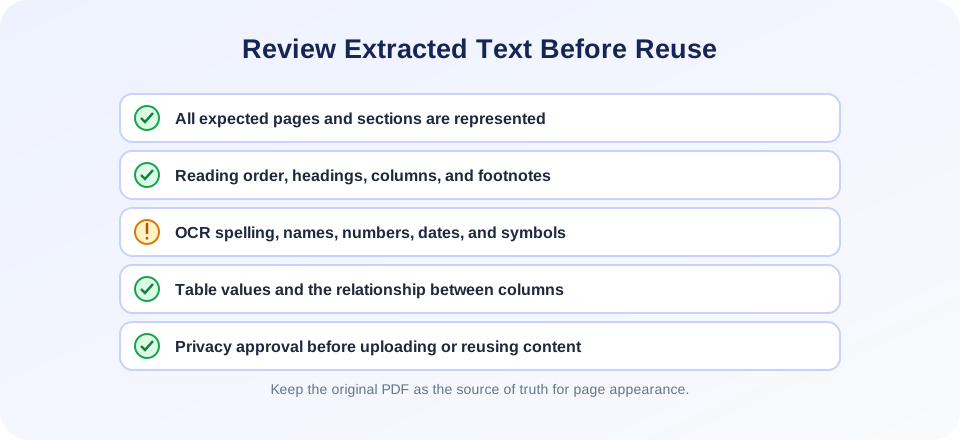
The tool is useful when you need text that is easier to search, quote, or edit separately than the PDF page. It does not provide page-by-page visual previews in the extraction result, so comparing against the original is particularly important for documents with columns, tables, footnotes, or complex page designs.
How The PDF To Text Converter Works
A pdf to text converter reads text information stored in a PDF and produces characters that can be displayed or saved as a text file. SnapZain processes the document page by page. Its first extraction attempt uses pdftotext with the layout option, which tries to retain some spatial relationships between words. Where regular extraction fails, the converter attempts to render that PDF page to a PNG image and use OCR. In short, pdf convert to text produces a plain-text copy of readable page content, not a newly formatted document.
PDFs are designed to preserve page appearance, not necessarily to store content as a simple sequence of paragraphs. A page might position letters individually, contain multiple columns, combine text and vector shapes, or consist only of a scanned photograph. As a result, a text extractor has to interpret the PDF’s internal structure or recognize characters from pixels. Neither approach always recreates the author’s original reading order.
When extraction returns no readable text for a page, the converter represents that page with a no-text-detected marker in the combined output. This can indicate a blank page, an image without recognizable words, a scan that OCR could not read, or a problem with the input. Check the page itself before deciding that the source contains no content.
| PDF page type | Extraction approach | What to verify |
|---|---|---|
| Digitally generated text | Text extraction from the PDF page, with layout-aware spacing. | Reading order, paragraph breaks, headers, and punctuation. |
| Scanned page image | OCR may recognize characters after the page is rendered as an image. | Names, numbers, small print, symbols, and missing words. |
| Tables or multiple columns | Text may be returned in a sequence that approximates page layout. | Which values belong to which row, heading, or column. |
| Blank or image-only page | There may be little or no extractable text. | Whether the page is intentionally blank or needs a separate OCR method. |
| Complex fonts or rotated text | Characters may be mapped incorrectly or read in an unexpected order. | Special characters, orientation, and words that appear out of place. |
Extracting Text From Scanned PDFs And Images
A scanned PDF often stores a picture of each page instead of selectable characters. If you cannot select words in a reader, the page may need OCR—optical character recognition—to convert visible letter shapes into text. SnapZain’s converter attempts OCR as a fallback after ordinary extraction fails. Its success depends on whether the server’s page-rendering and OCR utilities are available and on the quality of the scan.
For better OCR, begin with a clear, straight, high-resolution scan. Pages with strong contrast, legible print, correct orientation, and minimal blur are generally easier to recognize. Very small text, handwriting, faint marks, skewed pages, patterned backgrounds, and compression artifacts can reduce recognition quality. A tool may return plausible-looking text that still contains errors, so accuracy checks remain necessary.
Do not treat OCR output as an authoritative copy when exact wording matters. For contracts, financial statements, medical information, official records, technical instructions, or research quotations, compare each important passage with the page image. Pay special attention to digits, decimal separators, dates, minus signs, accents, and characters that look similar. A single OCR substitution can change a number or the meaning of a sentence.
Copy Text From PDF Without Losing Meaning
For a short passage in a digital PDF, a standard reader may let you select and copy text directly. If selection works and you need only a sentence or paragraph, that can be quicker than processing the whole file. For longer documents, multiple pages, or scanned pages, a convert pdf file to text workflow can create a complete text result to search, copy, and download.
When you copy extracted text, keep the source page nearby. Text extraction may insert line breaks at the end of every visual line, separate hyphenated words, or combine side-by-side columns. Headers, footers, page numbers, and footnotes can appear in the middle of the main text. Review the sequence before quoting or moving the content into another document.
The extracted output is plain text, so it does not preserve the PDF’s font styles, colors, page geometry, images, or precise positions. Some spacing may reflect the source layout, but it is not a reliable replacement for the visual page. If layout is part of the information—for example, a multi-column table or a form—retain the PDF and use a more suitable structured-data or document workflow.
“Extracted text is a useful working copy; the original PDF remains the reference for layout and verification.”
PDF To Text Versus Text To PDF
PDF to Text and Text to PDF are opposite directions. In this workflow, the source is a PDF and the result is plain text. A text to pdf workflow starts with words in an editor and creates fixed pages. Do not choose based on a broad phrase alone: identify whether you already have a PDF or a text document and what format you want at the end.
Queries such as convert text to pdf, text document to pdf, text file to pdf, and convert text document to pdf refer to creating a PDF from text. If you are looking to convert text to pdf online or convert text to pdf online free, use a text-to-PDF converter and review the page layout. A text to pdf converter is not the same utility as this extractor.
Similarly, convert rich text to pdf and rich text to pdf describe exporting formatted content to a PDF. The formatting must be rendered onto pages and may need review for page breaks, fonts, images, links, and tables. This PDF-to-text page does not convert rich text into PDF and does not create text document files from scratch.
If the task is to convert text file to pdf, prepare the text in an editor and use a PDF export workflow instead. Once a PDF exists, this page can convert pdf to text file by extracting its words into a downloadable .txt document. These are separate conversion directions, so choosing the correct input format avoids an unnecessary round trip.
| Starting material | Desired result | Appropriate workflow |
|---|---|---|
| Existing PDF with readable words | Plain text for copying, searching, or reuse | PDF to Text (this page) |
| Plain text in an editor | Fixed-page PDF for sharing or printing | Text to PDF or an office application’s PDF export |
| Formatted rich text | PDF that retains selected formatting | Rich-text-to-PDF conversion, followed by visual review |
| PDF with scanned page images | Recognized text | OCR-enabled PDF extraction, then careful proofreading |
Adding Or Editing Text In An Existing PDF
The phrases add text to pdf, how to add text to a pdf, and how to edit text in pdf describe editing a document, not extracting its existing words. This tool only reads a PDF and returns text. It does not place text on a page, replace existing PDF wording, alter a form, or save changes back to the original file.
To add a note or label, use a PDF annotation tool that supports text comments. To change existing document content, use a PDF editor that can edit text or update the source file in the application where it was created, then export a new PDF. Editing capabilities vary: a scanned page may require OCR or may remain an image, and fonts or layout can shift when content is modified.
If you extract text here to make revisions, treat the result as a separate working copy. Check that you have the right to change and reuse the content. To make a revised PDF, apply your edits in an appropriate editor or document authoring tool and inspect the new output before sharing it. Keep an unchanged original if you need a reference or audit trail.
Common Extraction Problems And Practical Checks
If the upload is rejected, confirm that the file is a readable PDF and no larger than 10 MB. A filename ending in .pdf does not guarantee that the file is a valid PDF. Open it in a trusted viewer and verify that the pages render. The tool accepts one PDF file per run, so process separate documents individually.
If the request fails, the server may not be able to parse the PDF, or required extraction and OCR utilities may be missing or unavailable. Try another authorized copy of the file or contact the site administrator. Do not upload confidential material repeatedly as a troubleshooting test.
If the output is empty or incomplete, determine whether the source page contains actual text or only an image. A scan requires OCR, and OCR may not succeed on faint, tilted, handwritten, or low-resolution pages. If the text appears in the wrong order, the PDF may have columns or a layout that text output cannot represent linearly. Compare the result with the page and correct it manually.
Related PDF Conversion Tools
After extracting text, you may need to move between other document formats. Create a PDF from photos with JPG to PDF or PNG to PDF. Export PDF pages as image files with PDF to JPG. If your source is a Word document and you need a PDF copy, use Word to PDF.
These tools have different inputs and outputs. Image-to-PDF workflows place pictures on document pages; PDF-to-JPG renders pages as images; Word-to-PDF converts a word-processing document into fixed pages. None of them replaces text extraction when your goal is to get words out of an existing PDF. Check page order, image quality, fonts, and formatting in each converted result.
| Task | Related tool | Review after conversion |
|---|---|---|
| Create a PDF from JPG photos | JPG to PDF | Image order, scaling, orientation, and page margins. |
| Turn PDF pages into JPG images | PDF to JPG | Resolution, image dimensions, and legibility. |
| Save a Word document as PDF | Word to PDF | Fonts, pagination, tables, and page breaks. |
| Create a PDF from PNG images | PNG to PDF | Page order, image sharpness, and sizing. |
PDF To Text Summary
SnapZain’s pdf to text converter accepts one PDF up to 10 MB, attempts page-by-page text extraction, and can fall back to OCR for pages that do not return regular text. After a successful run, the content appears in a result box for copying or downloading as a .txt file.
Conclusion
Use the output as editable text, not as a faithful copy of the PDF’s page layout. Review OCR, reading order, tables, names, numbers, and symbols against the original. The tool does not edit PDFs, add text to existing pages, convert text files to PDF, or guarantee extraction from every document. Upload only files you are authorized to process, and retain the PDF as the source of truth.


