Reverse Image Search: Find Visually Related Pages and Pictures
A reverse image search starts with a picture rather than a phrase. It can help you look for visually similar images, pages where a picture appears, or additional context about an image across the indexes of external search engines.
SnapZain’s reverse image search gives you a simple way to upload a supported file or enter an image URL, then open search links for Google, Bing, and Yandex. The Yahoo-labeled option routes to Bing Visual Search.
This service creates search links; it does not operate the search engines or promise that they will identify an image. Results can vary between providers and may be incomplete, especially when a picture is edited, private, or absent from an engine’s index.
Use this guide to understand how image-based searches work, how to prepare an image, which search options the tool offers, and how to interpret what comes back. The aim is to make each search clear and useful without treating a possible match as proof.
What Is Reverse Image Search?
A regular web search typically begins with text. A reverse search begins with an image, or a URL pointing directly to an image, and asks an image-search system to look for related visual content.
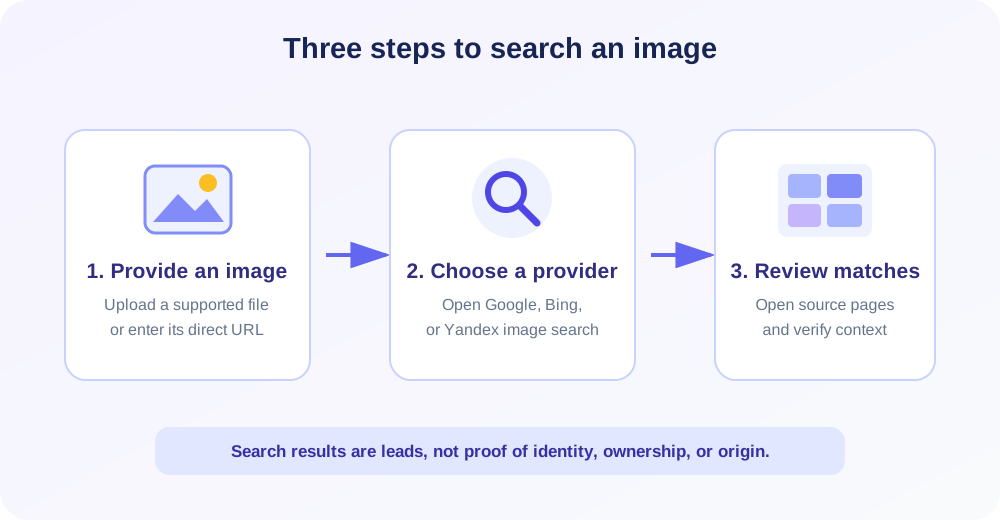
If you are learning how to reverse image search or how to do a reverse image search, the basic process is simple: submit an image, choose a provider, then investigate the source pages behind useful matches.
Depending on the provider, the system may analyze shapes, colors, objects, patterns, or other visual features. It can then compare the submitted picture with images in its own index and display potential matches or related pages.
This does not mean the engine knows who created the picture or which copy came first. A result may be visually similar without being the same file, and an exact-looking result may be a repost that does not identify the original source.
Search engines maintain different indexes and ranking systems. One provider may find a result that another misses, so checking more than one engine can broaden discovery but still cannot guarantee complete coverage.
Think of an image search as a research lead. Open the pages, compare details, check dates and attribution, and verify important claims through reliable sources before reaching a conclusion.
How to Use SnapZain’s Image Search
The page offers two starting methods: upload a local image or submit an image URL. Uploaded files are limited to 10 MB and should use one of the accepted formats.
- Choose a source image. Use a clear image that shows the object, scene, design, or visual detail you want to investigate.
- Upload a file or enter its URL. The upload control accepts JPG/JPEG, PNG, GIF, WEBP, AVIF, and BMP. URL search expects an address that points to an image.
- Add optional keywords if useful. Keywords are available with URL search and can refine the Google link. They are not appended to Bing, Yandex, or the Yahoo-labeled Bing route.
- Select an external search option. Open Google, Bing, or Yandex. The Yahoo-labeled option explains that it opens Bing Visual Search.
- Review the results carefully. Compare the image, the page context, and the apparent source. Follow promising results to the original pages rather than relying only on thumbnails.
After an uploaded image is processed, use Search another image to clear the preview and choose another file. The current interface handles one image at a time rather than running a multi-image batch.
The external engine controls the results page. Its interface, sign-in prompts, image handling, and ranking may change independently of SnapZain.
Upload an Image or Search by URL?
Uploading works well when the image is saved on your device and you do not have a public link. It can also be convenient for screenshots, downloaded photos, or a carefully cropped version of a larger image.
When you upload, SnapZain stores a copy at a public image URL so external search services can use it. Avoid uploading confidential, private, or sensitive pictures unless you understand and accept that handling.
URL mode avoids selecting a local file, but the link must be reachable by the search engine. A URL behind a password, expiring token, hotlink restriction, or private network may not work.
A webpage address is not always an image address. If a link opens a page with menus and text instead of the image itself, find the direct image URL or upload an image copy.
Choose the method that fits the image’s availability and privacy needs. For a sensitive image, consider whether a local tool or a provider with suitable terms is more appropriate than sending it to an online search engine.
| Method | Useful when | Check before searching |
|---|---|---|
| Upload a file | The image is saved on your device | Supported extension, 10 MB maximum, and privacy suitability |
| Enter an image URL | You have a stable, direct image link | The URL is publicly reachable and points to the image file |
| Add keywords | You want Google to consider extra context | Keyword refinement applies to the Google link only |
| Try more than one engine | The first provider finds few useful matches | Providers have different indexes and result coverage |
Google Reverse Image Search and Google Images
The Google option opens a Google image-search URL using the supplied image URL. When keywords are entered, the tool adds them to that Google link as extra search context.
People search for the same workflow with phrases such as “reverse image search Google,” “Google image reverse search,” “Google Images reverse search,” and “reverse Google image search.”
Other query variations include “Google image search reverse,” “reverse search image,” or “image search reverse.” These usually mean starting an image query from a picture instead of typed words.
It is a reverse image search free of charge through SnapZain’s link workflow, but Google handles the actual query. Search product names and interfaces can evolve, so the exact page or features may differ over time.
Google handles the query after you follow its link. SnapZain does not control Google’s image index, results, ranking, or whether a particular image can be processed.
Try a focused crop when the original includes a lot of background or unrelated content. If the image contains a product, artwork, landmark, or distinctive object, adding a concise descriptive keyword may help frame the Google search.
Do not assume that a Google result proves ownership, origin, or identity. Follow the result to its page, check surrounding information, and look for reliable attribution or publication details.
Bing, Yahoo, and Yandex Search Options
Bing is available as a direct visual search link. The search engine processes the submitted image URL and may return visually related pictures or pages according to its own current interface and index.
The page also displays a Yahoo-labeled option, but it redirects to Bing Visual Search. It is not a separate Yahoo reverse-image engine in this workflow; the button notes this distinction.
Yandex reverse image search is provided as another external destination. Its results can be different from Google or Bing because its index, matching behavior, and regional reach are distinct.
When searching the same image on several engines, compare the source pages and not just the first thumbnails. A result can appear high in one index because it is popular or visually close, not because it is the earliest or most authoritative copy.
External services may adjust their features, URL formats, availability, or access rules. If a search link changes behavior, try another provider or open the provider’s current image search interface directly.
Reverse Search Image Results: How to Interpret Matches
A result can represent an exact copy, a resized or compressed version, a crop, a near-duplicate, or a visually similar image. Some systems also associate an image with pages discussing the same subject.
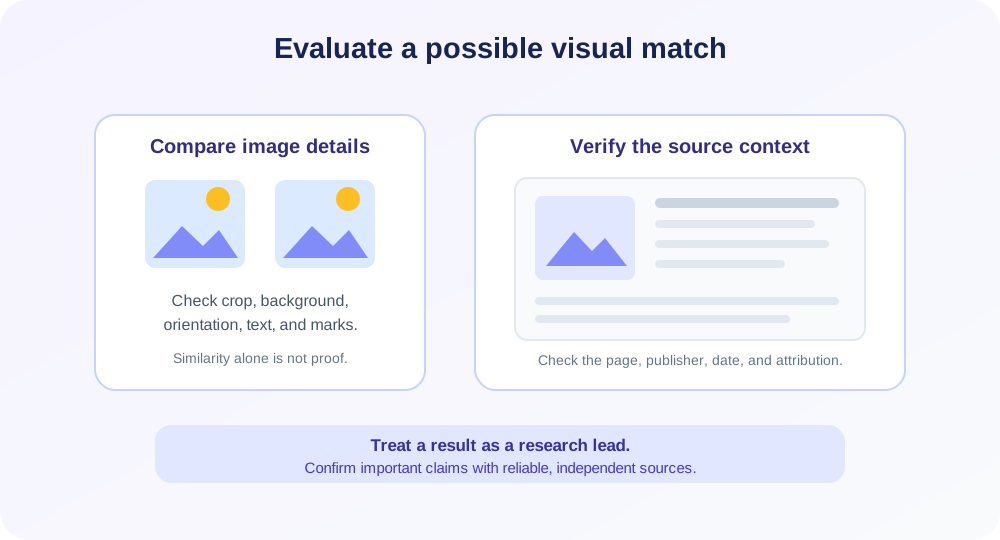
Look for distinctive details: background objects, orientation, crop boundaries, watermarks, text, and small imperfections. These can help distinguish an exact match from another photograph of the same subject.
Visit the page that hosts a promising result. Note its publication date, author or organization, caption, and links to earlier sources. A search engine’s thumbnail may be stale or separated from the page’s current context.
When an image appears on multiple sites, trace the citations and publication history. A repost can have a newer date than the original, and a page’s visible date may refer to an update rather than first publication.
For consequential decisions, confirm findings through another method. Reverse visual search is a discovery aid, not a forensic report or authoritative record.
Prepare an Image for More Useful Matches
Start with the clearest source available. A sharp image with the main subject visible gives a search engine more visual information than a tiny, heavily compressed preview.
Try a crop that focuses on a distinctive subject. Removing borders, browser controls, or large blank margins can make the relevant object more prominent, especially in a screenshot or collage.
Do not crop away every contextual clue. Logos, background landmarks, labels, and other surrounding elements can sometimes help distinguish an image or suggest where it was captured.
If a search returns little, try a second version. You might submit the full image, then a crop around the subject or a less obstructed view. Each version can reveal a different set of candidate matches.
For transparent graphics or small icons, use a high-resolution source where possible. For a photograph, avoid adding filters or text overlays before searching unless the original is unavailable.
Common Reasons an Image Search Finds Nothing
The image may not be indexed. Search providers do not contain every page or private collection, and new or obscure images may not appear in their results.
Major edits can change visual features. Cropping, mirroring, filters, overlays, collages, or an unusual angle can make a match harder to identify.
The submitted image URL may not be accessible. Some websites block external retrieval, require authentication, or use temporary links that expire before the search engine can process them.
The search engine may recognize the subject but not the exact source. Try another provider or a crop around the most distinctive portion of the picture.
Finally, check whether the image is valid and readable. An unsupported encoding, incorrect file extension, or damaged file can prevent upload even when its filename looks familiar.
TinEye and Other Independent Reverse Image Search Tools
TinEye is an independent image-search service that users may choose for their own image research. It is not currently one of the generated links on this page, so a TinEye reverse image search must be started separately on TinEye’s website.
Different tools can be useful for different searches. Compare their current submission options, privacy terms, index coverage, and result details before choosing where to send an image.
Do not assume that two services use the same matching method or cover the same web pages. A missing result in one engine does not establish that an image has never appeared elsewhere.
Keep searches focused and respect applicable rules. Use only images you are permitted to submit, especially when researching material belonging to a client, workplace, or another person.
Privacy, Public URLs, and Responsible Use
Image searching sends information beyond the browser. With the upload workflow, the image is made available through a public URL so an external search provider can access it. URL mode also sends the chosen image link to the provider.
Consider whether an image reveals a face, home address, workplace, medical record, confidential design, or location-sensitive detail. If exposure could cause harm, do not use an online search workflow unless the handling is acceptable.
External search engines have their own privacy notices and data practices. Review those terms directly, as SnapZain cannot determine how a third-party provider retains, processes, or uses a submitted image.
A public image link may be accessible to anyone who has it, depending on the hosting configuration. Do not treat a URL as private simply because it is difficult to guess or was created for a search session.
Use visual results responsibly. A similar face or object is not proof of identity or wrongdoing, and context can be misleading. Avoid making consequential claims about people based only on image matches.
Copyright, Attribution, and Reuse
Finding an image online does not grant a license to reuse it. Search results can help locate a possible source, but the source page may not be the rights holder or may not explain all usage conditions.
Before reusing a picture, check the original publisher, license terms, attribution requirements, and intended use. For commercial or high-stakes use, get permission from the rights holder or consult the appropriate professional.
Reverse search can support a research process by helping find copies or contextual pages. It cannot conclusively establish authorship, creation date, copyright status, or whether a particular use is lawful.
If you believe your own work is being used without permission, keep relevant records and consult the original platform’s reporting process. Search results alone may not preserve the evidence needed for a formal claim.
Reverse Image Search for Everyday Research
Product identification: search a clear product photo to find visually similar listings or a product name. Compare model details and seller information; a similar design does not guarantee the same manufacturer or specifications.
Travel and places: a landmark or building photo may lead to related location pages. Verify the location using more than one clue, because buildings can resemble each other and image captions can be incorrect.
Artwork and design: a visual search may surface other appearances of an illustration, logo, or graphic. Follow the source links and check the creator’s own site or license before reuse.
Finding a higher-resolution copy: results may include larger versions, though not every match is available in better quality. Check the host page and confirm that the file is legitimate before downloading it.
Checking context: an image that circulates without a caption may appear on earlier or more informative pages. Compare dates and descriptions, and verify claims with trustworthy reporting or primary sources.
Reverse Image Search Is Not a Guarantee of Identity
Visual similarity is not the same as identity. A search engine may group images because they share appearance, objects, composition, or colors, even when they show different people or scenes.
Images can be miscaptioned, altered, or republished in a new context. A result page may repeat a claim without verifying it, so check independent evidence before sharing sensitive conclusions.
For a person’s identity, use appropriate consent-based and reliable methods. Do not treat a search match as definitive proof, and avoid using it to target or harass anyone.
For an object, place, or artwork, compare multiple distinctive details and check source credibility. The more important the conclusion, the more important independent verification becomes.
Troubleshooting the Search Workflow
Upload is rejected: check the 10 MB limit and supported JPG, PNG, GIF, WEBP, AVIF, or BMP extension. Try a standard exported copy if the original uses an unusual encoding.
Preview does not appear: the source URL might block browser display, or the image could be unavailable. The search link may still open, but test another direct URL or upload a local copy.
Search link gives an error: external provider URLs and interfaces can change. Try a different search engine or open its current image-search page and submit the image directly.
URL search has no matches: confirm that the URL points to the image rather than a webpage and is publicly reachable. Try an upload if you have permission to submit the local file.
Results are unrelated: use a tighter crop, remove unrelated text or borders, and compare results from another engine. Add a short keyword only when refining the Google option.
Yahoo option appears to be Bing: this is expected in the current tool. The Yahoo-labeled option routes to Bing Visual Search and is not an independent Yahoo image-search result.
| Issue | What to try | What it means |
|---|---|---|
| No upload | Check format, file integrity, and 10 MB limit | The image may not be reaching the search workflow. |
| No URL result | Use a direct, publicly accessible image link | The provider may be unable to retrieve the URL. |
| Few matches | Try a focused crop or another provider | Indexes and visual matching differ. |
| Unclear origin | Open source pages and compare dates and credits | A visual match alone does not prove the original source. |
A Practical Image Research Checklist
- Choose a clear source image and check that you are allowed to submit it.
- Use upload for local files or a direct, reachable image URL for URL search.
- Try Google, Bing, and Yandex when one engine does not find useful matches.
- Remember that the Yahoo-labeled option routes to Bing Visual Search.
- Use optional keywords as Google-only context, not as a universal search filter.
- Open source pages, compare visual details, and verify dates and attribution.
- Treat results as leads; do not infer identity, ownership, or permission from similarity alone.
This process keeps expectations realistic. Reverse search is most helpful when it guides further checking rather than replacing source review, privacy judgment, or rights research.
Prepare the image before searching with Image Resizer to change dimensions, Image Compressor to reduce file size, Image Cropper to focus on a region, or Image Format Converter to change supported image types.
Conclusion: Use Image Matches as Research Leads
A reverse image search can help discover visually related images and pages by starting from a picture rather than a text description. SnapZain lets you upload a supported image or enter a direct URL, then open Google, Bing, or Yandex search links.
The Yahoo-labeled option redirects to Bing Visual Search, while optional keywords refine Google only. Search results vary by provider, and neither a match nor a missing result proves ownership, identity, or complete web coverage.
Choose an image you can safely submit, follow promising results to their source pages, and verify context before drawing conclusions. Used thoughtfully, reverse image search is a practical starting point for image research.


