Image Cropper Online: Keep the Part of a Photo That Matters
A photo can contain the right subject and still feel unfocused because there is too much empty space, a distracting edge, or a framing that does not suit its destination.
An image cropper online helps you select a useful part of the picture and save it as a separate file. SnapZain’s cropper provides a visual selection frame, pixel readouts, zoom, and quarter-turn rotation controls.
People may search for an online cropper image when they need a quick way to trim a picture in a browser. Choose the area that should remain visible, then check how that frame fits its final use.
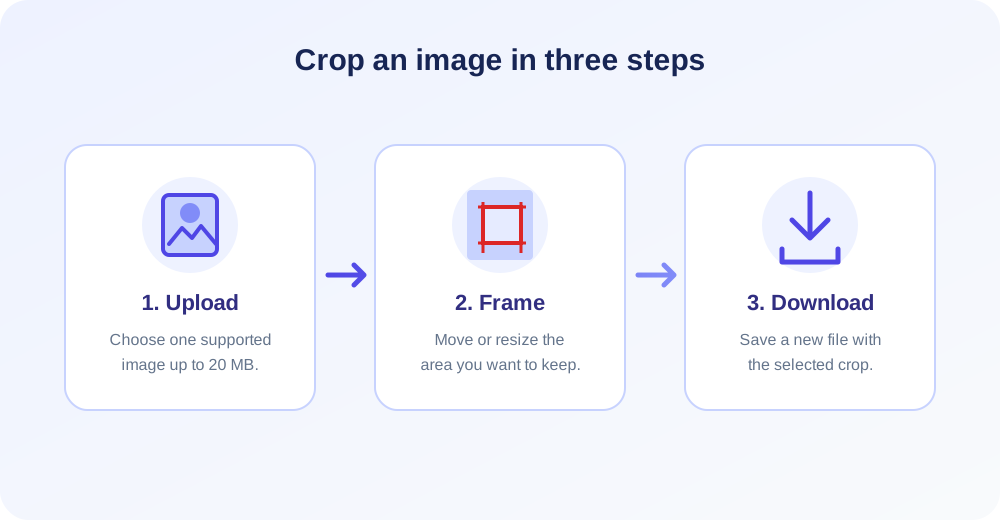
Upload one image, move or resize the crop region, and review its width and height before processing. The form accepts supported files up to 20 MB and returns a cropped copy for download.
This guide explains how to use the workspace, how to plan square or pixel-based crops, and when cropping should be paired with resizing or compression.
What an Online Image Cropper Changes
Cropping changes the visible boundaries of an image. The pixels outside the selected rectangle are left out of the new output, while the selected region becomes the cropped image.
The source file remains separate, so you can choose another frame later if you keep the original.
It is useful to distinguish cropping from resizing. Cropping changes composition by removing some of the picture. Resizing changes the pixel width or height of the image, generally while retaining its full frame.
A social profile image may need both: first compose a square crop, then resize it to the platform’s preferred dimensions.
The cropper is a visual tool, not a retouching or object-removal application. It does not erase an item from the center of a photo, synthesize missing background, or increase source detail.
Its canvas lets you position a rectangle and inspect pixel dimensions before creating a new file.
How to Crop an Image Online
Before uploading, decide what the picture needs to communicate. For a portrait, keep the face and some breathing room inside the frame. For a product, include enough context to show its shape without leaving unnecessary border space.
A clear objective makes crop decisions faster and more consistent.
- Upload one image. Click or drop a supported file into the upload area. The page accepts one image at a time, up to 20 MB.
- Position the crop frame. Drag inside the selected region to move it, or use the handles on its corners and edges to change its shape.
- Refine the view. Use Zoom In or Zoom Out to inspect details. The zoom affects the preview scale, not the source pixel count.
- Rotate if needed. Use the left or right control to turn the image in quarter-turns before finalizing the region.
- Check pixel dimensions. Read the width and height fields. They describe the selected crop and are read-only.
- Select Crop Image. Wait for processing, then use the download link to save the cropped output as a separate file.
The selection begins over the full image. To keep only a smaller area, drag the handles inward and move the frame over the desired subject.
If you change the rotation, review the crop again because the displayed width and height may swap and the chosen region is reset to cover the rotated image.
Crop Frame, Pixel Readouts, and Zoom
The red crop outline marks the portion that will be retained. Drag within the outlined area to reposition it. Resize from an edge or corner handle to change the selection’s width, height, or both.
The selection is constrained to the visible image area so it does not extend beyond the source boundaries.
Width and Height show the selection size in pixels. They are not editable text boxes, so entering a number directly is not supported. Adjust the frame until the displayed values approach the dimensions you want.
If exact output dimensions are important, crop the composition first and then use an image resizing tool for the final pixel size.
Zoom helps when framing small details in the workspace. It changes how large the source appears on the canvas, while the crop coordinates still refer to the image. Zooming does not add image information or improve resolution.
If the subject is blurry in the original, a closer preview will not create new detail.
Square Image Cropper: Make a Balanced Square
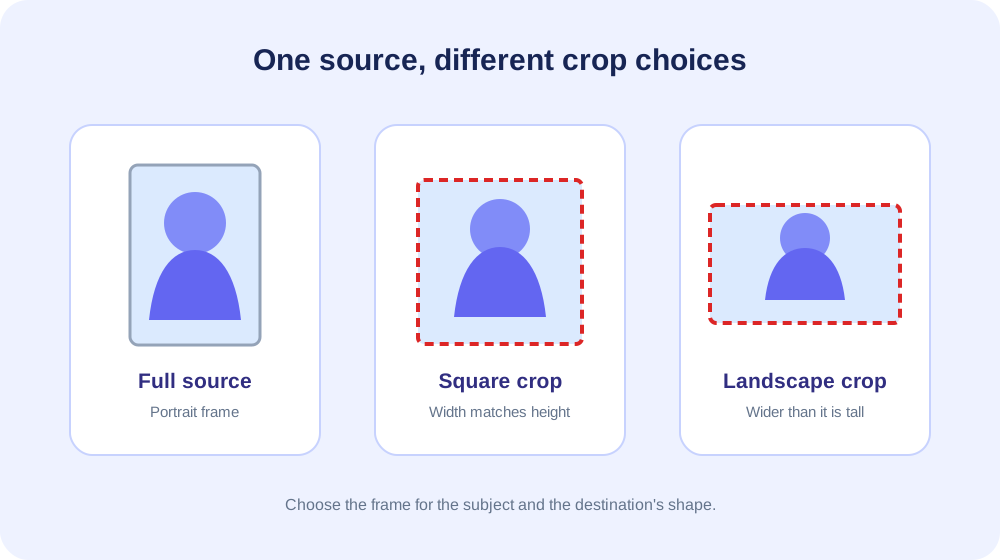
A square image has equal width and height. A square crop is common for avatars, product tiles, and thumbnails, but the cropper does not lock the frame to a 1:1 ratio.
Adjust the selection until both pixel readouts show the same value, then check that the most important parts of the subject remain inside the frame.
For a person, leave a little space around the head and avoid cutting through the chin or hairline. For a product, include enough edge detail to identify its shape.
A square crop that is technically centered can still feel awkward if the subject’s visual weight is off to one side, so use the preview rather than relying only on equal dimensions.
Some platforms display square uploads inside circular masks. This tool creates a rectangle, not a circle. Keep critical details away from the corners if the destination will round the frame.
For a true circular image with transparent corners, use a masking editor after creating a square source.
| Crop goal | How to frame it | Check before saving |
|---|---|---|
| Square thumbnail | Match displayed width and height pixels. | Keep the subject clear of corners. |
| Portrait photo | Use a taller-than-wide rectangle. | Leave comfortable space around the subject. |
| Landscape banner | Use a wider-than-tall selection. | Keep text or focal items away from edges. |
| Detail crop | Zoom the preview and select a smaller region. | Ensure enough source pixels remain. |
| Profile picture | Center the face in a square crop. | Allow for a circular mask on some platforms. |
Crop an Image by Pixel Dimensions
Searching for an image cropper by pixel often means a destination requires a specific width and height. This cropper gives you a pixel readout for the current selection, which can help estimate the retained region.
The fields are read-only, however, and there is no form for typing a target size or locking an aspect ratio.
When a service asks for a precise size, separate the work into composition and output sizing. First crop to include the right content and establish the desired shape. Then resize the cropped file to the required pixel dimensions.
If the target ratio differs from your crop, resizing may stretch the image unless the dimensions are adjusted proportionally, so choose the composition carefully.
Pixel dimensions are not the same as print dimensions. A 600-pixel-wide image can appear at different physical sizes depending on the display or print resolution.
If you are preparing a print, check the printer’s required pixel density and bleed specifications as well as the crop dimensions.
Cropper Image Workflows for Portraits, Products, and Scans
A portrait crop often benefits from a little space above the head and around the shoulders. Keep the face as the focal point and avoid cutting through joints where possible.
For a group photo, choose a frame that includes each person who should remain visible rather than centering only the middle of the group.
Product images usually need a clean outline and consistent framing across a catalog. Select a crop that removes irrelevant surroundings but preserves product features, labels, and accessories.
If every item in a collection must use identical dimensions, plan the crop shape and resize the results to a consistent output size.
Scans and screenshots can contain extra margins, browser chrome, or blank page edges. Cropping those borders can make the actual information easier to read.
Keep enough margin around the content so that labels, footnotes, or the last character on a line are not accidentally cut off.
For a photograph used as a banner, consider where page text or interface elements may overlay it. Keep important subjects away from likely text zones and do not assume the entire crop will be visible on every screen.
A responsive page may trim an image differently at mobile and desktop widths.
“A good crop is not merely smaller; it guides attention toward the subject while preserving enough context for the image to make sense.”
Rotate and Crop in One Workspace
The workspace has rotate-left and rotate-right controls that turn the source in 90-degree increments before the crop is submitted. This is useful when a sideways photo should be corrected and framed in one session.
Rotation changes the viewing orientation; it is not the same as moving the crop rectangle.
After rotating, the selection is reset to cover the rotated image. Reposition and resize it again before cropping. A quarter-turn changes the displayed orientation and swaps the width and height dimensions for a rectangular photo. Confirm the crop readouts after every turn.
The cropper does not offer free-angle rotation or horizon straightening. A photo tilted a few degrees needs a tool that can rotate by arbitrary angles and often crop newly exposed corners.
Use the separate Rotate Image page for simple right-angle orientation changes, or a full photo editor for precise straightening.
Supported Formats and Processing Notes
The upload form lists JPG/JPEG, PNG, GIF, WEBP, AVIF, BMP, HEIC, ICO, TIFF/TIF, and SVG file extensions. It accepts files up to 20 MB.
Whether an individual file can be decoded depends on the image content and available libraries; uncommon compression variants can fail even when the extension is listed.
The crop form does not show an output-format picker. It requests the original format, and the service normalizes some extensions such as JPEG to JPG and TIF to TIFF. Some image formats need Imagick, and SVG or HEIC processing may depend on server delegates.
If an upload cannot be processed, export a standard PNG or JPG copy and try that version.
Animated GIFs and multi-page or multi-frame image files require special handling. A crop workflow may process a still frame rather than preserve animation or every page.
If motion or multiple frames are essential, use a dedicated animated-image application and verify the output before replacing the original.
Image Circle Cropper: What This Tool Can and Cannot Do
An image circle cropper typically clips an image into a circular mask, often leaving transparent corners outside the circle. This page produces a rectangular crop only.
You can prepare a square source here, but the square will remain a square unless another editor applies a circular mask.
A circle-shaped preview in a social app is not always a circular image file. Some platforms store a square picture and show it through a circular interface mask.
Leave the subject near the center and keep important details away from the square corners if you expect that treatment.
If you need a circle with transparent outside areas, choose a graphics editor that supports masks and transparent PNG export. Check the resulting file over a contrasting background to make sure the transparency is real and the subject has not been clipped.
Free Online Image Cropper on Desktop and Android
The online cropper can be opened in a current desktop or mobile browser. On Android, choose an image through the device file picker, adjust the visible frame, and download the processed copy.
Touch targets and download prompts can differ among Chrome, Samsung Internet, and other browsers, so confirm the saved file appears in the intended folder or gallery.
For precise edge adjustments, a larger screen and pointer can be convenient. On a phone, zoom and the crop frame can help inspect a subject, but check that a finger gesture moved the frame rather than the page.
A quick final review in the device gallery can confirm the downloaded orientation and composition.
A browser tool is different from an Android image cropper library used by app developers. A library is integrated into an Android project and exposes code-level crop controls. Likewise, a React image cropper is a component developers embed in a web application.
This page is a ready-to-use website tool, not a software package or API reference.
When choosing a library for an Android or React application, developers should evaluate maintenance, accessibility, license, supported formats, coordinate handling, and how files are stored.
This tool’s user experience may be useful as a conceptual example, but its interface cannot be imported into a native app as a library.
Bulk Image Cropper: When One-at-a-Time Is Better
A bulk image cropper processes a queue of pictures, often with one shared crop region or a saved template. The current SnapZain form accepts one image and one crop selection per processing request.
It does not have a batch queue or automatic face detection, so crop each image separately.
One-at-a-time selection can be helpful when pictures have different subjects or framing needs. A common crop box may cut off one person in a group and leave too much space around another.
Review each source and adjust the selection to suit its contents instead of assuming a single rectangle will fit every photo.
If you need to crop a large folder with identical rules, a desktop image editor or a batch-processing application may be more efficient. Test the rule on representative images first.
Consistent pixel dimensions do not automatically guarantee a consistent-looking composition if the subjects are positioned differently.
Crop, Resize, Compress, and Search: Pick the Right Tool
Use cropping to change composition and remove unwanted edges. Use Image Resizer when the output needs a specific pixel width or height. A crop may reduce dimensions, but it does not provide a dedicated exact-size resize workflow.
Use Image Compressor when the main goal is a smaller file for a website, email, or upload limit. Cropping may reduce file size because there are fewer pixels, but the final bytes depend on the image format and compression settings.
Use Reverse Image Search when you want to look up an image visually, rather than edit its framing. Use Rotate Image when only orientation needs correction. Choosing the appropriate operation avoids unnecessary exports and repeated compression.
A practical sequence for a profile graphic might be: crop to the intended composition, resize to the destination’s required pixel dimensions, and compress only if the file is still too large.
Keep a high-quality source so that you can create another version later without starting from a previously reduced copy.
How to Plan a Crop for Social, Web, and Print
For social profiles, the destination may display a square image inside a circle. Center the subject and keep key details inside a safe area.
For feed posts, check the platform’s current aspect ratio and preview behavior because specifications can change and different placements may crop the same source differently.
For web pages, think about the space reserved in the design. A card, banner, or product tile may have a fixed ratio. If the subject is near the edge, a responsive crop can remove it on a narrow screen.
Keep the focal point within the portion likely to remain visible and test the graphic at typical viewport sizes.
For printing, a screen crop alone does not confirm print readiness. Ask the print provider for final dimensions, resolution, bleed, and safe margins.
Cropping to the right composition is one step; the image must still contain enough pixels for the intended physical size and output quality.
When the picture contains text, logos, or interface details, leave extra room around them. Thin strokes near a crop boundary may appear cut or unbalanced. Review at full size and at the smaller display size to see whether labels remain legible.
Image Quality, Transparency, and Color
The crop itself selects existing pixels, so it does not inherently blur or sharpen the retained area. Re-encoding the file can still affect quality, especially for a lossy source such as JPG.
If small details matter, avoid repeated save-and-convert cycles and keep the original file as the master copy.
PNG can carry transparent pixels, and the service attempts to preserve alpha on supported processing paths. The exact outcome depends on input type, server libraries, and output encoder. Check the crop against a contrasting background rather than assuming pale or blank-looking areas are transparent.
Color appearance can vary slightly among viewers if profiles or metadata are treated differently. For everyday web use this may not be noticeable, but for brand or print work, compare the downloaded result in the software used for final delivery.
Preserve an original and choose a workflow with suitable color-management options for critical production.
Privacy and Source File Care
Before uploading, consider whether the image contains private details, location clues, faces, or confidential material. Use an online tool only for images you are comfortable processing through that service.
An offline editor may be more suitable for sensitive images that should stay on a local device.
Keep the original source in a safe location. A cropped file does not contain the pixels outside its frame, so another version cannot recover those areas from the output alone.
Saving a copy first makes it easy to experiment with a tighter or wider crop later.
Check the destination before publishing. A crop that removes an unwanted edge might also remove a watermark, attribution, or other context required by the owner or platform.
Make sure you have the right to edit and share the source, and retain necessary credit when the use requires it.
Common Crop Mistakes and How to Avoid Them
- Cropping too tightly: leave breathing room around faces, products, and text so the subject does not feel cramped.
- Ignoring the destination ratio: check whether a website or app will crop the image again after upload.
- Confusing zoom with resolution: zoom changes the workspace view, not the number of source pixels available.
- Expecting a circle from a rectangle: create a square here, then use a masking tool for a true circular result.
- Replacing the original too early: keep the full image until the cropped copy has been checked and accepted.
- Using crop instead of resize: crop for framing; resize when you need a defined output width or height.
A crop should have a clear reason. Removing a distracting background can strengthen a portrait, while removing too much context can make the subject unclear.
Compare the crop with the full image before committing, and consider whether an edge detail explains what the viewer is looking at.
Troubleshooting Uploads and Cropped Results
If the upload is rejected, confirm the extension is on the supported list and the file is under 20 MB. A file extension can be misleading when the underlying data uses another format.
Open the image in a local viewer and export a standard PNG or JPG if the source does not preview.
If an uncommon type such as HEIC, TIFF, or SVG fails, the server may not have its decoder or delegate enabled. Converting a copy to a common raster format can be a useful workaround. Keep the source and compare visual details after the alternate conversion.
If the crop coordinates look unexpected, check whether the image orientation changed and whether the crop frame reset after rotation. The service applies rotation before cropping. Review the preview and pixel readouts again before selecting Crop Image.
If the saved result appears wrong in only one application, compare it in another image viewer. Orientation metadata and format support can vary across software. If a clear mismatch remains, try a standard PNG or JPG source and repeat the crop with a simpler file.
A Repeatable Cropping Workflow
Start by identifying the primary subject and the final placement. Make a mental note of any required ratio, minimum dimensions, and areas that must remain visible. This is more reliable than choosing a crop solely because it looks attractive in the editor.
Frame the subject with enough context, then inspect the crop dimensions. Use zoom for careful placement, not as a substitute for source resolution. If the selection is too small for the final display, return to a larger crop or start with a higher-resolution original.
Download the new file and inspect it in the destination environment. Check the outer edges, key details, orientation, and file size. If another export is needed, return to the original source rather than cropping the already cropped version repeatedly.
Conclusion: Crop with a Clear Purpose
A useful crop focuses attention while retaining the details that make the image understandable. This online image cropper provides a movable rectangular selection, pixel readouts, zoom, and quarter-turn controls for one image per request.
It accepts common image extensions up to 20 MB, with actual format support depending on server codecs.
Use a square selection for a square crop, but choose another tool for circular masks, batch cropping, free-angle straightening, or exact output resizing. Keep the original, check the destination requirements, and review the downloaded file before sharing.
The right crop is the one that fits its intended use without cutting away important context.


