Image Compressor: Reduce Image File Size with a Quality Preview
Large image files can be difficult to attach, upload, or deliver quickly on a web page. An Image Compressor re-encodes an image so it takes fewer bytes to store, while aiming to keep the picture visually useful.
SnapZain’s online image compressor accepts supported image types, provides a percentage level, and shows the original and processed file sizes.
Use it when a photo or graphic needs a smaller file for a form, email, or website. You can process one image and download it on its own, or select several files and request individual results or a ZIP.
For routine files that are appropriate to process online, an image compressor free of charge can be a convenient alternative to installing desktop software. Keep private or sensitive images in a workflow you trust.
This guide explains the slider, format differences, practical size goals, and why a smaller file is not automatically a better image.
What Online Image Compression Changes
Image compression changes how visual data is encoded and stored. Depending on the format, it may reduce redundant data, use stronger compression, or discard some fine detail. The output is a new file; the image on your device is not overwritten.
A smaller file can be easier to send and may reduce the amount of data a website transfers. Compression does not remove objects, crop edges, change pixel dimensions, or repair blur.
Those tasks need an image editor, cropper, or resizer rather than an image size compressor.
Some formats allow lossless compression, which preserves decoded pixel values while changing their storage. Lossy formats reduce size by approximating some visual information. The practical result depends on image content, source encoding, selected level, and the encoder available for that file type.
How to Compress an Image Online
Start with a copy or a source you can keep. Decide where the image will be used and whether that destination sets a maximum upload size.
A target size can guide your test, but this form uses a percentage slider rather than an exact kilobyte field.
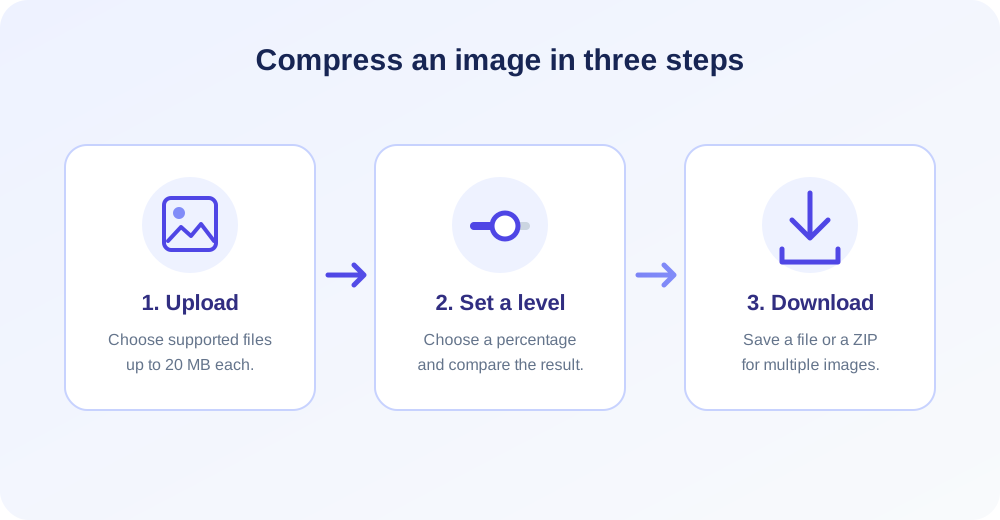
- Upload your image or images. Click the upload area or drop files. The listed formats are JPG/JPEG, PNG, GIF, WEBP, AVIF, BMP, HEIC, ICO, TIFF/TIF, and SVG.
- Check the selected files. Each image must be no larger than 20 MB. Remove files you do not want to process.
- Choose the compression level. Move the slider or enter a value from 10% to 95%. Lower percentages request a smaller approximate output size; visual results vary by format.
- Select Compress. The tool processes selected files and displays a resulting size for each successful output.
- Review and download. Compare the image appearance with its original, then use the individual download or Download Zip for the batch.
Try one representative image first when preparing a large collection. A photograph with smooth gradients may respond differently from a screenshot with text, or a transparent logo with sharp edges.
Once you find an acceptable setting, apply it to the remaining selection and review the outputs.
Understanding the Compression Level
The interface describes the level as an approximate percentage of the original file size. At 60%, the tool aims near 60% of the source size; at 19%, the estimate is near 19%. This is guidance, not a universal guarantee for every codec or every image.
The number is not a direct visual-quality score. A lower target generally asks the encoder for stronger reduction, which can mean more visible changes in lossy formats. A higher setting usually prioritizes quality and may produce a larger result.
The trade-off is different for PNG, SVG, GIF, and photo formats.
Actual processing is format-specific. JPEG encoding can try several quality settings to seek a smaller output near the requested percentage. PNG primarily uses compression and may reduce its color palette when that helps.
Other formats rely on their own encoders and may not meet the estimated target.
That means the same slider value can create different results for two images with the same original file size. A detailed night photograph, a flat-color icon, and a screenshot have different patterns for an encoder to represent.
Always check both the saved file size and the visible image.
| Level choice | Approximate intention | Practical check |
|---|---|---|
| Lower percentage | Request a smaller file relative to the source | Look closely for artifacts, banding, or softened edges. |
| Middle percentage | Balance file reduction and appearance | Compare at the size viewers will normally see. |
| Higher percentage | Keep more image quality, with less reduction requested | Confirm the result still meets the destination’s size limit. |
| Any percentage | An estimate, not a fixed kilobyte target | Read the actual output size reported after processing. |
Image Compressor to 50 KB or 100 KB
Searches for an image compressor to 50KB or an image compressor to 100KB usually come from an upload form that has a file-size limit. This page does not accept an exact target in kilobytes.
It lets you choose a percentage of the source size and then reports the actual result.
To approach a 50 KB or 100 KB requirement, begin with a moderate compression level and review the reported output size. If it remains over the limit, try a lower percentage and inspect the visual quality again.
Repeat with a copy of the original so you are not building on a previously compressed result.
Some photos may not reach a small target without visible quality loss. If the destination allows fewer pixels, resizing can reduce file size while preserving a useful appearance at the final display dimensions.
This compressor does not resize, so use a separate resizer when pixel dimensions are also part of the requirement.
Do not rely on the phrase “to 50 KB” as a promise of exact output. The resulting size is affected by the source format and content, and a required maximum may need a little margin.
Check the final downloaded file in the destination upload field before submitting it.
2 MB Image Compressor and Practical Size Limits
A 2MB image compressor search can mean either reducing a file that exceeds two megabytes or meeting a form’s maximum. The slider can request a percentage-based reduction, but the tool does not provide a “make exactly 2 MB” setting.
Compare the actual output after each attempt.
For a source that is only slightly over the limit, a moderate level may be enough. For a much larger file, combine compression with a dimension change if the destination displays the image at a smaller size.
Reducing unnecessary pixels can often help more predictably than applying aggressive lossy compression alone.
Check how the receiving service counts file sizes. Some systems display megabytes using decimal units, while others calculate mebibytes using binary units.
A file close to a threshold may still be rejected, so aim below the limit and verify the final file in the actual upload workflow.
4K Image Compressor: File Size Is Not Resolution
A 4K image compressor can refer to compressing a very high-resolution picture while keeping its pixel dimensions. This tool can process supported images that are within its 20 MB upload limit and readable by the server.
Compression changes encoding; it does not make the image 4K or remove pixels to lower its dimensions.
If the image already has 4K dimensions, the output generally retains the same pixel width and height through these compression workflows. Large dimensions can still create large output files, and highly detailed content may resist reduction.
Check image size, the reported bytes, and the intended display context separately.
If a website only displays a thumbnail or a small card, a 4K source may contain far more pixels than that placement needs. Resize a copy to suitable dimensions, then compress it.
Keep the original high-resolution file for print, editing, or future use at larger sizes.
Compression is not a way to recover detail after an image has been downsized or heavily compressed. Begin with the best available source, decide the output dimensions, and export one suitable version for each purpose rather than repeatedly editing a low-quality copy.
“Choose the smallest file that still looks right at its real viewing size; a size target is useful only when the image remains clear enough for its purpose.”
JPG Image Compressor: Photos and Quality Trade-Offs
A JPG image compressor is commonly used for photographs because JPEG supports lossy compression and is widely accepted. The compressor re-encodes a JPG/JPEG file using quality settings influenced by the selected level.
More aggressive reduction can soften fine texture or create block-like artifacts around edges.
Photographs often tolerate moderate compression better than screenshots containing small text. Inspect faces, hair, foliage, gradients, and fine patterns at full size. Also view the image at its intended display size; a file may look acceptable as a small thumbnail but show artifacts when enlarged.
JPG does not support transparency. When a transparent source is saved through a JPEG path, transparent areas are flattened against white. If a logo needs a clear background, retain a transparency-capable source and avoid using JPG as the final format.
Repeatedly compressing a JPG can accumulate visible changes. Keep the original source and create exports from it. If a smaller file is needed later, do not use an already compressed output as the starting point unless the original is unavailable.
PNG, WebP, GIF, and Other Image Types
PNG is useful for crisp graphics and transparency. Its compression is generally lossless, so reducing file size may be limited when the picture contains many colors or complex gradients.
Palette reduction can make a file smaller, but it may change colors; inspect logos and smooth transitions carefully.
WEBP and AVIF can provide efficient storage, but processing depends on server encoder support. HEIC, ICO, TIFF, and SVG may use additional libraries or specialized handling. If a less common file fails, export a standard JPG or PNG copy and try again.
GIF can use a limited color palette and may contain animation. The current processing path can flatten multi-frame images, so do not assume that a compressed GIF will preserve all animation frames and timing. Verify playback if motion is important.
SVG is vector markup rather than a conventional pixel grid. The compressor minifies markup and may create a gzip-compressed SVGZ file if that is smaller relative to its target.
SVGZ support varies among applications and publishing systems, so confirm that the destination accepts it before relying on that output.
| Format group | Typical content | What to review |
|---|---|---|
| JPG/JPEG | Photographs | Fine detail, gradients, and compression artifacts. |
| PNG | Logos, screenshots, transparent graphics | Color changes from palette reduction and alpha edges. |
| WEBP / AVIF | Web images and modern delivery | Encoder availability and destination compatibility. |
| GIF | Simple graphics and animated images | Color limits and whether animation remains intact. |
| HEIC / TIFF / ICO | Device photos, scanning, and icons | Codec support and expected downstream software. |
| SVG | Vector illustrations and interface graphics | Whether the destination accepts SVGZ if gzip output is used. |
Bulk Image Compressor: Process a Group of Files
The bulk image compressor workflow lets you select several images in one session. You can process each selected item and use its individual download control, or choose Download Zip to create an archive containing processed files.
The same compression level is applied to the group for that request.
Batching is convenient when images share a similar purpose, such as a set of product thumbnails. It does not mean every result will have the same dimensions or exact byte size.
Different images respond differently to the same percentage, so review each output and confirm it meets the target.
Each image is limited to 20 MB. Large batches also depend on request limits, PHP memory, codecs, and the server’s processing time. If the ZIP fails or processing is slow, try a smaller group and check that each source can be opened normally.
Before a bulk run, test one example from each important image category. A transparent logo, photograph, and screenshot may need different settings. Consider processing groups separately when quality needs differ, and keep the original files until the whole archive has been reviewed.
Compare Original and Compressed Results
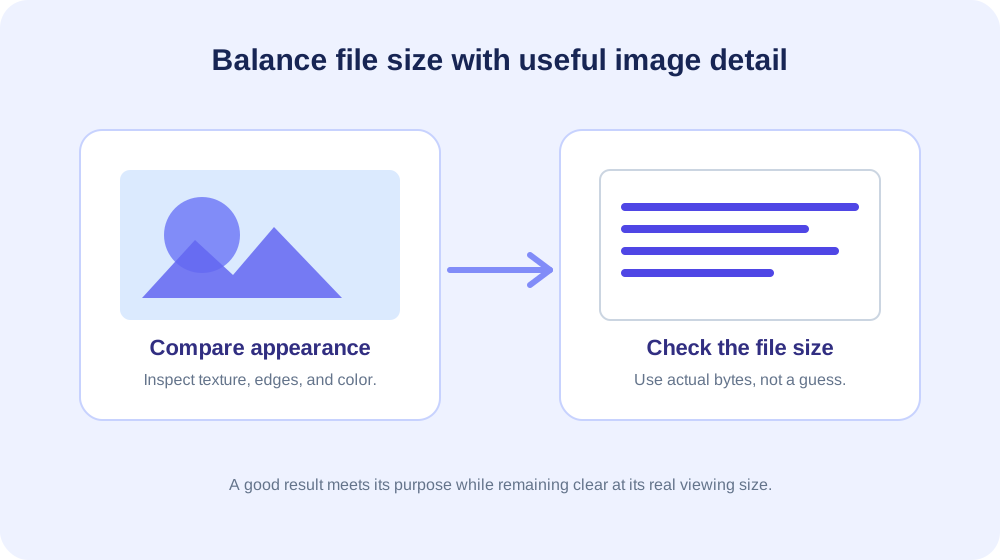
The tool reports original and new file sizes for individual compression requests. These values help show the byte reduction, but they do not measure visual quality. A file can be substantially smaller and still contain artifacts that matter in a logo, chart, or fine-text screenshot.
Compare images at the size people will see. Look at edges, text, faces, gradients, and repeating patterns. For pages, check whether a smaller file improves loading without making the visual content difficult to read.
A useful test keeps both files side by side. If the compressed result looks acceptable in the actual layout and satisfies the upload limit, it may be ready.
If not, try a higher level, resize to the needed dimensions, or choose another format that the destination supports.
Do not judge only from a tiny preview or file-size percentage. Browser scaling can hide artifacts, and different screens show detail differently. For important creative or commercial images, keep a high-quality original and approve the final version before replacing a published asset.
Image File Compressor vs. Image Resizer and Converter
Compression targets storage size, while resizing changes pixel dimensions. If an image is far larger in pixel width and height than its display area, resizing may reduce data more effectively than pushing compression to an extreme. Many workflows use both operations on a copy.
Format conversion changes the file encoding type. It can affect compatibility and size, but changing a file extension alone does not convert the image. Use a format conversion workflow when a site requires a different type, and inspect transparency or quality after export.
Cropping removes parts of the frame; rotating changes orientation. Neither is the same as compressing the image. Choose the operation that addresses the actual issue, then avoid unnecessary re-encoding steps that can compound quality loss.
A reliable web workflow is to start with the best original, crop if the composition needs adjustment, resize to useful display dimensions, and then compress a copy. Convert to an accepted format only when required, and keep the source available for future edits.
Common Uses for an Online Image Compressor Tool
Website owners may compress image files to reduce page transfer size, especially when a page displays multiple product or article photos. Smaller assets can use less bandwidth, but page performance also depends on dimensions, caching, delivery, and the number of resources requested.
Students and professionals may need to attach a photo to a form or email with a maximum file size. A percentage slider can help test a smaller version, while the reported output size shows whether another adjustment is needed.
Always verify the service accepts the final file before discarding an alternative.
Photographers may create lightweight previews for review while retaining full-resolution originals for editing or print. A compressed web copy should be treated as a derivative, not a replacement master. Name exports clearly so the recipient can distinguish them from original files.
Small businesses can prepare images for listings, newsletters, and social channels. Each destination may impose different limits or dimension recommendations. Make a tailored copy for each placement when one export does not fit every requirement.
How to Approach a Strict Upload Limit
Read the destination’s requirements before compressing. Some forms specify only a maximum number of bytes; others also require particular dimensions, format, color mode, or aspect ratio. Meeting the file-size limit alone does not guarantee the image will be accepted.
Check the source’s pixel dimensions. If it is much larger than the display or print requirement, resize a copy first. Then adjust compression conservatively and compare the resulting file size with the threshold.
When the target is especially small, prioritize the content that must remain legible. A portrait may survive moderate reduction, while fine text or a detailed chart may not.
If stronger compression makes the content unclear, consider a different source, a smaller crop, or a format supported by the destination.
Leave room below a hard limit rather than aiming at its exact boundary. The destination may calculate file size differently or include additional processing. Upload the final downloaded file to the form and check its validation message before treating the task as complete.
Preserve Transparency, Color, and Animation
Transparent images need special attention. PNG can retain transparency, but a palette conversion can change subtle edge colors. JPG cannot carry an alpha channel, so transparent pixels are flattened against white in the JPEG path.
Color profiles and metadata can influence how an image appears in different applications. The compressor focuses on file-size reduction rather than a full color-management workflow. For brand colors or print-critical output, compare the compressed copy in the intended destination before approval.
Animated formats also need verification. A GIF can contain multiple frames, but image-decoding pipelines may handle only a still frame. If movement, timing, or frame sequence matters, use a tool built to preserve animation and test the exported file from start to finish.
Keep a copy of any asset whose transparency, color, or motion is essential. If the output differs from expectations, return to the original and try a workflow that explicitly supports the required image feature.
4K and High-Resolution Photos: Set Expectations
High-resolution photos contain many pixels and can require more memory to decode, even when their compressed upload is below 20 MB. Processing time may increase for detailed images or large groups.
If a request fails, test a single image and verify that the file itself is valid.
A 4K source is helpful when the image may be displayed large, cropped later, or used in a high-resolution layout. If the destination only shows it as a small thumbnail, an appropriately resized copy may be more efficient.
The compressor alone does not alter those dimensions.
Keep a high-resolution master and create separate outputs for different uses. A mobile preview, web hero, and print image may need different dimensions and compression. One heavily compressed 4K file is rarely an ideal master for every future layout.
Check quality at the actual presentation size. Large zoom can reveal every encoding change, while an image viewed at 300 pixels wide may remain perfectly clear. The right balance depends on how the audience will use the picture.
Privacy and Responsible File Handling
Before uploading an image, consider whether it contains personal details, faces, private documents, or location-sensitive content. Use an online service only when you are comfortable processing that file through the service. An offline editor may be a better choice for confidential material.
Keep the original in a safe location and download the processed copy before using it elsewhere. A compression result is not a backup of the source, and a lower-quality export may not be suitable for later editing or printing.
Check that you have permission to upload and edit the image. If the image belongs to a client, employer, or another creator, follow the applicable project permissions and keep attribution where required. Compression changes file encoding, not ownership.
Troubleshooting Compression Results
If the upload is rejected, check the supported extension and 20 MB per-file limit. The extension may not match the actual file contents, or a specialized codec may not be installed. Exporting a standard JPG or PNG copy can help isolate a format issue.
If the output is larger than expected, the image may already be highly optimized or the chosen format may not yield further savings. Try a different level, compare another supported format when appropriate, or resize a copy to the required dimensions.
If the output looks visibly degraded, choose a higher percentage and review it again. For text, logos, and diagrams, small changes around edges can be noticeable. Consider PNG or another suitable lossless workflow when preserving exact pixels is more important than maximum reduction.
If a batch archive fails, process fewer files at a time. A large number of images can use substantial memory and request time. Confirm every selected file is valid and that the target server supports its format.
A Practical Compression Checklist
- Keep a master: preserve the original high-quality file before making smaller exports.
- Check requirements: note file-size, dimensions, and format rules from the destination.
- Choose the right operation: resize for pixel dimensions, crop for framing, compress for file bytes.
- Test one image: use a representative source before processing a large group.
- Inspect the output: compare detail, edges, transparency, and actual file size.
- Verify acceptance: test the downloaded copy in the upload form or publishing workflow.
This sequence prevents a common mistake: reducing quality aggressively before confirming whether the real problem was excessive pixel dimensions. A few deliberate checks can create a file that is smaller and still useful for its intended purpose.
For other image-editing tasks, use Image Cropper to adjust framing, Text to Image to create a graphic with text, Rotate Image to correct orientation, or Image Format Converter to change a supported file type.
Conclusion: Balance File Size with Image Quality
An online image compressor can help prepare images for websites, forms, email, and sharing by re-encoding supported files. SnapZain accepts images up to 20 MB, offers a percentage-based level, reports output size, and supports individual downloads or a ZIP workflow for multiple selected files.
The percentage is an approximate size target, not an exact KB promise. This tool does not resize dimensions, create a fixed 50 KB or 100 KB output, or turn a lower-resolution source into 4K.
Keep the original, select the right operation, and inspect the result at its real display size before using it.


