Image Resizer Online: Change Image Dimensions with Control
Images often need different dimensions for a profile, website, form, presentation, or message. An image resizer online changes pixel width and height so a picture can fit a specific space without requiring a desktop editing program.
SnapZain’s Image Resizer supports percentage scaling and custom dimensions. You can also flip or rotate images, choose an output format, work with multiple files, and download an individual result or a ZIP archive.
Use resizing when the number of pixels needs to change. If the composition needs different framing, cropping is the right operation. If the file must take fewer bytes, compression may help; these are related but distinct image tasks.
Searches such as “resize image online,” “image resize online,” and “resize image online free” usually describe this same browser-based task: choose a scaling method, set dimensions, and save a resized copy.
This guide explains the tool’s controls, aspect ratios, format options, batch workflow, and practical use cases. It also clarifies what resizing can and cannot do, so you can choose settings based on the actual destination.
What Does an Image Resizer Change?
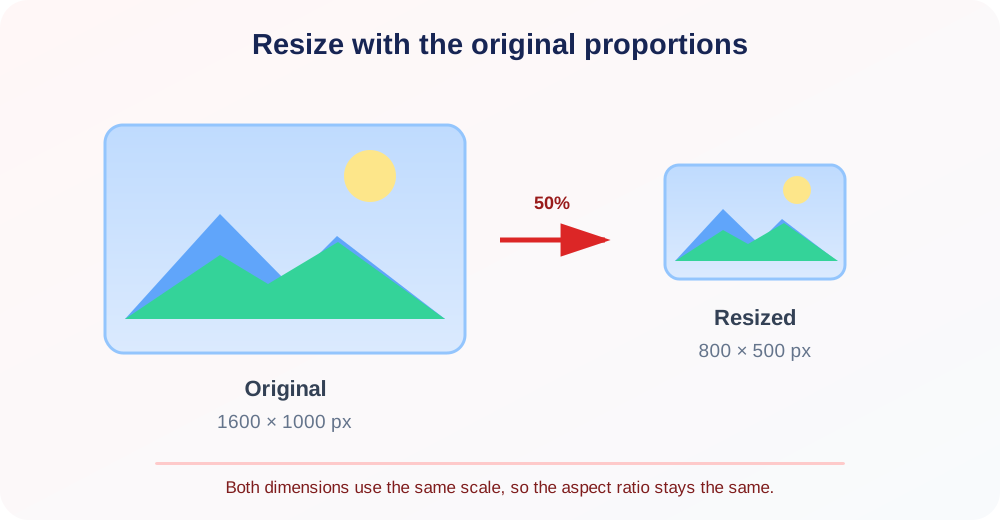
A digital image is arranged as a grid of pixels. Its dimensions describe the grid’s width and height, commonly written as width × height. Resizing creates a new grid with more or fewer pixels than the source.
When reducing dimensions, the image processor samples the original and calculates a smaller representation. Fine details may be simplified because fewer pixels remain to describe edges, textures, and small lettering.
When enlarging dimensions, the processor estimates new pixels from nearby source information. This can make an image fit a larger space, but it cannot recover detail that the camera or original file never captured.
Dimension changes are different from the physical size of a printed image. Print size also depends on resolution settings, while screen display depends on layout, browser scaling, and device density.
A resized file is usually saved as a new output. Keep the original master so you can create a different version later without repeatedly resampling an already reduced image.
How to Resize an Image Online with SnapZain
The tool works in a browser and accepts one or more image files. The upload interface lists JPG, PNG, GIF, WEBP, AVIF, BMP, ICO, and SVG extensions, with a maximum upload size of 20 MB per image.
If you need a free image resizer for a routine task, the page lets you resize images online without installing a desktop editor. Check the requirements of your destination before choosing the final dimensions or format.
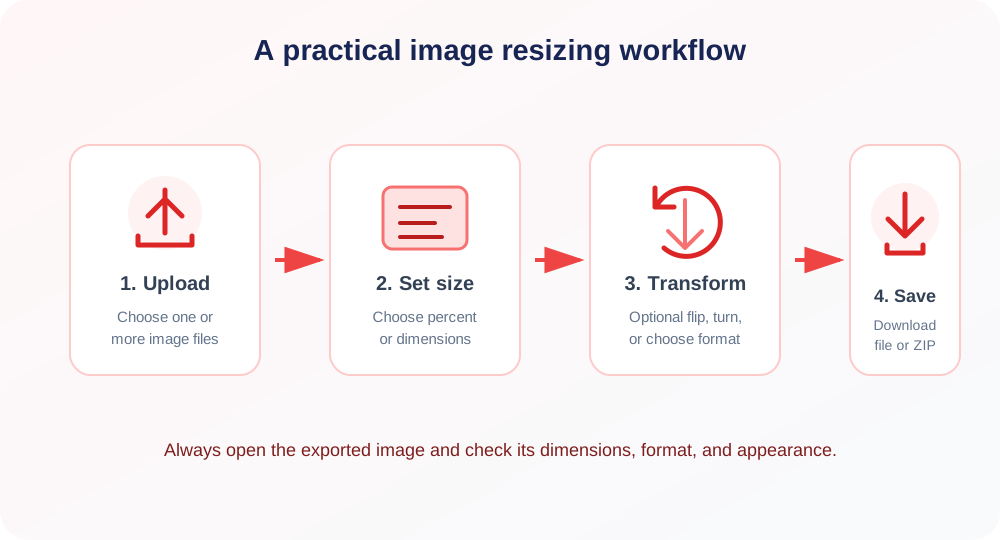
- Select images. Click the upload area or drop files into it. Multiple images can be selected together, and additional files can be added in the editing workspace.
- Choose a resize mode. Use percentage scaling for a proportional change, or choose dimensions when a destination specifies pixel width or height.
- Enter values carefully. The form accepts percentage values from 1 to 500 and dimensions from 1 to 10,000 pixels. Check the aspect ratio before setting both dimensions.
- Set optional transforms. The Flip and Rotate tabs let you mirror the picture horizontally or vertically, or choose a right-angle rotation.
- Choose a file type. Keep the original format or select a supported output format. Codec availability can vary by format and server configuration.
- Process and download. Click Resize Image. A single image returns a download link; a group of files is packaged as a ZIP archive.
For an important image, start with one representative file. Check how its edges and details look, then reuse those settings only for images with similar dimensions and purpose.
Percentage Mode and Dimension Mode
Percentage mode scales width and height using the same factor. A value of 50% makes each dimension approximately half its original measurement, while 200% doubles both measurements.
Because the same factor is used for each side, percentage scaling preserves the source aspect ratio. This is useful when you know how much smaller or larger the output should be, but not the exact pixel dimensions.
Dimension mode lets you enter a target width, height, or both. When only one value is supplied, the other dimension is calculated proportionally from the source image.
When both width and height are entered, the tool uses both values. If their ratio differs from the source, the result can look stretched or compressed. Calculate a matching pair when you want exact dimensions and natural proportions.
Use whole-number measurements. The server validates each dimension between 1 and 10,000 pixels, but very large images can need substantial memory and may fail if the hosting environment cannot process them.
| Mode | What you enter | Best for | Important note |
|---|---|---|---|
| Percentage | Scale from 1% to 500% | Quick proportional reduction or enlargement | Both dimensions use the same scale. |
| One dimension | Width only or height only | Fit a maximum width or height | The other side is calculated proportionally. |
| Two dimensions | Width and height | A fixed pixel canvas or exact slot | Different ratios can distort the picture. |
| Resize plus transform | Dimensions and optional flip or rotation | Prepare orientation and output size together | Review the exported file, not only its preview. |
Aspect Ratio: Keep the Image’s Shape
The aspect ratio is the relationship between an image’s width and height. A 1600 × 900 image has a 16:9 ratio; a 1000 × 1000 image is square.
Preserving that relationship prevents faces, products, and other subjects from appearing unnaturally wide or narrow. The tool preserves the ratio automatically when only one dimension is entered or percentage mode is used.
If a service requires a square thumbnail, entering square dimensions directly may distort a landscape photo. Crop the picture to a square first, then resize the cropped copy to the required pixel dimensions.
Some designs intentionally stretch a background or decorative texture. For photographs, logos, diagrams, and text, preserve proportions unless the design specifically calls for another effect.
“Choose the dimensions to fit the image’s destination, but protect the original proportions unless distortion is an intentional part of the design.”
Resize Images for Websites and Social Profiles
Web pages often display images inside responsive containers. A source wider than the rendered area may use unnecessary storage and transfer data, but the correct output depends on the layout and on whether the page displays high-density screens.
Inspect the actual design slot before resizing. A content image, banner, product thumbnail, and profile avatar can have different aspect ratios and pixel requirements, even when they appear on the same website.
Social platforms may crop or recompress uploads after submission. Follow the current recommendations from the platform, and keep a high-quality original in case specifications change or a different placement is needed.
For responsive pages, one fixed image may not be ideal at every viewport. Developers may create several versions or use responsive image markup; this simple tool creates the selected dimensions, not a complete responsive delivery system.
Review small text and fine lines after reducing a graphic. If a resized logo or chart becomes hard to read, try a larger output or use a vector source where the destination supports it.
Resize an Image for Email, Forms, and Documents
Online forms sometimes specify maximum pixel dimensions or file bytes. Read the full requirement before processing because resizing changes pixel dimensions, while compression is usually the operation intended to reduce encoded file bytes.
If a form rejects an image for being too wide, resize the width and allow the height to scale proportionally. If it names both dimensions, confirm whether the form expects a crop, a padded canvas, or a stretched result.
Email clients may show images at a limited display width. A smaller copy can make attachments easier to share, although the output’s byte size depends on format and image complexity as well as pixel dimensions.
For a document, decide whether the image will be viewed on screen or printed. A screen-sized copy may look inadequate in a large print layout, so retain the original for print or archival use.
Bulk Image Resizer: Prepare Several Files Together
The batch workflow helps when multiple images need a consistent treatment. Select several files, choose one percentage or dimension setting, set optional transforms, and process the selection as a group.
The same settings are applied to each item. That makes bulk processing convenient for a set of product images or thumbnails, but it does not automatically match different source aspect ratios to a common crop.
When both dimensions are entered, each file is shaped to those dimensions. If the source images have varying ratios, some may appear more distorted than others. Group similar images or choose one dimension to preserve proportions.
Use the Add Images control to include more files before processing. Each image is subject to the 20 MB upload limit, and large batches may be affected by browser request limits, server memory, execution time, or codec availability.
If a large batch fails, test one file first and then process smaller groups. Keep filenames organized and inspect the downloaded ZIP so you can verify that the expected outputs are present.
Flip and Rotate Controls
Flip Horizontal mirrors the image left to right. It can reverse a composition or correct a mirrored source, but text and directional symbols also become reversed and should be checked.
Flip Vertical mirrors the image from top to bottom. It can be useful for a deliberate reflection effect, though it is not a perspective correction or a way to repair image distortion.
The rotation choices are 0°, 90°, 180°, and 270°. A quarter-turn changes landscape to portrait or portrait to landscape, so the final width and height may be swapped.
The browser preview reflects the transform settings, but the downloaded file is the result to trust. Check its orientation in the target application, especially if the image contains text, labels, or directional content.
If the only task is orientation, the separate Rotate Image page offers a focused workflow. This resizer keeps rotation alongside dimensions, flipping, and format selection.
Supported Formats and Output Choices
The upload area lists JPG/JPEG, PNG, GIF, WEBP, AVIF, BMP, ICO, and SVG. The file extension is only one clue; a damaged or mislabeled file can still fail during decoding.
Choose Original when you want each output to retain its input type. This is convenient for a mixed batch, although each format still depends on its corresponding server processing path.
JPG is commonly used for photographs, while PNG is often chosen for graphics or transparency. WEBP and AVIF may suit web delivery, but the destination must support them.
GIF can contain multiple frames. The image processing path may load only a still frame rather than preserving animation, so do not use it when frame sequence and timing are essential.
SVG is vector markup rather than a conventional pixel grid. Keeping an SVG output may preserve scalable artwork, but rasterizing an SVG to another format depends on server libraries and the SVG’s content.
ICO is used for icons and favicons. It has specialized size and compatibility expectations; inspect the output in the target browser or application rather than assuming every icon slot accepts it.
Conversion choices are not a promise that every codec is installed. If an uncommon format fails, try a supported common raster format or use an editor that explicitly supports the required codec.
| Format | Typical use | What to check |
|---|---|---|
| JPG/JPEG | Photos and general-purpose sharing | Fine details may soften after lossy encoding. |
| PNG | Interface graphics, screenshots, transparency | Confirm clear edges and transparent areas. |
| WEBP / AVIF | Modern web delivery | Check browser, CMS, and server support. |
| GIF | Simple graphics or animation | Confirm whether frames and timing remain. |
| SVG | Logos and vector illustrations | Raster conversion requires compatible support. |
| BMP / ICO | Legacy images and icons | Verify file size and destination compatibility. |
Resize, Crop, Compress, or Convert?
Resizing changes pixel dimensions. Cropping removes part of the frame. Compression changes how image information is encoded and stored, while conversion saves a new file in another format.
These operations can affect one another, but they answer different questions. A picture that is too wide for a layout needs dimensions or framing changed; one that exceeds an upload-byte limit may need compression.
For a useful preparation sequence, crop only when composition needs adjustment, resize to a practical pixel size, and then compress a copy if the destination has a strict byte limit.
Change formats only when compatibility or a workflow requirement calls for it. Repeatedly converting lossy images can introduce additional quality changes, so work from the best available source.
Use Image Format Converter when a destination needs a different supported image type. A conversion is not the same as resizing and does not automatically choose ideal dimensions.
Image Dimensions, File Size, and Quality
Reducing pixel dimensions often lowers the amount of data required to represent a picture, but the final file size is not determined by dimensions alone. Format, color variation, transparency, compression, and metadata also matter.
This tool is not a fixed-size image compressor. It does not accept a target such as 100 KB or guarantee that a particular resize will meet a byte limit.
For a file that remains too large, use an appropriate compression workflow after choosing useful dimensions. Compare the result visually and confirm it satisfies the receiving service’s exact limit.
Quality is also contextual. A small thumbnail may look crisp at its displayed size even if the same file appears soft when enlarged. Evaluate the output at the scale where people will actually view it.
Text, line art, and high-contrast edges reveal resampling artifacts quickly. Photographs can hide small changes in texture, while logos may need sharp boundaries and transparency. Match the inspection to the image’s purpose.
How to Calculate Proportional Dimensions
To preserve shape when you know the target width, divide that width by the original width to find the scale factor. Multiply the original height by the same factor to estimate the matching height.
For example, reducing a 2400 × 1600 image to 1200 pixels wide uses a factor of one half. The proportional height is 800 pixels, producing a 1200 × 800 result with the same 3:2 ratio.
For a percentage change, multiply both original dimensions by the percentage divided by 100. A 75% setting turns 1600 × 1200 into approximately 1200 × 900 pixels.
Rounding can produce a one-pixel difference when calculations do not yield whole numbers. That is normal for raster images, where dimensions must be integer pixel counts.
If a platform requires a ratio but not fixed dimensions, calculate the ratio first and choose a convenient output size. If it requires both exact dimensions, verify the source can fit without distortion or crop it appropriately.
Enlargement and Upscaling Expectations
Increasing dimensions can be necessary for a larger interface placement, but the result depends on source quality. Resampling estimates new pixel values; it cannot reconstruct fine detail that was never present.
A modest enlargement may look acceptable in a design, while a large enlargement can expose softness, jagged edges, or blocks. Review the file at its final display size rather than judging only the numeric dimensions.
For a logo or illustration, a vector original is often a better source for large outputs than a small raster image. Use the vector where supported, or export a raster at the intended dimensions.
Do not treat a larger pixel count as proof of improved image quality. The output may have more pixels but still contain the same limited source detail spread across a larger grid.
Resize Safely and Keep a Reliable Source
Use a duplicate or preserve the original before processing. A resized output can be useful for a particular placement, but it should not replace a high-quality master needed for future editing or larger uses.
Before uploading, consider whether the image includes private documents, people, location details, or confidential work. Choose a processing workflow you trust and avoid uploading sensitive material when an offline option is more appropriate.
Check that you have permission to process and publish the image. Resizing changes pixel dimensions, not authorship or usage rights. Follow any project, client, or licensing conditions that apply to the source.
After downloading, open the file and verify dimensions, orientation, appearance, and extension. Keep the original until the output has been accepted by the website, form, or application that needs it.
Common Problems and Practical Fixes
The upload is rejected: confirm that the file is no larger than 20 MB and uses a listed extension. Check whether the source opens locally and whether its actual format matches the filename.
The image looks distorted: compare the entered width-to-height ratio with the source. Enter only one dimension for proportional scaling or calculate the matching second dimension.
The output looks soft: avoid excessive reduction or enlargement, start with a better source, and inspect at the destination’s real display size. Fine text may need a larger output or a vector alternative.
The output format fails: the server may not have the codec required for that conversion. Try Original or a common supported format, then verify the resulting file opens in the intended application.
A batch does not complete: reduce the number of selected files and test one image. Large batches use more memory and processing time; a format-specific failure can also interrupt a request.
The animated image is still: this path may process only one frame. Use an animation-aware application when motion must remain, and test the downloaded result before publishing it.
A Short Checklist Before Downloading
- Confirm the destination’s required dimensions, aspect ratio, and accepted formats.
- Keep a source copy before resizing or applying transforms.
- Use percentage mode or one entered side when proportions must stay fixed.
- Enter both dimensions only when the ratio is intentional or already matched.
- Review rotation, horizontal or vertical flipping, and output format settings.
- Open the downloaded image and check its actual dimensions and appearance.
These checks reduce avoidable rework. They also help distinguish a pixel-dimension problem from a framing, compression, or file-type problem before you change the wrong setting.
For image lookup, use Reverse Image Search. Create a graphic from text with Text to Image, adjust orientation with Rotate Image, or change supported file types using Image Format Converter.
Conclusion: Resize for the Actual Destination
An online image resizer helps prepare a picture for a specific layout by changing its pixel dimensions. SnapZain offers percentage and dimension modes, optional flipping and right-angle rotation, output-format choices, and a batch ZIP workflow.
Use one entered dimension or percentage mode to preserve proportions. Set both dimensions when the target ratio is deliberate, and remember that enlarging cannot restore missing detail or guarantee a smaller file size.
Keep the original, check format compatibility, and inspect the downloaded output where it will be used. Choosing the correct operation—resize, crop, compress, rotate, or convert—makes the result more predictable.


