Extract Pages from PDF: Save the Pages You Need
A long PDF can contain just a few pages you need to share, review, or keep as a separate file. SnapZain’s extract pages from PDF workflow lets you upload a document, choose all pages, a continuous range, or custom page numbers, and create separate PDF output from your selection. It is useful when you need to isolate a receipt, a chapter, a form page, or another specific part of a larger document.
The page checks the uploaded PDF to read its page count before showing extraction options. The upload limit is 10 MB. Select the PDF output format for the supported processing path; although the form shows an “As images” choice, the current server route does not use that selection and returns PDF output.
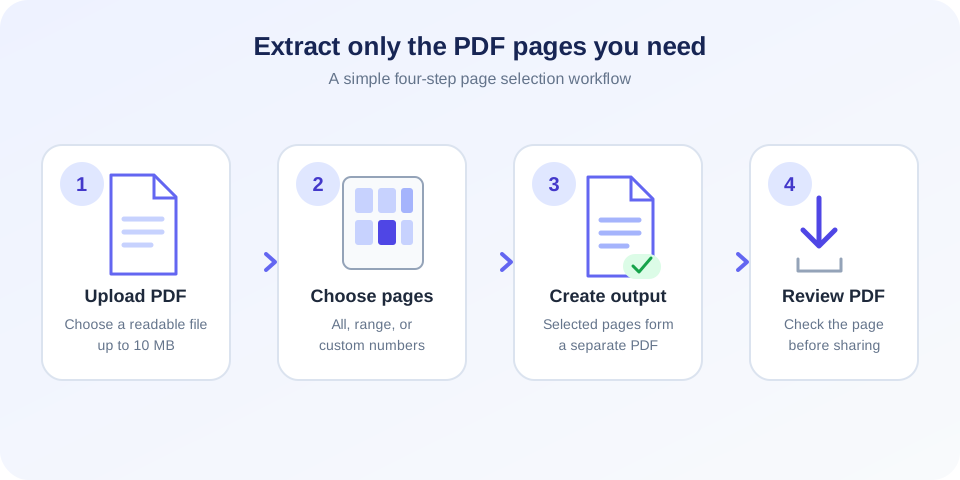
How to extract pages from a PDF online
To extract PDF pages with the page’s current controls, follow these steps:
- Upload a PDF. Drag a PDF into the upload area or browse for a file. The interface accepts PDF files up to 10 MB.
- Wait for the page count. The page reads the document and then opens the extraction options. If it cannot read the file, check that the PDF opens normally and is not damaged.
- Choose a selection mode. Use All pages for the complete document, Page range for consecutive pages, or Custom selection for individual pages and mixed ranges.
- Enter page numbers carefully. For a custom selection, use a comma-separated list such as
1,3,5-7. Page numbering begins with 1, and the numbers should match the uploaded PDF. - Keep PDF format selected. This is the output format currently processed by the server.
- Select Extract Pages. When processing finishes, open the downloaded PDF and check that it contains the intended page or pages.
For a single page, enter one number in Custom selection—for example 4 to extract the fourth page. For a consecutive section, use Page range and enter its first and last page. Do not include a page number beyond the count shown for the document.
Choose the right PDF page selection
Use the selection that matches the structure of the pages you need. A range is straightforward for chapters or continuous sections; custom selection is designed for separated pages. The output is a new PDF, so the source document remains unchanged.
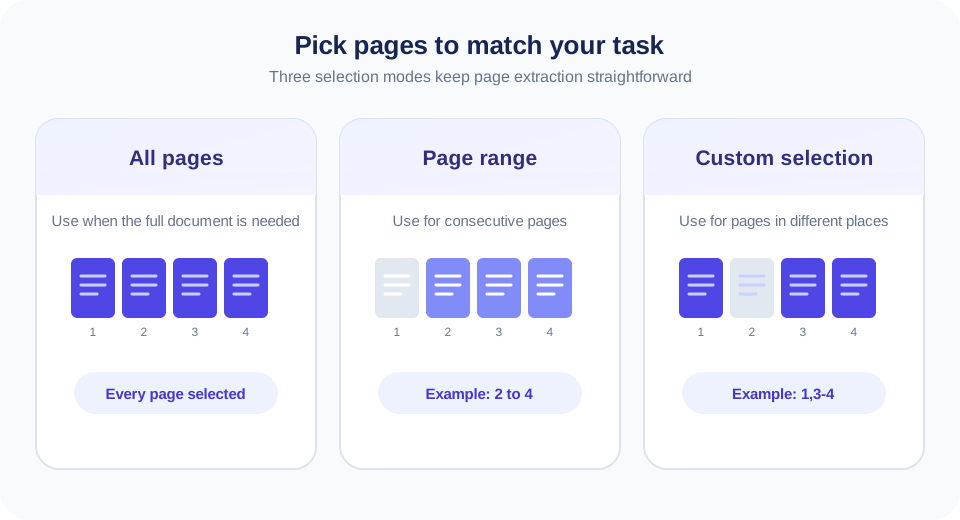
- All pages: choose this when the full PDF is required as extracted output.
- Page range: choose a start and end page when the pages you need are next to one another.
- Custom selection: use individual page numbers and ranges when relevant pages are spread through the document.
The current server implementation creates separate PDF files when multiple pages are selected, while the browser interface automatically starts a download for the first returned file. To avoid confusion when a particular page matters, process one page at a time. A single page selection produces one predictable PDF download.
What page extraction changes—and what it does not
Extracting a page from a PDF document makes a separate file containing the selected page; it does not remove pages from your original. The operation is different from deleting pages, cropping page boundaries, or adding a visible mark. If you need to remove pages from a copy, use Delete PDF Pages. To adjust the visible page area, choose Crop PDF; to place a text or image mark on a document, see Watermark PDF.
Extraction also does not rewrite the words or turn the page into an editable document. It is a page-level operation: the selected page is placed into a new PDF output. Open that output after downloading and inspect text, images, orientation, and page order before sending it to someone else.
Troubleshooting page extraction
If a PDF fails to load or extract, first confirm that the file is a valid PDF and remains within the 10 MB upload limit. Try opening it in a PDF reader to check that the document is not damaged. Use page numbers that exist in the document, and enter custom selections in a clear comma-separated format such as 2,4,6-8.
Some PDFs have restrictions or internal structures that a processing library cannot read. If a valid file still fails, try saving a fresh PDF copy from a trusted PDF reader and process that copy. For a smaller file, Compress PDF may help reduce its size before uploading, though compression does not repair a damaged document.
Conclusion: extract the pages that matter
SnapZain provides an online way to choose all pages, a range, or custom page numbers from a PDF and create separate PDF output. Upload a readable file within the 10 MB limit, select the pages accurately, and review the downloaded result. For the clearest result in the current interface, extract one page per request and keep the original PDF as your unchanged source.


