Rewording Tool: Explore Clearer Ways To Express An Idea
The SnapZain rewording tool takes text you enter and applies simple wording changes in one of four modes: Standard, Formal, Shorten, or Expand. The source text and generated result appear in separate columns, with approximate word and character counts. This can be useful for drafting an alternative version of a short passage, but it is important to understand how the tool works before relying on the output.
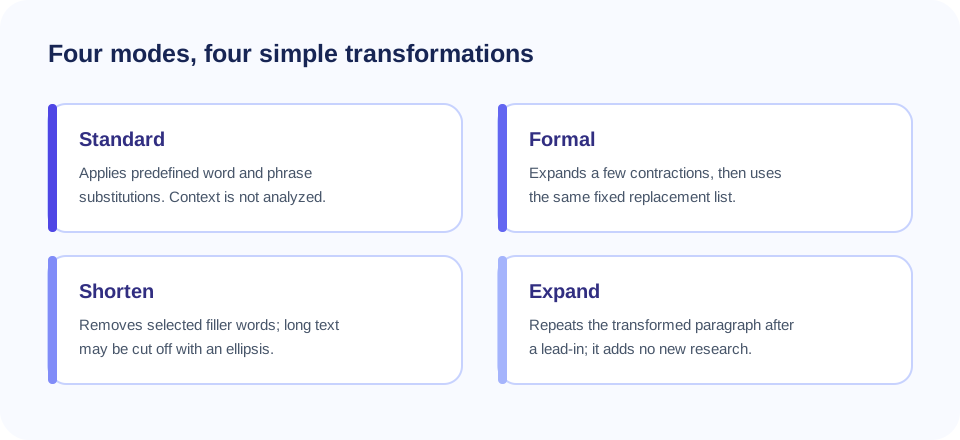
This page uses a fixed set of phrase and word substitutions in JavaScript running in your browser. It does not send text to an AI model, understand sentence meaning, research facts, or produce context-aware paraphrases. Formal mode expands a few contractions; Shorten mode removes selected filler words and may truncate longer text; Expand mode repeats the revised paragraph with a lead-in. Those are mechanical transformations, not editorial judgment.
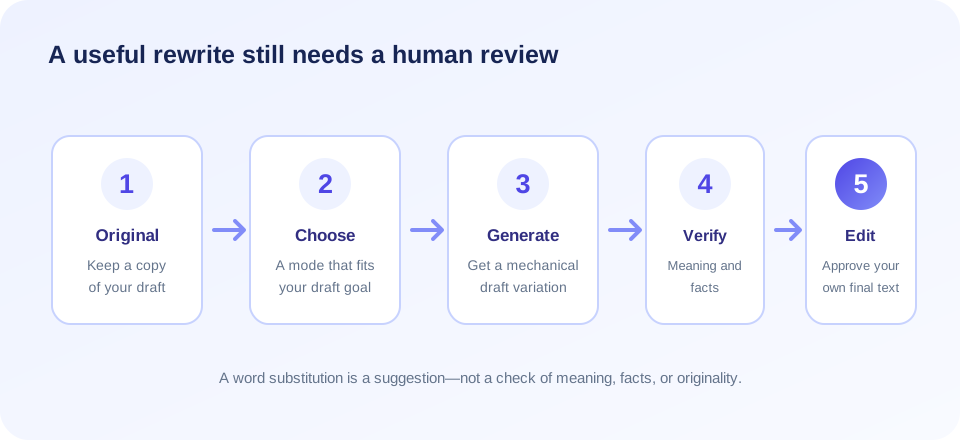
Use the result as a starting point. Compare it with your original, repair anything that sounds unnatural, verify facts and qualifications, and cite source material when required. A different wording is not automatically clearer, accurate, original, or appropriate for a particular audience.
What The Reword Tool Actually Changes
The current rewriter applies a list of predefined replacements such as “simple” to “straightforward,” “good” to “excellent,” “use” to “utilize,” and “for example” to “for instance.” Some substitutions can change the strength or nuance of a statement. For example, “good” and “excellent” do not always mean the same thing, while “utilize” may sound less natural than “use.” The replacement list is not a thesaurus that checks each term’s sense in a sentence.
Standard mode processes each paragraph. If a paragraph is 150 characters or shorter, it limits the substitutions to at most six. Longer text can receive all matching rules. The count of actual changes depends on which listed words occur, so the same text can remain mostly unchanged if it contains few recognized terms.
Because the tool is rule-based, it can be predictable in one way—it does not invent new facts—but it can still alter meaning, introduce awkward style, or miss a phrase that needs rewriting. Always inspect both versions rather than treating a new sentence as approved copy.
| Mode | Current behavior | Review carefully for |
|---|---|---|
| Standard | Applies predefined phrase and word substitutions. | Meaning shifts, unnatural synonyms, and unchanged sentences. |
| Formal | Expands a small set of contractions, then applies the substitutions. | Whether the result truly fits a professional audience. |
| Shorten | Removes selected filler words; beyond 12 words it keeps roughly 60% from the beginning and adds an ellipsis. | Missing conclusions, caveats, steps, or important details. |
| Expand | Applies replacements, then repeats the result after “To elaborate further,”. | Duplicated sentences and the absence of genuinely new explanation. |
How To Use The Online Rewording Tool
- Enter your own draft. Type or paste the sentence or passage you want to explore. Keep an unchanged copy if the content is important.
- Choose a mode intentionally. Select Standard for limited synonym substitution, Formal for a few contraction changes, Shorten for a simple compression attempt, or Expand for a repeated draft with a lead-in.
- Select Reword Text. The browser applies the selected rules and displays the result beside the original.
- Compare sentence by sentence. Check that names, numbers, negations, conditions, dates, technical terms, and claims remain correct.
- Edit the draft yourself. Replace awkward wording and restore any omitted information. Read the final version aloud or ask a knowledgeable reviewer when stakes are high.
- Check the destination requirements. Follow citation, accessibility, tone, and originality rules before publishing or submitting the text.
The input and output counters are useful estimates, not quality scores. The word count splits text on whitespace; character count uses JavaScript string length. Emoji, combined characters, punctuation, and language-specific word boundaries may be counted differently in another editor.
Reword A Sentence Without Losing Its Point
A reword sentence tool can help you notice alternatives, but a sentence is more than a sequence of replaceable words. Before accepting an output, identify the subject, action, condition, and intended level of certainty. Words such as “may,” “must,” “only,” “unless,” “before,” and “after” can carry important meaning even when they look small.
For example, “The change may reduce processing time” is not equivalent to “The change will reduce processing time.” A rewrite that removes “may” changes a cautious possibility into a promise. Similarly, replacing “some users” with “users” broadens a claim. A rephrasing pass must preserve these qualifiers and any evidence that supports the statement.
If your goal is to make one sentence shorter, consider removing repeated ideas rather than deleting the end of a paragraph mechanically. If the goal is tone, choose words that fit the intended reader and context. If the original contains a technical term, retain it unless a domain expert confirms a substitute is accurate.
Tool To Reword Sentences: What To Expect
A tool to reword sentences may use templates, substitution lists, language models, or editing suggestions. Those approaches differ in how much they can infer. SnapZain’s current rewording form uses direct browser-side substitutions from a fixed list. It does not inspect grammar or ask a server for generated text.
That means a sentence with no matching terms might be returned unchanged in Standard mode. A sentence containing several matching terms can change even when a particular replacement is unsuitable. Formal mode is not a complete business-writing editor. Shorten mode is not a semantic summarizer, and Expand mode does not add independent research or evidence.
Use this tool when you want a quick, low-stakes draft variation and can review the result. For more substantial revision, edit for a clear purpose: simplify a long clause, move the main point forward, remove repetition, or split a sentence that contains several ideas. Human revision gives you control over the intended meaning.
Reword Paragraph Tool: Preserve Structure And Context
A reword paragraph tool should be judged by whether the whole passage remains coherent, not by how many words changed. SnapZain splits input into paragraphs at repeated blank lines and applies the selected transformation to each paragraph. It does not analyze how one paragraph connects to another or identify the central argument.
In Expand mode, the same reworded paragraph is repeated after the phrase “To elaborate further,”. This increases text length but does not add a separate example, explanation, or sourced fact. In Shorten mode, paragraphs longer than 12 words are reduced by taking roughly the first 60 percent of the words after filler removal, which can cut off a key point. For these reasons, use those modes only for rough experiments and inspect the entire result.
For meaningful paragraph editing, write down what the paragraph needs to accomplish. Keep its main claim, supporting reason, evidence, and transition. Remove only material that is redundant or irrelevant. If a passage contains citations or exact quotations, preserve them and follow the relevant citation rules; do not paraphrase a source to disguise copying.
Free Rewording Tool And The Meaning Of “Free”
A free rewording tool is convenient when you want to try an editing aid without a subscription. The SnapZain form shows its modes and runs locally in the browser. “Free” does not mean that the result is guaranteed, that the tool can rewrite every language or topic, or that you may use any source text without permission.
Searches such as rewording tool free, reword tool free, and best rewording tool free can describe many types of products. Compare the actual method, privacy information, language support, input limits, and review controls. A tool with more dramatic wording changes is not necessarily better if it damages the original meaning.
If you are looking for a rewording tool free online, check what the tool actually does before relying on it. The phrase reword tool online free may suggest that text is sent to a remote language model. This specific implementation’s transformation function runs in the browser. Still, follow the site’s published privacy terms, and do not paste confidential or regulated information into a website unless your policies allow it.
Rewording Tools, Human Editing, And Attribution
There are many rewording tools and reword tools, but none should be treated as an automatic permission to reuse another person’s writing. Replacing a handful of words does not make copied work original. Cite sources, quote exact language where appropriate, and add your own analysis or explanation.
For academic assignments, follow the instructor’s rules on writing assistance and disclose tool use where required. For workplace content, verify claims and keep confidential material within approved systems. For public-facing content, make sure the final wording is accurate, useful, and appropriate for the audience. The tool cannot determine ownership, plagiarism, or policy compliance.
Do not use rewording to evade plagiarism detectors, disguise copied content, or misrepresent authorship. A responsible rewrite starts with understanding the source and expressing the idea in your own structure and voice, with attribution when the idea or information comes from another source.
“A rewrite is successful when the meaning remains clear—not when every original word has been replaced.”
Rewording Tool Grammarly Searches And Product Comparisons
People may search for a rewording tool Grammarly when they are comparing writing products or looking for a specific brand’s feature. SnapZain is a separate service and is not affiliated with Grammarly. The tools may differ in editing features, language support, privacy terms, and how suggestions are generated. Check the official product information for current feature details rather than assuming they work the same way.
When evaluating a best rewording tool, look for clear explanations of the rewriting method, the ability to compare original and revised text, language and tone options, useful privacy documentation, and the freedom to reject or edit a suggestion. Test tools on text you are allowed to share and review whether their output preserves facts, uncertainty, and attribution.
A useful writing tool should support your judgment, not replace it. If you need spelling or grammar correction, use an editor designed for that purpose; if you need a deep rewrite, a context-aware service may offer more substantial suggestions but still requires fact-checking. SnapZain’s rule-based approach is intentionally limited and should be understood on those terms.
Some people use the search phrase rewording a sentence tool when they want a quick alternative for one line. Entering a single sentence works, but this tool only changes words present in its replacement list and cannot decide which version expresses your intended meaning.
Privacy And Responsible Text Handling
The current rewording logic is contained in the page’s JavaScript and operates on the input in the browser. It does not call a rewording API endpoint. The page itself is still delivered over the web, so review the site privacy information and your organization’s rules before using any online editor for sensitive material.
Avoid entering passwords, private customer data, confidential documents, health information, or unpublished business plans unless the service is approved for that data. If a text is sensitive, use an authorized offline editor or a platform with controls that match the data classification.
For important writing, preserve the original before experimenting. The tool does not provide version history, collaborative review, or an audit trail. Copy the source text elsewhere before you test Shorten or Expand, since those modes can remove content or duplicate the paragraph.
Related File Conversion Tools
Rewording changes the wording of text; file conversion changes a document’s format. If you need to create a PDF from plain text, use TXT to PDF. To convert structured PDF data into JSON, see PDF to JSON. For a Markdown representation, use PDF to Markdown, and for XML output, visit PDF to XML. These are separate conversion workflows and do not perform contextual rewording.
Always check the output format you need before starting. Conversion can affect layout and structure, while rewording can affect phrasing and meaning. Keep an original file or text copy until you have reviewed the result.
A Practical Review Checklist
Before using any output from this online rewording tool, take a moment to check the following:
- Meaning: Does the revised sentence make the same claim as the source?
- Certainty: Are words such as “may,” “could,” “must,” and “only” still accurate?
- Facts: Are names, numbers, dates, units, and technical terms unchanged?
- Grammar: Does the new wording agree in tense, number, and sentence structure?
- Completeness: Did Shorten mode remove an essential qualification or conclusion?
- Repetition: Did Expand mode simply duplicate content rather than add a useful explanation?
- Voice: Does the result sound natural for the intended audience?
- Attribution: Are quotations, citations, and source acknowledgments still correct?
- Permission: Are you allowed to use and transform the text?
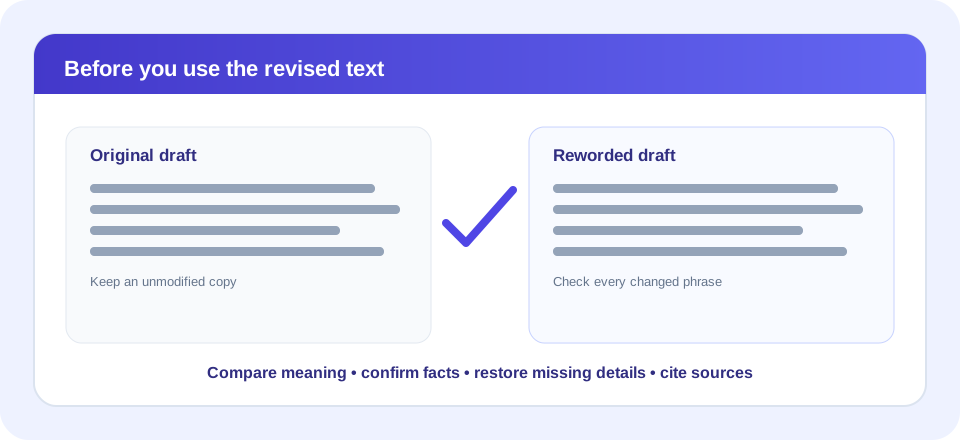
If a sentence fails one of these checks, edit it yourself or return to the original. A useful rewriting workflow includes comparison and revision; clicking a mode is only the first step.
Rewording Tool Summary
The SnapZain reworder tool offers Standard, Formal, Shorten, and Expand modes for text entered in the browser. Its rule-based substitutions can suggest a different phrasing, but they are not contextual AI rewriting, grammar checking, fact verification, or plagiarism review. Shorten can truncate long passages, and Expand repeats the rewritten paragraph rather than supplying new evidence.
Conclusion
Use the output as a draft. Compare it with the original, restore important details, verify facts and tone, and provide attribution where needed. Whether you call it a reword tool online, a reword sentence tool, or a rewording sentences tool, the best result comes from careful human review and clear writing goals.


