Text to Image: Turn Formatted Writing into a Downloadable Graphic
A short quote, announcement, note, or styled passage can be easier to share as a picture than as plain text.
This text to image tool lets you compose content in a visual editor, format it, add supported images, and export the canvas as an image file. It is a practical way to make a text-led graphic for a message, lesson, or post.
The page includes Visual and Code editing modes, formatting controls, an image insertion dialog, and a choice of output formats. You can create a simple typographic card or combine writing with an inserted picture.
This guide explains how the editor behaves, how the export works, and where this tool differs from OCR or AI artwork generation.
What This Text to Image Maker Creates
The editor renders the content you type or paste into a bitmap image. Text styling, headings, paragraphs, lists, and supported inserted pictures become part of one visual composition. After export, the result is an image file that can be viewed or shared like other images.
This is not a text prompt generator that invents new illustrations. It does not interpret a description such as “a mountain at sunset” and create original artwork.
The tool captures the editor content you provide, so the appearance depends on your text, formatting, inserted images, browser fonts, and the built-in canvas dimensions.
It also does not perform image-to-text recognition. Searches such as text in image to text or convert text in image to text describe the reverse task: reading characters from a photo or screenshot. That requires OCR, or optical character recognition.
This tool goes from editable content to an image, not from an existing image back to editable text.
How to Convert Text into an Image
Begin with a concise message and decide where the image will be used. A social post, presentation slide, classroom handout, and messaging thumbnail all have different space and readability needs.
Keeping a single visual purpose in mind makes it easier to choose a heading, body size, line breaks, and any supporting image.
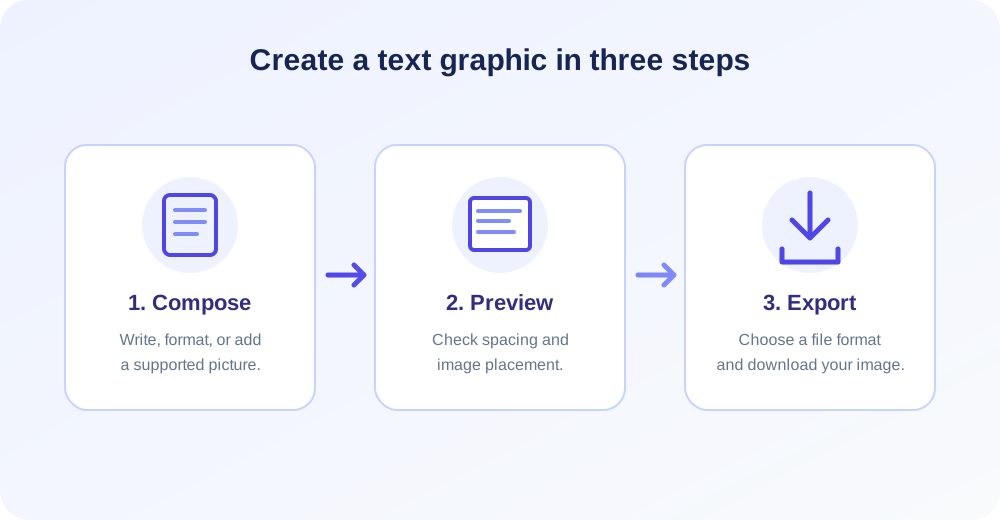
- Write or paste your content. Use the Visual editor for direct editing, or choose Code to write HTML.
- Format the composition. Apply headings, bold, emphasis, lists, alignment, links, and other available toolbar actions.
- Insert an image if desired. Upload a supported image or provide a URL, then place it in the editor and adjust its size.
- Select an output format. Choose PNG, JPG, WEBP, or another listed target based on the destination and compatibility you need.
- Click Convert to Image. The browser captures the content and either downloads a supported image directly or requests server-side format conversion.
- Review the export. Open the downloaded file and check text clarity, image placement, line breaks, and overall proportions.
Try a small sample first when the content contains remote images, unusual fonts, complex formatting, or a long HTML layout. A preview inside the editor may differ slightly from the captured output.
Testing one export makes it easier to adjust the design before spending time styling a larger composition.
Visual Editor and Code Mode
The Visual tab is designed for editing without writing markup. You can select paragraph or heading styles and use toolbar actions for bold, italic, underline, strike-through, lists, text alignment, links, special characters, undo, and redo.
These controls help create a visual hierarchy without requiring a separate design program.
The Code tab allows HTML content to be entered directly. This can be useful for simple structural elements or content pasted from a source that already uses markup.
However, the tool captures content inside its own wrapper; external stylesheets, scripts, web fonts, and advanced layout behavior are not guaranteed to render as they would on a full website.
Switching between modes is helpful for different workflows, but always inspect the active content before export. Code can include unsupported or complex markup, while visual editing may normalize pasted formatting.
Keep a copy of important HTML or source text in a separate file so it remains editable after the image is created.
Formatting Text for a Clear Image
Choose one primary message and make it easy to find. A short heading can identify the topic, with a smaller supporting sentence below it. If every line is bold or uses a different style, the viewer has no clear starting point.
Contrast and spacing matter more than adding many decorative effects.
Use paragraph breaks and short lines to make the result readable on a phone. A dense paragraph may become a tall block that is difficult to scan at thumbnail size.
Split ideas into small sections, use lists for parallel points, and check whether the important words remain visible when the exported image is reduced.
Formatting should support the message rather than compete with it. Use headings to identify sections, bold to draw attention to a key phrase, and alignment consistently.
Keep links visually identifiable if they matter, while remembering that links inside a flattened image are not clickable in the exported file.
“Treat the exported picture as a finished visual: keep the message concise, make the type readable, and check the downloaded file at the size people will actually see.”
Canvas Size, Background, and Rendering
The current export wrapper is 800 pixels wide and adds 40 pixels of padding around the content. Its background is white, and html2canvas captures the wrapper at a scale factor of two.
The resulting raster is approximately 1,760 pixels wide, while its height depends on how much content the editor contains.
The tool does not expose controls for setting a custom canvas width, height, or background color. The white background makes the export predictable for many text graphics, but it is not a transparent canvas.
If a design needs a custom colored background, you may be able to create a colored block in the editor content; the outer canvas remains white.
Long content can produce a very tall image. Large canvases use more browser memory and may be harder to share or view on small screens.
For a multi-part lesson or article, separate the content into individual images instead of trying to fit every paragraph into one export.
Choosing the Image Output Format
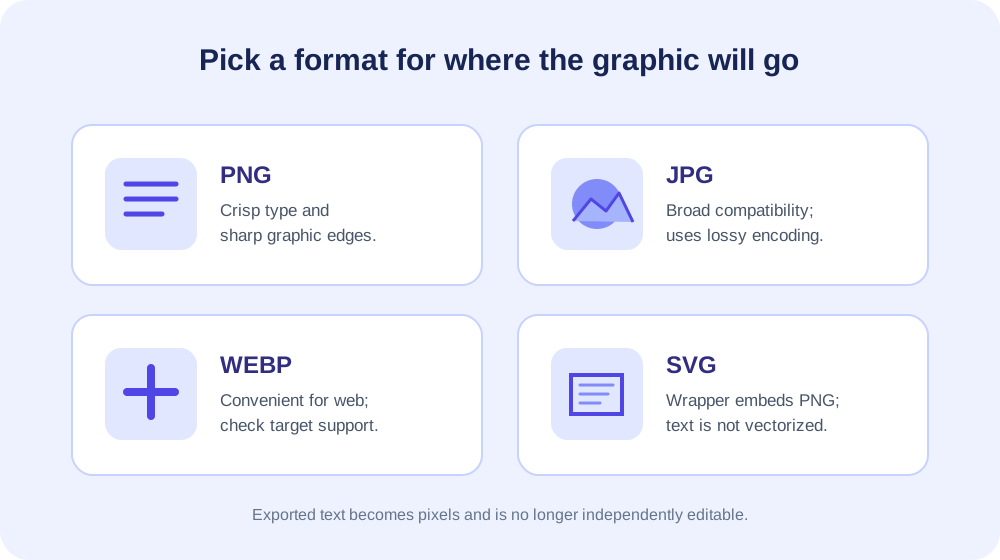
PNG is selected by default and works well for text, line art, and sharp edges. JPG is commonly accepted by photo services and can create compact results, though it uses lossy encoding.
WEBP can be efficient for web content, but support should be checked in the software that will receive the file.
GIF, AVIF, BMP, HEIC, ICO, TIFF, and SVG are also shown as options. PNG, JPG, GIF, WEBP, AVIF, and BMP can use browser or server image encoders depending on the implementation.
AVIF, HEIC, TIFF, and ICO processing may need specific server codecs or libraries, so a format being listed does not guarantee every server can encode it.
SVG output is created by embedding a PNG snapshot inside an SVG wrapper. It does not turn letters into editable vector text or convert the raster capture into vector paths.
If you need scalable, selectable text or genuine vector shapes, create an SVG document in a vector editor rather than treating the SVG filename as proof of vector content.
| Format | Good fit | What to keep in mind |
|---|---|---|
| PNG | Text, sharp graphics, and general sharing | Default format; white canvas in this tool. |
| JPG | Broad photo and website compatibility | Lossy encoding; no transparent background. |
| WEBP | Modern web graphics | Check support in the destination application. |
| GIF | Simple legacy graphics | This tool exports a still composition, not an animation. |
| AVIF / HEIC | Specific modern or device-oriented workflows | Server encoder availability can vary. |
| BMP / TIFF | Software or print workflows that request them | Files can be larger; TIFF needs server support. |
| ICO | Basic icon-file workflows | Check dimensions and application requirements. |
| SVG | Wrapper around the captured image | Embedded PNG data is raster, not vector text. |
How to Add Text to Image in the Editor
The phrase add text to an image can describe several designs. This editor lets you place text and inserted images in the same document and capture them together.
It does not offer a dedicated layer-based poster interface with precise drag-and-drop text positioning over an uploaded background photo.
If you are learning how to put text on images, start with a short title and a clear supporting line. Place the uploaded picture in the content, add the words in a nearby paragraph, and inspect the captured layout.
For precise overlays, use a design editor with layers and positioning controls.
To combine a picture with text, place the cursor where the image belongs and open the Insert Image dialog. You can upload a local PNG, JPG, GIF, or WEBP image up to 5 MB, or enter an image URL.
Add your message in the surrounding content and adjust the inserted image using the editor's resize handles.
For a text overlay that must sit at a specific point on a background, use a graphics editor with layers, alignment guides, and positioning tools. HTML in Code mode may provide basic layout structure, but browser capture and CSS support can differ.
Review the exported result rather than assuming the preview perfectly predicts every pixel.
Insert Images from a File or URL
Uploaded images are often the most predictable option because the browser can access a local file selected in the dialog. The listed upload types are PNG, JPG/JPEG, GIF, and WEBP, with a maximum size of 5 MB.
A large photo can be resized in the editor after insertion if it overwhelms the text layout.
URL insertion is convenient when an image is already hosted online. However, browsers enforce cross-origin rules that can prevent a page from reading image pixels for a canvas export.
If an external picture fails to appear in the saved graphic, use a local upload or a source that permits the browser to access it.
Make sure an image has loaded before starting conversion. A remote image may display late, require authentication, or return a different resource than expected. Preview the entire content and, where applicable, use an image you have permission to include in the composition.
Text to Image Versus Image to Text
These similar search phrases describe opposite directions. A text to image maker starts with editable text and outputs a visual file. Image-to-text conversion starts with a photo, screenshot, or scan and tries to extract the characters it contains.
The latter is commonly called OCR and is not part of this page's workflow.
If you need to convert text in an image to text, choose an OCR application that supports the language and image quality involved. Clear, straight, high-contrast text is easier for recognition than a blurry or angled picture.
Always check extracted words against the original, because OCR can misread punctuation, columns, or unusual fonts.
This tool instead helps with a scenario such as a quote card, a text announcement, a simple instruction graphic, or a page of formatted notes. You create or edit the source content directly, then save a picture that preserves the layout visually.
The exported text is not searchable or selectable like the original HTML.
Text to Image Versus AI Image Generation
A text-to-image AI generator accepts a descriptive prompt and synthesizes a new visual scene. This editor does not do that. Its phrase “text to image” means rendering existing words and inserted content onto a canvas, not creating an illustration from a natural-language prompt.
Choose this page when the actual words must appear as readable typography in the result. Choose an AI image generator when you want generated artwork and do not need the model to reproduce exact written copy.
Many generative systems are unreliable at rendering precise text, so a separate editor can still be useful for placing final wording on an image.
For a design containing both generated art and exact labels, use appropriate tools in sequence: create or select the visual, then compose the final wording in a reliable text editor.
Check spelling and legibility before distributing the image, especially if it contains dates, instructions, or contact details.
Use Cases for a Text to Image Creator
A teacher can turn a brief reminder or vocabulary list into a visual card for a class group. A student can export a formula or short set of revision notes for quick reference.
In both cases, a clear title and a few well-spaced lines make the content easier to scan than a crowded page.
Small businesses can create a simple quote graphic, sale announcement, opening-hours card, or service reminder. Text-led exports can be shared in a chat or placed into a document.
For brand materials, compare the chosen colors, logo treatment, and font with the organization's existing design standards before publishing.
Writers can create a shareable excerpt from a longer passage, while community organizers can make a straightforward event notice. Keep essential details such as a date, location, and time prominent.
Verify names, punctuation, and contact information in the downloaded file because rasterized text cannot be corrected by simply editing the words in a recipient's viewer.
Personal projects can include a greeting, a short recipe, a label, or a compact checklist. The editor's headings, lists, and emphasis tools provide a basic structure.
It is not a full page-layout suite, so use a professional design tool when you need exact measurements, reusable templates, brand fonts, or multi-layer control.
Make the Final Graphic Easy to Read
Use a size hierarchy: a prominent title, moderate supporting text, and smaller details only when needed. Avoid putting every line in a large heading style. A consistent visual rhythm makes the message feel intentional and helps viewers identify the main idea quickly.
Keep line lengths manageable and leave space between blocks. A wall of text becomes difficult to read when reduced for a phone screen.
Consider whether the image will be viewed in a feed, inside a slide, or enlarged on a desktop, and design around the most common viewing size.
Review the distinction between emphasis and decoration. Bold or italics can highlight a meaningful phrase, but excessive styling adds noise. Lists work well for short parallel items, while paragraphs suit connected explanations. Use alignment consistently and choose a font size that survives a smaller display.
Browser Capture and Image Quality
The page uses html2canvas to capture the editor content in the browser. For PNG, JPG, WEBP, and some other supported targets, the browser canvas produces the file locally.
The configured scale factor increases output pixel density compared with the editor's CSS dimensions, which can improve the look of small text.
Canvas capture is not identical to a screenshot of every browser feature. Some CSS properties, external resources, embedded media, and font behavior may be unsupported or rendered differently.
A complex page can also consume substantial memory, especially when it contains many images or grows very tall.
Use standard formatting and test the exact output when appearance matters. Wait for inserted images to load, avoid unsupported external styling, and keep content within a reasonable length. If the browser cannot complete a large capture, simplify the composition or create several smaller image cards.
Links, Accessibility, and Searchability
The editor can display linked text, but an exported PNG or JPG does not retain a clickable link. A URL may be visible as characters, yet readers must copy it manually or open a separate page.
For interactive calls to action, publish an HTML page or another format that preserves link behavior.
Rasterized words cannot be selected, searched, translated, or read reliably by assistive software as ordinary text. Provide the same information as live text in the surrounding post, caption, or document when accessibility and findability matter.
A descriptive alternative text for the image can summarize its key message.
Do not place critical instructions only inside a graphic if readers need to copy or search them. Keep the source wording available and review it as plain text before export.
A text image can be a helpful visual companion, while an accessible text version supports a broader range of users and devices.
Troubleshooting Common Export Problems
If the output is blank, check that the active editor contains visible content and that you are editing the intended tab. Code mode renders HTML text, not the raw source as a code screenshot.
If the markup is malformed or its styles hide the content, simplify it and run another small test.
If a remote image is missing or export fails, cross-origin restrictions may prevent canvas capture. Try uploading the image from your device instead. Confirm the inserted file is one of the accepted types and below the 5 MB image upload limit.
If the output is too large or the browser becomes unresponsive, reduce the amount of content or inserted image dimensions. A high-resolution canvas can require significant memory. Export a shorter selection or split a long document into more than one graphic.
If a server-based output format fails, the required encoder may be unavailable. Switch to PNG, JPG, or WEBP where appropriate. An option in the format list does not mean every deployment has codecs for every output, especially for less common formats.
A Practical Design and Export Checklist
Before export, read the text once for spelling and once for visual hierarchy. Check that headings are distinct, line breaks look natural, and important details are not crowded against the edge.
Confirm any inserted image displays at the intended size and does not obscure the words.
Choose the output type based on where the image will go. PNG is a dependable choice for crisp lettering, JPG is widely compatible, and WEBP can be convenient for web publishing.
Ask the destination what it supports when the file is for a platform, client, or formal submission.
After downloading, open the image outside the editor. Check the entire canvas, not just the first screenful, and inspect it at full size and at a smaller preview size.
Keep editable text or HTML so that a correction can be made without recreating the composition from scratch.
Related Image Workflows
Once a text graphic is exported, you may need to prepare it for another system. Use Image Format Converter when a destination requires another image type. It converts supported image files; it does not turn the text image back into editable words.
If you want to look for visually similar versions of a graphic or identify where an image appears, try Reverse Image Search. It is a visual lookup workflow, not OCR and not a method for editing the text inside a picture.
Use Image Resizer to change the exported dimensions and Image Compressor when file size needs to be reduced. For a sideways result, Rotate Image can change orientation. Confirm that further processing does not make small text hard to read.
Conclusion: Create a Clear Image from Editable Content
This text to image creator turns formatted editor content into a downloadable graphic. It supports visual and HTML editing, common formatting controls, inserted images, and several output choices.
The export uses a fixed white canvas and captures the content as a flattened image, so it should be reviewed before sharing.
Use it for text-led graphics, simple notices, quote cards, and visual notes. It does not extract words from existing pictures, create AI illustrations, or retain clickable links in a raster export.
Keep an editable source, choose a compatible output format, and include a live text version when accessibility or searchability matters.


