Image Format Converter: Change Image File Types Online
An image can look correct on screen and still be difficult to upload, share, edit, or display because its file type is not accepted by the destination.
An Image Format Converter helps bridge that gap by decoding a supported image and saving it in a different format.
With this online image format converter, you can choose among JPG, PNG, HEIC, ICO, AVIF, WEBP, SVG, TIFF, GIF, and BMP outputs, then download the converted file or batch archive.
The right output depends on what the image contains and where it will be used. A photograph may be suitable for JPG, a logo with transparent areas may need PNG, and a modern website may accept WEBP or AVIF.
File extensions alone do not tell the whole story: compression, transparency, animation, color support, and device compatibility all matter.
This guide explains how the converter works, what each format is good for, and how to select a practical target without confusing image conversion with PDF conversion.
How the Image Format Converter Works
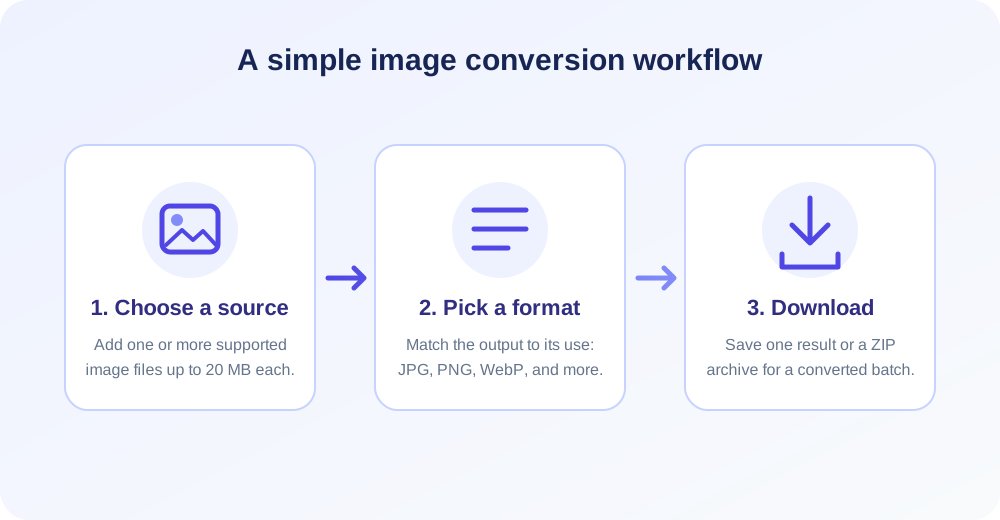
The tool reads one or more image files from your device and lets you select a single target format for that selection. Add the images, choose the output button, and start the conversion. A successful single-file conversion returns an individual download.
When a batch contains several images, the page provides a ZIP download as well as links to the individual converted files. Each file can be up to 20 MB.
Behind the page, the server must decode the source pixels and then encode them using the selected output format. Different formats require different image libraries and codec support.
As a result, a format appearing in the input list does not mean every source-to-target pair is guaranteed to work on every server configuration. If a codec is unavailable, try a common output such as JPG or PNG, or choose a compatible source version.
Conversion changes the way image data is stored; it does not inherently sharpen a blurry photo, restore missing detail, resize the canvas, or crop the subject. The available form is focused on file formats, not image editing.
Keep an original copy when quality or color matters, and inspect the downloaded image before replacing a source file in a production design or publishing workflow.
How to Convert an Image Format Online
To convert an image format online, start with the source file you want to use and decide what the destination needs. If a website specifically requests JPG, choose JPG even if the original is PNG.
If transparent pixels are important, avoid JPG and select a format that can carry transparency. If you are preparing images for a browser or app, check the destination's compatibility before picking a newer format such as AVIF or HEIC.
- Select the image or images. Click the upload area or drop files into it. The tool accepts common image extensions, including JPG, JPEG, PNG, GIF, WEBP, AVIF, BMP, HEIC, ICO, TIFF, TIF, and SVG.
- Confirm the selection. Review the thumbnails and remove any file you did not mean to include. Every file must be no larger than 20 MB.
- Choose the target format. Select the output type from the available format buttons. One target is applied to the selected batch.
- Start conversion and review status. Wait for the completion message. If a conversion fails, try a widely supported format or check whether the source file is intact.
- Download and verify. Save an individual result or use the ZIP for multiple converted files. Open the result in the intended app or browser before sharing it.
Batch conversion can save repetitive work when several images need the same format. It is less suitable when every image needs a different output type, because the selected format applies to the group. In that case, convert separate groups by destination format.
Give files meaningful names before upload so the resulting names remain easy to identify and organize.
Choose a Format: JPG, PNG, WebP, AVIF, and More
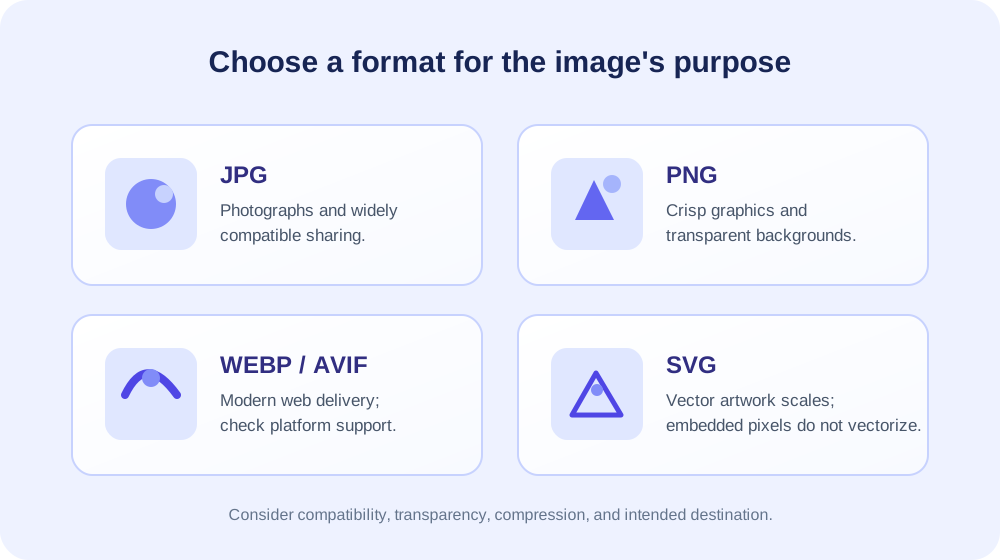
Image formats differ in how they encode visual information and what features they can preserve. Raster formats store pixels in a grid; SVG describes scalable vector shapes or may embed raster content.
Some raster formats use lossy compression, some support lossless compression, and several can store transparency or multiple frames. A format choice is therefore a trade-off among appearance, file size, compatibility, editing needs, and intended use.
| Format | Useful for | Important consideration |
|---|---|---|
| JPG/JPEG | Photographs and widely compatible sharing | Lossy; transparency is flattened against white. |
| PNG | Logos, screenshots, crisp graphics, transparent artwork | Lossless output may be larger than a compressed photo. |
| WEBP | Web images with efficient compression | Confirm support in the target platform and workflow. |
| AVIF | Modern web delivery and compact image files | Encoding support and app compatibility vary. |
| HEIC | Apple-oriented photo workflows and storage | Codec support and non-Apple compatibility can vary. |
| TIFF | Scanning, archiving, and print-oriented exchange | Often large; output uses the server's Imagick path. |
| GIF | Simple graphics and legacy animated-image workflows | Limited palette; animation may not be retained here. |
| BMP | Basic bitmap compatibility with older applications | Files can be large and may lack efficient compression. |
| ICO | Favicons and application icons | Check the dimensions and destination icon requirements. |
| SVG | Scalable vector graphics when genuine vector data exists | This tool embeds the source image; it does not vectorize pixels. |
There is no universally best image type. A camera photo, a transparent brand mark, a product screenshot, and a favicon have different technical needs. If your priority is a small file for a website, compare the output visually and test it in the browser.
If the priority is predictable editing or print, check what formats the receiving application expects. Avoid converting repeatedly between lossy formats because each encode can discard additional detail.
Convert HEIC to JPG: Compatibility and Quality
HEIC is commonly associated with photos captured on Apple devices. It can store high-quality images efficiently, but some upload forms, desktop programs, and older websites do not accept it.
When a destination requests a broadly recognized image, a HEIC to JPG converter workflow can make a compatible copy. Upload the HEIC source and choose JPG, then check the result in the application where you plan to use it.
JPG is widely supported and often convenient for photographs, but it does not preserve transparency and uses lossy compression. A conversion cannot add back details removed by an earlier encode.
Keep the original HEIC file as a source when you may need to edit or export another version later. HEIC decoding and JPG output also depend on server libraries, so a failure may reflect missing codec support rather than a problem with the conversion steps.
People also search for “how to convert HEIC to JPG” when they need a quick file for a form, email, or non-Apple device.
The practical sequence is straightforward: verify the HEIC file opens locally, upload one image, select JPG, download the converted copy, and confirm its colors and orientation. For a large collection, test one representative image first before converting every file.
Convert JPG to PNG or PNG to JPG
JPG and PNG solve different problems. JPG is often useful for photographs because lossy compression can keep file sizes manageable. PNG is usually a stronger choice for screenshots, diagrams, text-heavy graphics, and images that need transparent pixels.
A JPG converter workflow may be helpful when a service rejects the source extension, but changing the extension without actually encoding the image is not a conversion. Use the tool to create a new encoded file.
When you convert PNG to JPG, transparent areas cannot remain transparent. In this tool's JPG path, the image is flattened against a white background. A logo that was designed to sit over different background colors may therefore acquire a white rectangle.
If the background should stay clear, retain PNG or choose a compatible transparency-supporting target such as WEBP. Always inspect edges around text and logos after conversion.
Converting JPG to PNG does not restore information that JPG compression already removed. PNG can preserve the pixels decoded from the JPG without applying another lossy encode, but the result may be larger and it will still show the artifacts from the original.
Use PNG when you need a lossless container for further editing, not as a method to recover original camera detail.
If you are looking for a PNG converter or need to convert to PNG, first decide whether transparency or crisp edges matter.
The phrase “convert JPEG to JPG” usually describes normalizing a filename extension: JPEG and JPG are the same format, and this tool accepts both while writing JPG output with a .jpg extension.
A “JPG convert to JPG” request does not change the format and may simply re-encode the image, so keep the original when you only need to rename a file.
Convert WebP to JPG, PNG, or Another Format
WEBP is designed for web delivery and may provide efficient compression for photographs and graphics.
A platform, editor, or client workflow may still require another type, which is why people look for “convert WEBP to JPG” or “convert WebP to PNG.” Upload the image, choose the target, and check that the result looks right.
The source and output encoders must both be available for the requested pair.
Choose JPG when broad photo compatibility matters and transparency is unnecessary. Choose PNG when you need transparent pixels or a lossless raster output, while remembering that the file can grow.
WEBP itself can support transparency, so converting it is not needed just because a file is unfamiliar; first verify whether the destination accepts it. The best converter workflow is the one that satisfies the receiving system without unnecessary quality loss.
When preparing web assets, do not judge optimization by extension alone. Dimensions, image content, compression settings, and page performance all affect practical delivery.
This format converter does not expose custom quality or resize controls, so it is intended for format changes rather than fine-grained image optimization. For file-size reduction, use an image compression workflow and compare visual output before publishing.
PNG Conversion and PDF Conversion Are Different
The phrase “convert PNG to PDF” describes creating a document from an image. The phrase “convert PDF to PNG” describes rendering a PDF page as an image. Those tasks involve PDF documents, page dimensions, and often one output image per page.
This Image Format Converter does not accept PDF input and does not create PDF output. PDF is not among its supported input extensions or target buttons.
Likewise, searches such as “convert PDF to JPG,” “convert PDF format to JPG,” “PDF to JPG converter free,” and “convert JPG format to PDF” refer to separate document conversion workflows.
Use a dedicated PDF-to-JPG or PDF-to-PNG tool to render pages, and a JPG-to-PDF tool or PNG to PDF converter to create a document. Starting with an image file and changing JPG to PNG is a raster-to-raster conversion, not a PDF operation.
If your goal is to convert JPG to PDF free, choose a dedicated image-to-PDF tool; this page cannot create a PDF file.
Similarly, the Spanish search “convertir a PNG” means converting an image to PNG, which is supported when the source is a compatible image, while “convert PDF to PNG” still requires a PDF page converter.
Match the tool to the file you are starting with, not just the extension you want at the end.
Keeping these workflows separate avoids the common mistake of uploading a PDF to an image-only form or expecting a JPG download to contain a multi-page document.
For a PDF with several pages, decide whether you need one image per page, a single selected page, or a document that contains multiple images.
Choose a PDF tool that matches that job, then use an image format converter later only if its output image type needs to change.
Raster Images and Vector Graphics: What SVG Means Here
JPG, PNG, WEBP, AVIF, HEIC, BMP, GIF, TIFF, and ICO are raster-oriented formats in common use: they represent an image through pixel data. Enlarging a raster image beyond its source dimensions can reveal softness or pixelation because there is no additional detail to recover.
Raster files are a natural fit for photos, screenshots, and rendered artwork, though the ideal encoding depends on the destination.
SVG is a vector graphics format based on shapes, paths, text, and other scalable elements. A true vector logo can be resized while retaining crisp edges because the drawing instructions are recalculated at the new size.
This converter's SVG output is different: it wraps the original image in an SVG document and embeds its data. That can place a raster image inside an SVG file, but it does not trace the image into editable vector paths.
There is a practical reason to be explicit about this distinction. An SVG extension by itself does not guarantee that the contents are vector artwork or that a photo will scale without becoming pixelated.
If you need vectorization, use a tracing tool and review the generated paths. If you only need to package an image in an SVG wrapper, understand that the embedded image retains its original resolution and characteristics.
Transparency, Backgrounds, and Alpha Channels
Transparency lets an image blend with the page or design behind it. PNG is a common format for transparent logos and interface graphics. WEBP and AVIF can also support transparency, while JPG does not.
When a transparent image is converted to JPG, this converter flattens it against white. The formerly transparent parts will appear white in the output, which can change how a logo or cutout looks on a dark background.
If transparency matters, choose a target that supports it and examine the exported file in a viewer that displays transparent pixels against a checkerboard or contrasting background. Some preview applications show transparent areas as white, which can make it difficult to tell whether transparency survived.
Inspect the image in the actual design or website context as well. A color fringe around edges may be more visible on backgrounds different from the one used during editing.
Not every conversion path preserves every image property identically. The source decoder and target encoder determine how alpha, color profiles, metadata, and bit depth are handled. The simple choices in this tool are designed for practical format conversion rather than specialized color-managed production.
Keep a source copy and validate output in the destination application whenever an exact appearance or alpha channel is important.
Lossy and Lossless Conversion Explained
Lossy compression reduces file size by discarding some visual information. JPG is a familiar lossy format, and lossy settings are also possible for formats such as WEBP and AVIF.
At moderate compression, the difference may be hard to notice; at stronger compression, fine texture, gradients, and text edges can show artifacts. The amount of detail already present in the source sets a limit on what any new file can preserve.
Lossless compression stores decoded pixel values without intentionally discarding additional image detail. PNG is a common lossless raster choice. However, lossless does not mean the file can restore detail that was lost before conversion.
If a JPG is saved as PNG, the PNG can preserve the pixels it receives, including any JPG artifacts; it cannot reconstruct the camera original.
Each re-encoding of a lossy image may introduce further changes. For best results, keep a high-quality original and export the final target from that source rather than repeatedly converting copies. This form does not provide a quality slider.
Its JPG path uses a fixed quality setting, while the WEBP and AVIF GD paths also use configured quality values; the actual encoder and its features depend on the server.
GIF, Animation, and Multi-Frame Images
GIF is known for short looping animations and simple graphics. It uses a limited color palette, which can work well for flat illustrations but can look less natural for photographs with many subtle tones.
A GIF file may contain multiple frames, while a PNG or JPG normally represents a still image. Changing the extension does not automatically preserve motion or turn a still image into an animation.
The current conversion paths may flatten a multi-frame source when saving to another format, and the GD decoding route commonly handles a still frame rather than a complete animation sequence. GIF output can also be a single frame depending on the selected path.
If preserving every frame and timing is essential, choose a dedicated animation editor or converter and inspect the exported animation from beginning to end.
Before converting an animated GIF, decide whether you need a representative still or the full motion. For a thumbnail or document illustration, a still may be sufficient. For a banner, reaction image, or instructional sequence, losing frames changes the content.
Keep the original animated file if that behavior matters, and do not assume a successful download means all animation properties were retained.
Understand TIFF, BMP, ICO, and Less Common Targets
TIFF is used in scanning, photography, archival exchange, and print workflows. It can support a range of image characteristics and may contain multiple pages or frames, but it can also create large files.
This controller uses Imagick for TIFF output, so that target depends on server configuration. Source TIFF variants also differ, and a file can fail if the installed decoder does not recognize its compression or encoding.
BMP is a straightforward bitmap format that is recognized by many systems, especially older desktop workflows. It is generally not the smallest choice for web publishing.
ICO is commonly associated with favicons and application icons; the resulting icon should be checked at the sizes and in the contexts where it will appear.
The output dimensions and icon conventions required by browsers or operating systems may be more specific than a basic format conversion.
HEIC, AVIF, and TIFF often rely on codecs beyond the simplest baseline image operations. Their presence in the selection does not promise that every server can read or write each variant.
If you encounter a server-side conversion error, select a broadly supported target like PNG or JPG as a diagnostic step. For critical work, use a local application that explicitly supports the specific format and metadata requirements.
Format Converter vs. Compressor, Cropper, and Resizer
A format converter changes how an image is encoded. A compressor focuses on reducing the bytes used to store it, often by selecting compression settings or removing unnecessary metadata. A cropper changes the visible region, while a resizer changes pixel dimensions.
These operations may be combined in a broader image editor, but they are distinct tasks and should not be confused when planning a workflow.
If the picture must fit a fixed banner, profile, or product slot, convert the format only after confirming the required dimensions. Use Image Resizer when you need a particular width or height, and Image Cropper when you need to remove edges or adjust composition.
These tools address framing and size rather than file-type encoding.
If a file is too large for upload, try Image Compressor to work specifically on file size. If your task is to create an image from a prompt, see Text to Image. For orientation correction, use Rotate Image.
Choose one step at a time and keep the original until the final output has been checked.
Common Reasons an Image Conversion Fails
A conversion can fail if the file is damaged, has an extension that does not match its actual contents, or uses a codec unavailable to the server. HEIC, AVIF, SVG, and TIFF files may require additional image delegates or libraries.
Output encoding can also fail even when the source opens successfully. In those cases, test a common output format and confirm whether the source can be opened by a trusted local image viewer.
File size matters too: each upload is limited to 20 MB, and a batch uses server resources for every selected image. A large image can consume significant memory when decoded because its pixel data is much larger than the compressed file on disk.
If a large batch does not complete, retry with fewer files, check each file's size, and avoid repeating the same failing conversion without changing the source or target.
One invalid item can prevent a batch from completing as expected. Check extensions, remove unrelated files, and convert a single representative image first. If a specific source-target pair consistently fails while other pairs work, the likely issue is codec support or a format variation.
Select a supported alternative or use software with the required decoder and encoder rather than renaming the file extension.
Practical Uses for an Online Image Format Converter
A small business may receive a logo as JPG but need a transparent PNG for a catalog. A photographer might export a JPG copy for a client who cannot open HEIC.
A web editor may request WEBP, while a software interface needs ICO for a browser tab. These tasks share a need to re-encode image data, but their quality and compatibility priorities differ. The same target should not be selected automatically for every kind of artwork.
Students and educators can convert an image to the type accepted by a learning platform or presentation tool. Designers can prepare a preview copy for quick sharing, while developers can test how supported formats render in a browser.
In each case, the purpose is practical interoperability: the recipient can open or place the image in a target system. Check file dimensions and visual appearance because format conversion alone does not guarantee that the image fits a layout.
For archival or client work, retain the original and document the chosen export type. This makes it easier to create another version if requirements change. For social, email, and web uploads, check the receiving service's file-size and format rules.
A file can be valid and still be rejected because a platform has a size, dimension, color, or naming requirement that the converter does not control.
A Careful Workflow for Important Images
Begin by identifying the image's role: photograph, logo, icon, screenshot, scanned document, or illustration. Then check the destination's accepted formats and whether transparency, animation, or print detail matters. Make a copy of the source so that the conversion does not become the only remaining version.
If the format request is unclear, ask the receiving platform or person for its exact requirements before processing a whole folder.
Test one image with representative colors and edges. Download the result and inspect it at the size where it will be used. Look for unexpected white backgrounds, compression blocks, color shifts, missing animation, incorrect dimensions, or a filename that no longer communicates the subject.
Only after the sample looks correct should you convert the rest of the batch using the same settings and target.
For multiple output formats, create each version from the original whenever possible rather than chaining conversions. A master PNG or original camera file can be used to generate a JPG preview and a WEBP web copy separately. This avoids accumulating compression loss.
Name each export clearly, store it with the right project, and retain the source until the destination has confirmed acceptance.
Frequently Asked Questions About Image Conversion
These answers explain the supported formats, the boundaries between image and document conversion, and the practical effects of changing file types.
The output available for any particular image can depend on the codecs enabled on the server, so use the selected target as a request rather than a guarantee for every possible source variant.
Conclusion: Select the Right Format for the Image's Next Use
An image format converter is most useful when its target is chosen for a clear reason: compatibility, transparency, web delivery, print, or a destination's upload rules.
This tool accepts common raster and vector-image extensions, offers ten output choices, supports multiple files up to 20 MB each, and provides individual downloads plus a ZIP for batches. It does not resize, crop, or improve source detail, and codec availability can affect individual conversions.
For photographs, JPG can be a practical compatibility choice; PNG is useful for crisp graphics and transparency; WEBP and AVIF are modern web options; TIFF, BMP, ICO, GIF, and HEIC serve more specific workflows. SVG output here embeds the source image rather than vectorizing it.
PDF-to-image and image-to-PDF tasks require separate PDF tools. Keep your source, choose formats based on the destination, and review every important result before publishing or sharing.


