Uppercase To Lowercase Converter For Everyday Text
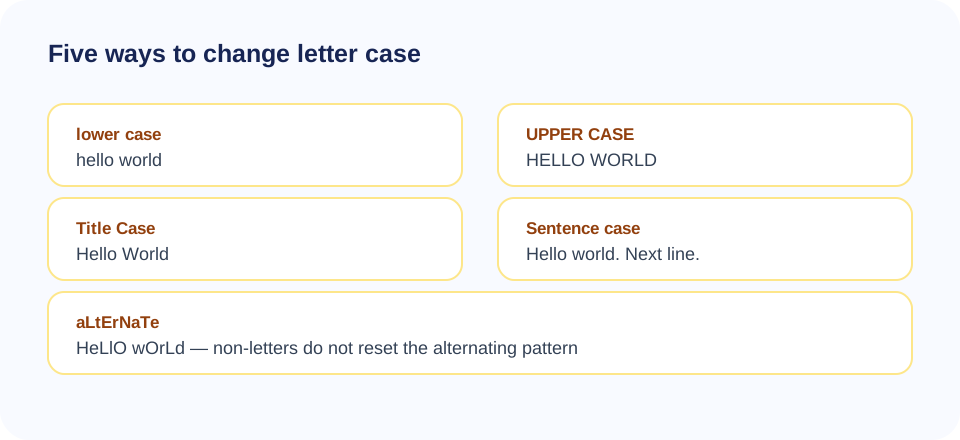
The SnapZain uppercase to lowercase converter lets you change the letter case of text without retyping it. Paste or type into the input panel, choose one of five modes—lower case, UPPER CASE, Title Case, Sentence case, or alternating—and view the result in the output panel. The output refreshes as you type or switch modes, and the Copy button lets you take the result to another app.
This is a plain-text case utility. It does not open, upload, or directly edit Word documents or Excel spreadsheets, and it does not preserve rich formatting such as fonts, colors, tables, or styles. Copy the text into this page, convert it, then paste it back into your document if that workflow suits your needs. Keep an original copy when capitalization carries meaning.
Case conversion can be useful for correcting text pasted in the wrong style, standardizing a list, or making a heading consistent. Still, capitalization is not always cosmetic. Names, acronyms, identifiers, programming code, product labels, and abbreviations can be case-sensitive. Review the result rather than replacing a source passage automatically.
How To Convert Uppercase To Lowercase Online
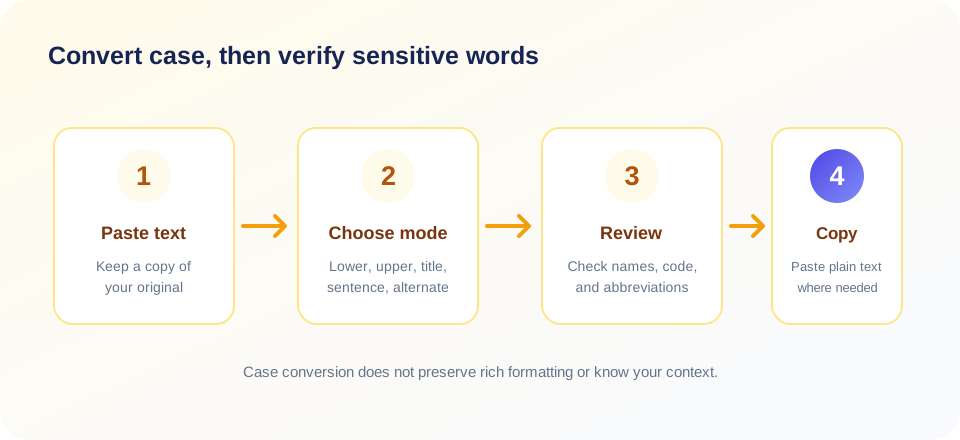
To convert uppercase to lowercase with this tool, paste your text into the input box and select lower case. The output updates immediately; then use Copy to place it on your clipboard. The same page can also convert lowercase to uppercase by selecting UPPER CASE. No account or file upload is required by the visible form.
- Copy your source text. Preserve the original, especially if it includes brand names, abbreviations, formulas, or code.
- Paste it into the input panel. The page accepts plain text rather than formatted documents.
- Choose the intended case mode. Use lower case for lowercase letters, UPPER CASE for capitals, or one of the other available styles.
- Review the output. Check capitalization-sensitive words and confirm that punctuation, spacing, and line breaks look right.
- Copy and paste where needed. The copy button uses the browser clipboard API when available.
Changing case does not proofread spelling or grammar, translate the text, or determine which capitalization is linguistically correct. It applies a case transformation to the string. For important copy, compare the output to the source and correct any terms that need special capitalization.
Five Case Modes In One Converter
The tool offers more than an uppercase-to-lowercase action. Each mode follows a simple rule, so knowing the behavior helps you choose the right option and catch edge cases.
| Mode | What it does | Review before using |
|---|---|---|
| lower case | Uses JavaScript lowercase conversion on the full text. | Proper nouns, acronyms, IDs, code, and brand styling. |
| UPPER CASE | Uses JavaScript uppercase conversion on the full text. | Readability, acronyms, and case-sensitive text. |
| Title Case | Lowercases the text, then capitalizes word characters matched at word boundaries. | Small words, punctuation, apostrophes, and title-specific style rules. |
| Sentence case | Lowercases the text, then capitalizes a lowercase English letter at the start and after . ! ? plus whitespace. | Headings, abbreviations, line breaks, and languages outside the pattern. |
| aLtErNaTe | Alternates case across English letters, leaving non-letters unchanged without resetting the sequence. | Names and readability; the pattern is decorative, not standard capitalization. |
Title Case here is a basic pattern, not a style guide. It may capitalize short words that a publisher would leave lowercase, or handle apostrophes and hyphens differently from your preferred convention. Sentence case recognizes a narrow set of punctuation boundaries. It does not know whether a period belongs to an abbreviation or whether a new line begins a sentence.
Change From Uppercase To Lowercase Carefully
When you change from uppercase to lowercase, the output can look cleaner, but not every uppercase string should be normalized. “NASA,” “API,” and “PDF” are often intentionally capitalized. Usernames, product codes, environment variables, and programming language identifiers may also be case-sensitive. A broad conversion could make them inaccurate or unusable.
Scan the text for names and acronyms before copying. If only part of a passage needs conversion, select and copy only that section into the tool, or convert the whole string and manually restore the terms that need capitals. Keep a source version so you can compare and recover the original formatting.
Unicode text can include characters with language-specific case mappings. JavaScript’s built-in case conversion is designed for Unicode, but this small tool does not expose locale selection or special terminology rules. If the writing is in a language with specific capitalization conventions, check the result with a language-aware editor or native speaker.
Lowercase To Uppercase Converter: When To Use It
A lowercase to uppercase converter is useful for labels, short headings, codes, or consistency checks when capital letters are required. Choose UPPER CASE and inspect the output. Uppercase text can be harder to read in long passages, and it may look like shouting in informal digital communication. Use it only when the format or audience calls for capitals.
The converter transforms letters, not the meaning or structure of your writing. It does not create a document heading style, bold text, or a larger font. If you need a heading with semantic formatting in a document, use that editor’s heading styles instead of relying on all-caps characters.
For datasets, case normalization may affect matching or sorting. Before converting a column of names or values, understand how the receiving system treats capitalization. Test a sample and preserve an unmodified column until you know the transformation is safe.
Change Lowercase To Uppercase Or Back In Word
If your text is already in Microsoft Word, its built-in Change Case feature may be the simplest way to change selected text while keeping it in the document. In many desktop versions, select the passage and find the Aa or Change Case menu on the Home tab. The available choices can include lowercase, UPPERCASE, Capitalize Each Word, and sentence case. Exact commands vary by version, platform, and ribbon layout.
Use the relevant FAQ below for common Word questions, but check Microsoft’s current help for your particular version if a command is not where expected. The SnapZain page is a separate plain-text workflow: copy text out of Word, convert it here, and paste it back. That round trip may not preserve formatting, comments, tracked changes, or document layout.
After making a Word conversion, review names, acronyms, and formatting. If a document uses tracked changes, shared editing, or exact styles, use Word’s own tools and check the final file rather than copying the whole document through a text box.
Case Conversion In Excel Cells
Excel has text functions for case changes. The LOWER function returns text in lowercase; UPPER returns text in uppercase; and PROPER capitalizes the first letter in each word according to the function’s rules. A common approach is to use a helper column, inspect the results, and then copy and paste values if you want to replace source cells.
For a worksheet workflow to excel to change uppercase to lowercase, apply LOWER to a helper cell and fill the formula through the data range rather than retyping each entry.
For example, if cell A1 contains the text to transform, =LOWER(A1) returns a lowercase version, while =UPPER(A1) returns uppercase. Fill the formula down to process additional rows. Locale settings can change formula argument separators, and behavior should be checked with the spreadsheet version you use.
This web converter does not upload or edit spreadsheets. Use it for a small amount of copied text when convenient; for a large dataset, spreadsheet formulas are more suitable because they can work across rows while keeping the original data available for comparison.
Uppercase To Lowercase Python And Other Workflows
The phrase uppercase to lowercase python usually refers to using a string method such as .lower(). In Python, strings expose .lower() for converting text to lowercase and .upper() for uppercase. For example, text.lower() returns a lowercase version of a string. Python also provides .title() and .capitalize(), which have their own behavior and should be tested with your data. This browser tool does not execute Python or generate code; it converts the text that you enter.
For scripts and data pipelines, be mindful of language, locale, identifiers, and Unicode. A transformation that is appropriate for display may not be appropriate for keys, passwords, source code, or comparisons. Preserve source data, test representative samples, and confirm that downstream systems accept the result.
Use a command-line or programming workflow when you need repeatable processing over files or large datasets. Use this online tool for short manual transformations where you can inspect the output before copying it.
Privacy And Plain-Text Handling
The current conversion code runs in browser-side JavaScript and does not submit the text to a case-conversion endpoint. This describes the visible converter logic, not every aspect of the website. Review the site privacy information and follow your workplace or organization’s policy before entering private or regulated content.
Avoid pasting passwords, personal records, customer data, confidential reports, or unpublished material unless the service is approved for that information. For sensitive text, use an authorized offline editor. The result is displayed as text, and copying it may be subject to browser clipboard permissions.
The copy button calls the browser clipboard API only when it is available and output is non-empty. The current code does not show a user-facing success or failure message, so if nothing appears on the clipboard, select the output manually and use the browser’s copy command.
“Case is part of meaning when names, labels, or identifiers depend on it.”
Related PDF Tools
Case conversion handles pasted text; it does not convert document formats. To turn a PDF into an editable document, use PDF to Word. For a spreadsheet export, visit Excel to PDF. You can add a page with Add PDF Page or reduce a document’s file size with Compress PDF.
After document conversion or modification, open the resulting file and inspect its text, layout, and page order. Case tools change letters; PDF tools operate on document files. Select a workflow that matches the task and keep the original until you have verified the result.
| Task | Tool direction | What to check |
|---|---|---|
| Change capitalization in copied text | Use this converter or your editor’s case command. | Names, acronyms, code, and case-sensitive identifiers. |
| Make PDF text editable in a word processor | Use PDF to Word. | Text recognition, tables, fonts, and page breaks. |
| Export spreadsheet content as a PDF | Use Excel to PDF. | Print area, scaling, column widths, and page order. |
| Insert an extra PDF page | Use Add PDF Page. | Page placement, sequence, and final document integrity. |
| Reduce a PDF’s file size | Use Compress PDF. | Legibility, image quality, and the intended use. |
A Quick Review Checklist
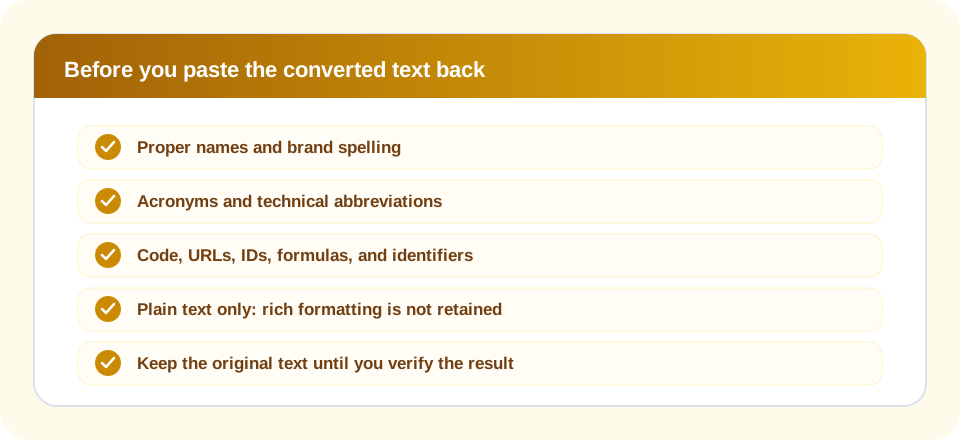
- Mode: Did you choose lowercase, uppercase, title, sentence, or alternating case intentionally?
- Names: Are people, brands, locations, and products still capitalized correctly?
- Acronyms: Did technical abbreviations remain in the form your audience expects?
- Identifiers: Are codes, file paths, URLs, formulas, and programming text still valid?
- Formatting: Did you remember that plain text does not retain rich formatting?
- Source: Have you kept an original copy before replacing text in another file?
For a short social caption, a quick visual review may be enough. For product data, documentation, or a document that will be shared widely, use a more deliberate check. Automated conversion is fast, but it cannot know which letters are meaningful in your specific context.
“Convert quickly, then review the words whose capitalization carries a purpose.”
Uppercase To Lowercase Converter Summary
The SnapZain uppercase to lowercase converter transforms pasted text into lower case, UPPER CASE, Title Case, Sentence case, or alternating case. It updates the output in the browser and offers a Copy button. It is a plain-text converter rather than a Word or Excel file editor, and it does not preserve rich formatting.
Conclusion
Use it when you need a quick text transformation, then review proper nouns, acronyms, identifiers, and case-sensitive strings. For Microsoft Word or Excel workflows, built-in commands and functions may be more appropriate; the FAQs below provide general starting points, but menus can vary by version. Keep the original and verify the result before using it in an important document.


