QR Code Generator: Create A Code From Text Or A URL
A QR code is a two-dimensional barcode that stores information in a pattern a compatible camera or scanner can read. SnapZain’s QR Code Generator turns text or a web address into a QR image. Enter your content, select Generate QR Code, and download the result as a PNG file. The generator asks for one text or URL value at a time and creates a 256 × 256 pixel image in the browser.
This free online QR Code Generator is useful when you want to share a web link, short note, or other text without asking someone to type it manually. It makes a static code: the destination or text is encoded in the image itself. The page does not provide scan analytics, editable redirects, bulk generation, logo insertion, or visual branding controls.
How To Generate A QR Code Online
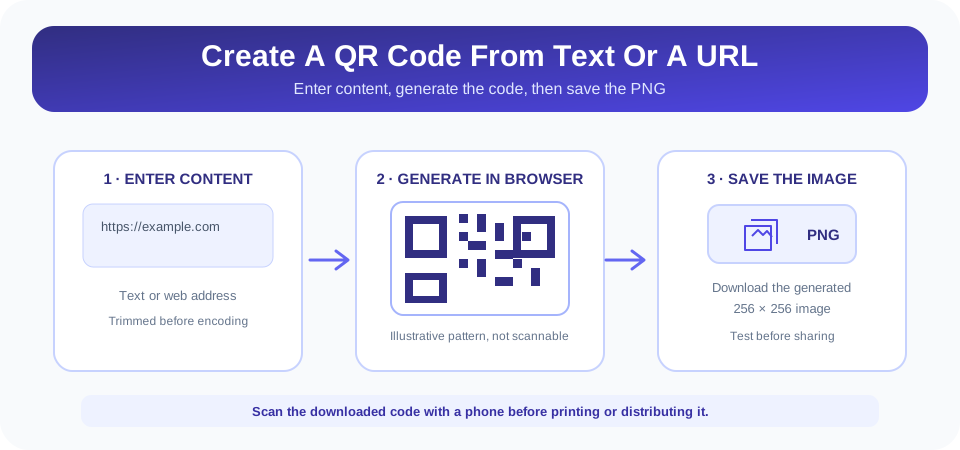
To generate a QR code for a URL or text, follow this simple workflow:
- Choose what to encode. Decide on the final web address or message before creating the code.
- Enter the content. Paste or type it into the Text or URL field. The generator trims whitespace from the start and end.
- Create the code. Select Generate QR Code, or press Enter while the input field is focused.
- Wait for the result. A QR image appears below the input if the library loads and the content can be encoded.
- Download the PNG. Select Download PNG to save the generated image to your device.
- Test before distributing. Scan the saved image using a trusted phone or QR reader and confirm that it opens or displays the intended content.
The QR code generator free online workflow does not require a separate account or a destination setup. If the field is empty or contains only whitespace, the tool hides the result instead of creating a code. If the external QR library is blocked or fails to load, the page may not be able to create the image; check the browser connection, content blockers, and JavaScript availability.
Text And URL Inputs: What Gets Encoded
The input accepts either a web address or ordinary text. When you enter a URL, the QR code stores that address as content. A scanner may recognize it as a link and offer to open it, but the behavior depends on the scanning app and its security settings. When you enter a sentence or identifier, a reader can display the text rather than opening a website.
Before generating a QR code for a URL, check the protocol, spelling, path, and any required query values. For most public websites, include the complete address beginning with https://. If the destination requires a login or is available only inside a private network, recipients may not be able to reach it. The QR image does not make a restricted page public or grant access to the person who scans it.
The tool trims whitespace from both ends of the value before passing it to the QR library. Spaces inside the content remain. This is helpful if a URL or short message was accidentally copied with surrounding spaces, but it also means the encoded input is the trimmed version rather than the exact raw field value. Review the final text carefully, especially when spaces or punctuation are meaningful.
QR Code Generator Features And Limits
The page is designed to provide a quick, simple code rather than a full marketing or design platform. The table summarizes what the current generator does and does not include.
| Capability | Available Here? | What To Expect |
|---|---|---|
| Encode text | Yes | Enter text and create a QR image from it. |
| Encode a URL | Yes | Paste the complete link and test it after scanning. |
| Download an image | Yes | The tool provides a PNG download named qrcode.png. |
| Output dimensions | 256 × 256 pixels | The client-side library is requested to draw this size. |
| Logo, color, or style customization | No | The current interface has no branding or design controls. |
| Dynamic redirects or scan analytics | No | The image is static and the page has no scan-tracking dashboard. |
| Batch creation | No | Generate one text or URL code at a time. |
If you need a logo in the center, brand colors, a frame, analytics, or the ability to change a destination later, choose a QR service that explicitly supports those features. Do not assume that every online QR code generator provides them. A static code remains tied to the content embedded when it was created; changing a web page at the same URL changes the page content, but it does not change the URL stored in the code.
Static QR Codes And Destination Changes
A static QR code directly contains the text or URL that was supplied. If the code contains https://example.com/menu, scanning it returns that address. The generator does not host a redirect page or keep a record that lets you edit the saved destination later. For this reason, check that a URL is stable and under your control before printing it on packaging, signage, or materials that may be difficult to replace.
If a website moves, you may be able to configure a redirect from the old URL to a new page, but that is a change to the website and not an edit to the QR image. A dynamic QR service works differently: it usually encodes a service-managed redirect, which can be changed later and may provide analytics. This generator does not create that managed redirect or report how often a code has been scanned.
Important: A static QR image cannot be edited after distribution. Confirm the content and test the saved PNG before printing or sharing it widely.
Plan The Content Before You Make A QR Code
Before you make a QR code, decide what the recipient should see after scanning. To generate a QR code for a URL, confirm that the address is correct, secure, and accessible to the people who will scan it. A short, direct URL is often easier to recognize and maintain than a long string containing temporary parameters. For a text message, keep the wording concise and proofread it carefully. Once the QR image is distributed, changing the text requires generating and sharing a new code.
Think about where the code will be used. A code on a menu, event poster, or product label should lead to a page that works well on mobile devices. If the page needs an account, special permissions, or an organization network, tell recipients what to expect. For a printed code, include a brief instruction such as “Scan to view the menu” so users understand why they might scan it.
If you generate a QR code for a URL, open that URL yourself first and verify its content, ownership, and mobile layout. A code cannot guarantee that the page will remain online, that a link is safe, or that the destination is still appropriate months later. Set a reminder to review important printed links periodically, especially when they are used for public information or customer instructions.
Make A QR Code Easy To Scan
Generation is only the first step. A code that scans on your screen may be harder to read after it is resized, printed, compressed, or placed on a busy background. Keep a clear margin around the code, preserve its square proportions, avoid blurring or low-quality screenshots, and test the final version at the size where people will use it.
- Keep the image sharp. Use the downloaded PNG rather than a screenshot that may be scaled or compressed.
- Preserve contrast. The current tool generates a standard dark code on a light background; avoid edits that reduce readability.
- Leave quiet space around it. Do not crop tightly into the outer edge or place other graphics over the code.
- Use an appropriate print size. A 256-pixel image may need careful placement when printed large; check the final physical result.
- Test more than once. Scan the actual file or printed copy using a phone camera and a QR reader before distributing it.
The code’s usability also depends on its contents. Very long text can produce a denser pattern that is more difficult to scan when printed small. If a URL is lengthy, a short, trustworthy destination may produce a simpler code, but only use a link-shortening service if you understand who operates it and where it redirects.
For a production print run, create a sample at the intended physical size and scan it under realistic conditions: indoor lighting, normal camera distance, and the type of phone your audience may use. Check different devices if the code is important. If a scan takes too long or fails, enlarge the printed code, improve contrast, leave more clear space around it, or use a shorter payload and generate a replacement. Always test the replacement image itself rather than assuming a visually similar version encodes the same destination.
Safety And Privacy Before You Share A QR Code
A QR code is a container for information, not a safety certificate. It can point to a legitimate website, a login page, a payment destination, plain text, or a misleading link. People who scan a code should inspect the displayed destination before opening it, particularly when the code appears on a sticker, poster, or other surface that could have been altered.
As the creator, verify the exact destination and make sure you are authorized to share it. Avoid encoding passwords, private access tokens, personal records, or confidential information in a code intended for public display. Anyone who can scan the image may be able to read its content; a QR pattern does not encrypt or restrict access to the data.
The displayed generator passes the trimmed value to a client-side QR library and does not submit it to a SnapZain application endpoint in the shown code. However, the library itself is loaded from a third-party CDN. Do not enter sensitive material unless you have reviewed the site’s current privacy practices and are comfortable with the service dependencies involved.
Troubleshoot QR Code Generation And Downloads
If the code does not appear, start with the input field and page dependencies. Make sure the content is not blank after trimming and click Generate QR Code again. The generator depends on JavaScript and a QR library loaded from an external CDN. Network restrictions, privacy extensions, script-blocking settings, or a temporary CDN issue can prevent that library from being available.
If the code appears but the download link does not, allow a brief moment for the browser-side canvas or image to be prepared. The page builds a PNG data URL from the generated result and exposes the Download PNG link when a usable image is available. If the link remains unavailable, refresh the page and try again; do not share a screenshot as a substitute until you have tested that it scans.
If a QR reader opens the wrong page, verify that the input did not contain an old URL, typo, unexpected punctuation, or an unintended space inside the address. Scan the downloaded file itself and inspect the destination shown by the reader before opening it. A QR generator encodes supplied content; it does not validate whether the destination is trustworthy or whether a web page is currently online.
Common QR Code Generator Questions
Searches for a free QR code generator, free online QR code generator, or QR code generator free online usually describe a tool that creates a code from a link or text without installing software. The important comparison is not just whether a tool is free: check its output format, available customization, privacy behavior, analytics, and whether the destination can be edited after the code has been printed.
This page focuses on the core task: generate a QR code from one text or URL value and download it as a PNG. It does not provide logo customization or an advanced design suite. If your project needs branded visuals or scan reporting, look for a service that lists those functions explicitly and review its terms before using it.
Related SnapZain Tools
Explore other utilities for different tasks: What Is My IP displays the public-facing address for a connection, Hours Calculator calculates time intervals, Password Generator creates candidate passwords, and MD5 Generator calculates a digest from text. These tools are separate from QR generation and do not scan or validate the generated code.
Generate, Download, And Test Your QR Code
Conclusion
SnapZain’s QR code generator offers a direct way to turn text or a URL into a 256 × 256 PNG image. Enter the content, generate the code, download it, and test the saved image with a phone before using it. For a URL, check the address carefully and confirm that recipients can access the destination.
The tool creates a static code and does not include a logo editor, custom colors, scan analytics, batch processing, or editable redirects. Keep those limits in mind when choosing it for a project. If you need only a basic code for a link or text, this free online QR code generator provides the essentials; if you need tracking or branding, choose a service built for that workflow and review its privacy and security implications.


