Article
May 21, 2026
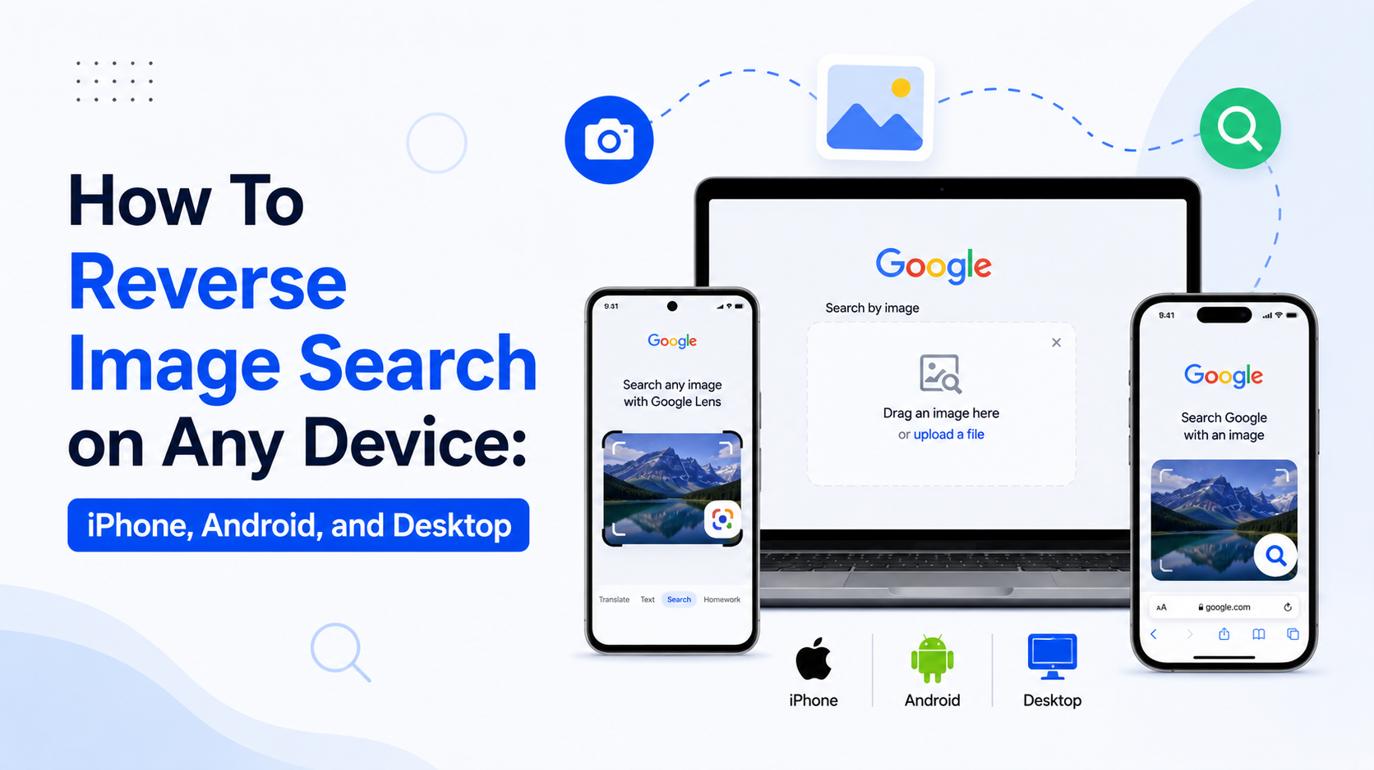
How To Reverse Image Search on Any Device: iPhone, Android, and Desktop
We have all been there: you are scrolling through Twitter on your phone, you spot a suspicious news image, and you want to reverse image search to verify its source. The problem? Mobile visual search has historically been full of friction. In the past, you had to save the image, open a specific browser, request the "desktop site," and fumble with tiny upload buttons.
Whether you want to reverse image search a product or audit an image’s origin, the mobile experience is frequently hampered by "app silos." Most users assume they need to install specific software for every platform, but the reality is that native apps often prioritize vendor tracking and ad-serving over deep, cross-database investigative utility.
The most efficient path to visual verification is a device-agnostic, browser-based workflow. By bypassing native installations, you regain control over your data while gaining the ability to cross-reference multiple global image registries simultaneously.
How Can I Reverse Image Search on a Mobile Phone Without an App?
To run a mobile reverse image search without downloading a dedicated reverse image search app, open your device's web browser, navigate to SnapZain's free web tool, and upload a photo directly from your camera roll or paste an image URL. This web-first approach gives mobile devices instant access to multi-engine desktop search capabilities across Google, Bing, and Yandex without requiring any platform-specific installations.
How Can You Perform a Reverse Image Search on Desktop (Windows & Mac) for the Most Accurate Results?
When precision and deep-dive capabilities are required, a desktop search by image is still the gold standard. Working on a desktop allows you to manage multiple tabs, cross-reference high-resolution files, and use advanced browser extensions.
The Desktop Workflow:
- Direct Upload: Navigate directly to Google Images, Bing Visual Search, or Yandex. Click the camera icon in the search bar and select the file from your hard drive.
- Drag-and-Drop: The fastest desktop method. Simply click an image file from your desktop or file explorer and drag it directly into the search engine's interface.
- Right-Click Integration: If you are using Google Chrome or Microsoft Edge, right-clicking any image on a webpage allows you to instantly "Search image with Google Lens" or Bing Visual Search, opening a sidebar with immediate contextual results.
iPhone & iOS Protocols: Mobile Safari, Chrome iOS, and Camera Roll Integration
Performing an image search iPhone workflow requires understanding the Apple ecosystem. Apple has introduced native tools, but web searches still require specific techniques.
Method 1: Apple Visual Look Up
If you simply want to identify a plant, animal, or landmark from your camera roll, open your native Photos app. If the "i" (Info) icon at the bottom has sparkles, tap it. Apple’s on-device AI will identify the subject without needing a search engine.
Method 2: Google Lens via Chrome iOS
You can use this method if you are browsing the web on an iPhone and want to verify a picture; using the Google Chrome app is the smoothest route. Long-press any image on a webpage and select "Search image with Google Lens" to pull up immediate results without leaving the page.
Method 3: Safari Desktop Workaround
If you prefer Safari and need to do a camera roll reverse search directly on Google:
- Go to images.google.com in Safari.
- Press the “aA” button in the browser’s address bar, then choose “Request Desktop Website” from the menu options.
- The camera icon will appear, allowing you to upload directly from your iOS Photo Library.
Android Protocols: Google Lens Ecosystem vs. Direct Web Uploads
Android users have a distinct advantage because Google Lens is baked directly into the operating system, making a reverse search Android query practically frictionless.
Method 1: Google Lens App / Assistant
For Android users, the Google Lens icon is typically present right on the home screen search widget. Tap the camera icon to either snap a photo in real time or select an image from your gallery.
Method 2: Google Photos Integration
If you have already taken a picture, open the native Google Photos app. Viewing any image will present a "Lens" button at the bottom of the screen. Tapping it instantly scans the image for products, text translation, or visual matches.
Method 3: Direct Web Uploads (Mobile Web Image Upload)
If you are using a browser like Firefox or Brave on Android and want to bypass Google's app tracking, you can use the same "Request Desktop Site" trick mentioned above, or rely on a centralized web utility.
Maximizing Precision on Mobile: Dealing with Compressed Mobile Image Files
When you execute a visual search from a smartphone, you are often dealing with screenshots, WhatsApp forwards, or heavily compressed social media files.
As we discussed when exploring exactly How Reverse Image Search Works, perceptual hashing algorithms rely on clean edge data and texture to find a match. When an image is passed through a mobile messaging app, the compression artifacts can alter the image's digital fingerprint, causing the search to fail.
To fix this on mobile:
- Always aim to locate the highest-quality and highest-resolution version of the image whenever possible.
- If searching from a screenshot, use your phone's built-in editing tools to crop out the UI elements (battery icons, chat bubbles, black borders) before uploading. The cleaner the subject, the better the match.
Step-by-Step Mobile Multi-Engine Execution on SnapZain
If you want to employ advanced features on a mobile device without downloading clunky, ad-filled third-party apps, SnapZain provides a unified web environment.
By utilizing a multi-engine reverse image search tool, you can query the entire visual web from a single mobile browser tab:
- Open your mobile browser (Safari, Chrome, Firefox) and navigate to the SnapZain Reverse Image Searchtool.
- Tap the upload area to access your phone's camera, photo library, or file manager.
- Once the image is processed, SnapZain simultaneously queries Google, Bing, and Yandex.
- You can easily toggle between the results of each engine in your browser, allowing you to compare Google's product data against Yandex's facial recognition without ever leaving the page.
Frequently Asked Questions (FAQs)
Do I Need To Download a Reverse Image Search App on My iPhone?
No. While there are dedicated apps available in the App Store, you can perform comprehensive searches using Safari (by requesting the desktop site), the Google App, or web-based multi-engine tools like SnapZain without installing extra software.
How Do I Reverse Search an Image?
First, save the image to your device's camera roll or gallery. Then, open your browser, navigate to the SnapZain reverse image search tool, and upload the saved image.
Why Do I Get Different Results on My Phone Versus My Computer?
If you upload the exact same image file to the exact same search engine, the results will be identical. However, if you are uploading a compressed mobile screenshot from your phone versus the original high-res file on your desktop, the engine's algorithm may return different matches based on the altered image quality.
Can I Search Using a Video Clip On My Phone?
Search engines cannot process moving video files. To search a video on mobile, pause the video on the clearest frame, take a screenshot, crop out your phone's UI, and upload that static screenshot.
Is It Safe To Upload Personal Photos From My Camera Roll?
When you submit an image to a major search platform, the system analyzes it to identify visually matching results. While engines like Google state they do not use uploaded images to build their public search index, it is best practice to avoid uploading highly sensitive, private, or classified documents to any public search utility.
Conclusion
The friction of mobile visual searching is largely a thing of the past, provided you know the right protocols. Whether you rely on Apple’s native Visual Look Up for quick offline identification, Google Lens’s deep Android integration for shopping, or a centralized web aggregator like SnapZain to query the entire web without installing a specific app, you hold desktop-level investigative power in your pocket.
The key to success across any device is data hygiene: crop your screenshots, understand the limitations of mobile compression, and always use a multi-engine approach when a single platform fails to deliver.


